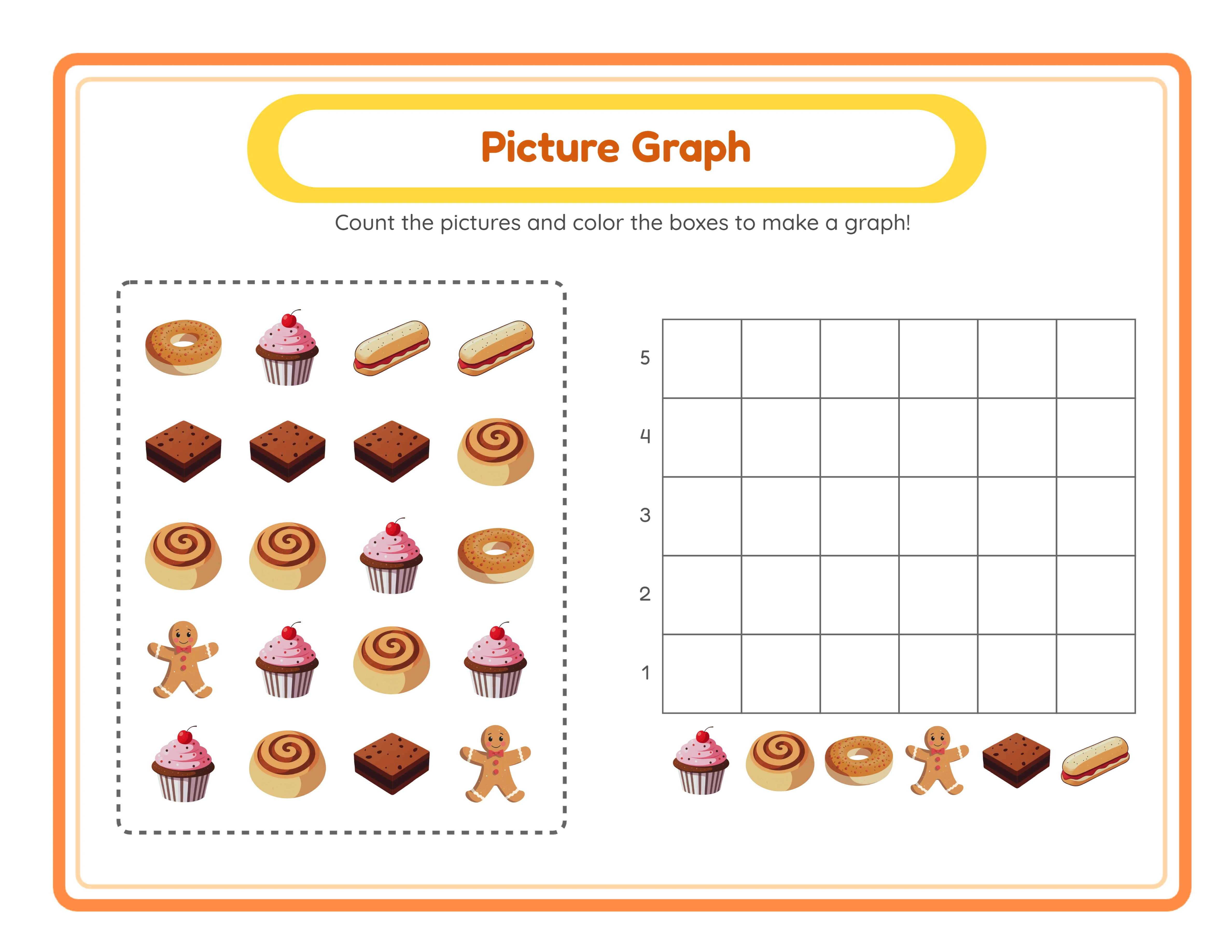
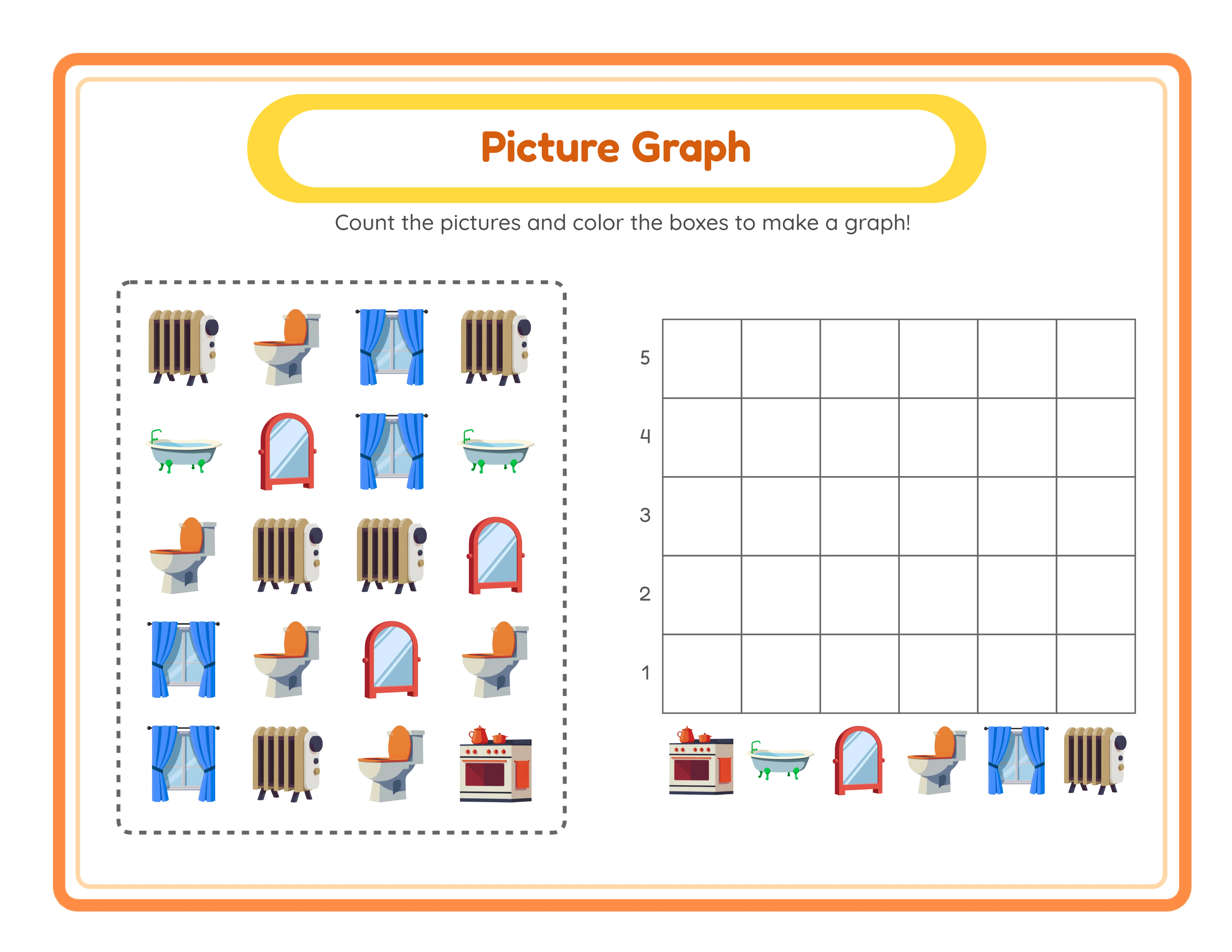
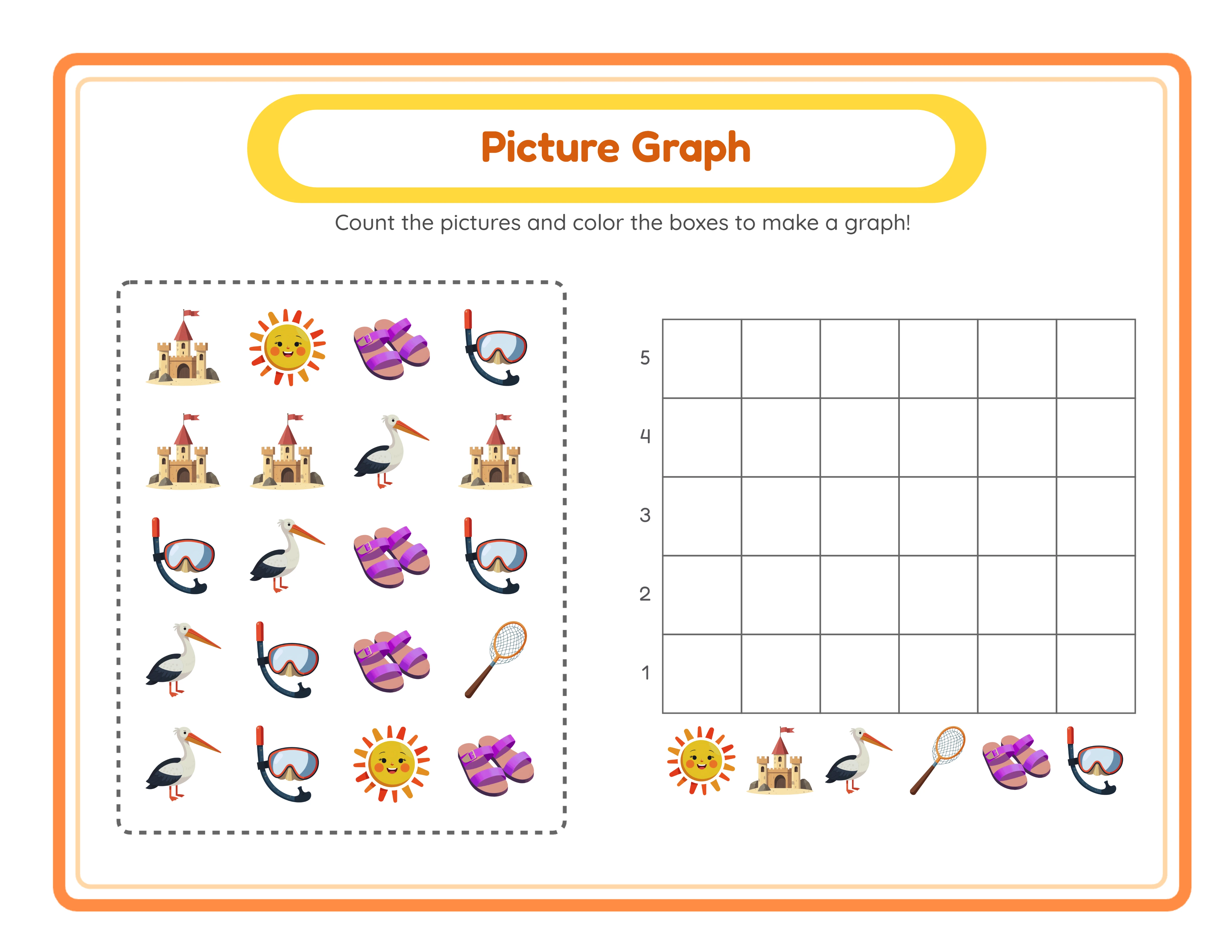
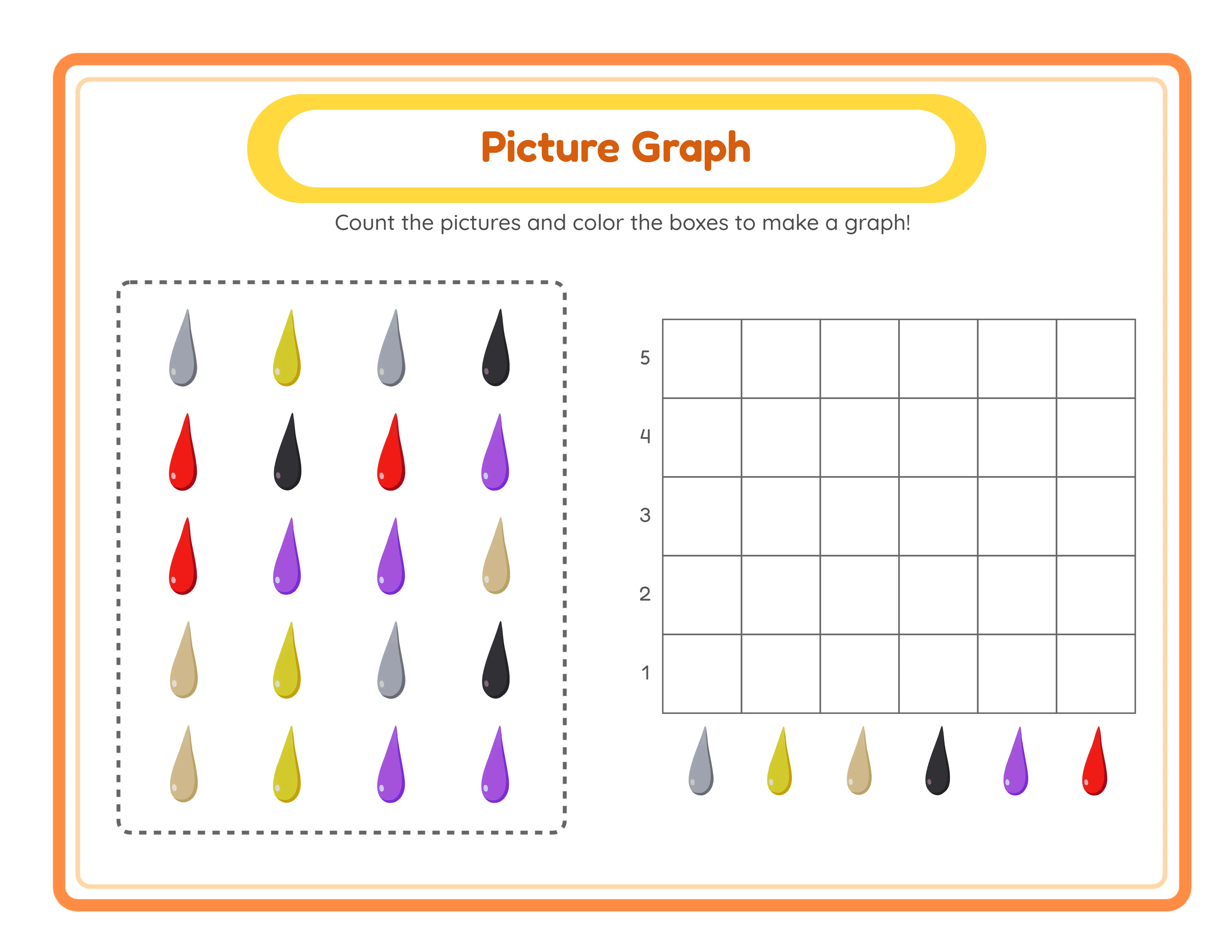
Visual Learning

Chart Count Worksheet Generator — Low-Competition Etsy Niche

Dual-canvas pictograph maker — generate scattered image grids with 6 image types, auto-filled bar chart answer keys, localized headers in 11 languages, and 104 themed image collections for data representation worksheets.

Graphing and data worksheets are an underserved niche on Etsy — most sellers focus on basic math, leaving counting chart printables as a low-competition opportunity. This generator creates picture graph and chart count worksheets using themed images where students count, tally, and compare data visually. Export as 300 DPI print-ready PDFs with automatic answer keys and sell them on Etsy, compile them into Amazon KDP data and graphing workbooks, or list on TPT for classroom use. The commercial license covers all platforms with zero restrictions. Tap into the growing demand for STEM-focused early learning printables with a product format that few competing sellers offer. Free to try with all features — no signup, no credit card. Downloads include a watermark; purchase a license to remove it.
Buy for $49

No signup required. Create worksheets instantly.

No signup required11 languages supportedInstant PDF export
Grades K-2

Data Detective — Picture Graphs!

Count, graph, and analyze with themed picture data
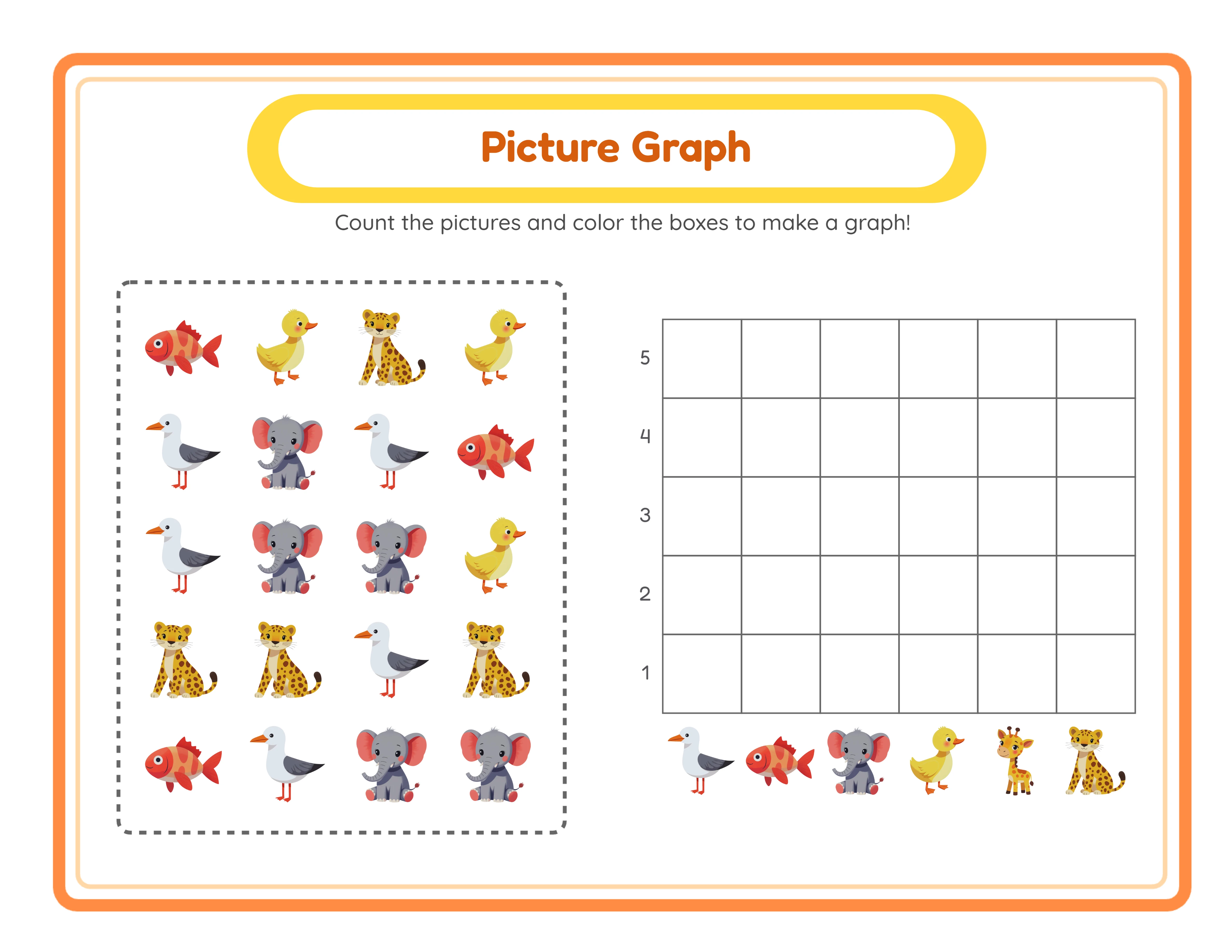
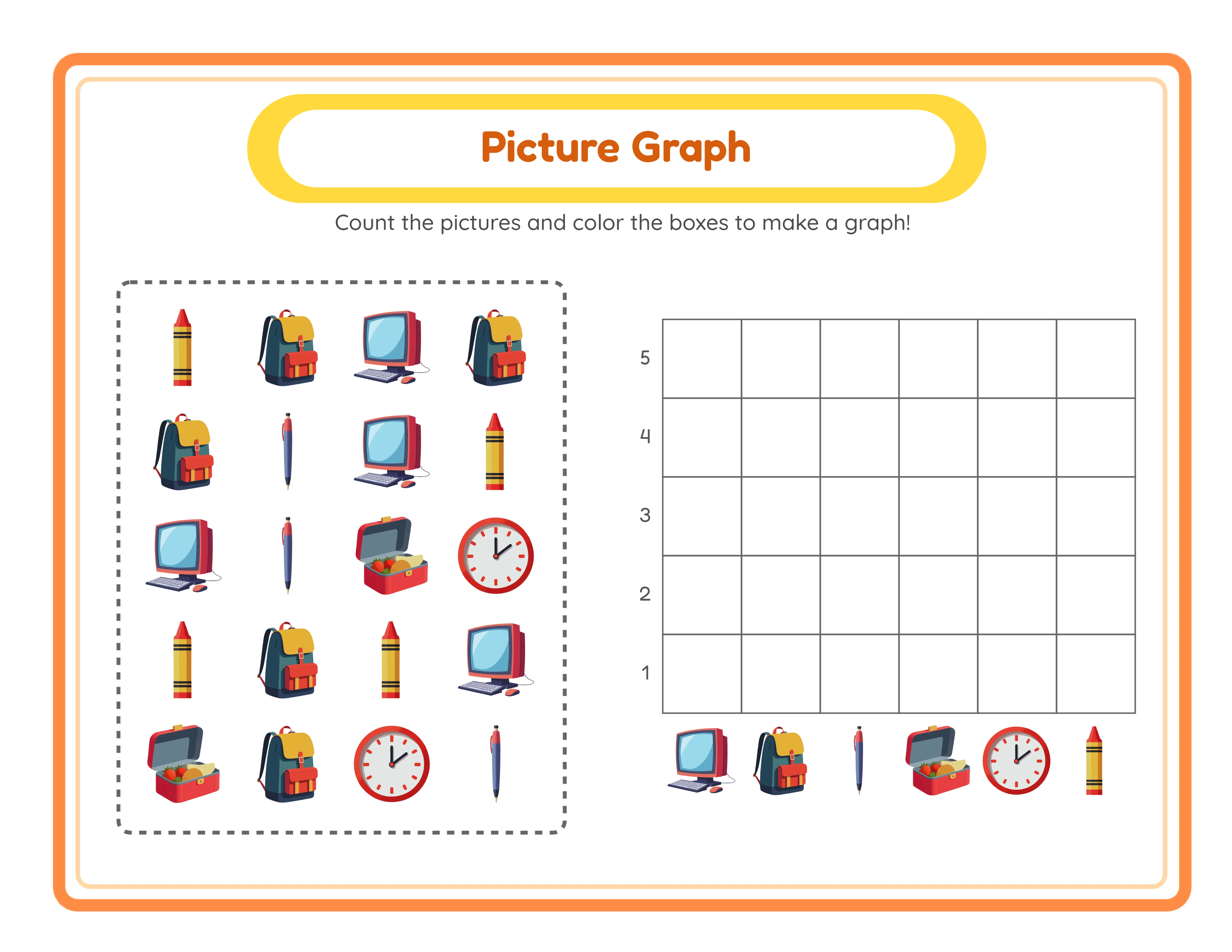
Picture graph printable worksheet — count and chart
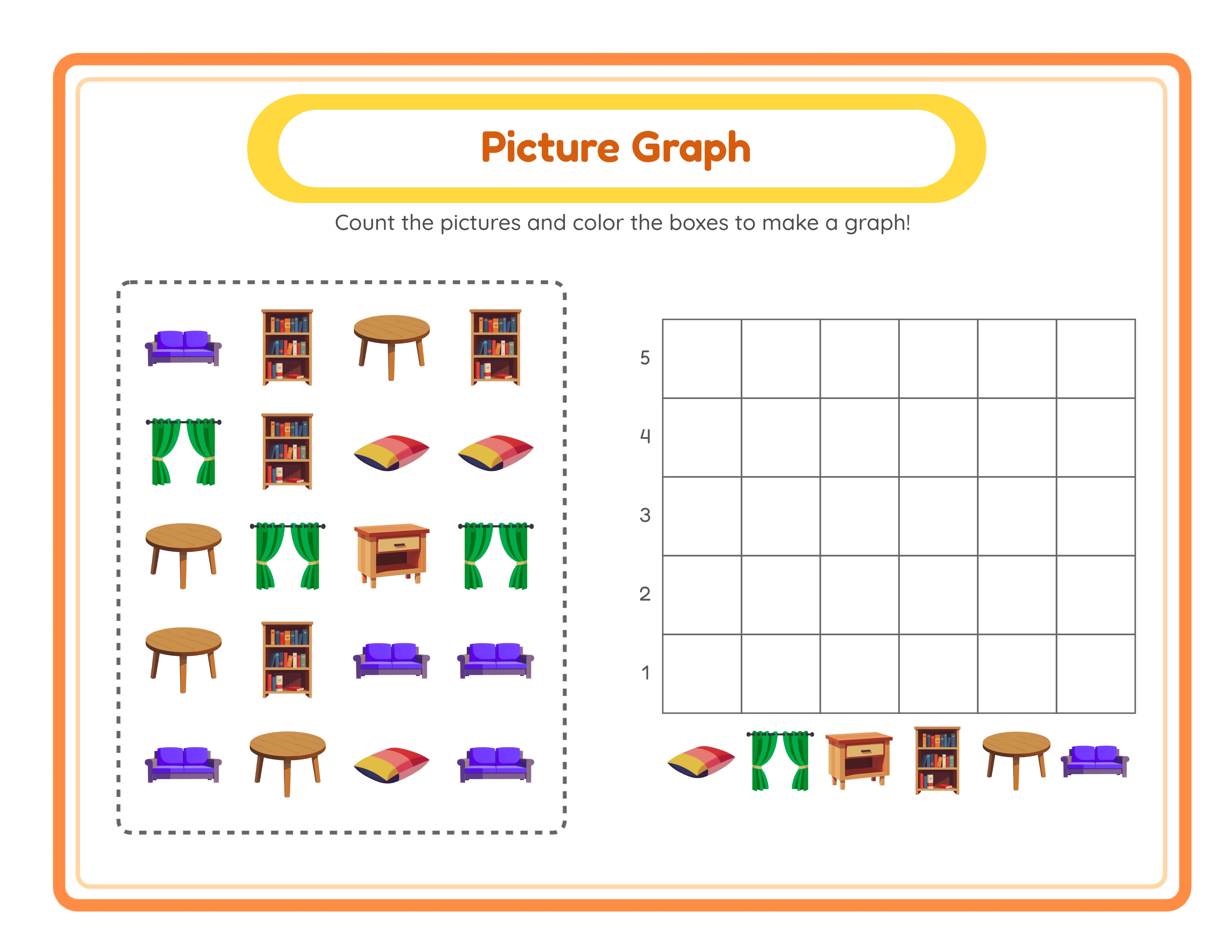
Picture graph — themed data analysis
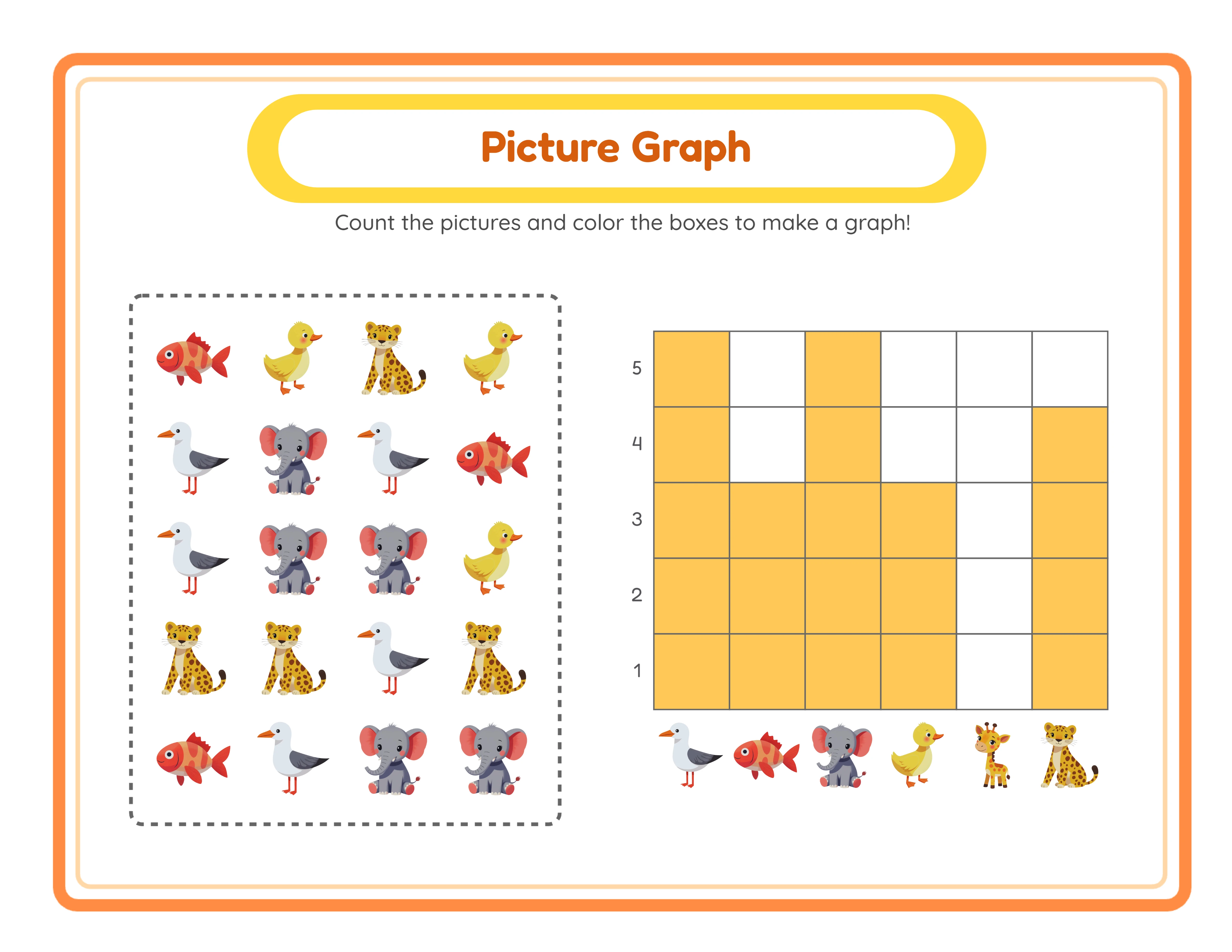
Picture graph — advanced charting
Picture GraphsAnswer KeysPrint-ReadyFree Trial with Watermark

How the Chart Count Generator Works

1

Set Your Page Layout and Identification Fields

Open the Page Setup panel and choose a page size: Letter Portrait, Letter Landscape, A4 Portrait, A4 Landscape, Square (1200×1200), or any custom dimension. Pick a page color using the color picker — white is the default for clean worksheets. Check the Include Name/Date box to add formatted "Name: ____" and "Date: ____" fields at the bottom of the page for a professional worksheet layout. Select a background theme and a border theme from the built-in library, each with an independent opacity slider (0–1, step 0.05) for subtle or bold decorative framing.
2

Choose Your Image Source

Open the Image Library panel and select an image source from the Worksheet Image Source dropdown. Choose a theme like Animals, Food, or Vehicles for automatic selection — the app randomly picks 6 images from that theme. Alternatively, switch to manual mode: browse the Image Library by theme or search, then click exactly 6 images to select them. Selected images appear in a preview strip where you can click to remove and replace individual picks. With no theme selected, the app picks 6 random images from all available collections.
3

Generate the Picture Graph Worksheet

Click Generate to create the worksheet. The app arranges 20 scattered icons from your 6 selected image types in a 4×5 grid with a dashed border at the top of the page. Below the grid, a 6-column × 5-row bar chart appears with each column labeled by one of the 6 image types. Rows are numbered 1–5 from bottom to top. An auto-generated header displays a localized "Picture Graph" title and counting instructions in a styled yellow pill with orange border frame. The worksheet canvas shows empty chart cells ready to be filled in.
4

Customize with Text Tools and Canvas Editing

Use the Text Tools panel to add titles, labels, or instructions with seven font choices: Lexend Deca, Baloo 2, Nunito, Quicksand, Fredoka, Arial, and Verdana. Adjust font size, text color, outline color, and outline width (0–10 with 0.5-step granularity) for readable headings. Drag, resize, rotate, and reposition elements anywhere on the Fabric.js canvas. Use layer controls to manage stacking order, lock finished elements, and zoom from 25% to 300% for precision. Undo and redo up to 20 history states with Ctrl+Z and Ctrl+Y.
5

Generate the Answer Key and Download Everything

Switch to the Answer Key tab to see the auto-generated solution — the bar chart cells are filled with yellow (#FFC857) highlighting showing the correct count for each image type. Toggle the grayscale option for ink-friendly versions. Download all four files: worksheet JPEG, worksheet PDF, answer key JPEG, and answer key PDF — all rendered at 300 DPI. Files are named worksheet.jpeg, worksheet.pdf, answer_key.jpeg, and answer_key.pdf for easy organization. Every export is production-ready for Etsy listings, Amazon KDP interiors, and Gumroad product files.
Data Levels

Graphing for Every Learner

From simple counting to data analysis
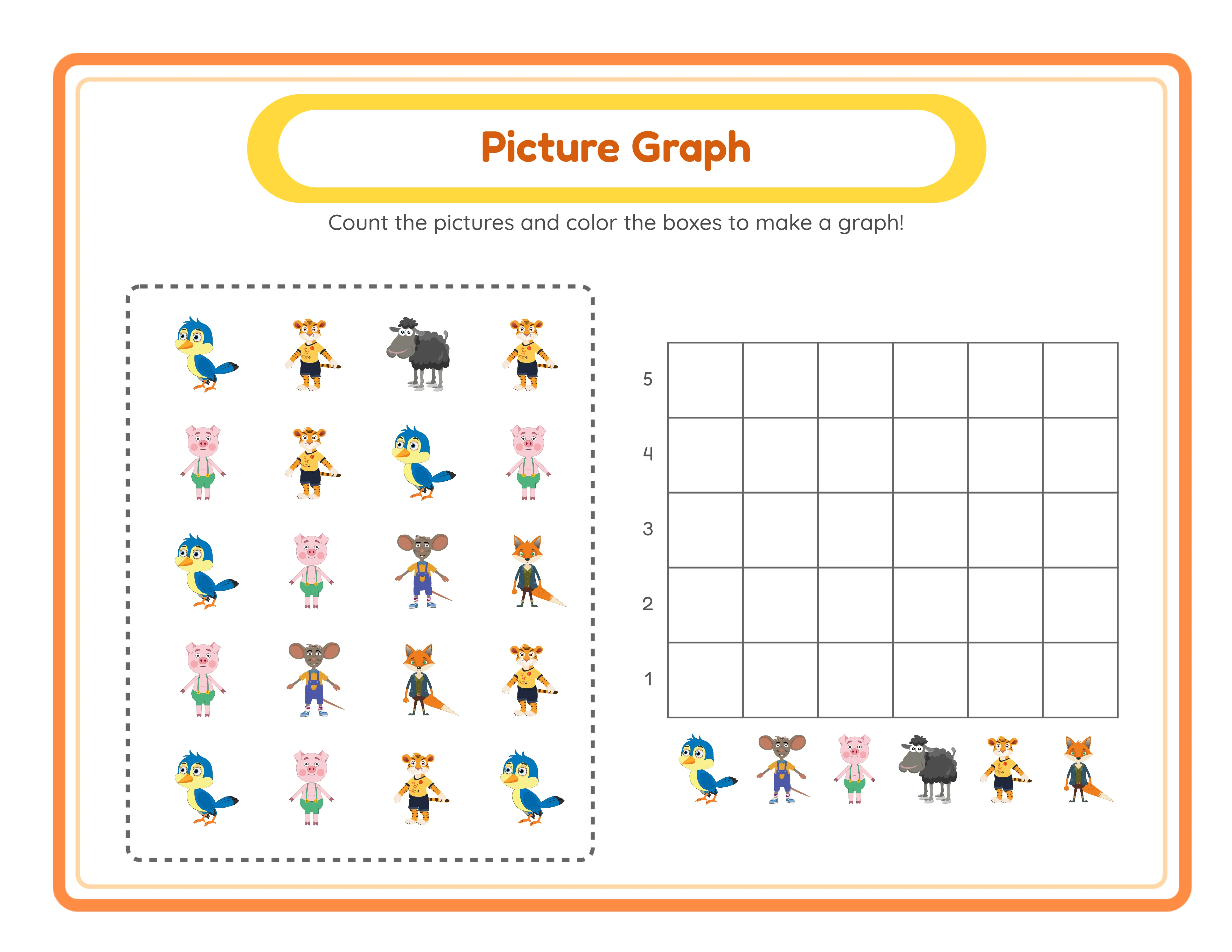
Counter
Easy chart count — simple picture counting

Count pictures and fill in the chart

Grapher
Medium chart — themed picture graphs

Create themed picture graphs

Analyst
Advanced chart — data analysis

Analyze data and answer questions

Data skills start with picture graphs

Why Data & Graphing Worksheets Are an Underserved Niche

Picture Graph Worksheet Generator with Scattered Image Grid and Bar Chart

Each generated worksheet combines two interconnected elements: a 4×5 grid containing 20 scattered icons from 6 different image types, and a 6-column × 5-row bar chart where each column corresponds to one image type. The image types each appear 1–5 times in the grid (maximum 5 per type, randomly distributed), creating a unique counting challenge every time you generate. Solvers count how many of each image type appear in the grid, then color the matching number of cells in the chart below. This two-part format covers data collection and data representation simultaneously — the core of early graphing skills.

Auto-Generated Answer Key with Filled Chart Cells

Every worksheet generates a matching answer key simultaneously on a separate canvas tab. The answer key displays the same image grid and bar chart, but with the correct cells filled in yellow (#FFC857) highlighting. At a glance, the answer key shows how many of each image type should appear in the chart. Switch between the Worksheet and Answer Key tabs to compare. Download both versions independently — worksheet JPEG/PDF and answer key JPEG/PDF — giving you four production-ready files from a single generation. The automatic answer key eliminates manual counting and ensures accuracy across large worksheet bundles.

Automatic and Manual Image Selection Modes

The Worksheet Image Source dropdown provides two approaches to choosing the 6 images that appear on each worksheet. In automatic mode, select a theme (Animals, Food, Vehicles, and 101 more) and the app randomly picks 6 images from that collection. In manual mode, browse the Image Library by theme or search by keyword, then click exactly 6 images to select them — a preview strip shows your selections with click-to-remove functionality. With no theme selected, the app draws 6 random images from all available collections. Both modes guarantee exactly 6 image types per worksheet for consistent chart formatting.

Localized Picture Graph Header with Title and Instructions

Every generated worksheet includes an auto-generated header with a yellow pill background (#FFD93D), white inner pill, and orange border frame (outer #FF8C42, inner #FFD6A5). The header displays a localized title — "Picture Graph" in English, "Bilddiagramm" in German, "Graphique en Images" in French, and equivalent translations in all 11 supported languages. Below the title, localized counting instructions explain the activity. The header adapts automatically when you switch the UI language, making worksheets print-ready in any locale without manual text editing.

Choose from 3,000+ Themed Images for Chart Exercises

Browse 104 themed image collections covering animals, food, vehicles, nature, professions, holidays, sports, seasons, and dozens more. Each theme provides a coordinated set of colorful illustrations perfect for picture graph worksheets. Use the theme dropdown to filter by category or search for specific images by keyword. In automatic mode, the app selects 6 images from your chosen theme; in manual mode, you pick exactly 6 from any combination of themes. The Commercial tier includes 10 colorful themes; Full Access unlocks all 104 themes for maximum variety across worksheet bundles.

Background and Border Themes with Independent Opacity Controls

Apply decorative backgrounds and borders from the built-in theme library to frame your picture graph worksheets. Unlike apps with only border themes, the Chart Count Generator offers both background and border themes with independent opacity sliders (0–1, step 0.05). Set a subtle watercolor background at 20% opacity while keeping a bold decorative border at full opacity, or any combination that suits your design. Background and border themes add visual polish and increase perceived quality for marketplace listings without interfering with the image grid or bar chart content.

Print-Ready PDF and JPEG Export at 300 DPI with Grayscale Toggle

Download picture graph worksheets and answer keys as high-resolution JPEG images or print-ready PDF documents rendered at 300 DPI using a 6x multiplier for crisp output. Page sizes include Letter Portrait (612×792), Letter Landscape (792×612), A4 Portrait (595×842), A4 Landscape (842×595), Square (1200×1200), and fully custom dimensions. Toggle grayscale for ink-friendly versions ideal for bulk printing and KDP book interiors. Four download buttons provide worksheet JPEG, answer key JPEG, worksheet PDF, and answer key PDF — a complete product set from a single generation.

Full Canvas Editing with Text Tools and Layering Controls

The Fabric.js canvas provides complete control over every element on your picture graph worksheet. Drag, resize, rotate, and reposition the image grid, bar chart, header, text, and any custom elements freely. Layer controls manage stacking order — bring elements forward or send them back. Lock finished elements while you edit others. Add custom text with seven font options (Lexend Deca, Baloo 2, Nunito, Quicksand, Fredoka, Arial, Verdana), adjustable size and color, and text outline width from 0 to 10 with 0.5-step granularity. Zoom from 25% to 300% for precision work. Undo and redo up to 20 history states with Ctrl+Z and Ctrl+Y. Clear All includes a confirmation dialog to prevent accidental deletion.

Count & Chart!

Data Made Visual!
Featured picture graph — colorful data activity
Print Instantly!Multiple ThemesWith Answer Keys

Export and List on Etsy, KDP & TPT

Themed Picture Graph Bundles on Etsy

Etsy (etsy.com)
Create themed picture graph packs using the 104 image collections — animal counting graphs, food data charts, vehicle tallying sheets, nature observation graphs, and dozens more. Each theme provides enough images for 10–20 unique worksheets with different random distributions. Include the auto-generated answer key with every worksheet for buyer convenience. Package themes as individual bundles at $3–$5 each, or combine multiple themes into mega packs at $12–$18. The scattered image grid with 6 types per sheet ensures every worksheet is unique and impossible to recreate manually, giving your products genuine originality.

Create Graphing Activity Books for Amazon KDP

Amazon KDP (kdp.amazon.com)
Compile 60–100 picture graph worksheets into a printed data skills workbook formatted for Amazon KDP. Structure chapters by theme: Chapter 1 covers animal counting, Chapter 2 food graphs, Chapter 3 vehicle data, and so on. Toggle grayscale export for ink-friendly pages ready for black-and-white book interiors. Include answer key pages at the back of each chapter as reference pages. The dual-canvas generation produces both worksheet and answer key automatically, so building a 100-page workbook with complete solutions takes a fraction of the time compared to manual creation.

Tiered Data Skills Bundles for Your Store

Etsy / Gumroad / Your Own Store
Build tiered product lines around picture graphs — offer a starter pack with 10 worksheets at a low entry price, a standard pack with 30 worksheets at mid-range, and a premium bundle with 80+ worksheets covering all themes. The name/date checkbox makes every worksheet print-ready with no additional formatting needed. Each worksheet comes with its own answer key, eliminating production time. Tiered pricing lets buyers self-select, increases average order value, and gives you natural upsell paths across your store.

Seasonal Graphing Collections for Maximum Sales

Etsy / Amazon KDP / Gumroad
Picture graphs pair naturally with seasonal themes for year-round product releases. Use animal themes for spring collections, food themes for Thanksgiving bundles, vehicle themes for back-to-school packs, and holiday themes for peak Q4 sales. The 104 themed collections cover virtually every popular content category, letting you create data representation worksheets that match trending search terms throughout the year. Sell seasonal bundles that appeal to buyers looking for timely, themed activities — a proven strategy for consistent revenue on all major platforms.

Bundle with Math Worksheets for Complete STEM Packages

Etsy / Amazon KDP / Gumroad (seasonal)
The 104 themed image collections cover every seasonal and holiday occasion — Christmas ornaments, Halloween icons, Easter items, Valentine's hearts, back-to-school supplies, summer activities, and winter scenes. Create time-limited picture graph collections that align with peak shopping periods. Release Halloween counting bundles in September, Christmas graphing packs in October, and Valentine's data activities in January. Include answer keys with every set for complete product packages. Seasonal products command higher prices during peak windows and create natural reasons for repeat purchases.

Professional Graph Activities

Beautiful picture graph worksheets for data learning
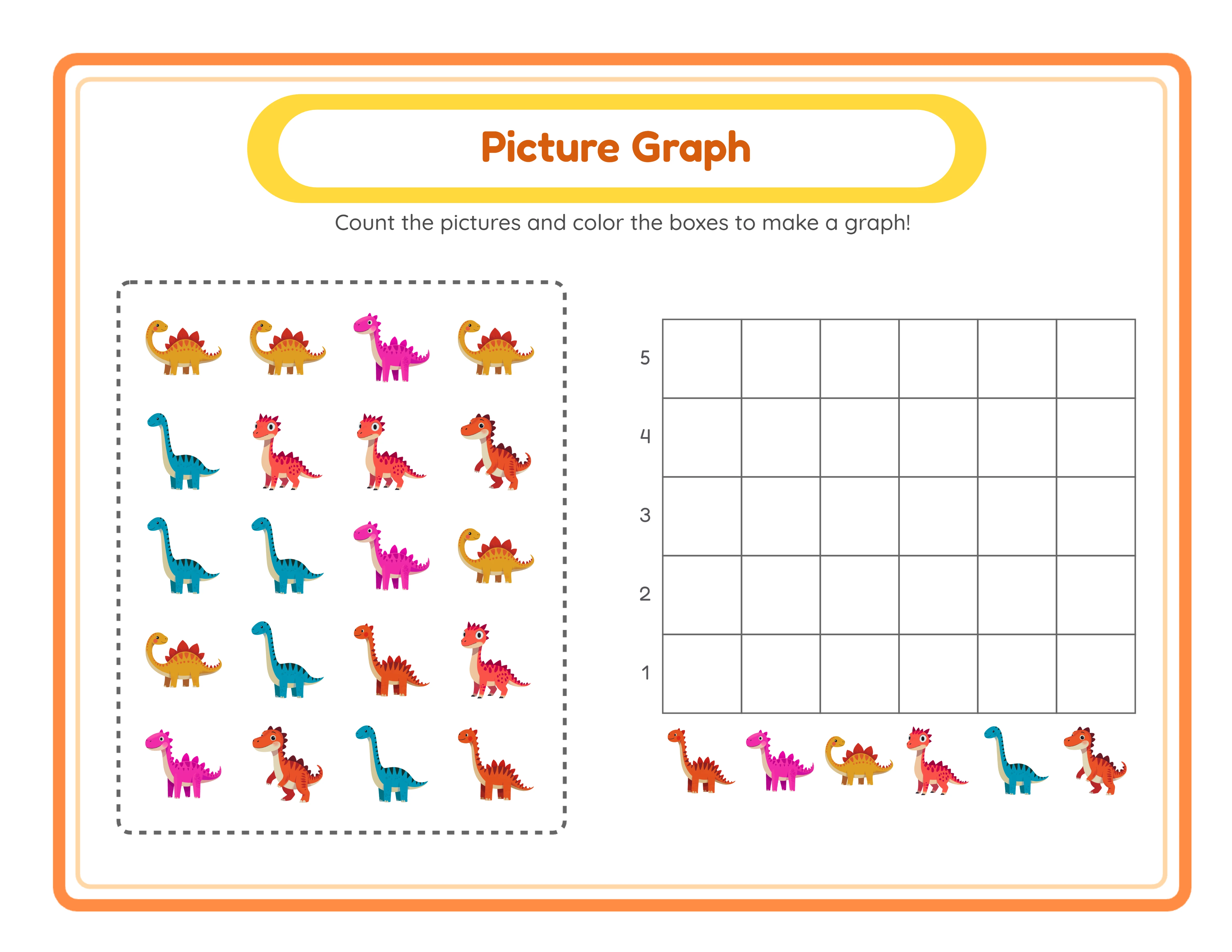
Professional picture graph printable worksheet
Graph
Picture graph — themed variation
Graph
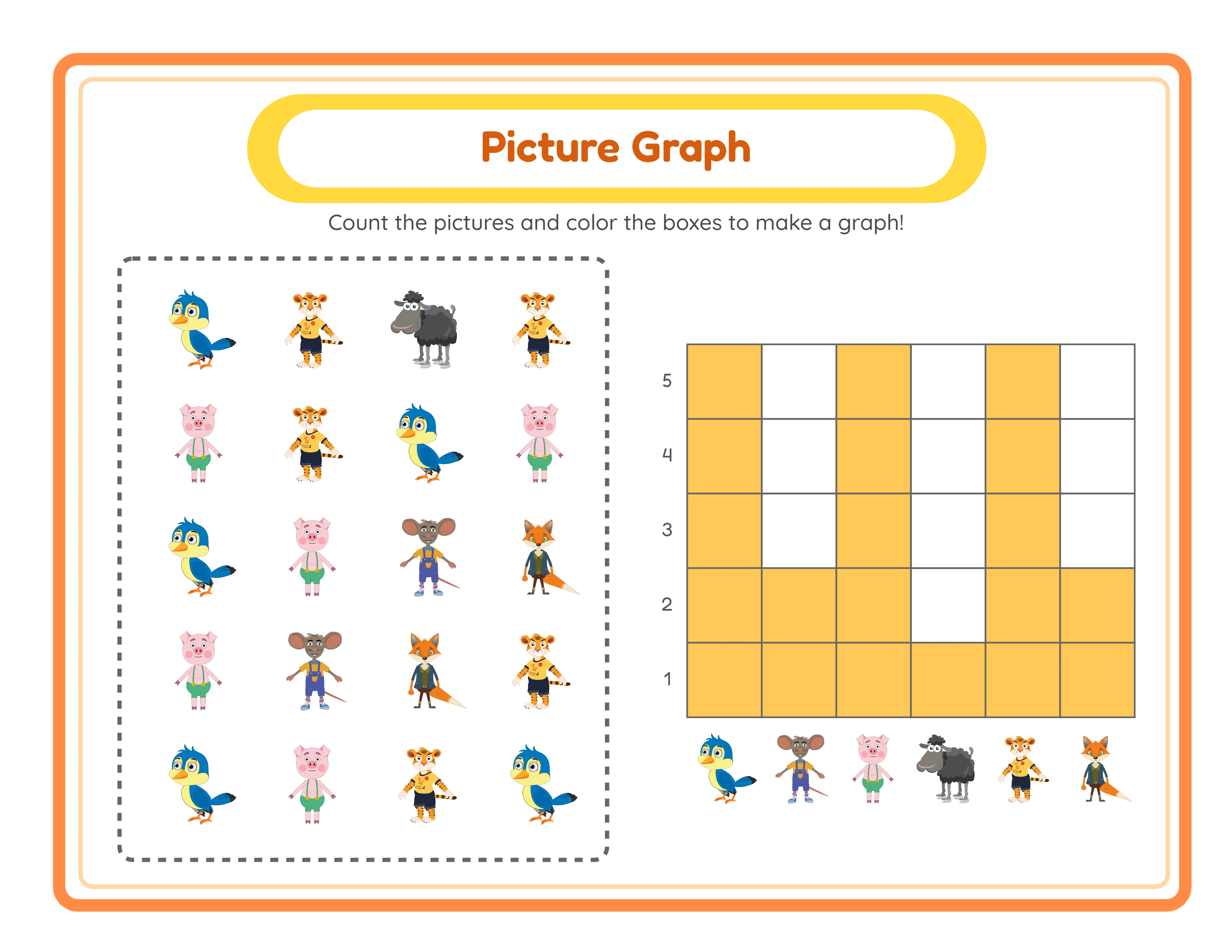
Picture graph printable answer key
Answer Key
Print-ReadyNo Prep RequiredAnswers IncludedMultiple Themes

Who Is This For?

Etsy Sellers

Coloring pages and drawing activities are among the highest-volume printable categories on Etsy. Themed collections for holidays, animals, and seasons generate repeat purchases from satisfied customers.

Amazon KDP Publishers

Coloring books remain one of the most profitable KDP categories with low competition in niche themes. Create targeted coloring books around specific interests like dinosaurs, ocean animals, or vehicles.

Teachers Pay Teachers Sellers

Visual activities serve as engaging rewards, early finisher tasks, and fine motor practice. Teachers value coloring and drawing worksheets that connect to curriculum themes and seasonal topics.

Homeschool Educators & Parents

Use coloring and drawing activities as creative breaks between academic subjects. Themed visual worksheets help develop fine motor skills while keeping young children engaged and focused.

Sample Worksheets

Animal theme picture graph worksheet with 20 scattered animal icons and empty bar chart
Animal theme picture graph — 6 animal types scattered across the grid with bar chart below
Picture graph answer key with yellow highlighted cells showing correct counts for each image type
Auto-generated answer key — yellow-filled cells show the correct count for each image type
Picture graph worksheet with decorative background theme and border frame applied
Decorated picture graph — background and border themes with independent opacity controls

Free version includes a small watermark. Purchase to remove.

Frequently Asked Questions

How does the picture graph worksheet work?
Each worksheet has two parts. The top section displays a 4×5 grid containing 20 scattered icons from 6 different image types — each type appears 1–5 times, randomly distributed. The bottom section shows a 6-column × 5-row bar chart with columns labeled by each image type and rows numbered 1–5 from bottom to top. Solvers count how many of each image type appear in the grid, then color or fill the corresponding number of cells in the matching column. This covers both data collection (counting) and data representation (graphing) in a single activity.
How does the automatic image selection work?
Open the Image Library panel and use the Worksheet Image Source dropdown to select a theme. The app randomly picks 6 images from that theme's collection. If you prefer manual control, switch to manual mode: browse themes or search by keyword, then click exactly 6 images. Selected images appear in a preview strip where you can click any image to remove it and pick a replacement. With no theme selected, the app draws 6 random images from all available collections. Every mode guarantees exactly 6 image types per worksheet.
How does the auto-generated answer key work?
When you generate a worksheet, the app simultaneously creates a matching answer key on a separate canvas tab. The answer key shows the same image grid and bar chart, but the correct cells in the chart are filled with yellow (#FFC857) highlighting. Switch between the Worksheet and Answer Key tabs to compare. Download each version independently using the four download buttons: worksheet JPEG, worksheet PDF, answer key JPEG, and answer key PDF. The answer key is generated automatically — no manual counting required.
What is the localized header on each worksheet?
Every generated worksheet includes a styled header with a yellow pill background (#FFD93D), white inner pill, and orange border frame. The header displays a "Picture Graph" title and counting instructions that automatically translate into whichever UI language is active — English, German, French, Spanish, Portuguese, Italian, Dutch, Swedish, Danish, Norwegian, or Finnish. The header adapts for landscape mode with a compact layout. You do not need to create or format the header manually.
How do the name and date fields work?
In the Page Setup panel, check the Include Name/Date box to add formatted "Name: ____" and "Date: ____" fields at the bottom of the worksheet page. The fields use Fredoka font at 18px in #333 color. The worksheet includes identification fields for a professional layout. This makes worksheets immediately print-ready without any additional formatting. Uncheck the box to remove the fields for products that do not need identification lines.
How do background and border themes work?
The Page Setup panel offers both background themes and border themes loaded from the built-in theme library. Each has an independent opacity slider (0–1, step 0.05), so you can set a subtle background at low opacity while keeping a bold border at full strength, or any combination you prefer. Background themes fill the page area behind the image grid and chart, while border themes frame the outer edge. Together they add decorative polish without interfering with the worksheet content.
How does the grayscale toggle work?
The grayscale toggle in the Download panel converts your entire worksheet or answer key to grayscale at export time. Your canvas remains in full color for easy visual editing — grayscale is only applied to the exported file. This produces ink-friendly output for bulk printing where color ink is expensive or unavailable, and for Amazon KDP book interiors that require black-and-white pages. The grayscale toggle works independently for both worksheet and answer key exports.
How do I switch between the worksheet and answer key?
The canvas area has two tabs: Worksheet and Answer Key. Click the Answer Key tab to view the auto-generated solution with yellow-filled chart cells. Click the Worksheet tab to return to the solver version with empty cells. Each tab has its own pair of download buttons (JPEG and PDF), giving you four total download options. Edits to canvas elements like text, background, and borders apply to both tabs — the only difference between them is the bar chart fill state.
Is there a free trial?
Yes. You can access every feature — the dual canvas, image grid generation, bar chart creation, auto answer key, image library, background and border themes, name/date fields, grayscale export, and all download formats — without creating an account, entering a credit card, or installing any software. Free trial downloads include a small watermark. A commercial license removes the watermark and grants full selling rights.
Is the Chart Count Generator language-sensitive?
No. The Chart Count Generator produces visual counting worksheets where users count images and fill bar chart cells — numbers and pictures are universal. Changing the language only affects the UI labels in the generator interface, the auto-generated header title and instructions, and the image library content labels. The worksheet output itself works identically in every language. The Commercial tier includes 10 colorful themes; Full Access unlocks all 104 themes and all 11 UI languages for the interface.
Can I sell picture graph worksheets made with this tool on Etsy and Amazon KDP?
Yes. With a commercial license, you have full rights to sell your picture graph worksheets as digital downloads on Etsy, as printed data skills workbooks on Amazon KDP, as products on Gumroad, or through any other sales channel. The dual-canvas generation, auto answer key, and 104 themed image collections give you the tools to produce original, sellable picture graph products at scale.
What is the refund policy?
Because the free trial gives you access to every feature, we do not offer refunds on commercial license purchases. You can test the dual canvas, image grid generation, auto answer key, the full image library, background and border themes, name/date fields, grayscale export, and all download formats before buying. The free trial is the refund policy — make sure the tool fits your needs before purchasing a license.

Chart Count Worksheet Generator — Low-Competition Etsy Niche

Dual-canvas pictograph maker — generate scattered image grids with 6 image types, auto-filled bar chart answer keys, localized headers in 11 languages, and 104 themed image collections for data representation worksheets.