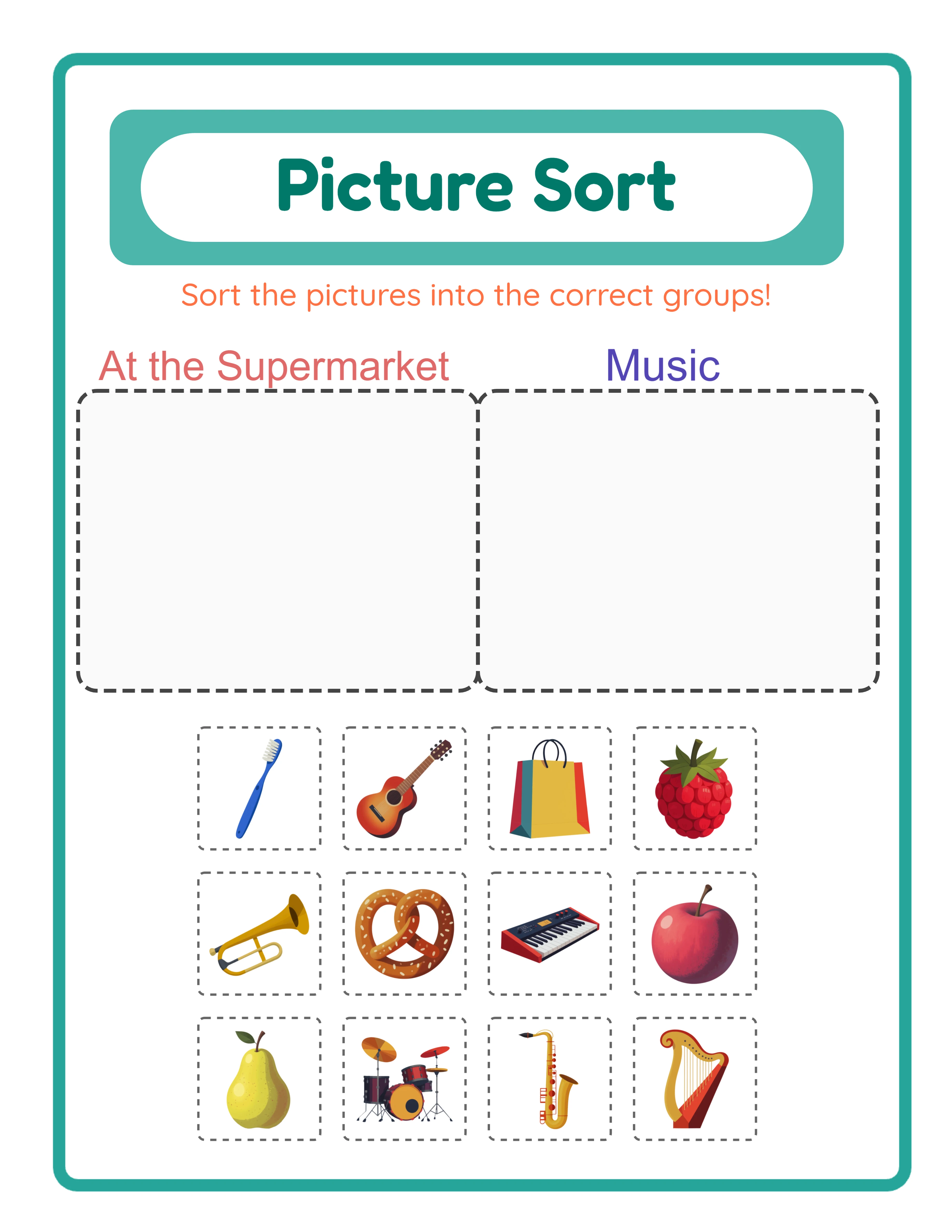
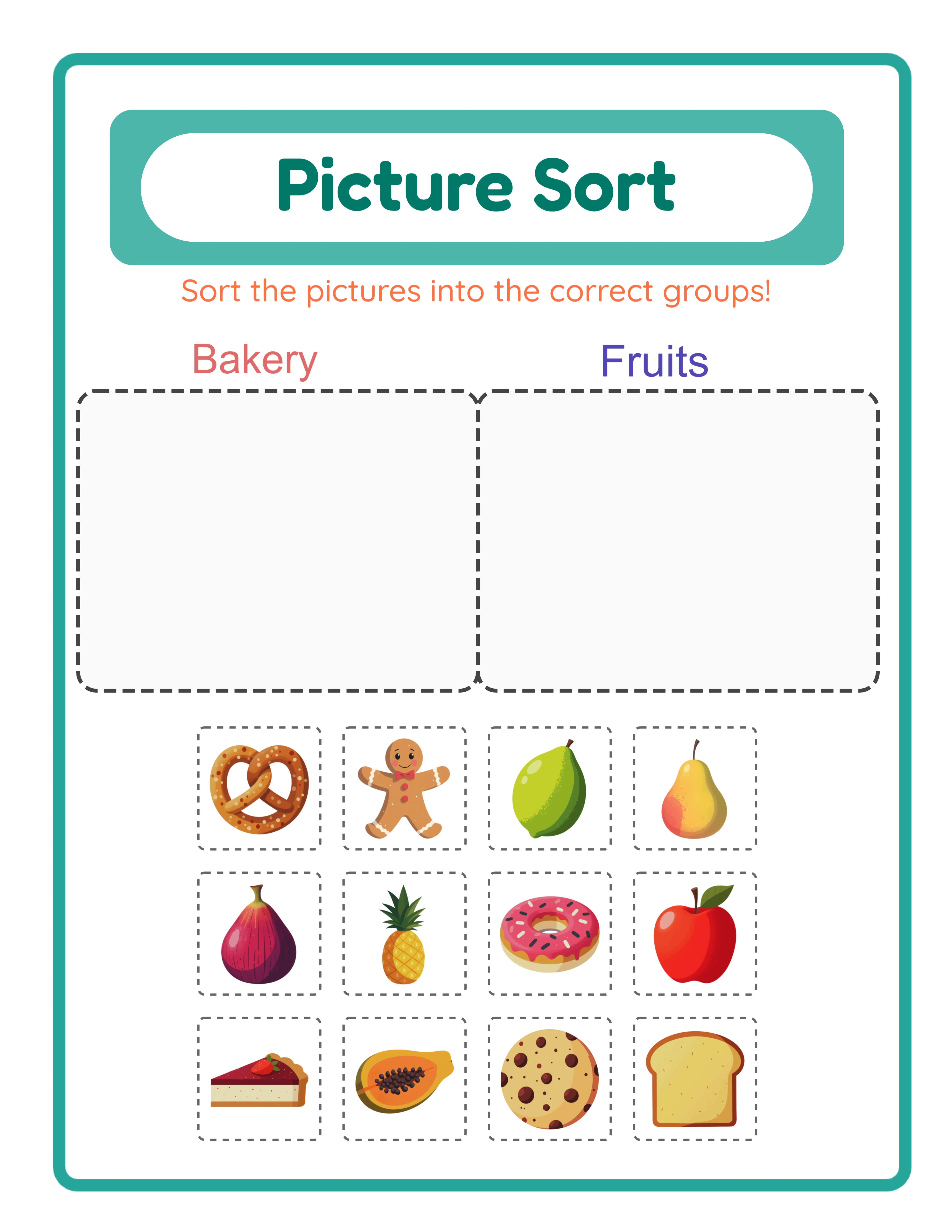
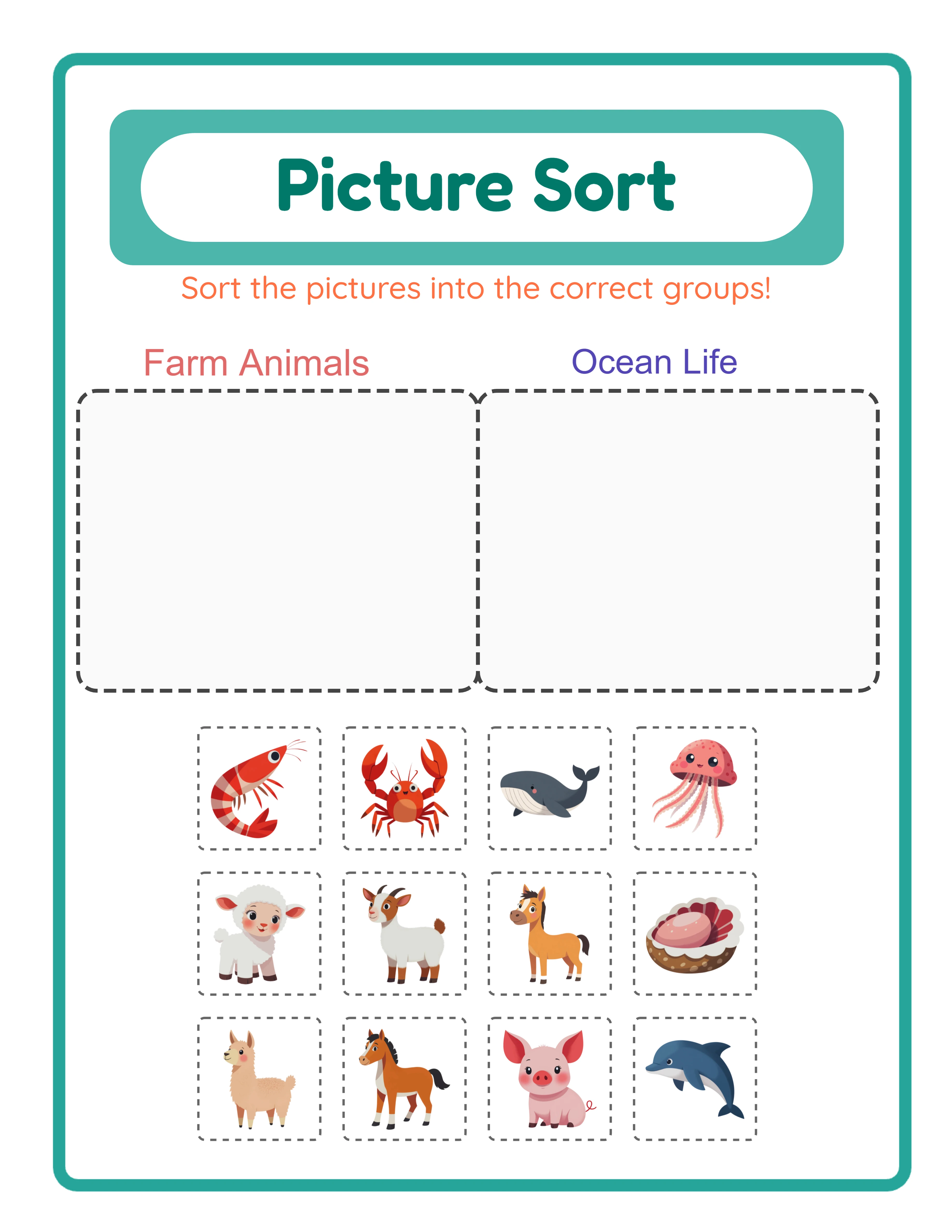
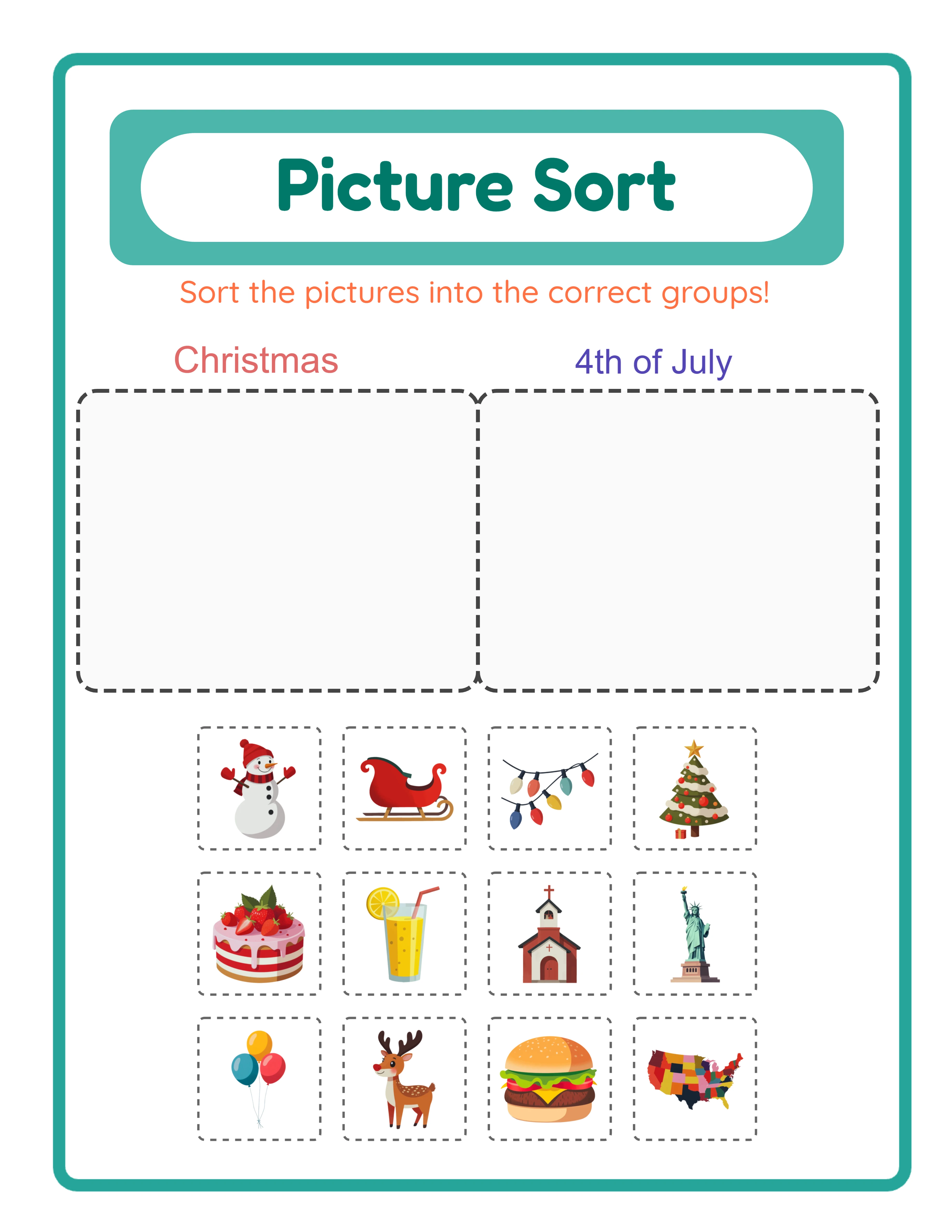
Matching & Sorting

Picture Sort Generator — Sell Unique Sorting Printables on Etsy

Two-category sorting in one powerful generator — theme-based or manual image selection — with auto-generated answer keys, 4–12 configurable images, a localized "Picture Sort" header in 11 languages, and 104 themed image collections.

Sorting and categorization worksheets are essential early learning products that sell consistently on Etsy — parents and teachers use them to teach classification skills from preschool through first grade. This maker creates professional picture sorting activities where solvers place images into correct categories using themed illustrations. Choose from 3,000+ images across 104 collections, configure sorting categories, and export 300 DPI print-ready PDFs with automatic answer keys. Every worksheet includes full commercial license for Etsy, Amazon KDP, TPT, or any marketplace. The visual format works worldwide without translation, and sorting worksheets pair naturally with matching and pattern activities for comprehensive early learning bundles. Free to try with all features — no signup, no credit card. Downloads include a watermark; purchase a license to remove it.
Buy for $49

No signup required. Create worksheets instantly.

No signup required11 languages supportedInstant PDF export
Pre-K to 1st

Sort Pictures into Categories!

Cut and sort themed images into the right groups

Picture sort printable worksheet — categorize images
Picture sort — themed sorting activity
Picture sort — advanced categorization
Cut & SortAnswer KeysPrint-ReadyFree Trial with Watermark

How to Create Sorting Worksheets Step by Step

1

Set Your Page Layout

Open the Page Setup panel and choose a page size: Letter Portrait, Letter Landscape, A4 Portrait, A4 Landscape, Square (1200×1200), or any custom dimension. Pick a page color using the color picker as a fallback background. Select a background theme and adjust its opacity (0–1 in 0.05 steps), then choose a border theme with its own independent opacity control. Check "Include Name/Date Fields" to add name and date lines. These layout choices frame your sorting worksheet before you configure any content.
2

Choose Your Sorting Categories

Open the Sorting Categories panel and select two themes — one for the left category and one for the right category. The app auto-generates 4–6 random images per theme from the image library. For example, choose Animals on the left and Food on the right to create a sorting worksheet where users classify pictures into the correct group. Alternatively, switch to manual mode to hand-select individual images and assign each one to the left or right category.
3

Select Images from the Library or Upload Your Own

Open the Image Library panel and browse 104 themed collections with 3,100+ colorful illustrations — animals, food, vehicles, nature, holidays, and dozens more. Filter by theme using the dropdown or search by keyword. Click images to add them to your worksheet and assign each to the left or right category. The total image count ranges from 4 to 12, with 2–10 images per category. You can also upload custom PNG, JPG, or GIF images to use alongside library content.
4

Generate the Sorting Worksheet

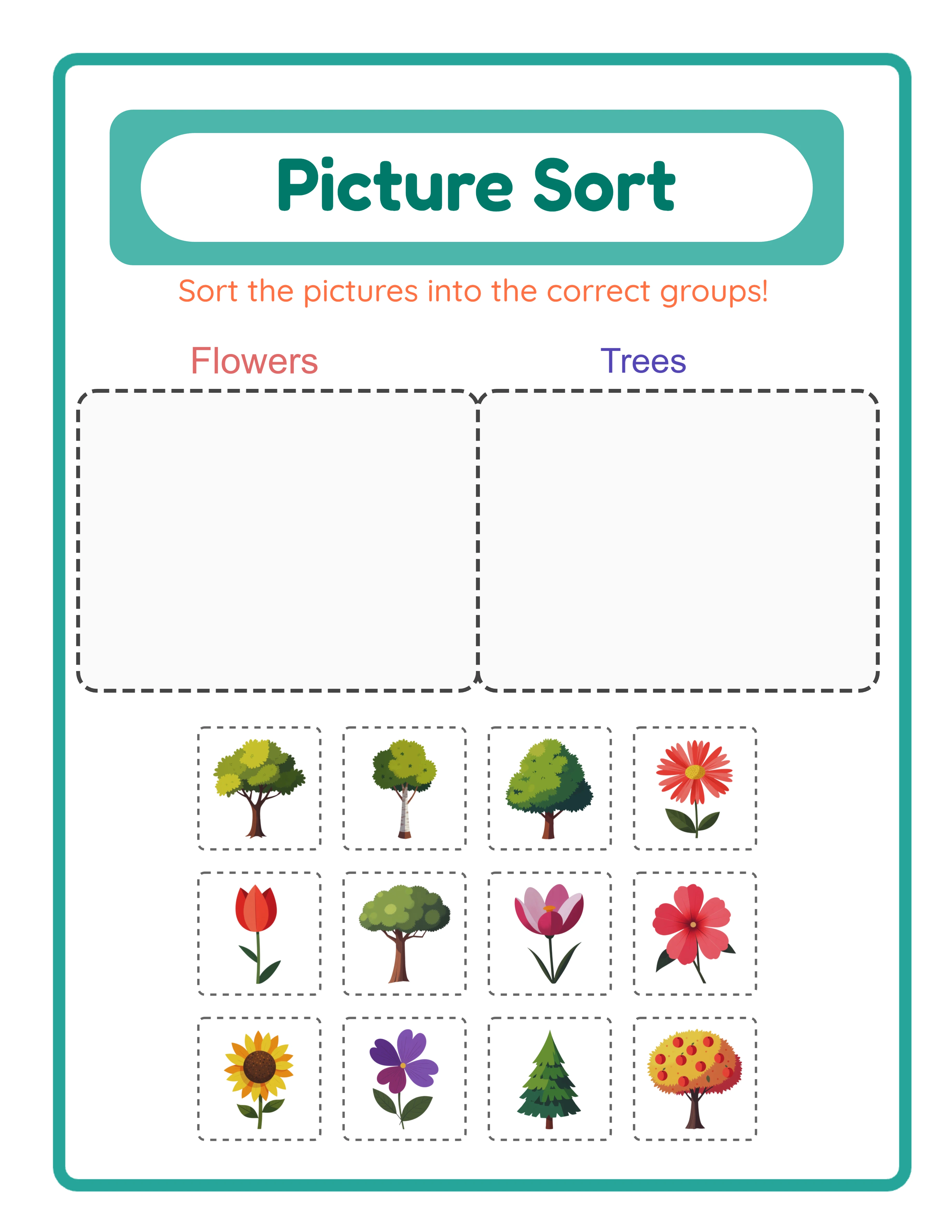
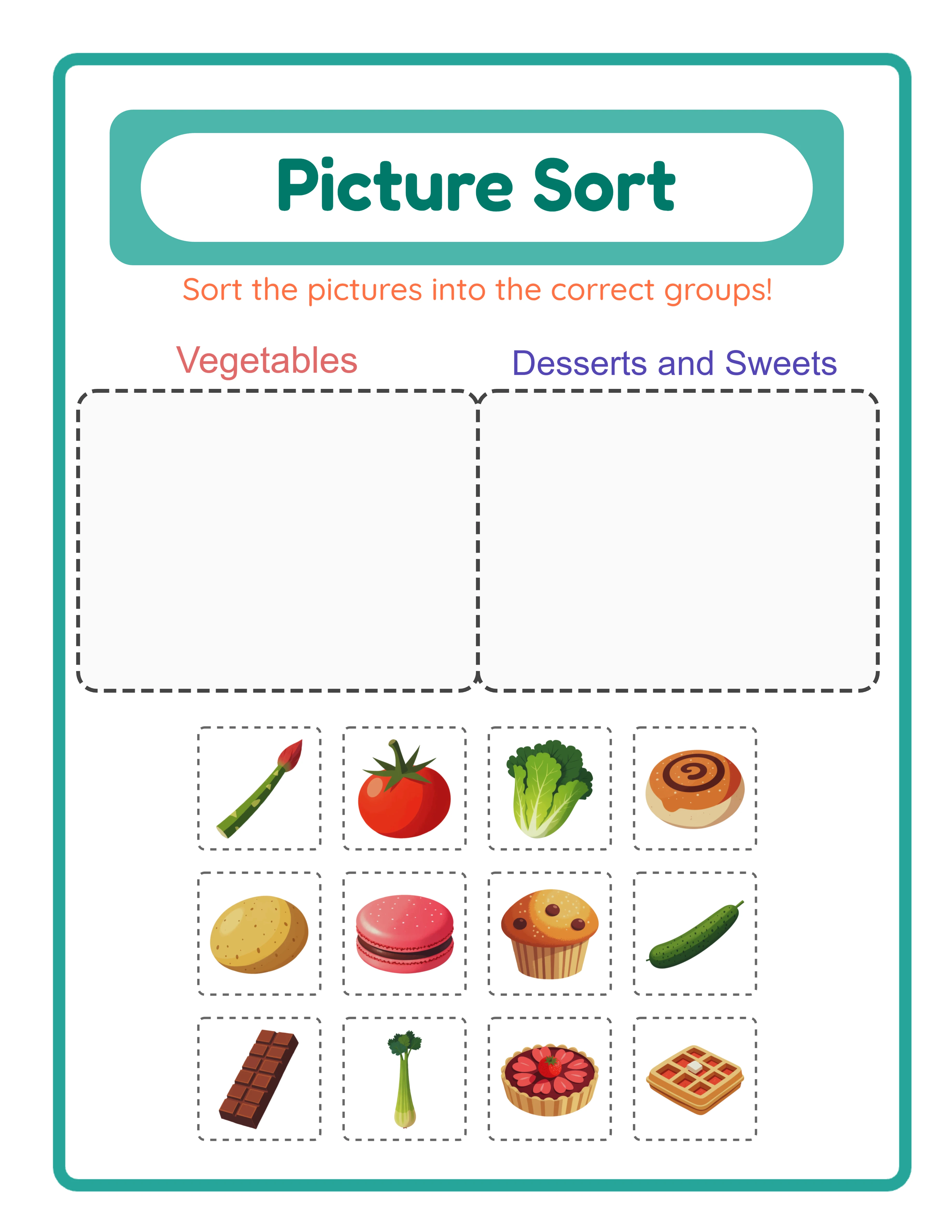
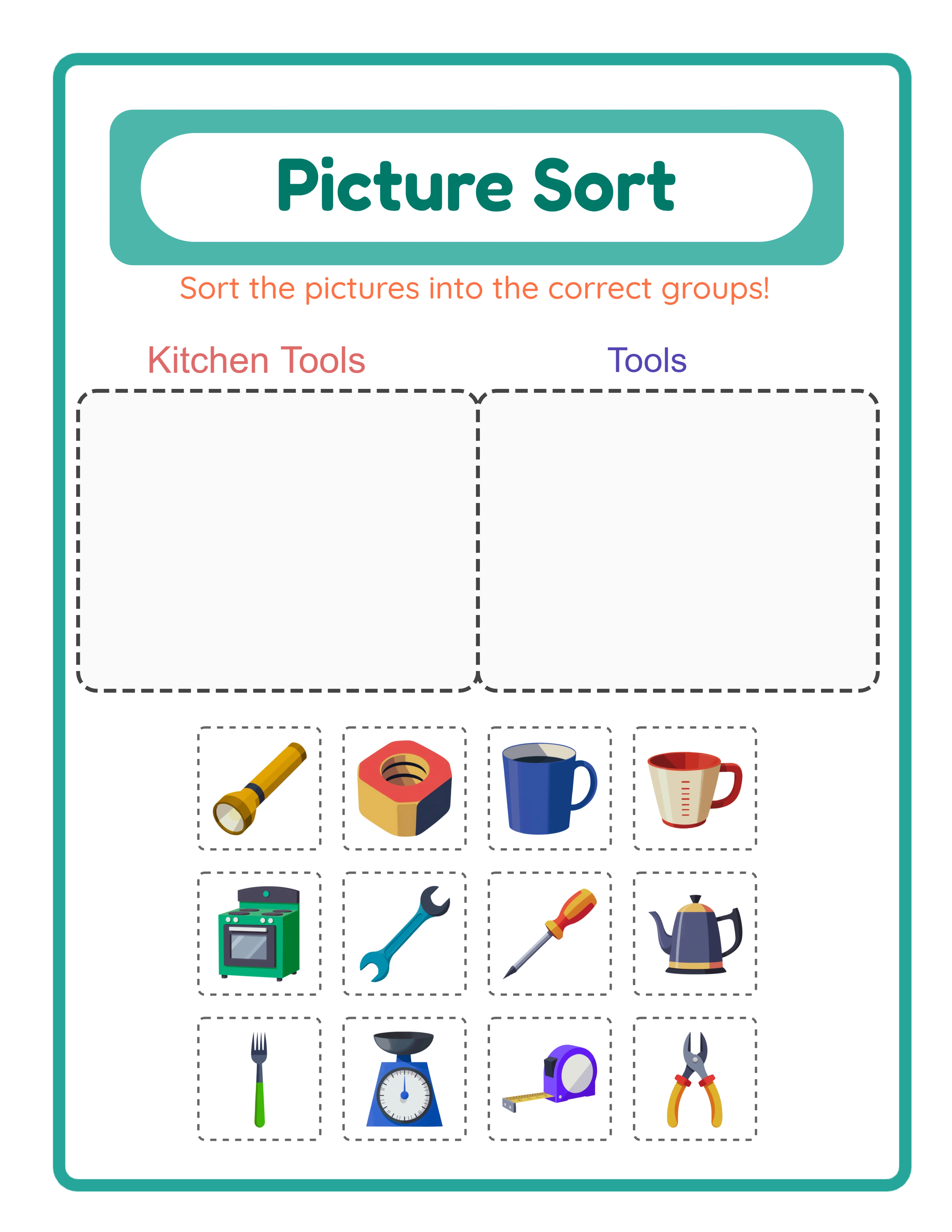
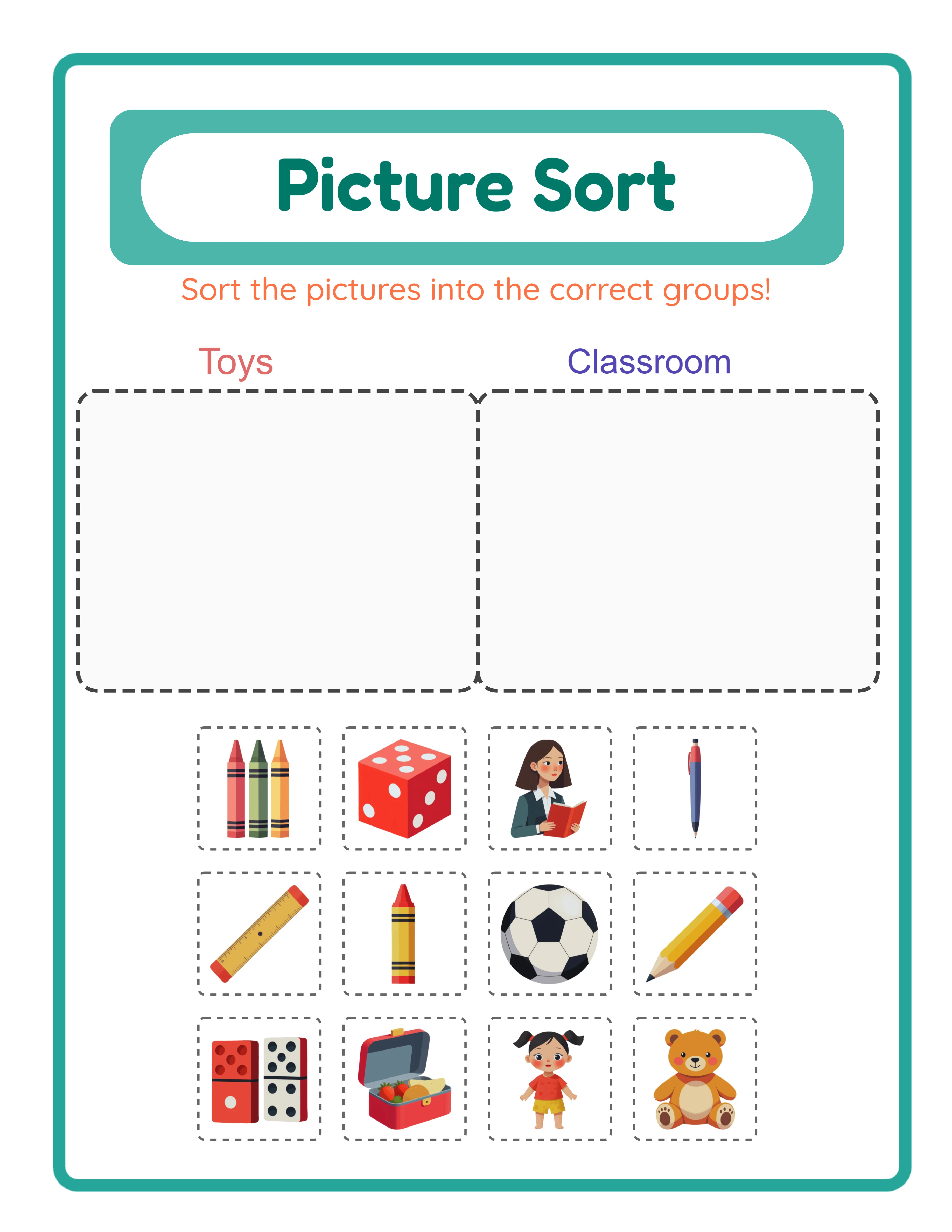
Click Generate to create the two-part sorting layout. The app arranges your content into category frames at the top (two side-by-side dashed-border frames with #FAFAFA fill) and a shuffled cutout grid below (white cells with dashed #666 borders). A styled "Picture Sort" header appears at the top with a mint green background (#4DB6AC), teal title (#00796B) in Fredoka font, and orange description (#FF7043) in Quicksand font. A teal outer border (#26A69A, 8px stroke) frames the entire page. The cutout grid displays all images in random order — users cut them out and sort into the correct category frame.
5

Generate the Answer Key and Download

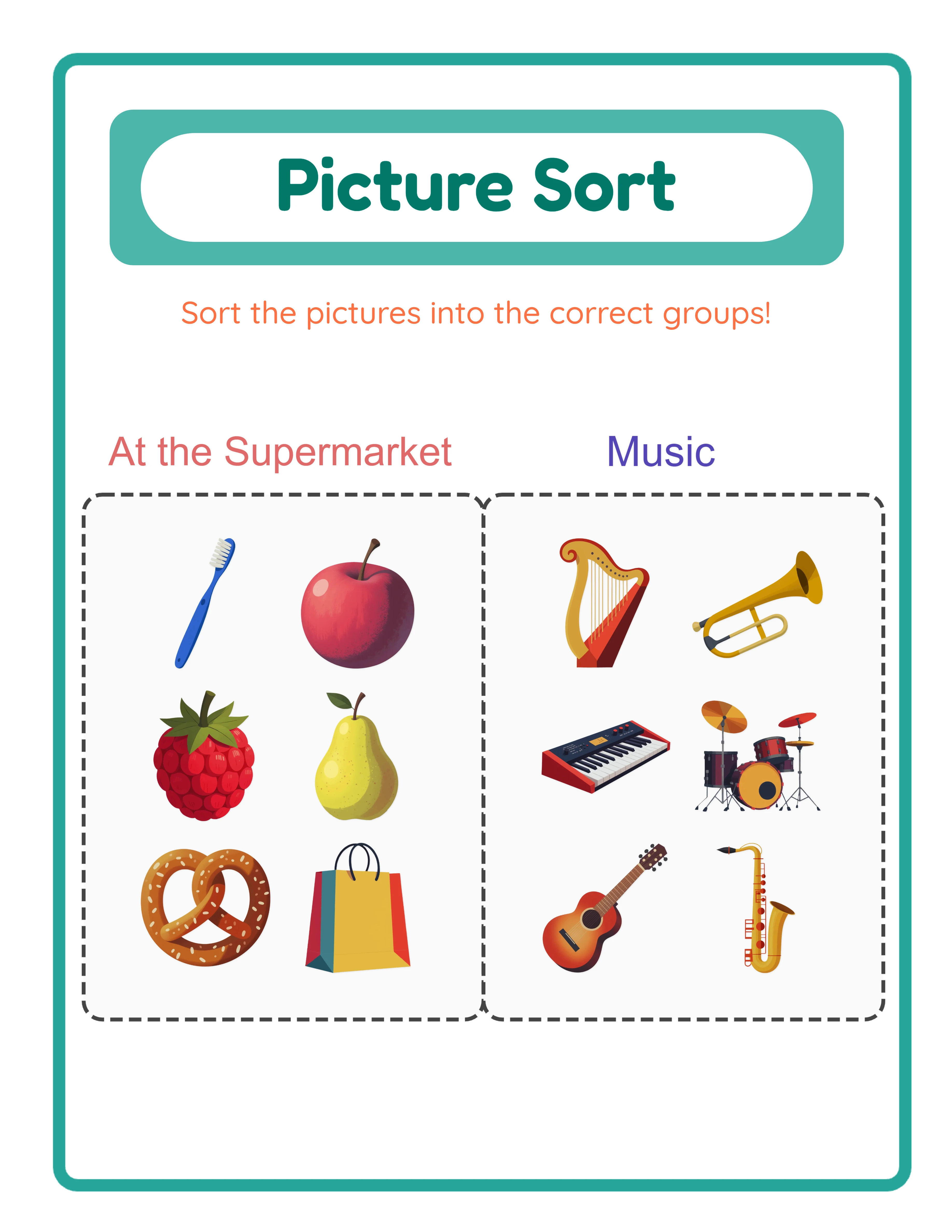
Switch to the Answer Key tab to see the auto-generated solution with 6× larger images organized into their correct category boxes, displayed in a maximum of 2 columns per box. Download both versions using the four dedicated buttons: Worksheet JPEG, Answer Key JPEG, Worksheet PDF, and Answer Key PDF. Files export at 300 DPI with JPEG quality 1.0. Toggle grayscale for ink-friendly versions. Every export is production-ready for Etsy listings, Amazon KDP interiors, and Gumroad product files.
Sorting Levels

Sorting for Every Learner

From simple categories to complex classifications
Sorter
Easy sorting — two simple categories

Sort into 2 clear categories

Classifier
Medium sorting — themed categories

Sort themed images into 3 groups
Expert
Hard sorting — complex categories

Complex categorization with reasoning

Sorting builds critical thinking skills

Why Sorting Worksheets Sell in the Early Learning Niche

Two-Category Sorting with Theme-Based or Manual Image Selection

Create sorting worksheets with exactly two categories — left and right — using two distinct selection modes. Theme mode lets you pick a theme for each category (e.g., Animals vs Food, Land vs Water, Fruits vs Vegetables), and the app auto-selects 4–6 random images per theme from the image library. Manual mode gives you complete control: hand-select individual images from any theme and assign each one to the left or right category. Both modes produce the same professional sorting layout with category frames and a shuffled cutout grid, giving you maximum flexibility for different product styles.

Configurable Image Count from 4 to 12 with 2–10 per Category

Control the total number of sorting images from a minimum of 4 to a maximum of 12 per worksheet, with each category holding between 2 and 10 images. Theme mode automatically pulls 4–6 images per theme, creating worksheets with 8–12 images total. Manual mode lets you set exact counts per category. Fewer images create simpler sorting tasks ideal for beginner-level products; more images increase difficulty and content density. The cutout grid automatically adjusts its column layout (3–4 columns based on total count) to maintain clean visual spacing.

Auto-Generated Answer Key with 6× Larger Images in Category Boxes

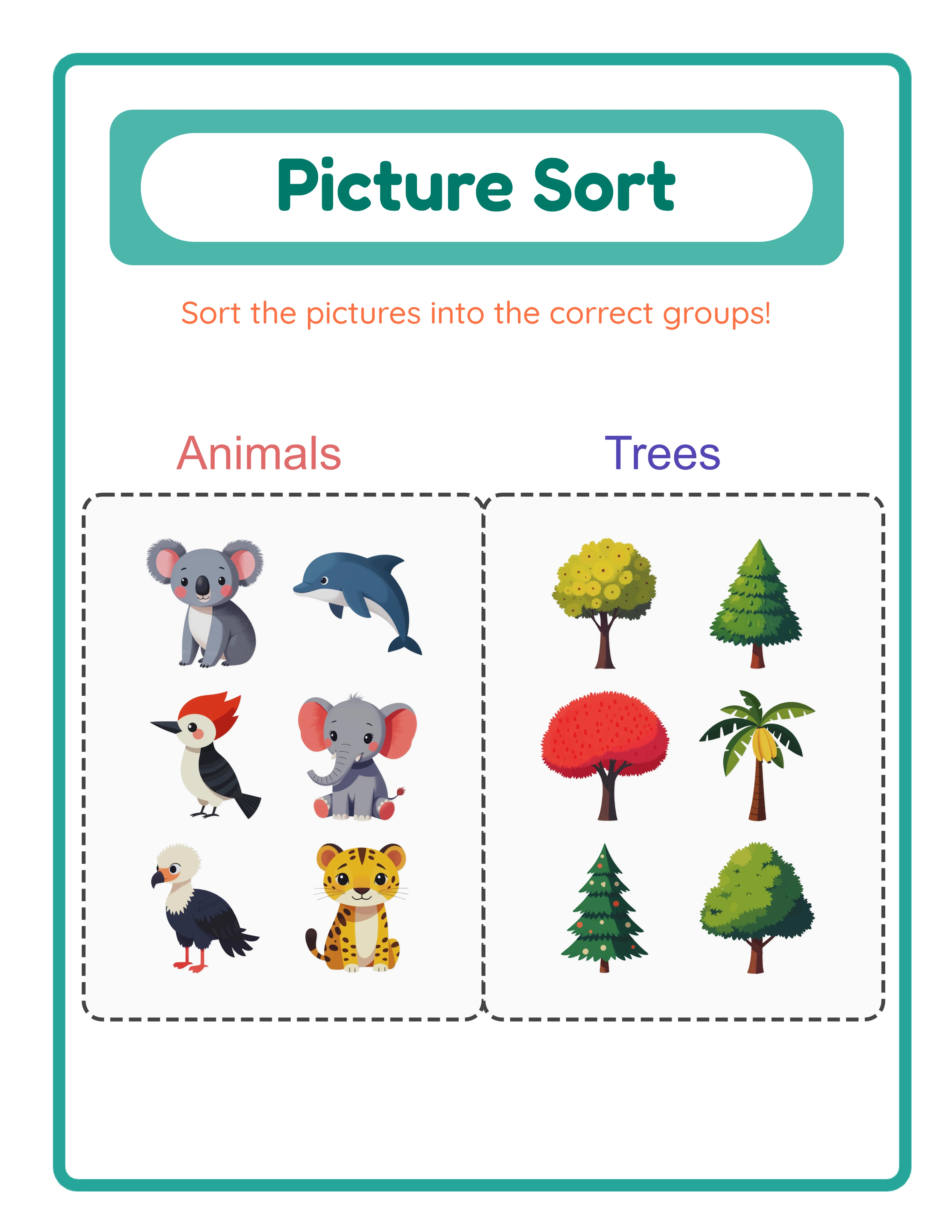
Every sorting worksheet automatically generates a companion answer key on a separate canvas tab. The answer key displays two category boxes (one per category, equal width) with images sorted into their correct group — rendered at 6× the size of the cutout grid cells for clear, easy-to-read verification. Each category box uses a maximum of 2 columns and maintains the same dashed-border frame styling (#FAFAFA fill, #444 stroke, 12px border radius). No manual sorting, no separate file creation — the answer key stays perfectly synchronized with the worksheet content.

Localized "Picture Sort" Header with Teal Design in 11 Languages

Every generated worksheet includes a styled header with a mint green background (#4DB6AC), white pill container, teal title (#00796B) in Fredoka Bold, and orange description (#FF7043) in Quicksand. Portrait worksheets display a 100px header with dynamic title sizing (28–48px); landscape worksheets use a compact 70px header with 24–36px title. The title "Picture Sort" and description "Sort the pictures into the correct groups!" are automatically translated into all 11 supported languages. A teal outer border (#26A69A, 8px stroke, 12px radius) frames the entire page.

Image Library with 104 Themed Collections and 3,100+ Illustrations

Browse 104 themed image collections covering animals, food, vehicles, nature, professions, holidays, sports, seasons, and dozens more. Each theme provides a coordinated set of colorful illustrations that work as sorting categories. Filter by theme using the dropdown or search for specific images by keyword. The theme-based category selection makes it easy to create sorting worksheets with natural category pairings — land animals vs sea animals, healthy food vs junk food, summer items vs winter items. The Commercial tier includes 10 colorful themes; Full Access unlocks all 104 themes for maximum creative variety.

Name and Date Fields for a Polished Layout

Check the "Include Name/Date Fields" checkbox in the Page Setup panel to add name and date lines to the sorting worksheet. These fields give worksheets a polished, complete look and make your products more appealing to buyers on Etsy and Gumroad. The name/date option adds perceived value without any extra design work on your part.

Print-Ready PDF and JPEG Export at 300 DPI with Grayscale Toggle

Download sorting worksheets and answer keys as high-resolution JPEG images or print-ready PDF documents rendered at 300 DPI with JPEG quality 1.0 and auto-orientation. Four dedicated download buttons export Worksheet JPEG, Answer Key JPEG, Worksheet PDF, and Answer Key PDF separately. Page sizes include Letter Portrait, Letter Landscape, A4 Portrait, A4 Landscape, Square (1200×1200), and fully custom dimensions. Toggle grayscale for ink-friendly black-and-white versions that save toner. Every export is production-ready for digital downloads, printed workbooks, and bulk printing.

Full Canvas Editing with Text Tools, Alignment, and Layering Controls

The Fabric.js canvas provides complete control over every element on your sorting worksheet. Drag, resize, rotate, and reposition images, text, and generated content freely. Layer controls manage stacking order — bring elements forward or send them back. Lock finished elements while you edit others. Add custom text with seven font options (Lexend Deca, Baloo 2, Nunito, Quicksand, Fredoka, Arial, Verdana), adjustable size and color, and text outline width from 0 to 10 with 0.5-step granularity. Six alignment options plus center-on-page keep layouts precise. Zoom from 25% to 300% for detail work. Undo and redo up to 20 history states with Ctrl+Z and Ctrl+Y.

Sort It Out!

Categories Made Fun!
Featured picture sort — colorful categorization activity
Print Instantly!Cut & PasteWith Answer Keys

Sell Sorting Activity Bundles on Etsy & Amazon KDP

Themed Sorting Worksheet Bundles on Etsy

Etsy (etsy.com)
Create themed sorting activity packs using natural category pairings from the 104 image collections — animals vs food, land vs water, fruits vs vegetables, indoor vs outdoor, and dozens more. Each theme pairing produces multiple unique sorting worksheets by varying image selections and counts. Package 10–20 sorting worksheets per bundle with answer keys included, and sell at $3–$7 per pack. The theme-based category selector makes it fast to generate worksheets with distinct left/right groupings, and the auto-generated answer key eliminates the biggest production bottleneck.

Classification Workbooks on Amazon KDP

Amazon KDP (kdp.amazon.com)
Compile 40–80 sorting worksheets into a printed workbook formatted for Amazon KDP. Structure by difficulty: early chapters use 4–6 images with obvious category differences (animals vs vehicles), middle chapters use 8–10 images with subtler distinctions (farm animals vs wild animals), and advanced chapters use 12 images with challenging categories. Include answer keys at the back of the book using the auto-generated answer key feature. The grayscale toggle produces ink-friendly pages ready for black-and-white book interiors. Sorting workbooks serve a broad audience from early childhood through elementary school.

Niche Sorting Activity Store on Gumroad

Gumroad (gumroad.com)
Build ready-to-use sorting worksheets with name/date fields and printed answer keys, and sell them through your own Gumroad store. The name field gives each worksheet a polished look, the category frames provide clear sorting destinations, and the auto-generated answer key adds perceived value to every listing. Create themed sets: living vs nonliving, healthy vs unhealthy food, day vs night animals, hot vs cold weather clothing. Each set includes worksheets and answer keys in both PDF and JPEG formats.

Seasonal and Holiday Sorting Collections

Etsy / Amazon KDP / Gumroad (seasonal)
The 104 themed image collections cover every seasonal and holiday occasion — Christmas, Halloween, Easter, Valentine's Day, back-to-school, summer vacation, and more. Create seasonal sorting worksheets where users classify holiday items into categories: Christmas decorations vs Christmas food, Halloween costumes vs Halloween treats, summer activities vs winter activities. Release Halloween sorting bundles in September, Christmas collections in October, and Valentine's Day packs in January. Seasonal products command higher prices during peak windows and create natural reasons for repeat purchases.

Multilingual Sorting Worksheets for ESL and Bilingual Markets

Etsy / Gumroad (multilingual market)
Leverage the language-sensitive category labels to create sorting worksheets in 11 languages. The same images produce different category labels when you switch languages — image names and the "Picture Sort" header all update automatically. Create multilingual sorting bundles where each language version uses the same themed images but localized text. This is particularly valuable for international markets and bilingual product lines. Sell language-specific bundles or multilingual mega-packs at premium prices on Etsy and Gumroad.

Professional Sorting Activities

Beautiful categorization worksheets for young minds
Professional picture sort printable worksheet
Sorting
Picture sort — themed variation
Sorting
Picture sort printable answer key
Answer Key
Print-ReadyNo Prep RequiredAnswers IncludedMultiple Themes

Who Is This For?

Etsy Sellers

Matching and sorting worksheets appeal to parents of toddlers and preschoolers, a demographic that actively buys educational printables. Themed matching sets create natural product bundles for higher order values.

Amazon KDP Publishers

Matching activity books for toddlers and preschoolers are an underserved KDP niche with growing demand. Combine matching, sorting, and memory worksheets into comprehensive visual learning workbooks.

Teachers Pay Teachers Sellers

Matching activities are essential for early childhood classrooms as learning centers and assessment tools. Teachers need themed matching worksheets that progress in difficulty across the school year.

Homeschool Educators & Parents

Matching and sorting activities build critical thinking skills in young children through hands-on practice. Adjustable difficulty levels let you grow with your child from simple pairs to complex categorization.

Sample Worksheets

Theme-mode sorting worksheet with animals on the left and food on the right categories
Theme mode — auto-populated categories from the image library
Manual-mode sorting worksheet with hand-selected images assigned to left and right categories
Manual mode — hand-select images and assign to categories
Picture sort answer key with 6x larger images organized into correct category boxes
Auto-generated answer key — 6× larger images in category boxes

Free version includes a small watermark. Purchase to remove.

Frequently Asked Questions

How does the two-category sorting mechanic work?
Each sorting worksheet has exactly two categories — left and right. The worksheet displays two dashed-border category frames at the top where users sort their images, and a shuffled cutout grid below with all images mixed together. Users cut out the images from the grid and place each one into the correct category frame. The two-category format creates a clear binary classification task that works for any subject — animals vs food, land vs water, living vs nonliving, and thousands of other pairings.
What is the difference between theme mode and manual mode?
Theme mode lets you pick a theme for the left category and a different theme for the right category. The app automatically selects 4–6 random images per theme from the image library, creating worksheets with 8–12 images total. Manual mode gives you complete control: you hand-select individual images from any theme and assign each one to the left or right category. Theme mode is faster for bulk production; manual mode is ideal for creating specific, curriculum-aligned sorting activities.
How many images can I include on each sorting worksheet?
Each worksheet supports 4 to 12 total images, with each category holding between 2 and 10 images. Theme mode automatically pulls 4–6 images per theme. Manual mode lets you set exact counts per category. The cutout grid adjusts its column layout (3–4 columns based on count) to maintain clean visual spacing. Fewer images create simpler sorting tasks; more images increase difficulty.
How does the shuffled cutout grid work?
The cutout grid occupies the bottom 55% of the content area and displays all selected images in randomized order. Images appear in white cells with dashed #666 borders and 4px rounded corners, arranged in 3–4 columns based on the total image count. Each image fills 85% of its cell. Users cut out the images along the dashed lines and sort them into the correct category frame above. The shuffling ensures they must actually classify each image rather than copy a pattern.
How does the auto-generated answer key work?
The generator uses a dual-canvas system with a Worksheet tab and an Answer Key tab. The answer key displays two category boxes (one per category, equal width) with images sorted into their correct group. Answer key images are rendered at 6× the size of the cutout grid cells for clear verification, with a maximum of 2 columns per category box. Each box uses #FAFAFA fill with #444 dashed stroke and 12px border radius. Both versions export separately using four dedicated download buttons.
How does the localized header work?
Every generated worksheet includes a styled "Picture Sort" header with a mint green background (#4DB6AC), white pill container, teal title (#00796B) in Fredoka Bold font, and orange description (#FF7043) in Quicksand font. Portrait worksheets display a 100px header; landscape worksheets use a compact 70px header. The title and description are automatically translated into all 11 supported languages: English, German, French, Spanish, Portuguese, Italian, Dutch, Swedish, Danish, Norwegian, and Finnish.
Is the Picture Sort Generator language-sensitive?
Yes. Category labels use localized image names from the Image Library, so switching languages changes the text on the worksheet. For example, a cat image appears as "Cat" in English but "Katze" in German and "Chat" in French. The localized "Picture Sort" header also changes with the selected language. The Commercial tier includes 10 colorful themes with English only; Full Access unlocks all 104 themes and all 11 languages for localized category labels.
Can I include name and date fields on sorting worksheets?
Yes. Check the "Include Name/Date Fields" checkbox in the Page Setup panel to add name and date lines to the worksheet. These fields give worksheets a polished, complete appearance and add perceived value to your product listings.
Is there a free trial?
Yes. You can access every feature — theme-based and manual category selection, configurable image counts, the auto-generated answer key, the full image library, background and border themes, name/date fields, and all download formats — without creating an account, entering a credit card, or installing any software. Free trial downloads include a small watermark. A commercial license removes the watermark and grants full selling rights.
Can I add background themes and border themes to sorting worksheets?
Yes. The Page Setup panel includes both a background theme selector with an opacity slider (0–1 in 0.05 steps) and a border theme selector with its own independent opacity slider. Background themes add decorative patterns behind the sorting content, while border themes frame the page. Both have separate opacity controls so you can create subtle backgrounds with prominent borders, or any combination that fits your design.
Can I sell sorting worksheets made with this tool on Etsy and Amazon KDP?
Yes. With a commercial license, you have full rights to sell your sorting worksheets as digital downloads on Etsy, as printed workbooks on Amazon KDP, through your own store on Gumroad, or through any other sales channel. The two-category sorting mechanic, auto-generated answer keys, and 104 themed image collections give you the creative tools to produce original, sellable sorting activity products.
What is the refund policy?
Because the free trial gives you access to every feature, we do not offer refunds on commercial license purchases. You can test theme-based and manual category selection, configurable image counts, the auto-generated answer key, the full image library, background and border themes, name/date fields, and all download formats before buying. The free trial is the refund policy — make sure the tool fits your needs before purchasing a license.

Picture Sort Generator — Sell Unique Sorting Printables on Etsy

Two-category sorting in one powerful generator — theme-based or manual image selection — with auto-generated answer keys, 4–12 configurable images, a localized "Picture Sort" header in 11 languages, and 104 themed image collections.