How to Create Category Sorting Worksheets

Category sorting is one of the earliest cognitive skills children develop, and sorting worksheets remain in high demand across every educational marketplace. Parents need them for hands-on learning at home. Buyers need them for classification activities and sorting centers. Tutoring centers use them for visual categorization practice. This guide walks you through the entire creation process using the Picture Sort Worksheet Generator — from choosing your selection mode and configuring image counts to generating shuffled cutout grids with automatic answer keys. Whether you are creating your first sorting product or expanding an existing classification worksheet catalog, you will have a finished product ready to list by the end of this tutorial.
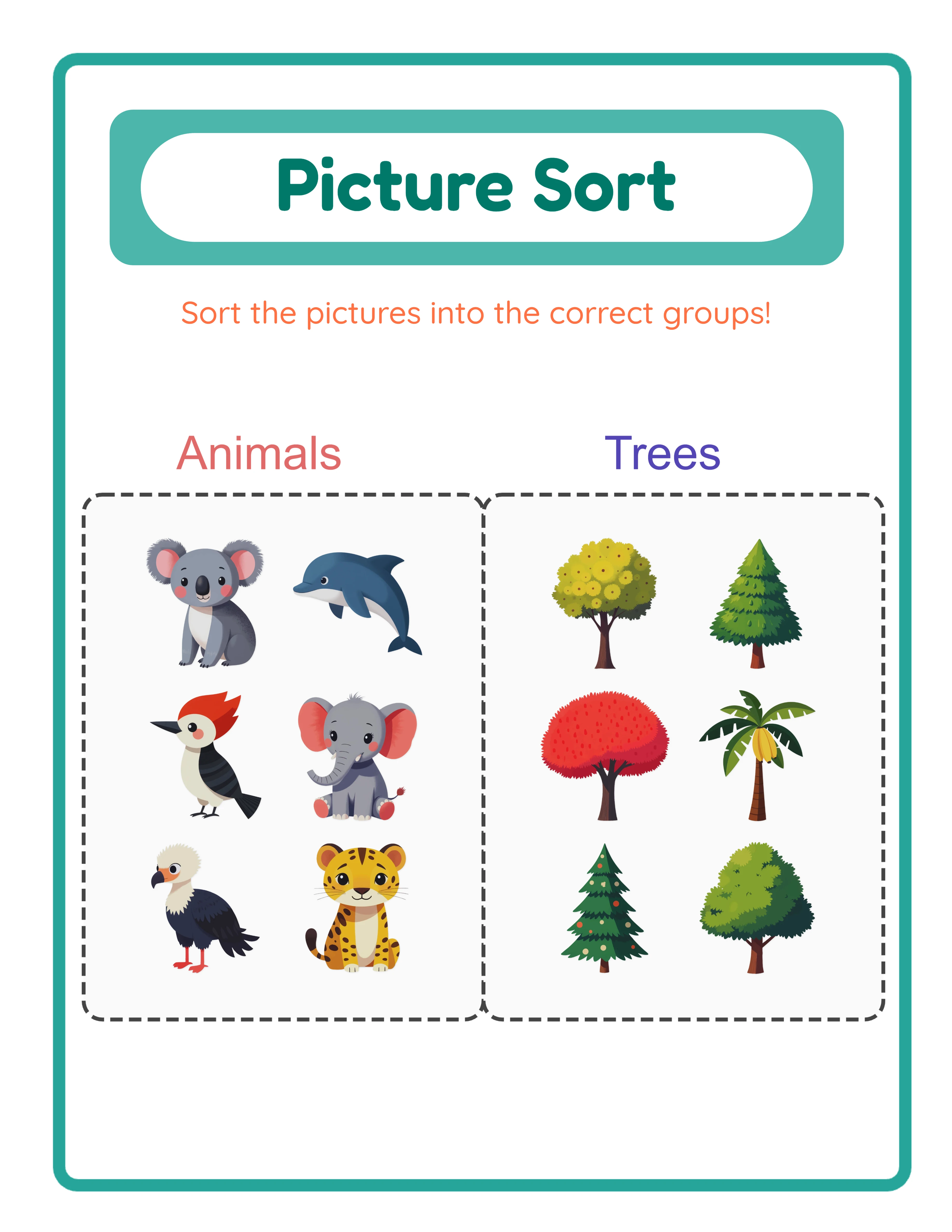
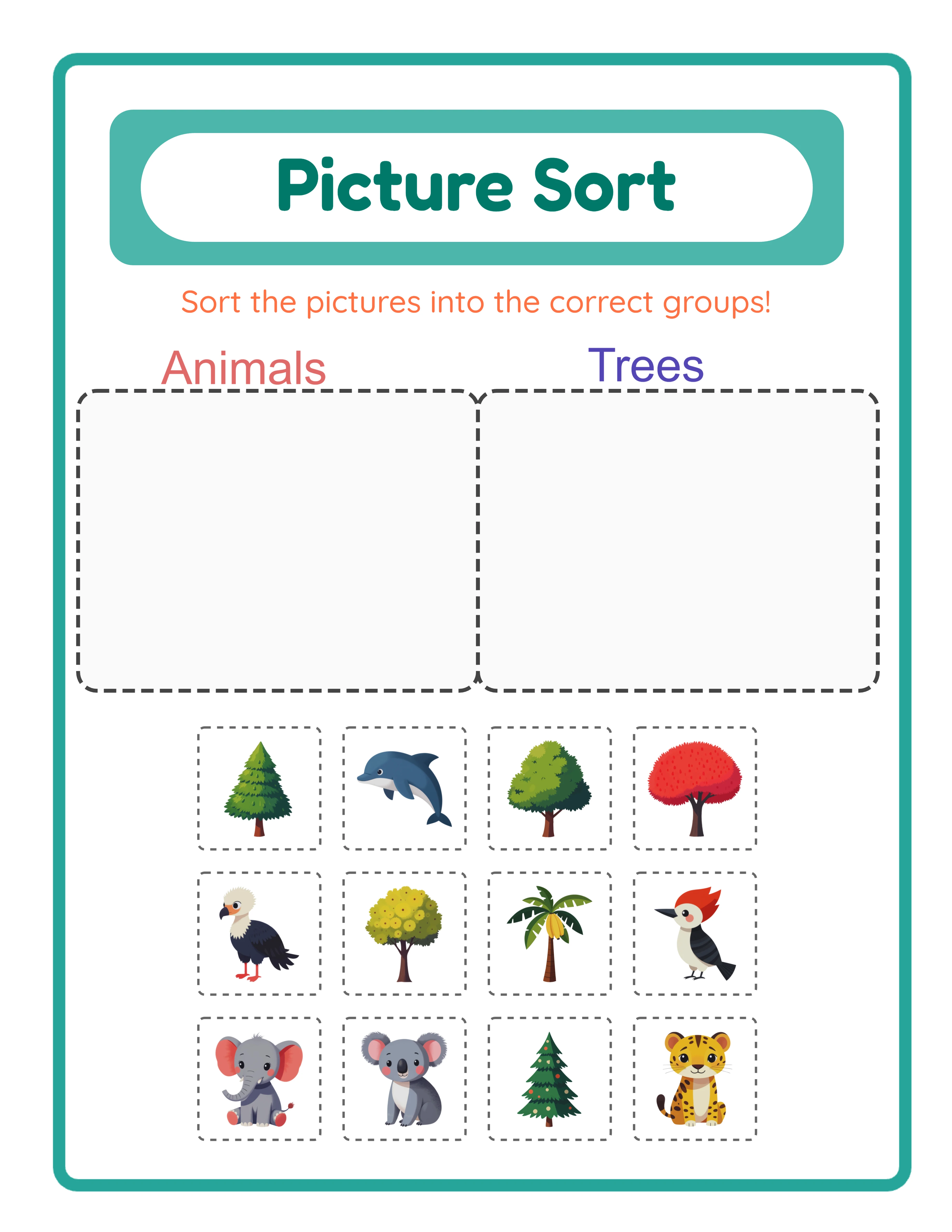
Two-category sorting worksheet with dashed-border category frames and shuffled cutout grid for classification activities
Professional Printables

How to Create Category Sorting Worksheets

Create stunning picture sort worksheets your customers will love

Picture Sort worksheet sample 1
Picture Sort worksheet sample 2
Picture Sort worksheet sample 3
Sort & ClassifyAnswer KeysPrint-ReadyFree Trial with Watermark

Introduction

Classification is one of the foundational cognitive skills in early childhood education. Before children can read, write, or do arithmetic, they learn to sort — grouping objects by shared attributes like color, shape, function, or category. This makes sorting worksheets a universally relevant product with sustained demand from preschool through elementary school. What makes sorting worksheets particularly effective as a printable product is the cut-and-sort format. Solvers physically cut out images from a shuffled grid and place them into the correct category frame. This hands-on interaction creates deeper engagement than circle-or-draw-a-line activities because it requires motor skills, spatial reasoning, and active decision-making. Buyers actively seek cut-and-sort formats because they keep children engaged longer and produce a tangible finished product. The Picture Sort Worksheet Generator handles the technical complexity of creating these activities. It offers two selection modes: theme mode auto-populates categories from the built-in image library for rapid production, while manual mode lets you hand-select individual images for content-aligned precision. The generator produces two-category sorting layouts with shuffled cutout grids, auto-generated answer keys with images displayed at six times the grid cell size, and a styled localized header in eleven languages. You focus on product strategy — which category pairings to target, which difficulty levels to create, how to bundle and price — while the generator handles layout, shuffling, and answer key creation. Every feature mentioned in this guide is available in the free trial with watermark. You can create sample sorting worksheets, test both selection modes, and evaluate output quality before purchasing a commercial license.
Try It Free with Watermark

Try any generator free with watermark. No signup required.

Tutorial

1

Open the Picture Sort Maker

Navigate to the Picture Sort Maker page and click the launch button to open the generator in your browser. The tool loads instantly with a settings sidebar on the left and a dual-tab canvas on the right — one tab for the worksheet, one for the answer key. No account creation, no software download, no installation required. The dual-tab canvas is the core of the Picture Sort generator. The worksheet tab shows the two-category sorting layout that solvers will use, while the answer key tab shows the solution with images sorted into their correct groups. Both tabs generate simultaneously when you click Generate, so you never need to create answer keys manually. Take a moment to explore the sidebar panels. The Sorting Categories panel controls your selection mode and category setup. The Image Library panel provides access to themed collections. The Page Setup panel handles layout and decoration options. These three panels contain everything you need to configure a complete sorting worksheet.
2

Choose Your Selection Mode

The Picture Sort Maker offers two distinct selection modes, and choosing the right one determines your production workflow. Theme mode is designed for rapid bulk production. Select a theme for the left category and a different theme for the right category, and the app auto-populates four to six random images per theme from the image library. This creates worksheets with eight to twelve images total. Because image selection is randomized, clicking Generate again with the same themes produces a different worksheet with different images. This makes it fast to create bundles of fifteen to twenty unique sorting worksheets from a single theme pairing. Manual mode is designed for content-aligned precision. You hand-select individual images from any theme and assign each one to the left or right category. This gives you complete control over exactly which images appear on the worksheet. Use manual mode when the specific images matter — for example, selecting only specific animals for a habitat sorting activity, or only specific foods for a nutrition classification lesson. Theme mode is your volume tool. Manual mode is your precision tool. Most successful sorting worksheet sellers use both: theme mode to fill bundles quickly and manual mode to create premium, content library-specific products that command higher prices.
3

Configure Image Count and Category Balance

The total image count is your primary difficulty lever. Set the total number of sorting images from four to twelve, with each category holding between two and ten images. For preschool sorting worksheets (ages three to five), use four to six total images with obvious category differences. Two animals and two foods, or three vehicles and three fruits — simple binary classification with minimal cognitive load. The cutout grid uses three columns at these lower counts, giving each image plenty of space. For kindergarten sorting worksheets (ages five to six), use six to eight total images. The categories can share more visual similarity, and solvers handle more items to classify. Three farm animals and three wild animals is a good kindergarten-level challenge. For elementary sorting worksheets (ages six to eight), use ten to twelve total images. The cutout grid adjusts to four columns at higher counts, maintaining clean visual spacing. More images mean more classification decisions, which increases both difficulty and content density. In theme mode, the app automatically pulls four to six images per theme. In manual mode, you control exactly how many images go into each category. Uneven splits (three in one category, seven in the other) create additional challenge because solvers cannot rely on equal distribution as a sorting shortcut.
4

Select Images from the Library or Upload Custom

The Image Library panel gives you access to one hundred and four themed collections with over three thousand one hundred illustrations. Categories span animals, food, vehicles, nature, holidays, professions, sports, and dozens more. In theme mode, selecting a theme for each category is all you need — the app handles image selection automatically. Browse themes using the dropdown menu or search by keyword to find the right pairing. In manual mode, browse or search for individual images and click to add them to your worksheet. As you select each image, assign it to the left or right category. This is where manual mode shines: you can mix images from different themes to create cross-category sorting activities that would be impossible in theme mode. You can also upload custom PNG, JPG, or GIF images to create personalized sorting worksheets. Custom uploads work in manual mode, where you assign each uploaded image to a category. This is valuable for creating sorting worksheets with store photos, brand-specific illustrations, or custom artwork that no competitor can replicate. The image library is language-sensitive. Category labels use localized image names, so switching the app language changes the text on your worksheet. A cat image appears as "Cat" in English, "Katze" in German, and "Chat" in French. This makes multilingual product creation effortless.
5

Set Page Layout and Decorations

In the Page Setup section, select your page size. Options include Letter Portrait, Letter Landscape, A4 Portrait, A4 Landscape, Square (twelve hundred by twelve hundred pixels), and custom dimensions. Letter is standard for North American buyers. A4 is standard for European and international markets. Creating both versions doubles your market reach with minimal additional effort. Background and border themes work independently, each with its own opacity slider ranging from zero to one in increments of zero point zero five. Apply a subtle background pattern at fifteen to twenty-five percent opacity for visual warmth without distracting from the sorting content. Layer a decorative border at eighty to one hundred percent opacity for a polished frame. Consistent background and border combinations across a bundle create a cohesive product look that buyers associate with quality. Check the "Include Name/Date Fields" checkbox to add name and date lines to the worksheet. Buyers strongly prefer worksheets with these fields for structured tracking. Always include them in products targeting practical use. Customize text with seven font options including Lexend Deca, Baloo 2, Nunito, Quicksand, Fredoka, Arial, and Verdana. Add a text outline from zero to ten for additional styling. These options let you add custom titles, instructions, or branding to your sorting worksheets.
6

Generate the Sorting Worksheet

Click Generate to create the two-part sorting layout. The generator arranges your content into two distinct sections. At the top, two side-by-side dashed-border category frames serve as sorting destinations. Each frame has a light background fill and a category label identifying what belongs inside. Solvers will place their cut-out images into the correct frame during the sorting activity. Below the category frames, a shuffled cutout grid displays all selected images in randomized order. Images appear in white cells with dashed borders and rounded corners, arranged in three to four columns based on total image count. Each image fills eighty-five percent of its cell, leaving visible borders for cutting. The shuffling ensures solvers must actively classify each image rather than copy a positional pattern. A styled header renders automatically at the top of the page with a mint green background, teal title in Fredoka Bold font, and orange description in Quicksand font. The header text translates automatically into all eleven supported languages. A teal outer border frames the entire page, giving the worksheet a polished, professional appearance. Examine the preview carefully: check that images are clearly visible in the cutout grid, category labels are readable, and the overall layout looks balanced. If anything needs adjustment, modify your settings and regenerate instantly.
7

Review the Auto-Generated Answer Key

Click the Answer Key tab to see the auto-generated solution. The answer key displays two category boxes, one per category and equal in width, with images sorted into their correct group. Images in the answer key are rendered at six times the size of the cutout grid cells, making them large and easy to read for quick verification. Each category box uses a maximum of two columns with a light fill, dashed stroke, and rounded border radius. The layout makes it immediately clear which images belong in each category. Switch between the Worksheet and Answer Key tabs to compare and verify the sorting solution matches your intent. The answer key generates simultaneously with the worksheet — no manual creation step, no separate design process, no possibility of mismatched answers. This simultaneous generation is a significant time saver. Creating answer keys manually for sorting worksheets is tedious and error-prone, especially for large bundles. The auto-generated answer key eliminates this entire step. For product listings, the answer key is a selling point. Products that include answer keys consistently outsell worksheets-only listings because buyers want self-checking materials. Always mention "includes answer key" in your listing titles and descriptions.
8

Download All Four Files

The Picture Sort Maker produces four files per session: worksheet JPEG, worksheet PDF, answer key JPEG, and answer key PDF. Each tab has its own pair of download buttons. All files render at three hundred DPI for print-ready output. Toggle grayscale before downloading for ink-friendly versions ideal for bulk printing and Amazon KDP interiors. Grayscale sorting worksheets maintain visual clarity while reducing printing costs for sellers and keeping KDP printing expenses low. For marketplace listings, export both the PDF (as your deliverable product) and a JPEG (for listing preview images). Buyers want to see exactly what they are purchasing before they buy. Show both the worksheet and the answer key in your listing images. To build a complete product bundle, switch themes, adjust image counts, or toggle between theme and manual modes and regenerate. Each generation produces a fresh set of four files. Ten generation sessions give you forty production-ready files — a complete sorting worksheet bundle ready for listing. Important: the free trial with watermark produces fully functional exports with a visible watermark overlay. This lets you evaluate print quality, verify formatting, and create test prints before purchasing a commercial license. The commercial license removes the watermark from all exports, producing clean files ready for sale.
Skill Levels

Worksheets for Every Level

Three difficulty tiers for differentiated content

Beginner
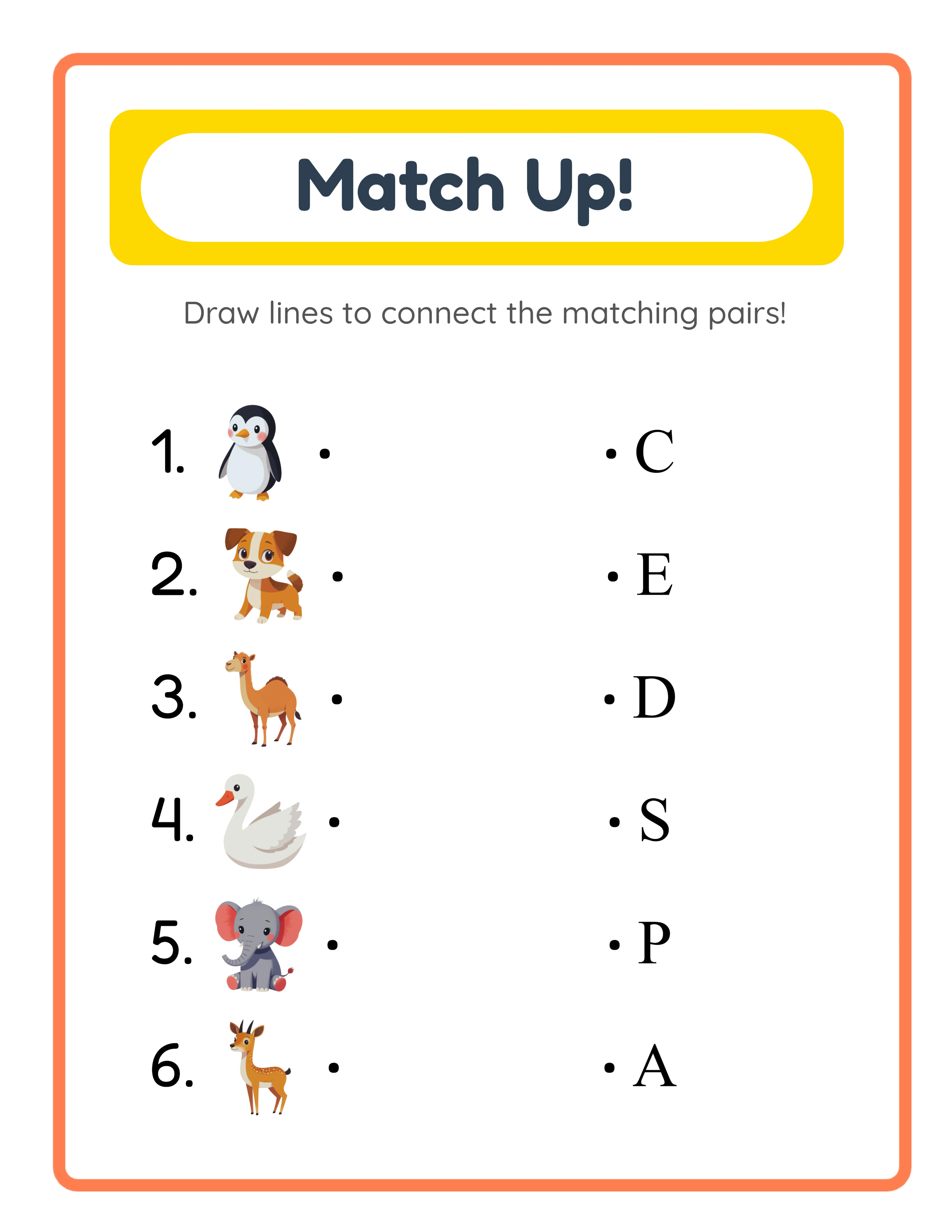
Matching beginner worksheet

Simple 3-pair matching

Explorer
Odd One Out intermediate worksheet

Medium 4-item groups

Expert
Bingo advanced worksheet

5×5 full bingo cards

Professional quality at every difficulty level

Platform Tips

Selling Sorting Worksheets on Etsy

Etsy is a strong marketplace for sorting worksheets because buyers search for specific category pairings. Titles like "Animals vs Food Sorting Worksheets — Cut and Sort Activity — Preschool Classification — With Answer Key" capture targeted search traffic. Name your products using the actual category pairing rather than generic titles. "Farm Animals vs Wild Animals Sorting Pack" outperforms "Sorting Worksheets for Kids" because it matches specific buyer search queries. Each category pairing becomes a distinct listing that targets unique keywords. Tags: use all thirteen Etsy tags. Combine broad and specific terms: "sorting worksheets," "classification activity," "cut and sort," "preschool sorting," "category worksheets," "printable sorting activity," "sorting center," "kindergarten classification," and variations matching your specific category pairing. Listing images: show the full sorting worksheet with category frames and cutout grid, a close-up of the shuffled images, the answer key with enlarged images in category boxes, and a mockup of the worksheet printed and in use. The two-category layout with side-by-side frames is visually distinctive and makes strong thumbnails. Pricing: individual sorting worksheet sets of five to ten sheets sell at two dollars ninety-nine to five dollars ninety-nine. Theme pairing bundles of fifteen to twenty worksheets sell at six dollars ninety-nine to twelve dollars ninety-nine. Complete collections with multiple theme pairings sell at fourteen dollars ninety-nine to twenty-four dollars ninety-nine.

Selling Sorting Worksheets on Amazon KDP

Amazon KDP serves the classification workbook market. Compile fifty to eighty sorting worksheets into a bound activity book format with progressive difficulty. Structure your workbook in chapters by difficulty: early chapters use four to six images with obvious category differences like animals versus vehicles, middle chapters use eight to ten images with subtler distinctions like farm animals versus wild animals, and advanced chapters use twelve images with challenging classifications like healthy food versus treats. Include answer key pages at the back of each chapter. Title and subtitle: example title: "Category Sorting Worksheets for Preschool." Example subtitle: "80 Cut-and-Sort Classification Activities with Answer Keys for Kids Ages 3–6 — Animals, Food, Vehicles, and Nature Themes." Keywords: KDP provides seven keyword slots. Use specific phrases: "sorting worksheets preschool," "classification activity book," "cut and sort worksheets kids," "category sorting printable," "sorting center activities," "kindergarten sorting workbook," "picture classification exercises." Toggle grayscale for ink-friendly output that prints cleanly in black and white and keeps KDP printing costs low. The sorting layout with dashed-border frames and cutout grid reproduces well in grayscale because the structure relies on borders and spacing rather than color.

Selling Sorting Worksheets on Gumroad

Gumroad is ideal for sorting worksheets because classification is a core content library skill across multiple subjects. Science buyers need living versus nonliving sorting activities. Health buyers need healthy versus unhealthy food classification. Social studies buyers need community helpers versus other occupations. Product descriptions on Gumroad should include: grade level, specific classification skills practiced, number of worksheets, whether answer keys are included, category pairings covered, and alignment to content library standards. Mention that worksheets include name and date fields for structured tracking. Preview files: Gumroad allows you to upload a preview file. Include two to three sample sorting worksheets and one answer key page from your set. Show both the cutout grid and the category frames so buyers can see the complete sorting activity format. Bundling on Gumroad: buyers buy bundles for entire units. A "Complete Classification Activity Bundle" with sorting worksheets covering science, nutrition, nature, and everyday objects gives buyers resources for multiple lessons. Create content-aligned sets using manual mode for precise image selection. Platform-specific keywords: "sorting center," "classification activity," "cut and paste sorting," "category sort," "science sorting," "math sorting," "morning work sorting." These terms match how buyers search for sorting resources.

Picture Sort Showcase

See What You Can Create!
Featured picture sort worksheet
Sort It Out!CategoriesWith Answer Keys

Monetization Strategies

Pricing Your Sorting Worksheet Products

Sorting worksheet pricing follows predictable patterns across marketplaces. Here are the ranges that perform well: Single category pairing sets with five to ten worksheets and answer keys: two dollars ninety-nine to five dollars ninety-nine. These serve as entry-point products that get buyers into your shop. Each set focuses on one specific theme pairing like animals versus food. Themed bundle collections with fifteen to twenty worksheets across three to four category pairings: six dollars ninety-nine to twelve dollars ninety-nine. Buyers perceive strong value because they get multiple theme pairings and progressive difficulty within a single purchase. Complete sorting collections with forty to sixty worksheets covering eight to ten category pairings at multiple difficulty levels: fourteen dollars ninety-nine to twenty-four dollars ninety-nine. Position these as comprehensive sorting activity libraries for a full school year. Do not undercut the market. Sorting worksheets with answer keys are a premium product because buyers get both the activity and the self-checking solution. The auto-generated answer key with enlarged images in category boxes is a genuine quality differentiator. Price accordingly.

Bundling Strategies for Sorting Worksheets

Bundles are where the real revenue lives in sorting worksheets. The two-category format creates natural bundling opportunities based on category pairings. Category pairing bundles: group ten to fifteen worksheets sharing a single theme pairing. "Animals vs Food Sorting Pack — 15 Worksheets with Answer Keys" is a clear, searchable product. Difficulty progression bundles: combine four-image, eight-image, and twelve-image worksheets for the same theme pairing. Market these as "complete classification sets" that grow with the child from preschool through elementary. Subject area bundles: compile sorting worksheets by content library area. "Science Sorting Bundle" includes living versus nonliving, land versus water, and day versus night animals. "Nutrition Sorting Bundle" includes healthy versus unhealthy food, fruits versus vegetables, and drinks versus snacks. Multilingual bundles: generate the same sorting worksheets in multiple languages using the language-sensitive category labels. A "Trilingual Sorting Pack" in English, Spanish, and French targets bilingual stores and international buyers. Always list both individual sets and bundles. Individual listings improve your shop search visibility by capturing more specific keyword combinations, while bundles drive higher revenue per transaction.

Multilingual and Seasonal Strategies

The Picture Sort Maker is language-sensitive — switching the app language changes category labels and the header text on every worksheet. This creates a significant competitive advantage for sellers willing to create multilingual products. Generate a themed sorting set in English, then switch to German, French, Spanish, or any of the eleven supported languages and regenerate with the same category pairing. You get a complete multilingual sorting product from identical images with zero redesign effort. Multilingual sorting bundles are underserved on most marketplaces, which means less competition and higher visibility for your listings. Seasonal opportunities follow predictable patterns for sorting worksheets. Halloween: sort costumes versus treats, spooky animals versus friendly animals. Christmas: sort decorations versus food, gifts versus clothing. Valentine's Day: sort hearts versus flowers, sweet versus savory treats. Spring: sort flowers versus leaves, insects versus birds. The key to seasonal success is preparation. Create your seasonal sorting products during off-peak times and list them four to six weeks before each holiday. This gives marketplace search algorithms time to index your listings before buyers start searching. Seasonal sorting worksheets with auto-generated answer keys make compelling products because the cut-and-sort format adds tactile engagement to holiday-themed learning.

Examples

Product Variations by Difficulty and Image Count

Here are concrete product examples you can create with the Picture Sort Maker, organized by difficulty level and image count. Preschool level (four to six images): use theme mode with obvious category pairings. Animals versus vehicles, fruits versus toys, farm animals versus sea creatures. Set four to six total images with two to three per category. The three-column cutout grid gives each image plenty of space for small hands to cut. These worksheets focus on basic binary classification with large, easily recognizable images. Package five to eight worksheets per set with answer keys included. Kindergarten level (six to eight images): increase image count and use subtler category distinctions. Farm animals versus wild animals, land vehicles versus water vehicles, fruits versus vegetables. Six to eight total images with three to four per category. Solvers handle more classification decisions and the categories share more visual similarity. Include name and date fields for practical use. Package ten to twelve worksheets per set. Elementary level (ten to twelve images): maximum image count with challenging category pairings. Healthy food versus treats, day animals versus night animals, warm clothing versus cold clothing. The four-column cutout grid accommodates ten to twelve images with adequate spacing. These worksheets work as assessment tools and independent practice for solvers who have mastered basic sorting. Package fifteen to twenty worksheets per set with progressive difficulty within the bundle.

High-Performing Category Pairing Ideas

Certain category pairings consistently perform well on marketplaces because they match natural classification concepts that buyers search for. Animal pairings: farm animals versus wild animals, land animals versus water animals, pets versus zoo animals, insects versus birds. Animal sorting is the most searched category for early childhood classification activities. Food pairings: fruits versus vegetables, healthy food versus treats, breakfast food versus dinner food, hot food versus cold food. Nutrition classification aligns with health content library standards, making these strong sellers on Gumroad. Nature pairings: land versus water, day versus night, summer versus winter, flowers versus trees. Nature classification supports science content library objectives across multiple grade levels. Everyday objects: indoor versus outdoor, big versus small, tools versus toys, clothing versus accessories. Everyday sorting helps children connect classification skills to their daily experience. The strategy is to choose pairings that match real search queries. Before creating a new themed product, search for that pairing on Etsy or Gumroad and note the number of results and quality of existing products. Low competition combined with high search volume equals your strongest opportunities. The one hundred and four themed image collections in the generator provide enough variety to create hundreds of unique category pairings.

Sample Worksheets

Picture sort worksheet showing two side-by-side category frames and shuffled cutout grid below
Two-category sorting worksheet with side-by-side category frames and shuffled cutout grid
Auto-generated answer key with enlarged images sorted into correct category boxes
Auto-generated answer key with images displayed at six times the cutout grid cell size

Theme Images

Cat — themed educational image
Cat
Chinchilla — themed educational image
Chinchilla
Cockatiel — themed educational image
Cockatiel
Dog — themed educational image
Dog
Ferret — themed educational image
Ferret

Professional Worksheet Gallery

Clean, polished layouts ready for your business

Matching professional worksheet
Matching
Odd One Out professional worksheet
Odd One Out
Bingo professional worksheet
Bingo
Print-ReadyProfessional QualityMultiple FormatsAnswer Keys

Frequently Asked Questions

What are the two selection modes in the Picture Sort Maker?
The generator offers theme mode and manual mode. Theme mode lets you pick a theme for the left category and a different theme for the right category, and the app auto-selects four to six random images per theme from the image library. Manual mode gives you complete control: hand-select individual images from any theme and assign each to the left or right category. Theme mode is faster for bulk production; manual mode is ideal for content-aligned sorting activities.
How does the two-category sorting layout work?
Each sorting worksheet has exactly two categories, left and right. Two side-by-side dashed-border category frames at the top serve as sorting destinations. A shuffled cutout grid below displays all images in randomized order. Solvers cut out the images from the grid and sort them into the correct category frame. The binary classification format creates a clear learning objective for every sorting activity.
How many images can I include on each sorting worksheet?
Each worksheet supports four to twelve total images, with each category holding between two and ten images. In theme mode, the app automatically pulls four to six images per theme. In manual mode, you control exact counts per category. Fewer images create simpler tasks for preschool; more images increase difficulty for elementary solvers. The cutout grid adjusts its column layout automatically.
Does the generator create answer keys automatically?
Yes. The dual-canvas system generates both a worksheet tab and an answer key tab simultaneously. The answer key displays images sorted into their correct category, rendered at six times the size of the cutout grid cells for clear verification. Each category box uses a maximum of two columns. You get four download files per session: worksheet JPEG, worksheet PDF, answer key JPEG, and answer key PDF.
Are the category labels language-sensitive?
Yes. Category labels use localized image names from the image library, so switching languages changes the text on the worksheet. The localized Picture Sort header also translates automatically into all eleven supported languages: English, German, French, Spanish, Portuguese, Italian, Dutch, Swedish, Danish, Norwegian, and Finnish. This makes it straightforward to create multilingual sorting products from the same images.
Can I sell sorting worksheets I create on Etsy and Amazon KDP?
Yes. A commercial license gives you full rights to sell generated sorting worksheets on any platform including Etsy, Amazon KDP, Gumroad, Gumroad, and your own website. There are no royalty fees or per-sale charges. You keep one hundred percent of your sales revenue after marketplace fees.
What is the refund policy for commercial licenses?
Every generator offers a free trial with watermark so you can test all features, create sample sorting worksheets, and evaluate output quality before purchasing. Because you can fully evaluate the product before buying, all commercial license sales are final. This is standard practice for digital product tools where the full product can be previewed before purchase.

Ready to Start Creating?

Try any generator free with watermark. No signup required.

Browse All Generators