.webp)
.webp)
Tutorial
1
Open the Odd One Out Maker
Navigate to the Odd One Out Maker page and click the launch button to open the generator in your browser. The tool loads instantly with a settings sidebar on the left and a dual-tab canvas on the right — one tab for the worksheet, one for the answer key. No account creation, no software download, no installation required.
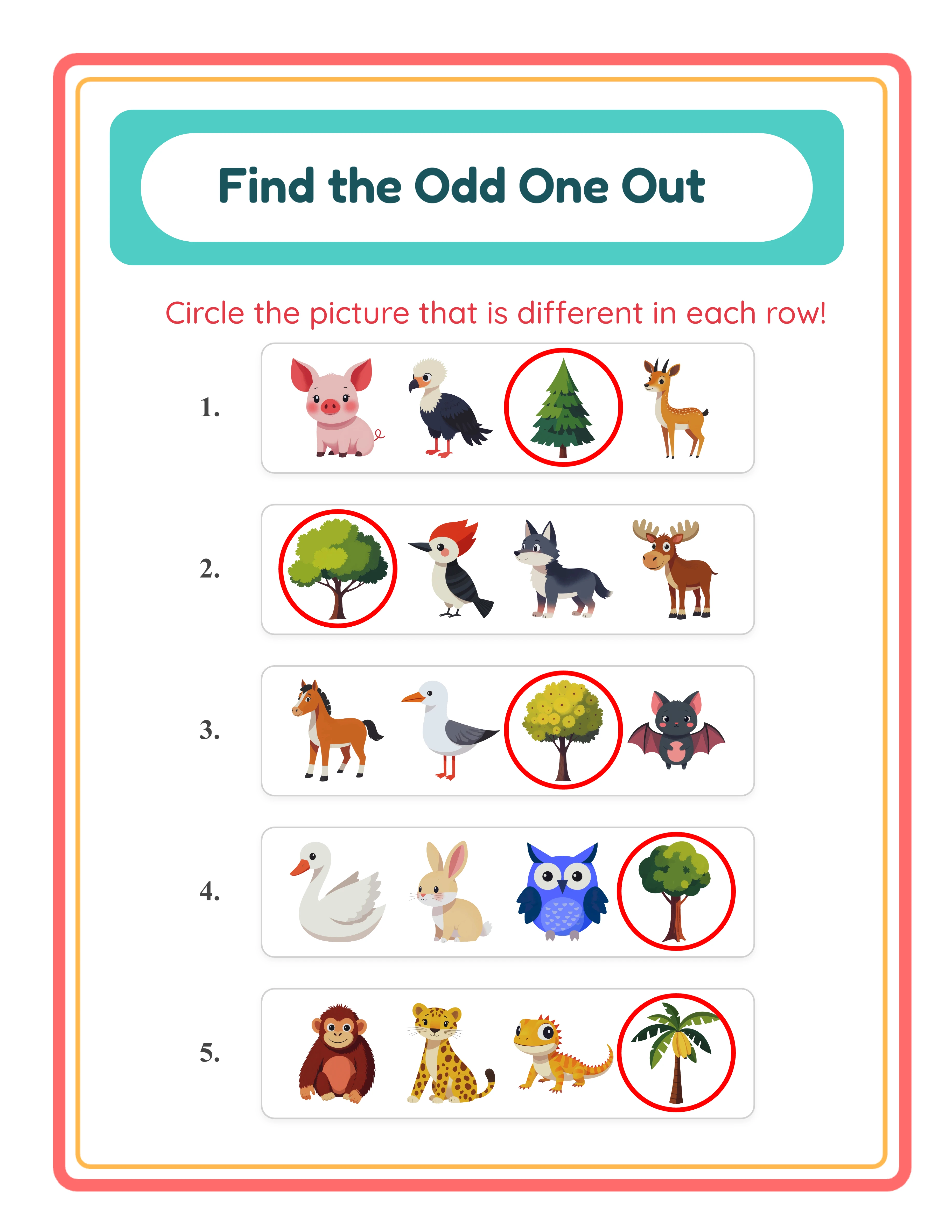
The dual-tab canvas is the core of the Odd One Out generator. The worksheet tab shows the exercise cards that solvers will use, while the answer key tab shows the same layout with red circle markers identifying the odd item in each row. Both tabs generate simultaneously when you click Generate, so you never need to create answer keys manually.
Take a moment to explore the sidebar panels. The Exercise Configuration panel controls your generation mode, exercise count, and per-exercise overrides. The Image Library panel provides access to themed collections with the two-theme selection system. The Page Setup panel handles layout and decoration options. These three panels contain everything you need to configure a complete odd one out worksheet.
2
Choose Your Generation Mode
The Odd One Out Maker offers two distinct generation modes, and choosing the right one determines the cognitive challenge your worksheet presents.
Identical mode is designed for basic visual discrimination. The generator places three clones of the exact same image alongside one different image from the same theme. Solvers must spot the non-duplicate by comparing fine visual details within a single thematic category. Three identical cats and one dog, three identical apples and one banana — the challenge is recognizing which image is not a copy. This mode works best for younger learners who are developing foundational observation skills.
Similar mode is designed for categorical reasoning. The generator draws three images from Theme A and one image from Theme B. Solvers must identify the thematic outlier by recognizing that one image belongs to a different category. Three animals and one vehicle, three fruits and one tool — the challenge is understanding why one item does not belong to the group. This mode produces harder puzzles because all four images are visually different, and the solver must reason about category membership rather than visual matching.
Identical mode is your accessibility tool for younger audiences. Similar mode is your challenge tool for older solvers and more advanced products. Most successful odd one out sellers use both modes: Identical for preschool and kindergarten products, Similar for elementary-level products, and per-exercise overrides to mix both on progressive-difficulty worksheets.
3
Set Exercise Count and Per-Exercise Overrides
Set the exercise count from five to ten using the Exercise Configuration panel. The default is six exercises per worksheet. Each exercise always contains exactly four images — three common items and one odd item — with the odd item's position randomly shuffled within the row.
For preschool products, use five to six exercises. Fewer exercises mean larger image cards with more spacing, making it easier for the younger audience to focus on each row and circle their answer. For elementary products, use eight to ten exercises for higher content density and more challenge per page.
The per-exercise mode override is what sets this generator apart. Each exercise row includes its own mode dropdown selector, letting you override the global mode on a per-exercise basis. Set the global mode to Identical, then switch the last three exercises to Similar — creating a worksheet that starts easy and gets progressively harder. Or alternate Identical and Similar throughout for varied challenge. The "Clear Selections" button resets all per-exercise overrides back to the global setting, making experimentation fast.
Toggle name and date fields for group accountability. Toggle exercise numbers to display numerals on the left side of each exercise card with twenty-five pixel width and fifteen pixel gap from the card content. Exercise numbers help during group review and make it easy for sellers to reference specific rows.
4
Select Themes and Images from the Library or Upload Custom
The Image Library panel gives you access to one hundred and four themed collections with over three thousand one hundred illustrations. In Similar mode, the two-theme system makes cross-category puzzles effortless. Select Theme A from the dropdown for the three common images and Theme B for the single odd item. Pair animals with food, vehicles with nature, professions with sports — any combination from the available themes creates a distinct puzzle set.
In Identical mode, only one theme is needed since both the common clones and the odd image come from the same collection. The generator automatically selects three copies of one image and one different image from that theme.
Browse themes using the dropdown menu or search by keyword to find the right pairing. For Similar mode, choose theme pairings with obvious categorical differences for younger learners — animals versus vehicles, food versus tools. For advanced products, use subtler pairings where themes share visual similarities — farm animals versus zoo animals, fruits versus vegetables.
You can also upload custom PNG, JPG, or GIF images to create personalized odd one out puzzles. Custom uploads let you create worksheets with group photos, brand-specific illustrations, or custom artwork that no competitor can replicate. This is particularly valuable for creating niche products targeting specific curricula or educational themes not covered by the built-in library.
5
Set Page Layout and Decorations
In the Page Setup section, select your page size. Options include Letter Portrait, Letter Landscape, A4 Portrait, A4 Landscape, Square (twelve hundred by twelve hundred pixels), and custom dimensions. Letter is standard for North American buyers. A4 is standard for European and international markets. Creating both versions doubles your market reach with minimal additional effort.
Background and border themes work independently, each with its own opacity slider ranging from zero to one in increments of zero point zero five. Apply a subtle background pattern at fifteen to twenty-five percent opacity for visual warmth without distracting from the puzzle content. Layer a decorative border at eighty to one hundred percent opacity for a polished frame. Consistent background and border combinations across a bundle create a cohesive product look that buyers associate with quality.
Customize text with seven font options including Lexend Deca, Baloo 2, Nunito, Quicksand, Fredoka, Arial, and Verdana. Add a text outline from zero to ten for additional styling. These options let you add custom titles or branding to your odd one out worksheets. The Fabric.js canvas provides six alignment options plus center-on-page, layers with lock and unlock, zoom from twenty-five to three hundred percent, and undo and redo with twenty states.
6
Generate the Odd One Out Worksheet
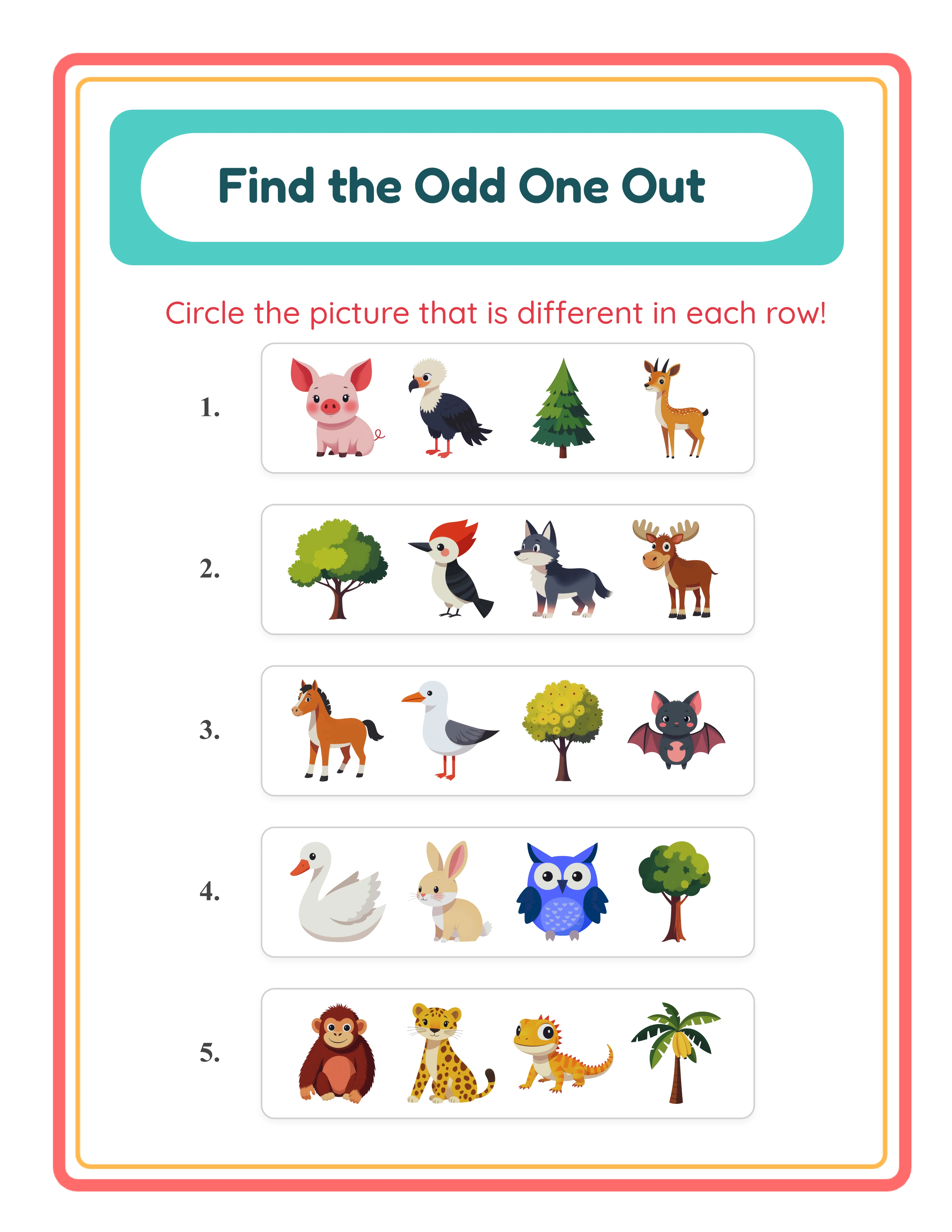
Click Generate to create the exercise cards. Each card displays four images in a horizontal row — three common items and one odd item with its position randomly shuffled. The random shuffling recalculates on every generation, so regenerating with the same settings produces different odd item positions.
The layout automatically adapts based on page orientation and exercise count. Portrait pages with seven or more exercises switch to a two-column layout for optimal spacing. Landscape pages always use two columns. Pages with five to six exercises on portrait orientation use a single column with larger image cards. This adaptive system ensures clean, readable worksheets regardless of your exercise count and page size combination.
A styled header renders automatically at the top of the page reading "Find the Odd One Out" with a coral outer border, amber inner section, and turquoise background. The title appears in dark teal Fredoka font and instructions in red Quicksand font. The header text translates automatically into all eleven supported languages, but the puzzle content itself remains purely visual — images only, no language-specific text.
Examine the preview carefully: check that images are clearly visible in each exercise row, the odd item is genuinely different from the common items, and the overall layout looks balanced. If anything needs adjustment, modify your settings and regenerate instantly.
7
Review the Auto-Generated Answer Key
Click the Answer Key tab to see the auto-generated solution. The answer key reproduces the exact worksheet layout and draws a red circle outline around the odd item in each exercise row. The circle's stroke width scales dynamically with image size — calculated as the maximum of image size multiplied by zero point zero four or three pixels — ensuring consistent visibility across all page sizes from Square to Letter Landscape.
Switch between the Worksheet and Answer Key tabs to compare and verify the correct item is marked in each row. The answer key generates simultaneously with the worksheet — no manual creation step, no separate design process, no possibility of mismatched answers. This simultaneous generation is a significant time saver when creating large bundles.
For product listings, the answer key is a powerful selling point. Products that include answer keys with clear visual markers consistently outsell puzzles-only listings because buyers and parents want self-checking materials. The red circle markers are immediately recognizable and make verification instant. Always mention "includes answer key with red circle markers" in your listing titles and descriptions to differentiate from competitors selling puzzles without solutions.
8
Download All Four Files
The Odd One Out Maker produces four files per session: worksheet JPEG, worksheet PDF, answer key JPEG, and answer key PDF. Each tab has its own pair of download buttons. All files render at three hundred DPI for print-ready output.
Toggle grayscale before downloading for ink-friendly versions ideal for bulk printing and Amazon KDP interiors. Grayscale odd one out worksheets maintain visual clarity because the puzzles rely on shape and form differences rather than color, making them particularly well-suited for black-and-white printing.
For marketplace listings, export both the PDF (as your deliverable product) and a JPEG (for listing preview images). Show both the worksheet and the answer key with red circle markers in your listing images so buyers can see exactly what they are purchasing.
To build a complete product bundle, switch themes, adjust exercise counts, toggle between Identical and Similar modes, or use per-exercise overrides and regenerate. Each generation produces a fresh set of four files with new random shuffling of odd item positions. Ten generation sessions give you forty production-ready files — a complete odd one out puzzle bundle ready for listing.
Important: the free trial with watermark produces fully functional exports with a visible watermark overlay. This lets you evaluate print quality, verify formatting, and create test prints before purchasing a commercial license. The commercial license removes the watermark from all exports, producing clean files ready for sale.
.webp)
.webp)
.webp)


.webp)
.webp)