.webp)
.webp)
Tutorial
1
Open the Shadow Match Maker
Navigate to the Shadow Match Maker page and click the launch button to open the generator in your browser. The tool loads instantly with a settings sidebar on the left and a dual-tab canvas on the right — one tab for the worksheet, one for the answer key. No account creation, no software download, no installation required.
The dual-tab canvas is the core of the Shadow Match generator. The worksheet tab shows the matching layout that solvers will use, while the answer key tab shows the correct letter-to-number pairings with the original images. Both tabs generate simultaneously when you click Generate, so you never need to create answer keys manually.
Take a moment to explore the sidebar panels. The Exercise Configuration panel controls your mode selection (Shadow Match or Make It Whole), label visibility, and cut direction. The Image Library panel provides access to themed collections. The Page Setup panel handles layout and decoration options. These three panels contain everything you need to configure a complete shadow matching worksheet.
2
Choose Your Exercise Mode
The Shadow Match Maker offers two distinct exercise modes, and choosing the right one determines what kind of matching activity your worksheet presents.
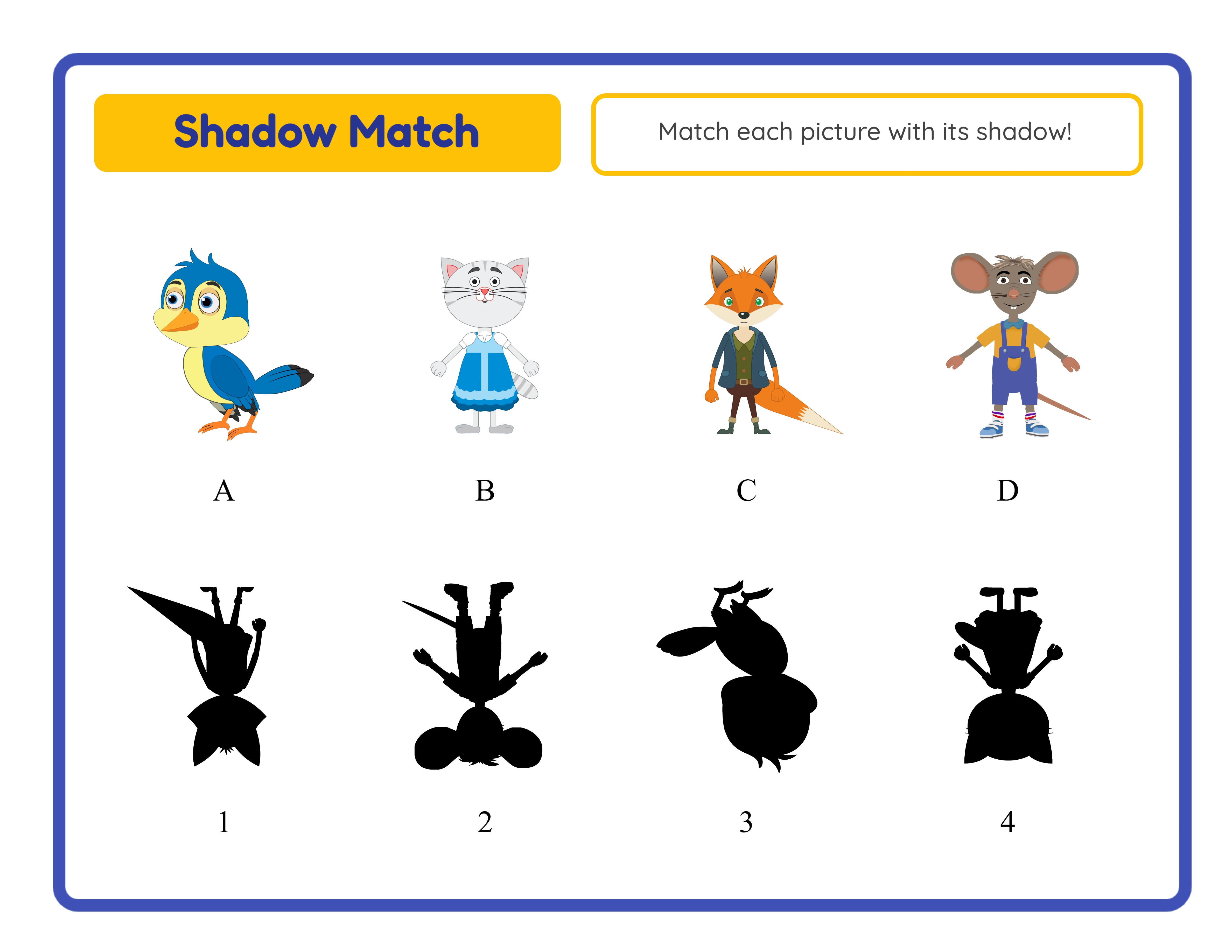
Shadow Match mode is the signature silhouette matching activity. It places four colored images in the top section and four auto-generated black silhouettes in the bottom section. The silhouettes are created through pixel-level image processing — every pixel with alpha greater than ten is converted to pure black, producing accurate outlines that preserve fine details like ears, tails, handles, and distinctive contours. Solvers study the shapes and match each colored image to its correct silhouette. This is real pixel processing, not CSS filters or pre-made shadow assets.
Make It Whole mode creates a spatial reasoning puzzle. It splits four images into halves along your chosen cut direction — horizontal (top and bottom halves) or vertical (left and right halves). First halves are labeled A through D, second halves are labeled one through four, and solvers reconnect the pieces to complete each picture. The two cut directions produce fundamentally different challenges from the same images — an animal split horizontally reveals head and body separately, while the same animal split vertically shows left and right profiles.
Shadow Match is your visual discrimination tool. Make It Whole is your spatial reasoning tool. Most successful sellers use both: shadow matching for silhouette recognition products and split-image puzzles for spatial perception bundles.
3
Configure Labels and Name/Date Fields
The Show Labels checkbox in the Exercise Configuration panel controls whether alphanumeric identifiers appear on the worksheet. This single toggle creates two difficulty tiers from identical content.
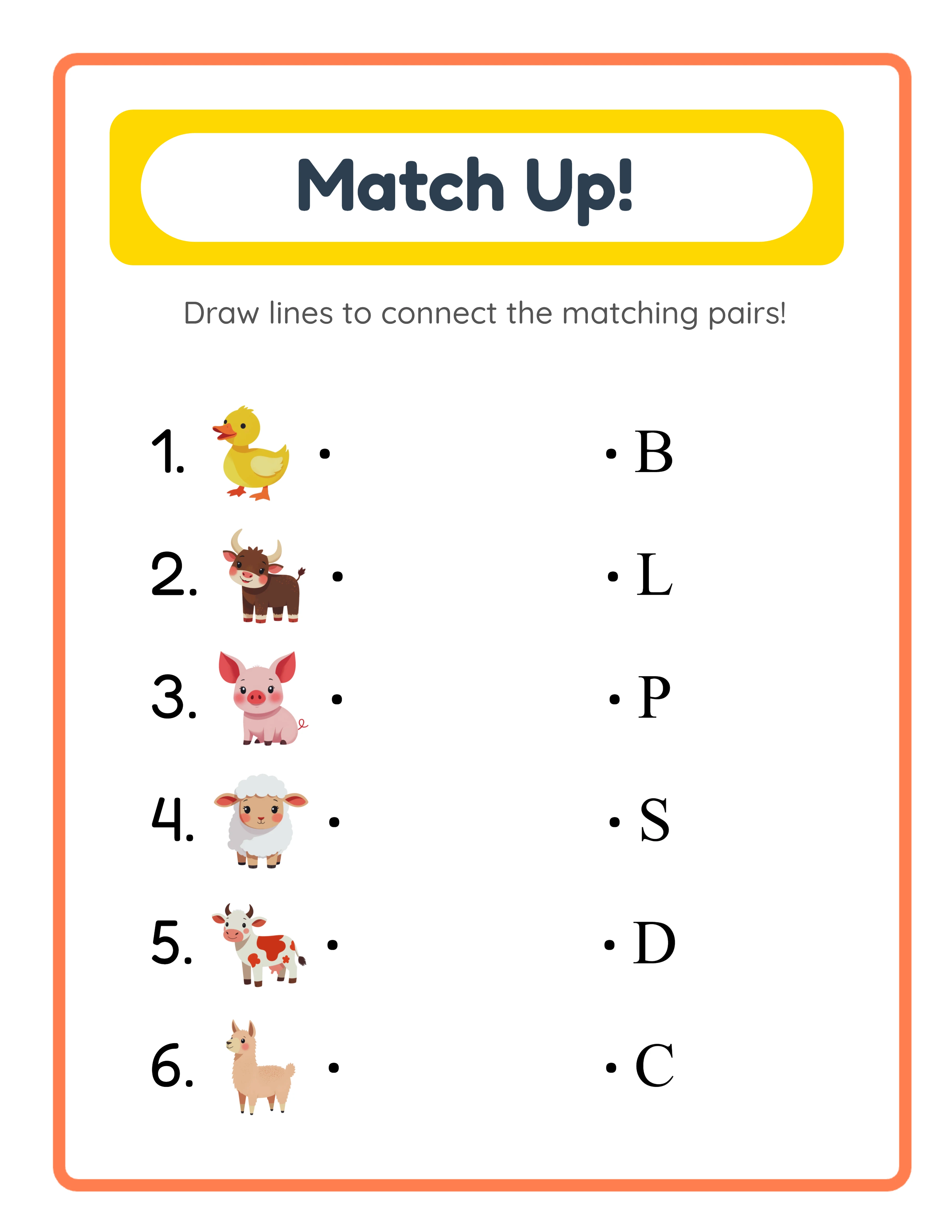
When labels are on (the default), images or first halves display A, B, C, D identifiers and silhouettes or second halves display one, two, three, four identifiers. Solvers write letter-number pairs as answers — for example, A matches with three, B matches with one. This structured scaffolding is ideal for younger learners, guided instruction, and structured worksheets where buyers need written responses to assess.
When labels are off, the worksheet becomes a pure visual matching challenge without any alphanumeric cues. Solvers must rely entirely on visual matching — identifying silhouettes by shape alone or reconnecting split halves by visual continuity. Label-free worksheets are ideal for puzzle books, advanced activities, and premium digital downloads where a cleaner visual presentation commands higher perceived value.
Check the Include Name/Date Fields checkbox to add name and date lines to the worksheet. Buyers strongly prefer worksheets with these fields for structured tracking. Always include them in products targeting practical use. For puzzle book products, leave name and date fields off for a cleaner page.
4
Select Four Images from the Library or Upload Custom
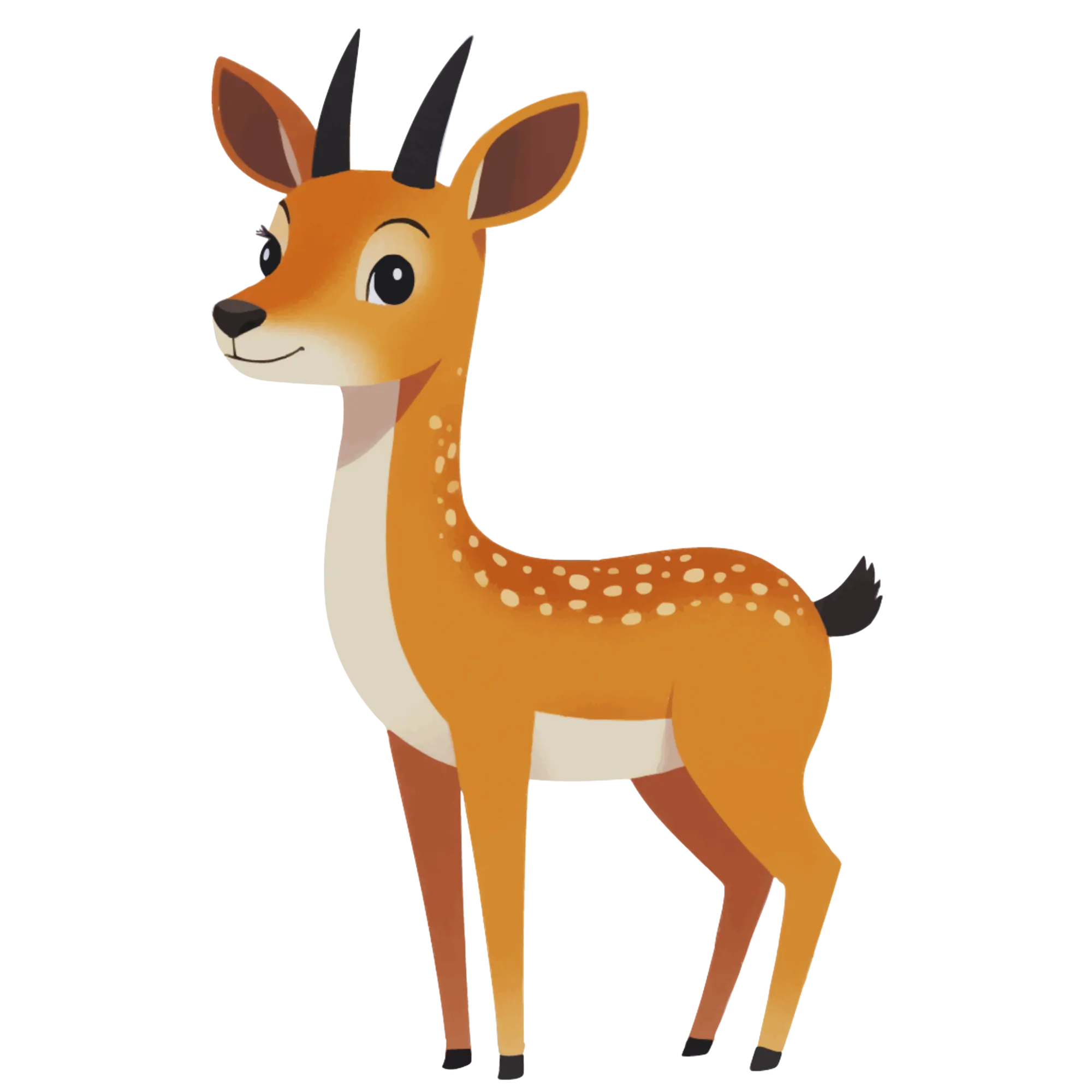
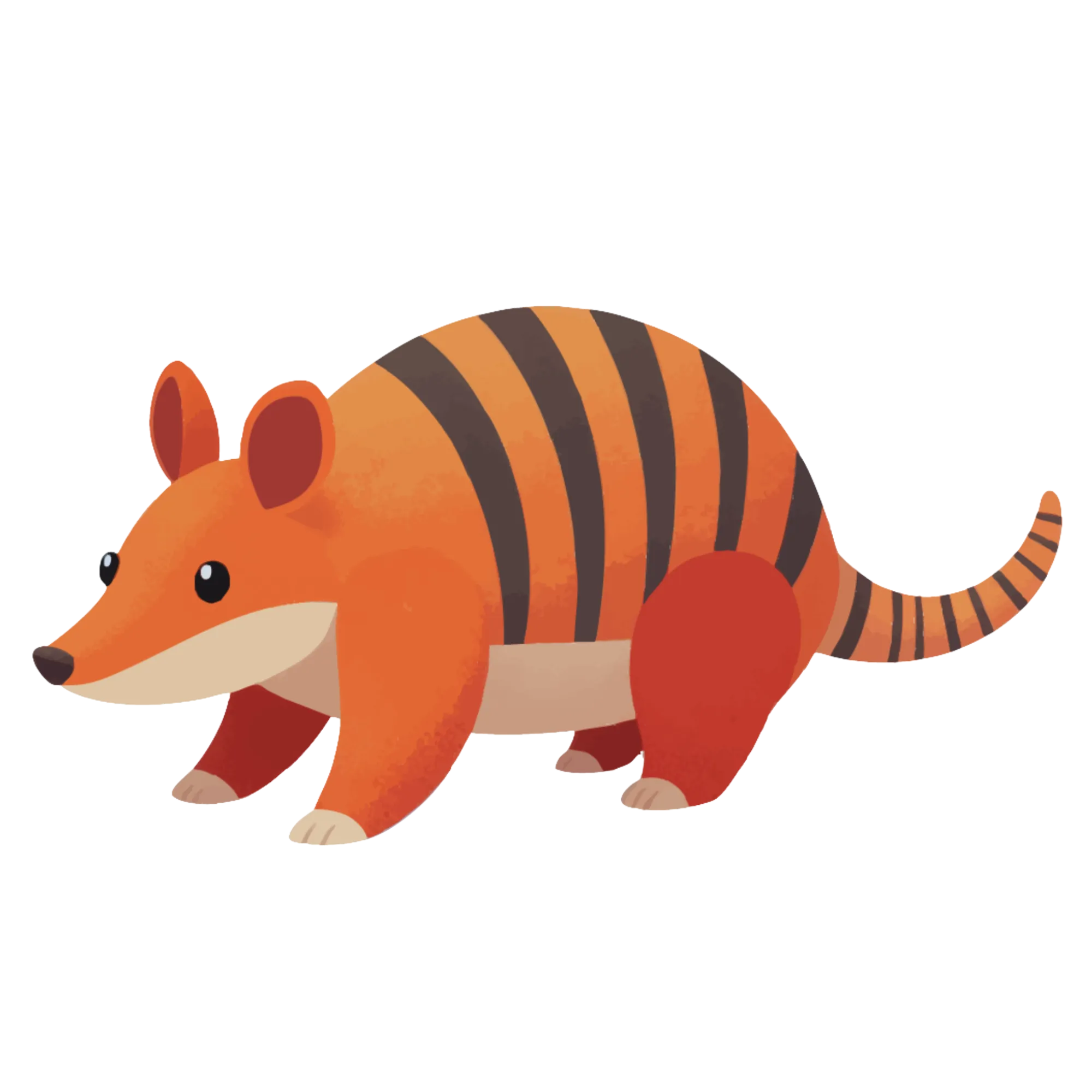
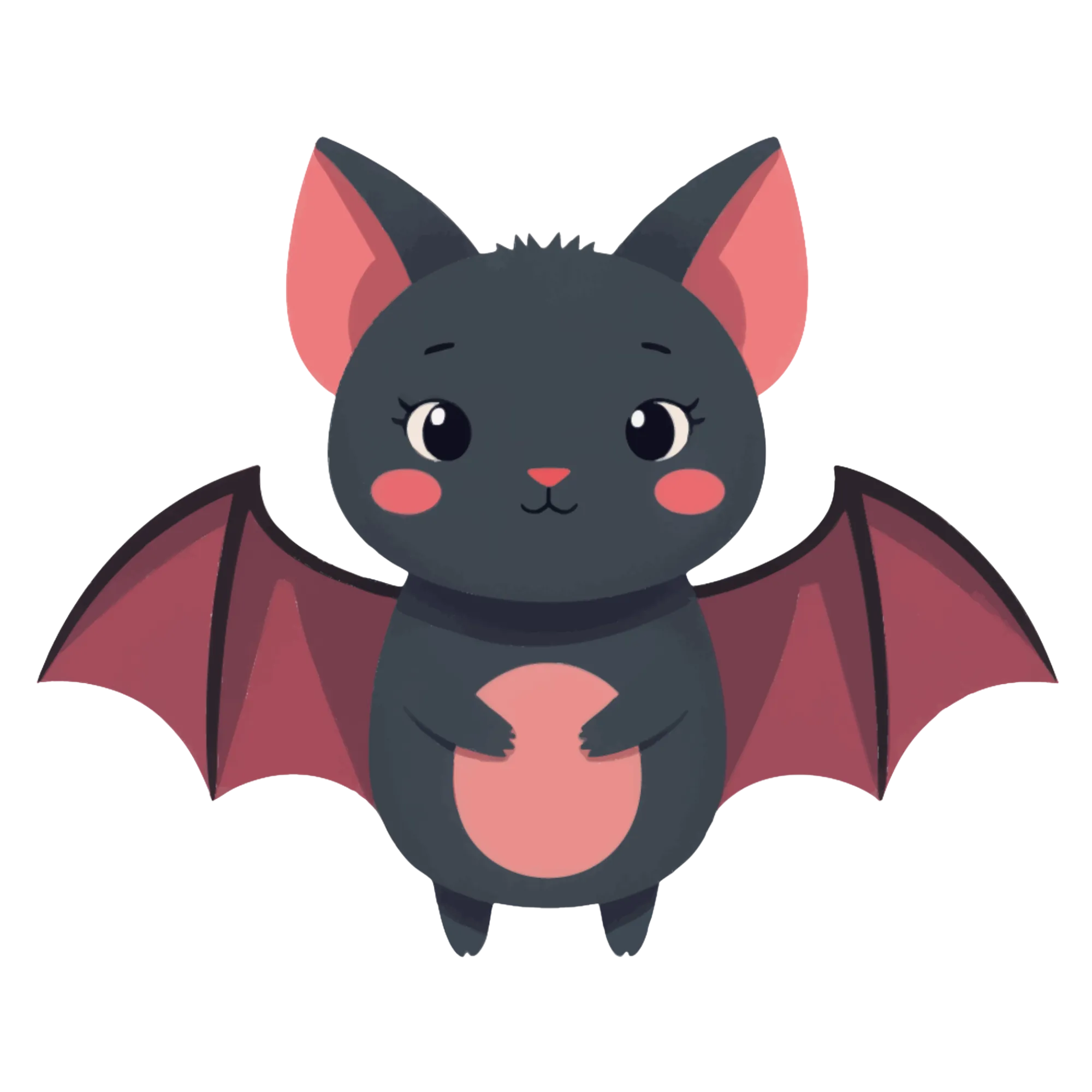
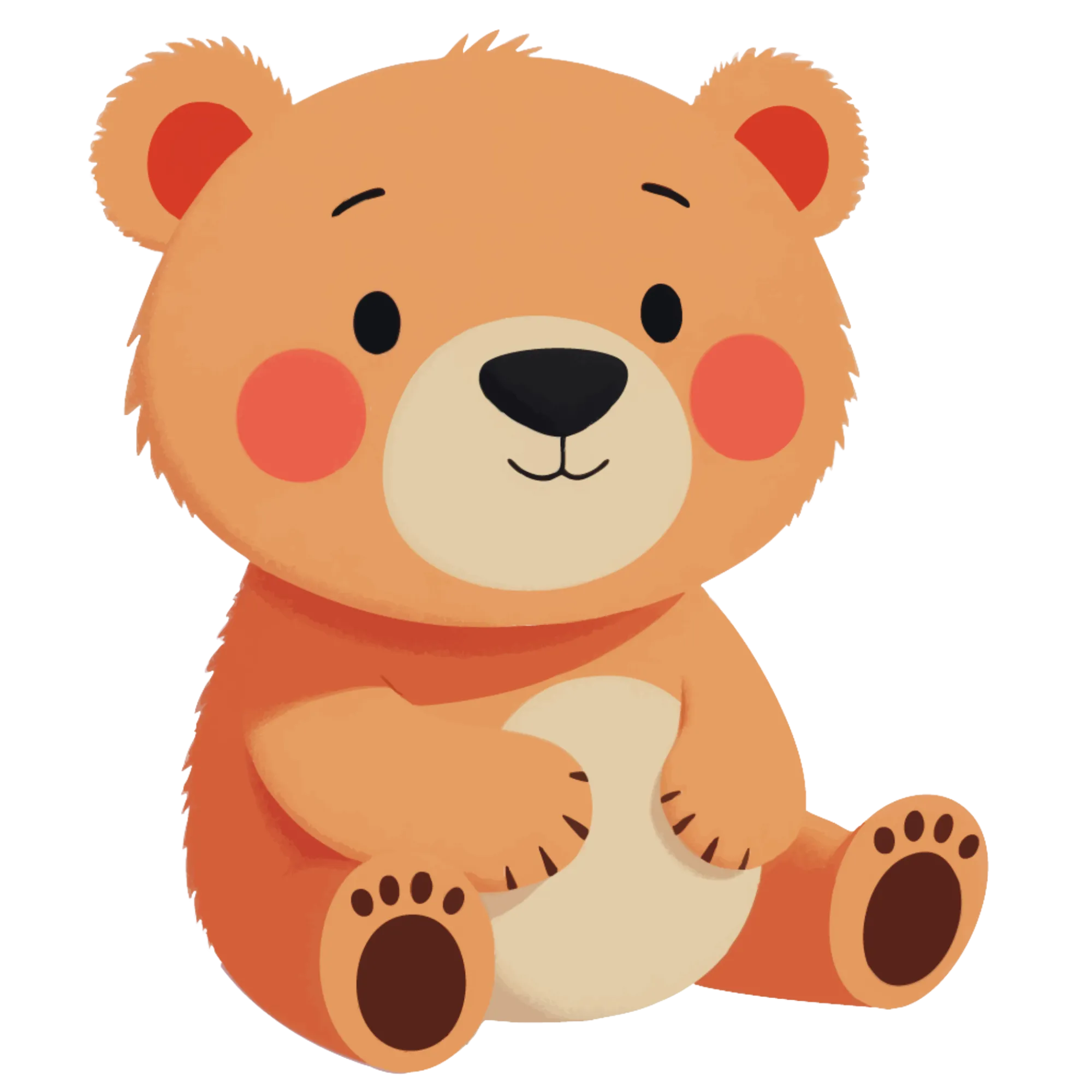
Open the Image Library panel and browse one hundred and four themed collections with over three thousand one hundred colorful illustrations. Categories span animals, food, vehicles, nature, holidays, professions, sports, and dozens more. Filter by theme using the dropdown or search by keyword to find the right images.
Both exercise modes always use exactly four images per worksheet. Click images to select them — the counter shows your progress toward the required four. A selected images preview confirms your choices before generating.
For Shadow Match mode, choose images with distinctive silhouettes. Animals with unique body shapes (giraffe, elephant, octopus), vehicles with clear profiles (airplane, bicycle, ship), and objects with identifiable contours (guitar, umbrella, crown) produce the most recognizable and engaging shadow puzzles. Avoid images with similar rectangular shapes that would produce nearly identical silhouettes.
For Make It Whole mode, choose images with details distributed across both halves. An image with all distinctive features concentrated on one side produces an easy puzzle because one half is obviously unique. Images with balanced visual detail across both halves create stronger matching challenges.
You can also upload custom PNG, JPG, or GIF images to create personalized shadow matching worksheets. Custom uploads work for both modes — the pixel-level silhouette generation processes any uploaded image, and Make It Whole splits any image along the chosen cut direction. Family photos, custom artwork, or product-specific images become unique products that no competitor can replicate.
5
Set Page Layout and Decorations
In the Page Setup section, select your page size. Options include Letter Portrait, Letter Landscape, A4 Portrait, A4 Landscape, Square (twelve hundred by twelve hundred pixels), and custom dimensions. The layout adapts automatically to your page orientation: landscape pages arrange items in two rows of four items, while portrait pages use two columns of four items.
Letter is standard for North American buyers. A4 is standard for European and international markets. Creating both versions doubles your market reach with minimal additional effort. The purely visual format means page size is the only variable you need to adjust for different markets.
Background and border themes work independently, each with its own opacity slider ranging from zero to one in increments of zero point zero five. Apply a subtle background pattern at fifteen to twenty-five percent opacity for visual warmth without distracting from the shadow matching content. Layer a decorative border at eighty to one hundred percent opacity for a polished frame. Consistent background and border combinations across a bundle create a cohesive product look that buyers associate with quality.
Customize text with seven font options including Lexend Deca, Baloo 2, Nunito, Quicksand, Fredoka, Arial, and Verdana. Add a text outline from zero to ten for additional styling. A styled header renders automatically with an amber background, white pill container, and amber border displaying the exercise title and instructions.
6
Generate the Shadow Match Worksheet
Click Generate to create the matching worksheet. What happens next depends on your selected mode.
In Shadow Match mode, the app processes each image at the pixel level. It loads each image to a canvas, extracts pixel data via getImageData, and converts every pixel with alpha greater than ten to pure black. This produces accurate silhouettes that preserve fine details — the exact transparency profile of each source image becomes its shadow outline. Four colored images appear in one section and four black silhouettes appear in another, arranged according to your page orientation.
In Make It Whole mode, images are split along your chosen cut direction into labeled halves. Horizontal cuts produce top and bottom halves. Vertical cuts produce left and right halves. First halves display A through D identifiers, second halves display one through four identifiers.
Both modes apply Fisher-Yates derangement to guarantee no item appears in its original position. In Shadow Match mode, no silhouette sits directly below its matching image. In Make It Whole mode, no second half appears adjacent to its matching first half. This eliminates the possibility of solvers guessing correctly by position alone and ensures every worksheet presents a genuine matching challenge. The derangement recalculates on every generation, so clicking Generate again with the same images produces a different arrangement.
Examine the preview carefully: check that silhouettes are distinctly recognizable, split halves have clean edges, and the overall layout looks balanced. If anything needs adjustment, modify your settings and regenerate instantly.
7
Review the Auto-Generated Answer Key
Click the Answer Key tab to see the auto-generated solution. The answer key displays differently for each mode.
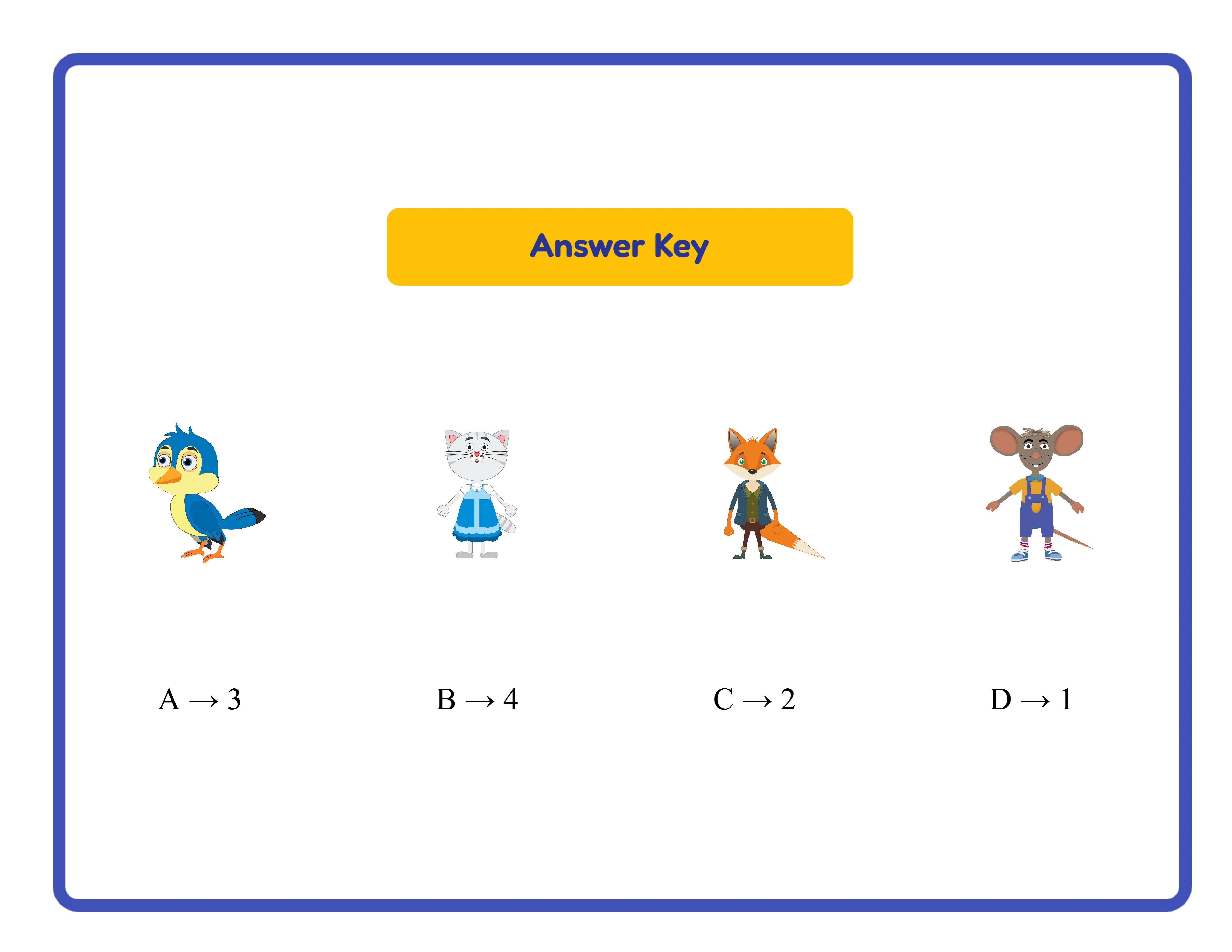
In Shadow Match mode, each cell shows the original image alongside its silhouette with a label like A matches with two, indicating the correct pairing. Solvers and buyers can verify answers at a glance by comparing the letter-number pairs on the answer key with the solver responses on the worksheet.
In Make It Whole mode, each cell shows the complete original image with its match label, confirming which halves belong together. The grid uses four columns with consistent spacing for a clean, readable solution layout.
Switch between the Worksheet and Answer Key tabs to compare and verify the matching solution. The answer key generates simultaneously with the worksheet — no manual creation step, no separate design process, no possibility of mismatched answers. This simultaneous generation is a significant time saver when producing shadow matching bundles. Creating answer keys manually for visual matching puzzles is tedious and error-prone. The auto-generated answer key eliminates this entire step.
For product listings, the answer key is a selling point. Products that include answer keys consistently outsell puzzle-only listings because buyers want self-checking materials. Always mention that answer keys are included in your listing titles and descriptions.
8
Download All Four Files
The Shadow Match Maker produces four files per session: worksheet JPEG, worksheet PDF, answer key JPEG, and answer key PDF. Each tab has its own pair of download buttons. All files render at three hundred DPI for print-ready output.
Toggle grayscale before downloading for ink-friendly versions ideal for bulk printing and Amazon KDP interiors. Grayscale shadow matching worksheets maintain visual clarity because the format relies on shape outlines and spatial relationships rather than color differentiation. Shadow Match silhouettes are already pure black, so grayscale conversion preserves the full puzzle quality.
For marketplace listings, export both the PDF (as your deliverable product) and a JPEG (for listing preview images). Show both the worksheet and the answer key in your listing images so buyers see exactly what they are purchasing.
To build a complete product bundle, switch between Shadow Match and Make It Whole modes, toggle cut directions, swap image sets, and regenerate. The derangement algorithm produces different arrangements each time, so you can also generate multiple unique worksheets from the same four images simply by clicking Generate again. Ten generation sessions give you forty production-ready files — a complete shadow matching bundle ready for listing.
Important: the free trial with watermark produces fully functional exports with a visible watermark overlay. This lets you evaluate print quality, verify formatting, and create test prints before purchasing a commercial license. The commercial license removes the watermark from all exports, producing clean files ready for sale.
.webp)
.webp)
.webp)
.webp)