Tutorial
1
Choose Your Grid Size and Page Format
The grid size determines the complexity and duration of your bingo game, and it is the first setting to configure because it affects how many images you need and how the final cards look.
The Bingo Card Maker supports grid sizes from 3×3 through 5×5, with rows and columns independently configurable. Here is how grid size maps to use cases:
3×3 grid (9 cells): The simplest format, ideal for preschool and kindergarten children, very young party guests, or quick 5-minute warm-up games. Fewer cells mean faster games and simpler visual processing for younger players.
4×4 grid (16 cells): A mid-range format that works well for elementary-age children, group vocabulary review, and party activities where you want games to last 10–15 minutes. This size balances complexity with accessibility.
5×5 grid (25 cells): The classic bingo format. Best for older children, adults, and longer game sessions. Standard for party bingo, baby shower bingo, and review games where you want sustained engagement.
Grid size is also a product differentiation strategy. You can sell the same theme at three grid sizes as three separate products or as a single tiered bundle. A "Farm Animals Bingo — Easy, Medium, and Classic" bundle covering all three sizes serves every age group in one purchase.
Page size options include US Letter Portrait, US Letter Landscape, A4 Portrait, A4 Landscape, Square, and Custom dimensions. US Letter is standard for North American buyers. A4 is standard for European and international markets. Landscape orientation can work well for bingo cards because the wider format gives each cell more horizontal space for images and labels.
2
Select a Theme from the Image Library
Theme selection defines the identity of your bingo product. A "farm animals bingo" and an "ocean creatures bingo" use the exact same generator with identical settings — only the theme differs — yet they are entirely different products targeting different search keywords and different buyer interests.
The Bingo Card Maker includes access to over 100 themed image sets with more than 3,100 illustrations covering animals, food, vehicles, nature, holidays, occupations, sports, and dozens more categories. Use the theme selector to browse categories or the search bar to find specific themes quickly.
Each theme contains enough unique images to fill multiple bingo cards without repetition. For a 5×5 grid, you need at least 25 unique images. Most themes include 30 or more images, giving the randomizer enough variety to create genuinely unique cards where no two players have the same layout.
Theme selection is a strategic product decision. Before creating a new bingo product, consider which themes match real search queries on your target marketplace. "Animal bingo for kids," "holiday bingo cards," "baby shower bingo," and "group vocabulary bingo" are all high-volume search terms. Each theme you create targets a different keyword cluster.
You can also upload your own custom images to supplement or replace library themes. This is useful for creating branded bingo cards, bingo cards featuring specific vocabulary sets, or niche themes not covered by the built-in library. Custom uploads integrate seamlessly with library images on the canvas.
3
Set the Number of Cards to Generate
This is the feature that separates bingo from every other printable product: every player needs a unique card. The Bingo Card Maker generates 1 to 10 unique cards per session, each with randomized image placement from the same image pool.
Here is why multiple unique cards matter for your product:
Gameplay requirement: Bingo only works when players have different cards. If every card is identical, every player wins simultaneously and the game has no point. Your product must include enough unique cards for a realistic game session.
Perceived value: A bingo product with 10 unique cards plus a caller card is inherently a bundle. Buyers understand they are getting multiple distinct pages, which justifies higher pricing compared to a single-page worksheet.
Product sizing strategy: Generate 10 cards per session, then run multiple sessions with the same theme to build larger sets. A "30-card bingo set" is a premium product. A "class set of 30 cards with caller card" targets buyers who need enough cards for an entire group.
When you set the card count, the generator creates that many unique cards where each card contains the same images but arranged in different positions across the grid. Every card uses a subset of available theme images, and the placement is randomized so no two cards match. This ensures genuine gameplay variety — critical for a product that buyers will actually use for games.
4
Configure Image and Word Display Options
The Bingo Card Maker offers display toggle options that significantly affect how your cards function and who they appeal to.
Image-only mode displays themed illustrations in each cell without any text. This mode works best for preschool and kindergarten bingo where children identify pictures rather than reading words. It also works well for party bingo where visual recognition is the primary gameplay mechanic.
Image-with-word-label mode displays each illustration alongside its name in the selected language. This transforms bingo from a simple matching game into a vocabulary learning tool. Children see the image and read the associated word, reinforcing word-image connections through gameplay. This mode is highly valued by buyers for language arts and vocabulary review.
The word labels are language-sensitive — they appear in whichever language you select from the language options. This is a genuine multilingual feature that lets you create bingo cards with labels in English, German, French, Spanish, Portuguese, Italian, Dutch, Swedish, Danish, Norwegian, or Finnish. A single theme can produce bingo products for multiple language markets simply by switching the label language.
Chip fill options for caller cards let you configure whether the caller reference shows images, words, or both. For group use, matching the caller card format to the player card format creates a cohesive game experience. For party use, image-only caller cards are often clearest for the person calling the game.
Display mode is a product differentiation lever. The same farm animals theme at the same grid size can produce an "image bingo" product and a "vocabulary bingo" product — two separate listings targeting different keywords and buyer needs.
5
Customize with Text, Background, and Border Themes
Professional-looking bingo cards command higher prices and earn better reviews. The customization tools let you add polish that distinguishes your products from basic, undecorated alternatives.
Text tools let you add titles, instructions, and player name areas anywhere on the card. Choose from seven fonts: Lexend Deca, Baloo 2, Nunito, Quicksand, Fredoka, Arial, and Verdana. Each font has a distinct character — Fredoka is playful and clear, Lexend Deca is clean and modern, Baloo 2 is rounded and warm. Adjust font size, color, and outline settings to match your product aesthetic.
A clear title like "Farm Animals Bingo" or "Ocean Creatures Bingo" at the top of each card instantly communicates the theme and looks professional in listing preview images. Adding "Name: ___________" below the title makes cards print-ready, which is a feature buyers specifically look for.
Background themes add subtle patterns or colors behind the grid. Use the opacity control to keep backgrounds soft enough that they do not compete with the bingo cell images. A light farm-themed background on a farm animals bingo card creates visual cohesion without cluttering the game area.
Border themes frame the entire card with decorative edges. Combined with a matching background and clear title, borders transform a functional bingo card into a visually appealing product that photographs well for marketplace listings.
Canvas tools give you full control over element placement. Drag, resize, rotate, and layer elements precisely. Use alignment tools to center titles and ensure consistent spacing. The undo/redo system supports up to 50 states, so you can experiment freely without losing previous work.
6
Review and Edit Cards on the Canvas
Before exporting, review every card carefully. The Bingo Card Maker uses a tabbed interface with a Worksheet tab for the bingo cards and a Callouts tab for the caller reference cards.
On the Worksheet tab, cycle through each generated card to verify:
Image clarity: Are all images clearly visible within their grid cells? Do any images appear too small or too large for the cell size? Grid cells should be well-filled without images overlapping cell borders.
Grid consistency: Does every card have the correct number of filled cells? Are the images properly centered within their cells? Is the grid aligned cleanly on the page?
Text readability: If using word labels, are the labels legible at the font size displayed? Do any long words get truncated or overflow their cells? Adjust font size or grid layout if labels are difficult to read.
Uniqueness verification: Spot-check two or three cards to confirm that the image arrangements differ. While the generator guarantees randomization, a quick visual confirmation builds confidence in your product quality.
Canvas editing tools let you make precise adjustments to any element. Use the drag tool to reposition items, resize handles to adjust dimensions, and the rotation tool for angle adjustments. The layer controls (bring to front, send to back) help when elements overlap. Lock elements you are satisfied with to prevent accidental changes while editing other components.
If a card does not meet your standards, you can regenerate the entire set or adjust individual elements manually. The goal is a set of bingo cards where every card looks intentionally designed, not randomly generated.
7
Generate and Review Caller Cards
Caller cards are an essential component of any bingo product. Without a caller card, buyers cannot actually play the game — they need a reference showing all possible images or words that can be called during gameplay.
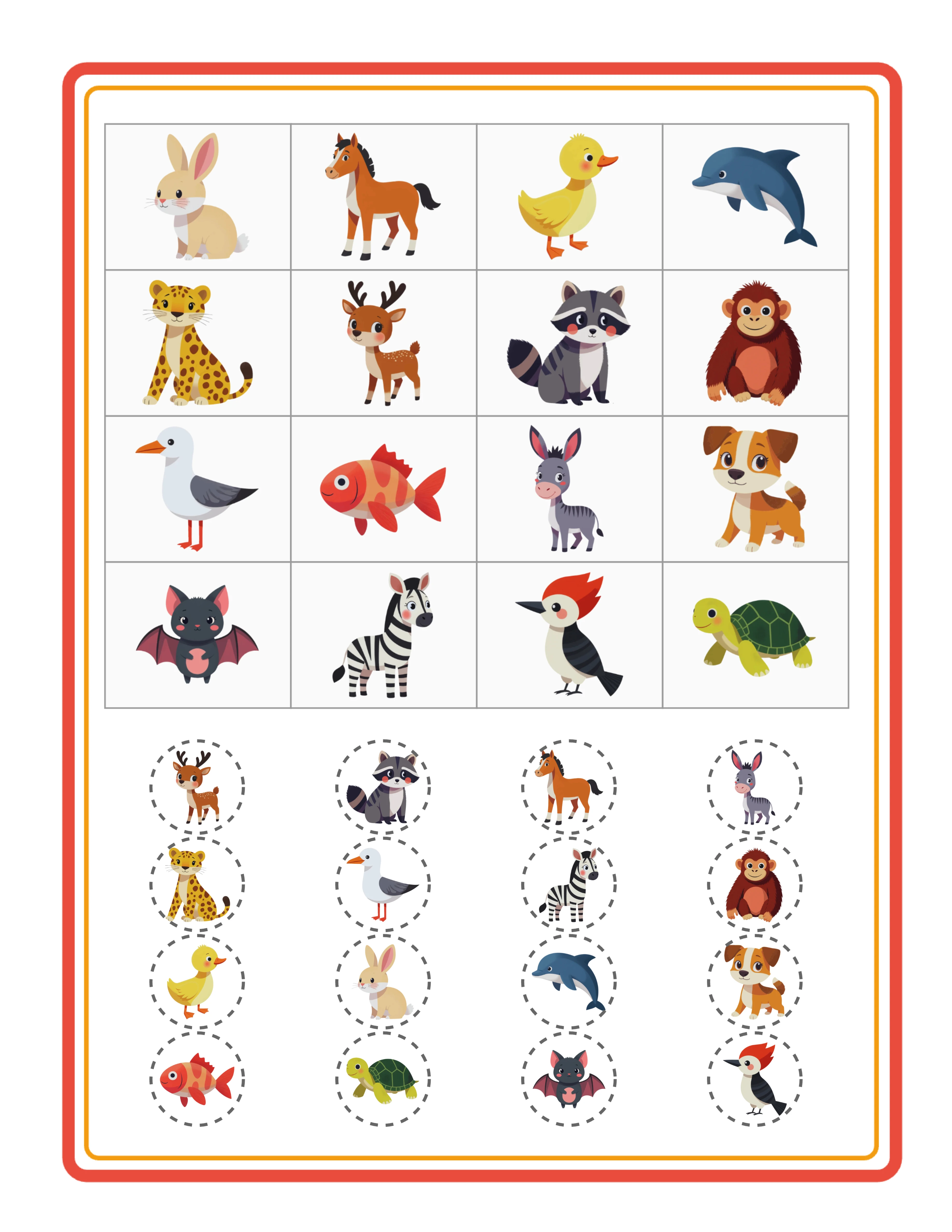
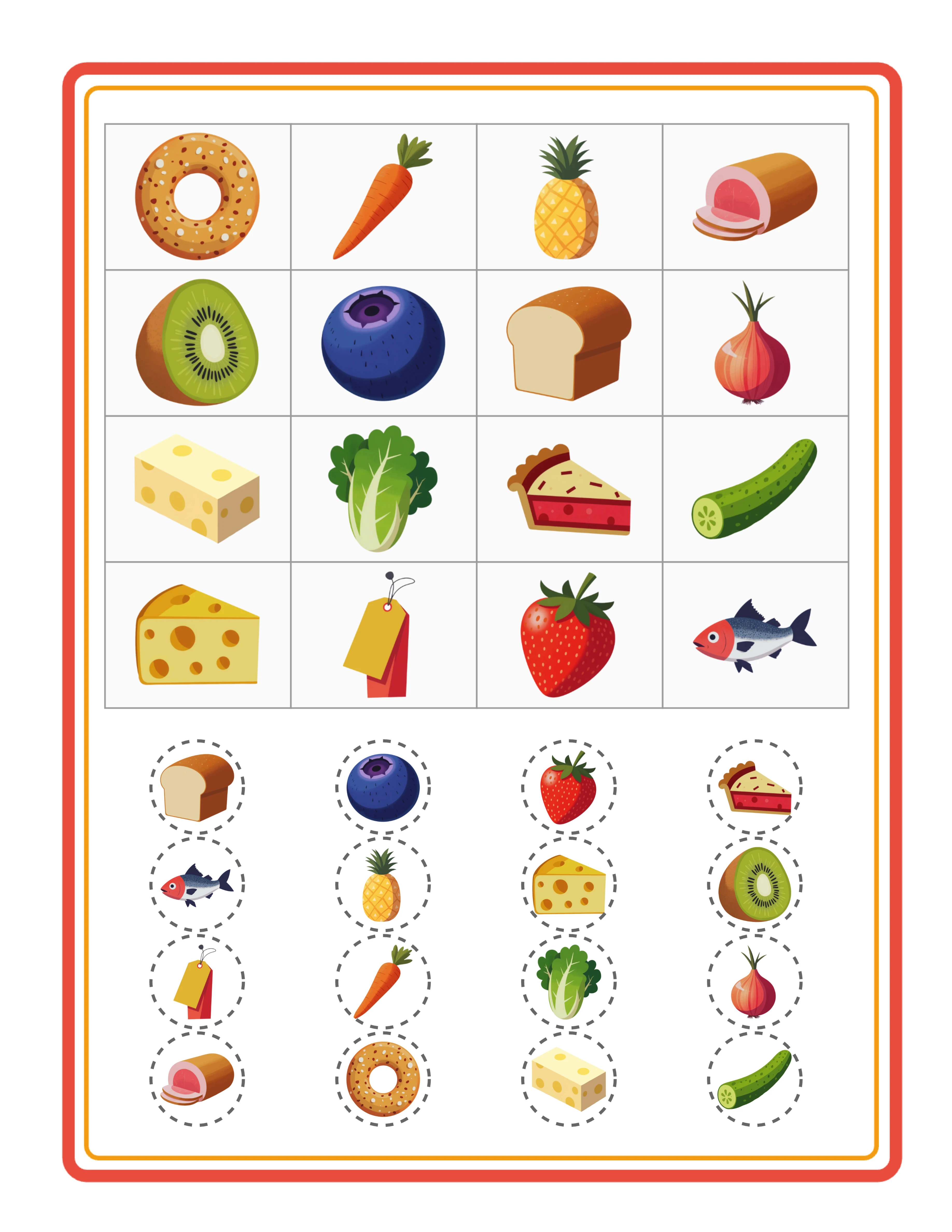
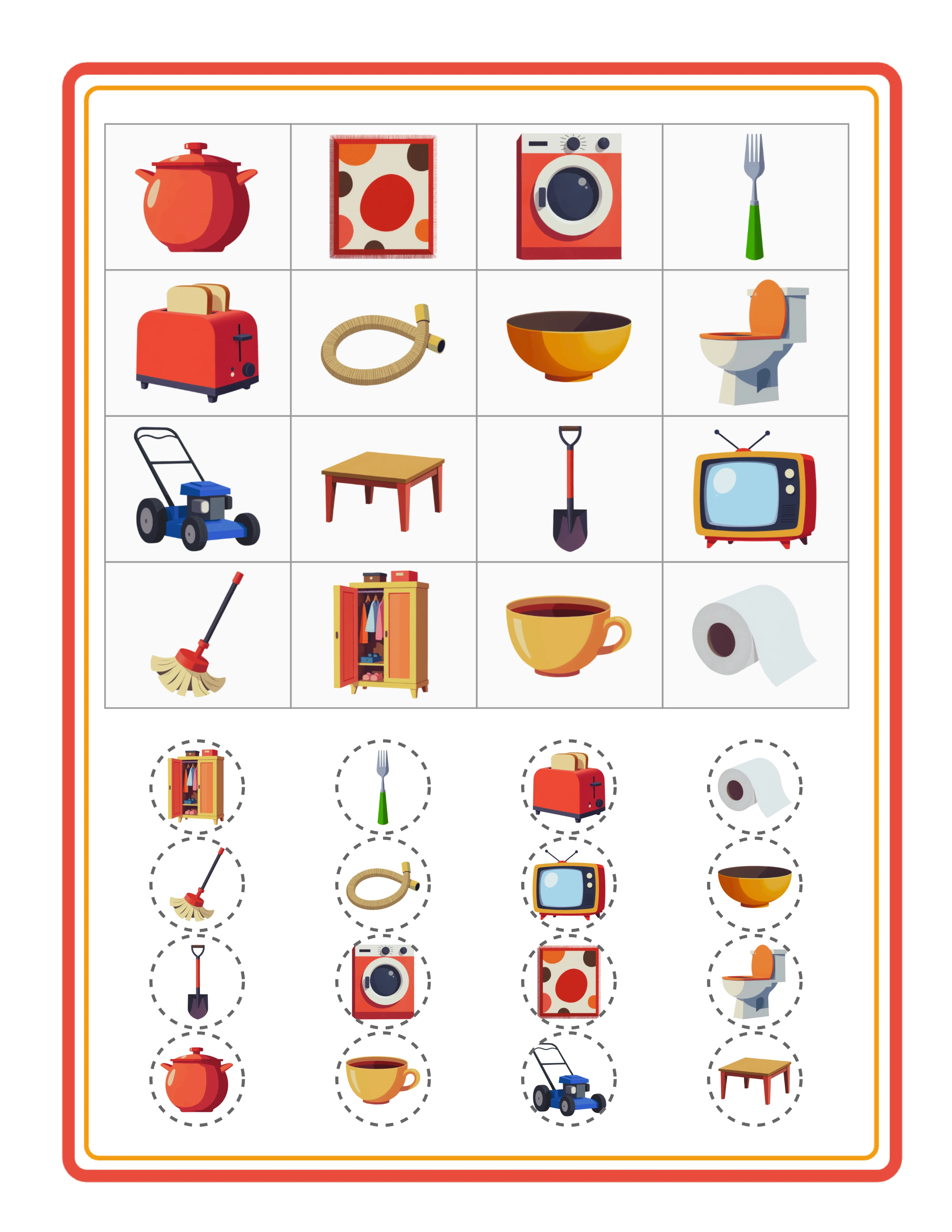
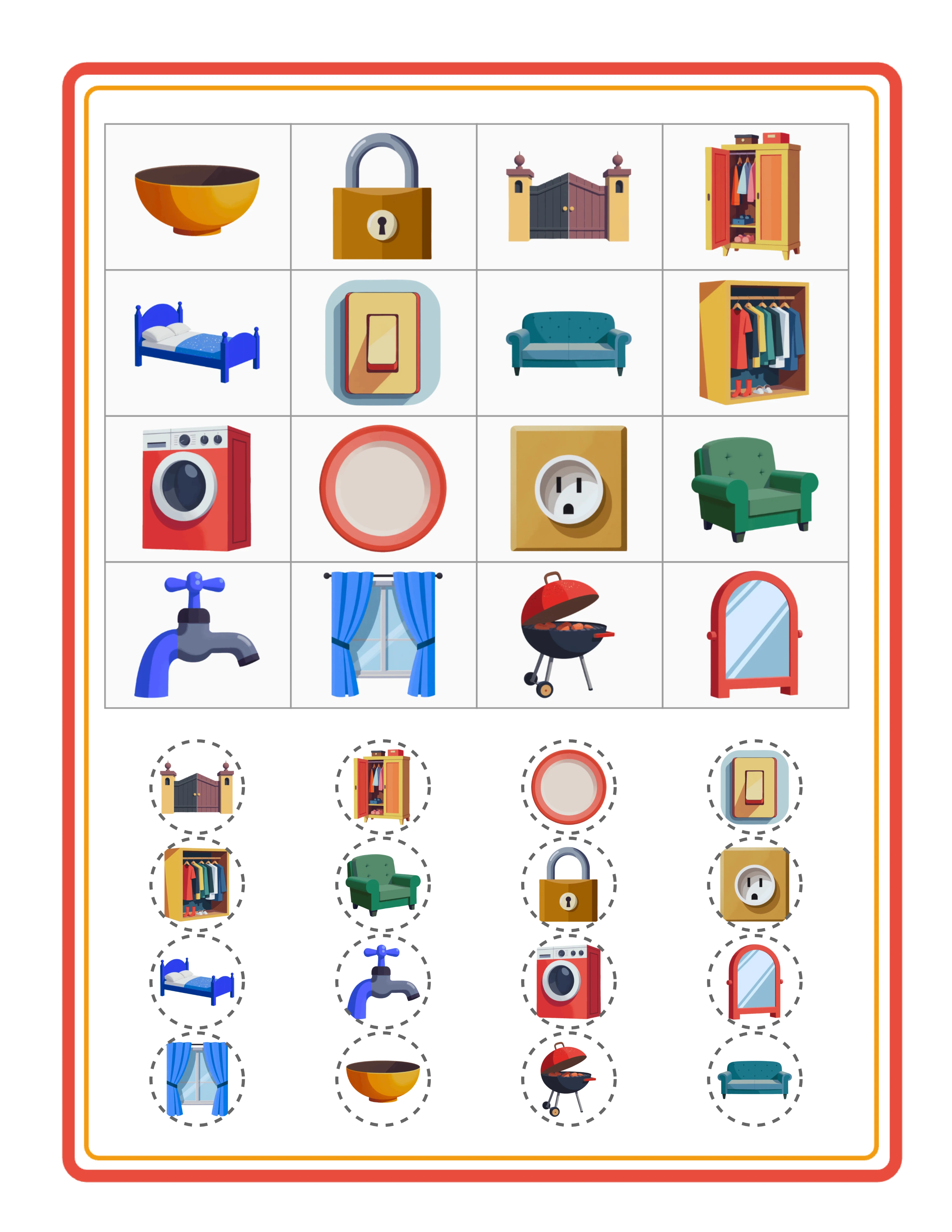
Switch to the Callouts tab to view and configure your caller cards. The caller card displays all images (and optionally words) used across the entire set of bingo cards. During gameplay, the caller draws or selects items from this reference and announces them to the players.
The Bingo Card Maker offers custom callout selection, allowing you to manually pick which specific images appear on the caller card. This is useful when you want to create a curated game experience — for example, selecting only the 25 most recognizable images from a theme with 40+ options.
Caller card display options mirror the player card settings: images only, words only, or images with words. For group vocabulary bingo, showing both images and words on the caller card helps the buyer pronounce unfamiliar terms correctly. For party bingo, image-only caller cards are quickest to scan.
A complete bingo product always includes both player cards and caller cards. On marketplace listings, explicitly mention "includes caller card" or "includes calling card" in your title and description. This is a search qualifier that many buyers specifically filter for, and products without caller cards receive negative reviews for being incomplete.
For premium products, consider creating multiple caller card formats: one with large images for easy calling, one with a compact grid for reference, and one designed to be cut into individual calling chips. This adds perceived value and practical flexibility.
8
Export Cards as PDF and JPEG
The Bingo Card Maker provides comprehensive export options designed specifically for multi-card bingo products.
PDF export creates a multi-page document containing all generated bingo cards. Each card occupies its own page, making the PDF immediately print-ready. This is the primary deliverable for marketplace sales — buyers download the PDF and print as many copies as they need.
JPEG export generates individual image files for each card, bundled together in a ZIP archive. This format is useful for several scenarios: buyers who prefer printing individual cards rather than an entire PDF, digital display on screens or tablets, and marketplace listing preview images where you want to show each card separately.
Caller card exports are generated separately from player cards. This gives buyers clear organization — player cards in one file, caller card in another — and lets you control the caller card format independently.
The grayscale export toggle converts all images to black and white. This is a valuable option for two reasons: buyers who print on school copiers (often black-and-white only) save on toner costs, and grayscale bingo cards can double as coloring activities where children color the images after the game.
Important: the free trial with watermark produces fully functional exports with a visible watermark overlay. This lets you evaluate print quality, verify that all cards are unique, and create test prints before purchasing a commercial license. The commercial license removes the watermark from all exports, producing clean files ready for sale.
For marketplace listings, export both PDF (as your deliverable product) and JPEG (for your listing preview images). Show at least three different cards in your listing to demonstrate that each card in the set is unique.
.webp)
.webp)




.webp)