Tutorial
1
Choose Your Creation Mode: Image Vocabulary or Custom Words
The Word Search Puzzle Generator offers two distinct creation modes, and the choice between them shapes your entire product.
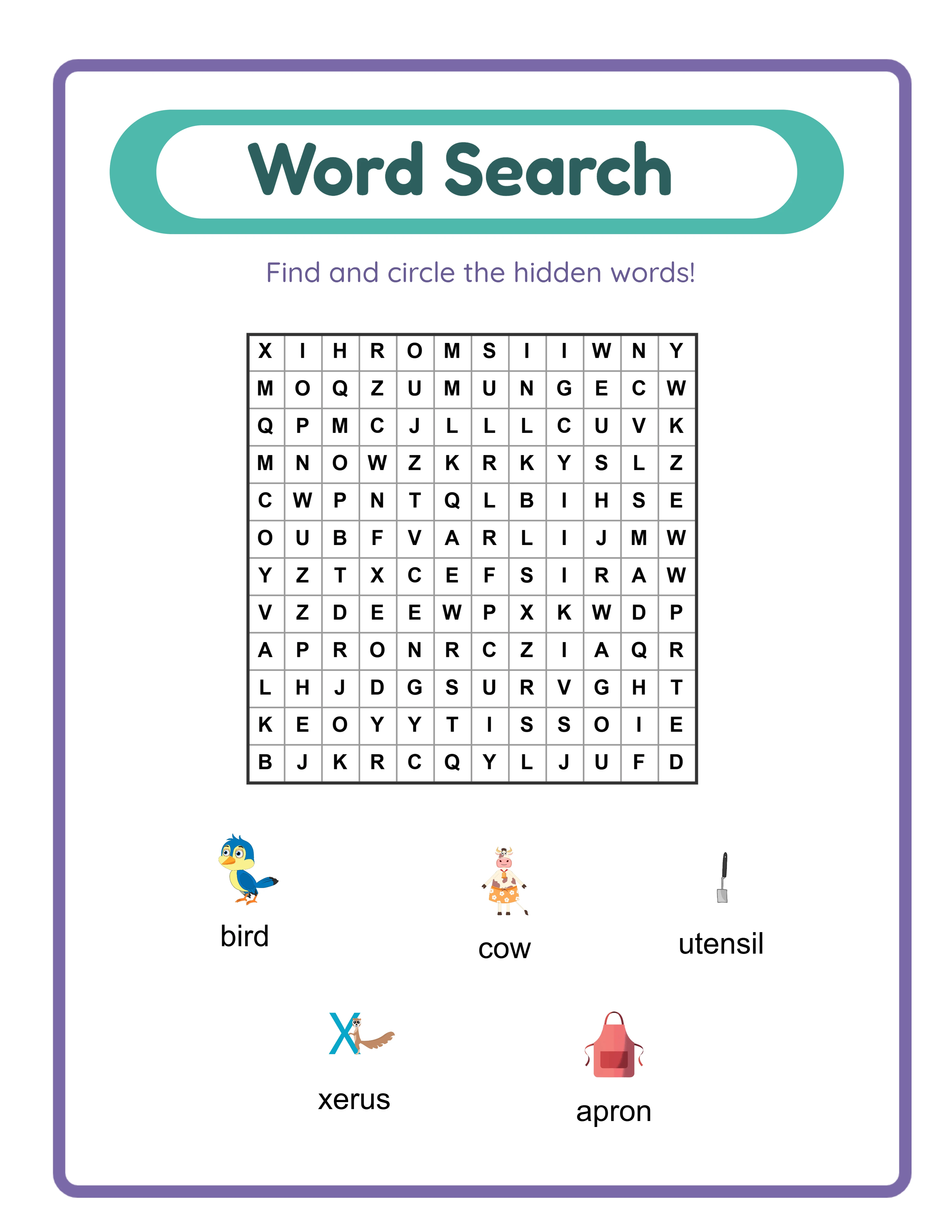
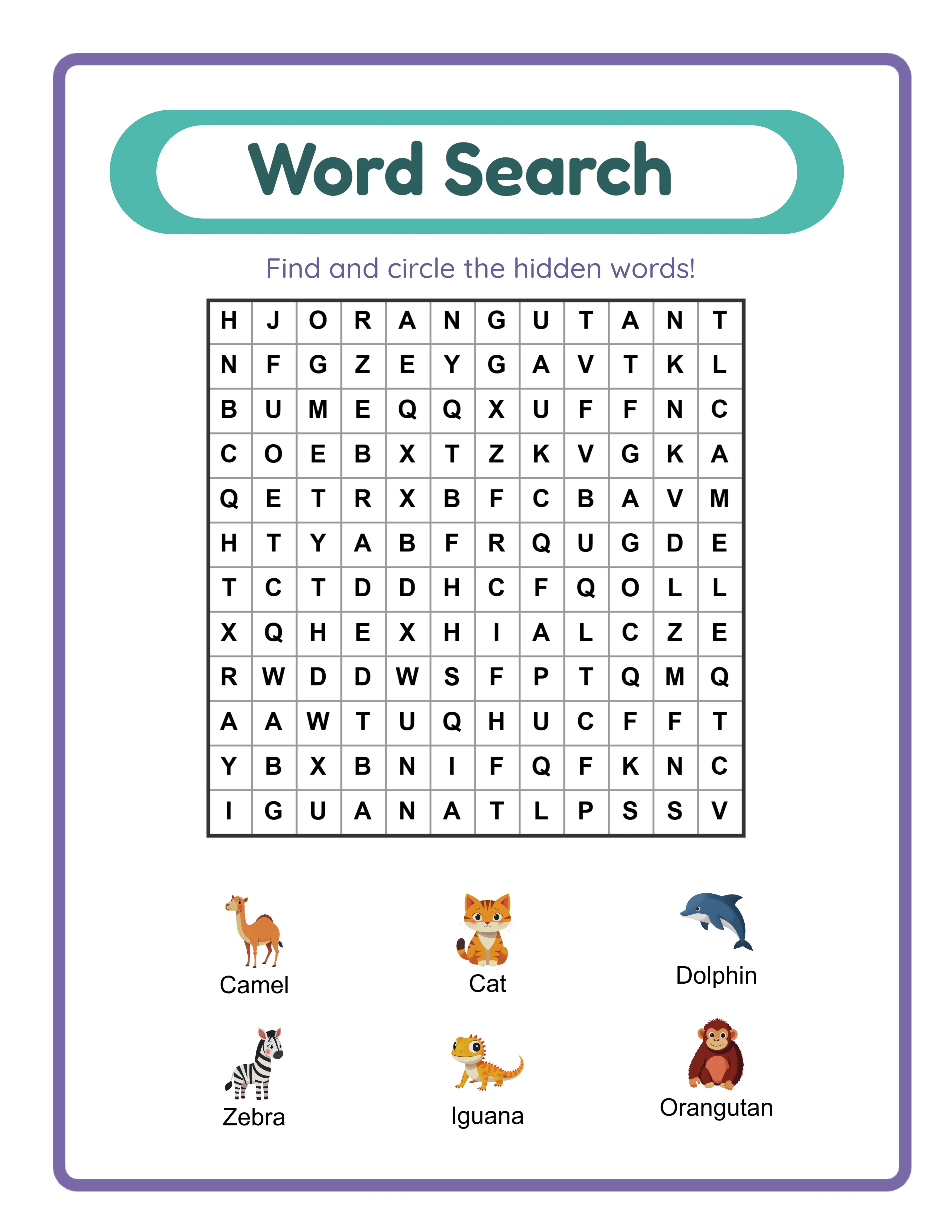
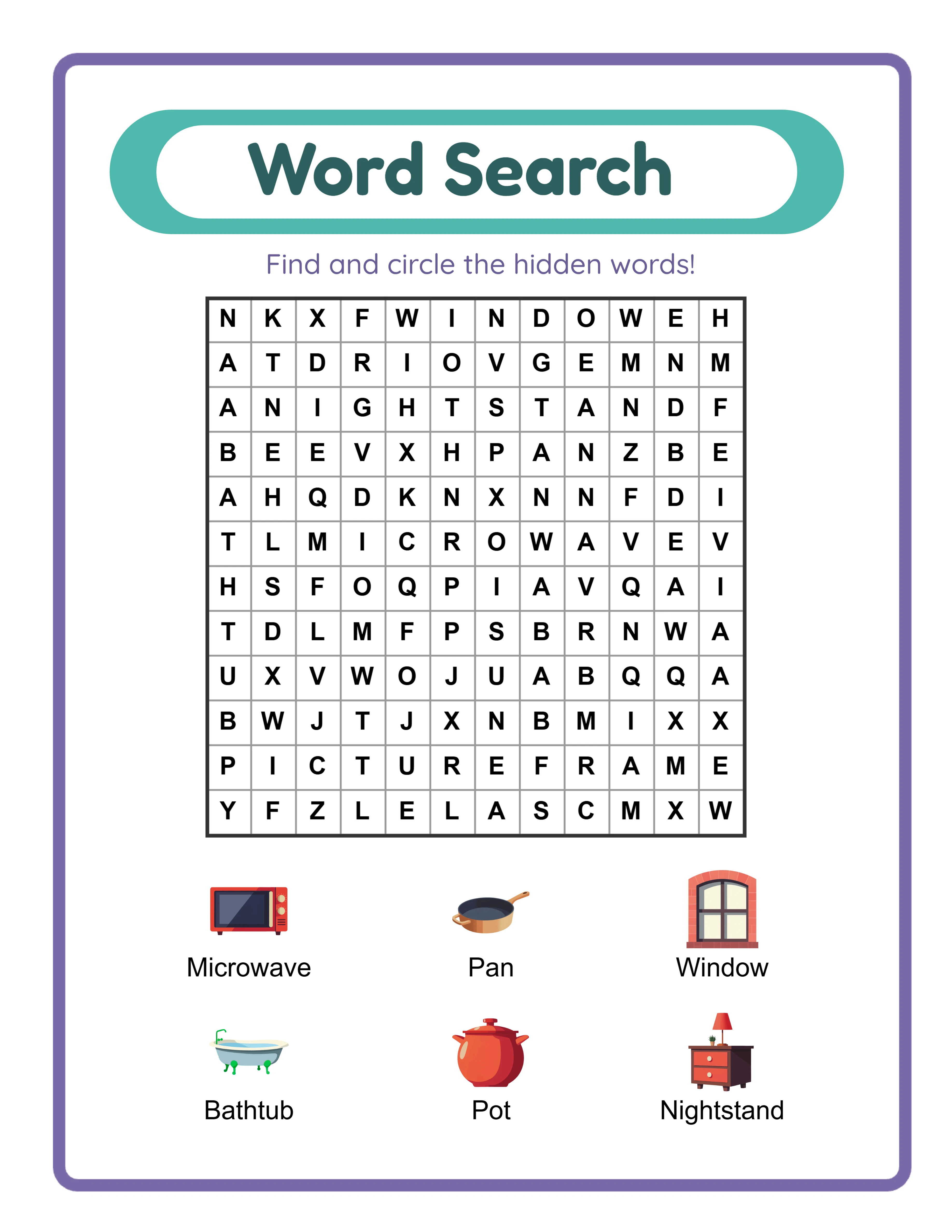
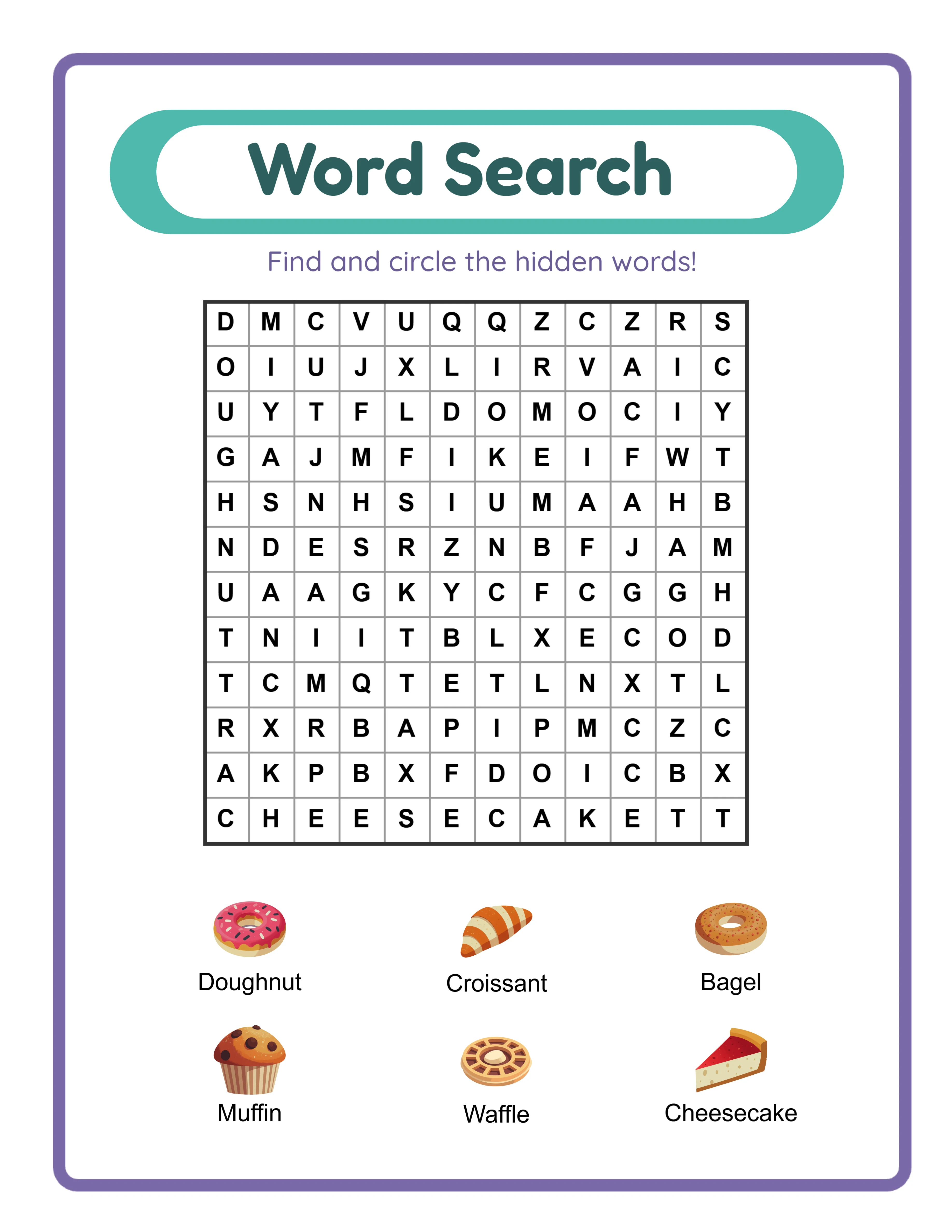
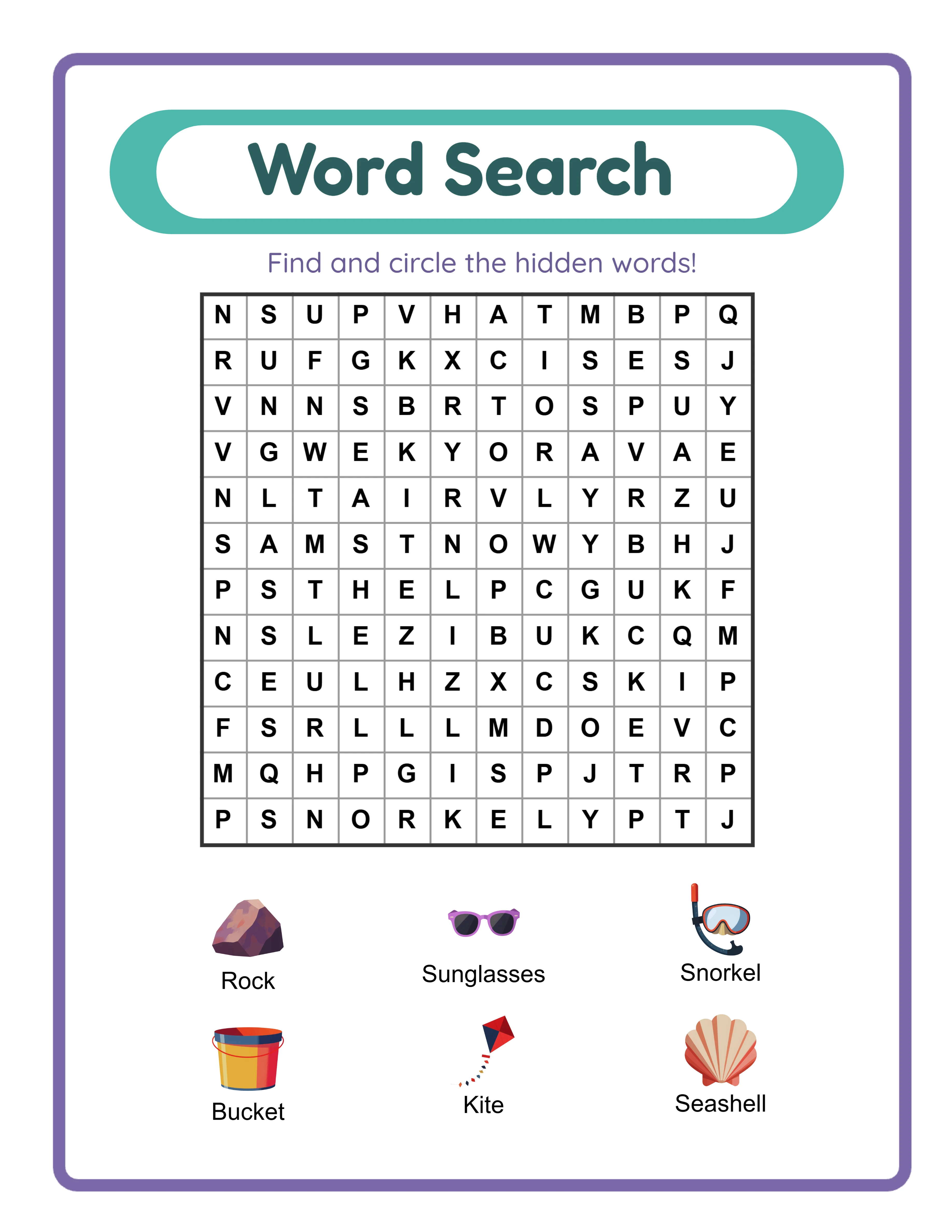
Vocabulary Mode uses themed image sets as the source of hidden words. When you select a theme like "farm animals," the generator displays images of cows, pigs, chickens, and horses. The names of these images become the words hidden in the puzzle grid, and the images appear alongside the grid as visual clues. This mode creates dual-purpose products — children practice word recognition while solving a puzzle, and the image clues help younger learners connect words to meanings. Vocabulary Mode is ideal for educational products, themed activity books, and language learning materials.
Custom Word List Mode lets you type in any words you want hidden in the puzzle. This mode is powerful for creating custom-request products (a buyer wants a puzzle with their specific spelling list), niche-topic puzzles (medical terminology, cooking terms, sports vocabulary), or text-only puzzle books where images are not needed. You control exactly which words appear in the grid.
Both modes share the same grid engine, direction settings, and export options. The difference is the source of the words and whether image clues appear on the finished puzzle. For most product creators, Vocabulary Mode is the starting point because themed image clues create visually distinctive products that stand out in marketplace search results. Custom Word List Mode becomes valuable as you expand into specialized niches or fulfill custom orders.
2
Select a Visual Theme and Language
In Vocabulary Mode, the theme you select determines which images appear as clues and which words are hidden in the grid. The generator includes themed image sets organized by category. With a commercial license, you get access to 10 themed image sets. The Full Access license unlocks over 100 themed image sets covering animals, food, vehicles, nature, holidays, occupations, and dozens more categories.
Select your theme from the theme dropdown in the configuration panel. Once selected, the generator displays available images from that theme. You can choose which images to include — their names become the hidden words in your puzzle.
Language selection is where word search products gain a massive competitive advantage. The generator supports 11 languages: English, German, French, Spanish, Portuguese, Italian, Dutch, Swedish, Danish, Norwegian, and Finnish. When you switch languages, the words in the puzzle change completely because image names are translated into the selected language. A "farm animals" word search in English hides COW, PIG, CHICKEN. The same theme in German hides KUH, SCHWEIN, HUHN. In French: VACHE, COCHON, POULET.
This means a single theme at a single difficulty level produces 11 completely different products — one per language. Most word search sellers only create English puzzles, leaving the non-English market wide open. German, French, and Spanish word search products face dramatically less competition on both Etsy and Amazon KDP while serving large, active buyer populations.
3
Configure Grid Size and Word Count
Grid size is the primary difficulty lever for word search puzzles. The generator lets you configure rows and columns independently, giving you precise control over puzzle dimensions.
Smaller grids (8×8 or 10×10) work best for younger children and beginner puzzles. With fewer cells, hidden words are easier to spot, and the puzzle can be completed in a few minutes. These are ideal for preschool and kindergarten vocabulary products, store warm-up activities, and introductory puzzle pages in a book.
Medium grids (12×12 to 15×15) suit elementary school solvers and casual adult puzzlers. Words have more room to hide among random letters, increasing the challenge without becoming overwhelming. This is the sweet spot for most general-audience word search products.
Larger grids (18×18 to 20×20 or beyond) create challenging puzzles for older solvers and adults. Words become genuinely difficult to find in the dense letter field, especially when diagonal and reverse directions are enabled. Large-grid puzzles are the standard for adult word search books on Amazon KDP.
Word count works alongside grid size to determine difficulty. The generator supports up to 8 words per puzzle. Fewer words in a large grid makes each word harder to locate. More words in a small grid creates a dense, satisfying puzzle. For product creation, consider the relationship: a 10×10 grid with 6 words is a beginner puzzle, while a 15×15 grid with 8 words using diagonal directions is an intermediate-to-advanced challenge.
Experiment with combinations to find the difficulty level that matches your target audience. The generator previews instantly, so you can adjust and regenerate until the puzzle feels right.
4
Set Search Directions for Difficulty Control
Direction settings are the second major difficulty lever, and they transform a simple word search into a genuine challenge.
The generator provides two direction toggles:
Allow Diagonal Words (default: on) — When enabled, words can be placed diagonally in addition to horizontally and vertically. Diagonal words are significantly harder to find because human eyes naturally scan in rows and columns, not at angles. Disabling diagonals creates easier puzzles suitable for younger children and beginners.
Allow Reverse Words (default: off) — When enabled, words can be placed backwards (right-to-left, bottom-to-top, or diagonal-reverse). Reverse words dramatically increase difficulty because solvers must mentally read letter sequences in non-standard directions. This is the single biggest difficulty jump you can create.
Combining these settings gives you four distinct difficulty tiers:
Beginner: Horizontal and vertical only (diagonals off, reverse off). Words only read left-to-right and top-to-bottom. Best for preschool, kindergarten, and first-time puzzlers.
Intermediate: Horizontal, vertical, and diagonal (diagonals on, reverse off). Words read in natural directions but can angle across the grid. Good for elementary school and casual adult puzzles.
Advanced: All directions including reverse (diagonals on, reverse on). Words can go in any direction, including backwards and diagonal-reverse. Suitable for upper elementary, middle school, and adults.
Expert: Maximum grid size, all directions, maximum word count. The most challenging configuration for dedicated puzzle enthusiasts.
These four tiers let you create distinct products from identical word lists. A single theme produces four different difficulty-level puzzles, each targeting a different buyer segment.
5
Generate and Preview Your Word Search
With your configuration set, click Generate to create the puzzle. The generator places your selected words into the grid according to the direction settings, then fills all remaining cells with random letters.
Examine the preview carefully before exporting:
Verify word placement: Check that all selected words are actually placed in the grid. The generator displays the word list alongside the grid — confirm every word appears. If the grid is too small for the number and length of words, some may not fit. In that case, increase the grid size or reduce the word count.
Check image clues: In Vocabulary Mode, images appear alongside the puzzle as visual clues. Confirm they display correctly and are clearly associated with the hidden words. These image clues are what differentiate your product from generic text-only word searches.
Assess readability: Letters should be clearly legible and evenly spaced. The grid should not feel cramped or overly sparse. For print products, readability at actual print size matters — consider how the puzzle will look on a physical page.
Test the puzzle yourself: Try finding a few words in the preview to verify the difficulty level matches your target audience. If words are too easy to spot, increase the grid size or enable more directions. If they are too hidden, reduce the grid or disable reverse.
The generator includes text tools for adding custom titles, instructions, or branding. Add a title like "Farm Animals Word Search" or instructions like "Find all 8 hidden words in the grid below." Use the font, size, and color controls to match your product styling. The canvas supports zoom, undo/redo, and text positioning, so you can refine the layout precisely.
6
Review the Color-Coded Answer Key
Every word search puzzle generated includes an automatic answer key with a distinctive feature: each hidden word is highlighted in a different color. This color-coded system makes answer keys significantly more useful than traditional circle-the-word answer keys because solvers and graders can instantly identify which highlighted path corresponds to which word.
Click the Answer Key tab to view it. The answer key shows the same grid with colored highlights overlaid on the letter positions where each word appears. The word list displays alongside with matching color indicators, so there is no ambiguity about which highlight belongs to which word.
Color-coded answer keys serve multiple buyer segments:
Buyers use them for quick grading. When a solver circles a word, the buyer can glance at the color-coded key to verify correctness instantly — no need to trace through the grid letter by letter.
Parents checking homework appreciate the visual clarity. Color coding makes it obvious whether a child found the correct word path or circled a coincidental letter sequence.
Puzzle book creators need answer keys at the back of every book. Color-coded keys add a professional, premium feel that distinguishes your book from competitors using basic answer grids.
Self-solvers use answer keys to find words they missed. The color coding shows exactly where each remaining word hides without revealing the location of words the solver wants to keep searching for.
When creating product listings, mention the color-coded answer key as a feature. "Includes color-coded answer key for every puzzle" is a selling point that buyers actively look for.
7
Export as Print-Ready PDF and JPEG
The export section provides download options for both the puzzle and the answer key in multiple formats.
Puzzle PDF: The professional standard for printable products. PDF files maintain exact formatting, font rendering, and grid alignment across all devices and printers. This is the format marketplace buyers expect for downloadable word search products.
Puzzle JPEG: A high-resolution image file useful for listing preview images, social media promotion, and digital-use products. JPEG is universally compatible and easy for buyers to view and print.
Answer Key PDF and Answer Key JPEG: Separate files for the color-coded answer key in both formats. Always include answer key files in your product deliverables.
Grayscale mode converts the output to black-and-white, which is essential for products designed for home printing or for Amazon KDP interiors. Most buyers print worksheets and puzzle pages on standard black-and-white printers, so grayscale ensures your product looks intentional rather than like a faded color print. For KDP word search books, grayscale interiors are the standard.
For marketplace listings, export both formats: PDF as your deliverable product file and JPEG for your listing preview images. Buyers want to see exactly what they are purchasing, and a clear JPEG preview showing the grid, image clues, and answer key builds confidence.
Important: the free trial with watermark produces fully functional exports with a visible watermark overlay. This lets you evaluate print quality, verify grid formatting, and create test prints before purchasing a commercial license. The commercial license removes the watermark from all exports, producing clean files ready for sale.
8
Create Variations for a Complete Product Line
Word search puzzles lend themselves to systematic variation more than almost any other printable product — and word search books are one of the highest-volume categories on Amazon KDP.
Grid size variations: Create the same themed puzzle at small (8×8), medium (12×12), and large (15×15+) grid sizes. Each size targets a different age group and difficulty preference, giving you three distinct products from the same word list.
Direction difficulty variations: Create beginner (no diagonals, no reverse), intermediate (diagonals on), and advanced (diagonals + reverse) versions. Combined with grid size variations, this gives you up to nine difficulty configurations per theme.
Theme variations: Switch themes while keeping grid and direction settings constant. Ten animal themes at the same difficulty level produces ten unique products, each targeting different search keywords on marketplaces.
Language variations: This is the word search superpower. The same theme at the same difficulty in 11 different languages creates 11 completely different products. A "food" word search in English, German, French, and Spanish gives you four products with four different sets of hidden words, each targeting a different language market with minimal competition.
Word search books: The single biggest opportunity for word search creators is Amazon KDP. Compile 80–120 puzzles with answer keys into a book. Organize by theme, by difficulty progression, or by language. "100 Animal Word Search Puzzles for Kids" or "Word Search Book for Adults — 150 Challenging Themed Puzzles" are proven formats that sell consistently on Amazon.
Bundle strategy for Etsy and Gumroad: Group 15–25 puzzles by theme or difficulty into digital download bundles. "Ocean Animals Word Search Bundle — 20 Puzzles with Answer Keys" priced at $4.99–$7.99 offers strong perceived value.
Seasonal collections: Holiday-themed word searches (Halloween vocabulary, Christmas words, Valentine terms) have predictable annual demand spikes. Create them during off-peak times and list 4–6 weeks before each holiday.

.webp)
.webp)