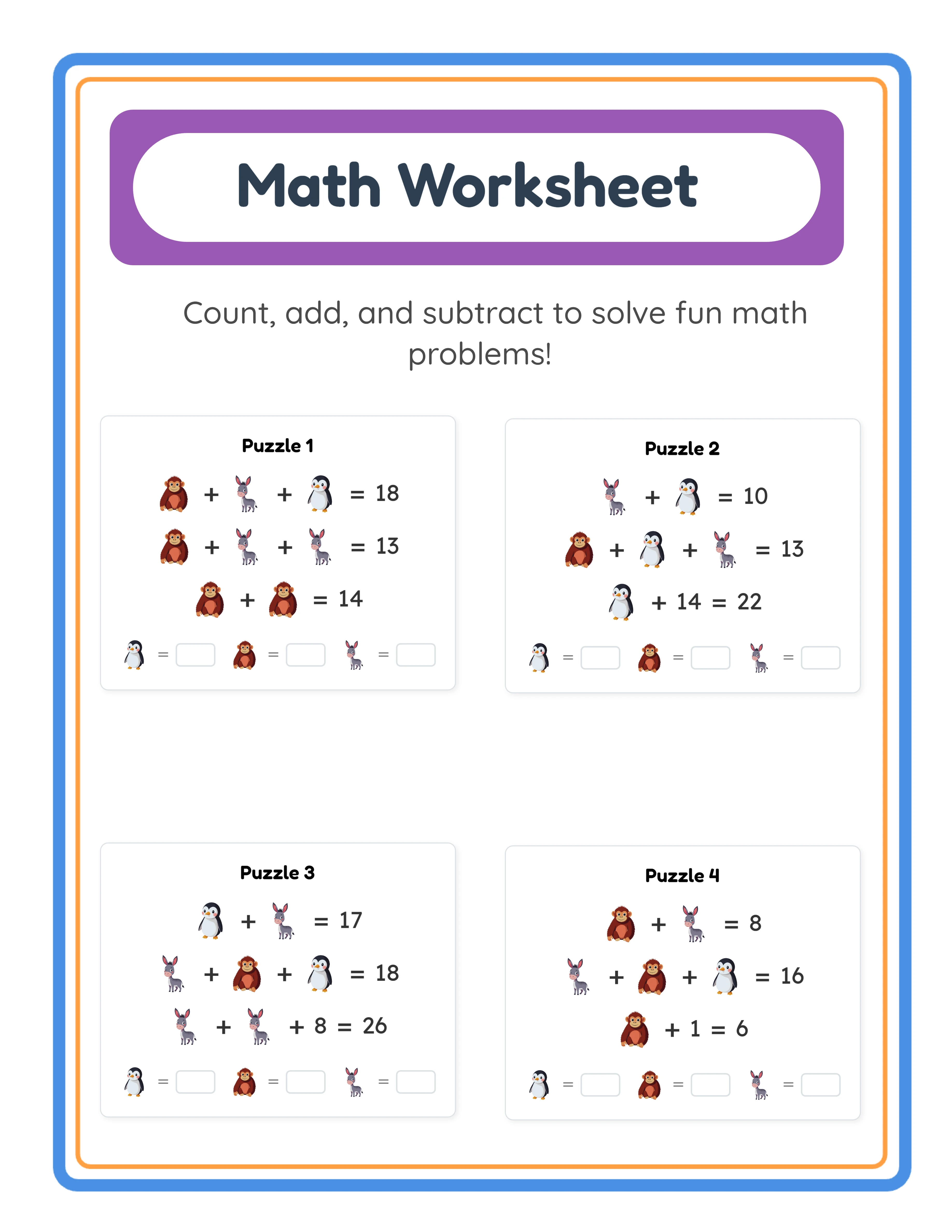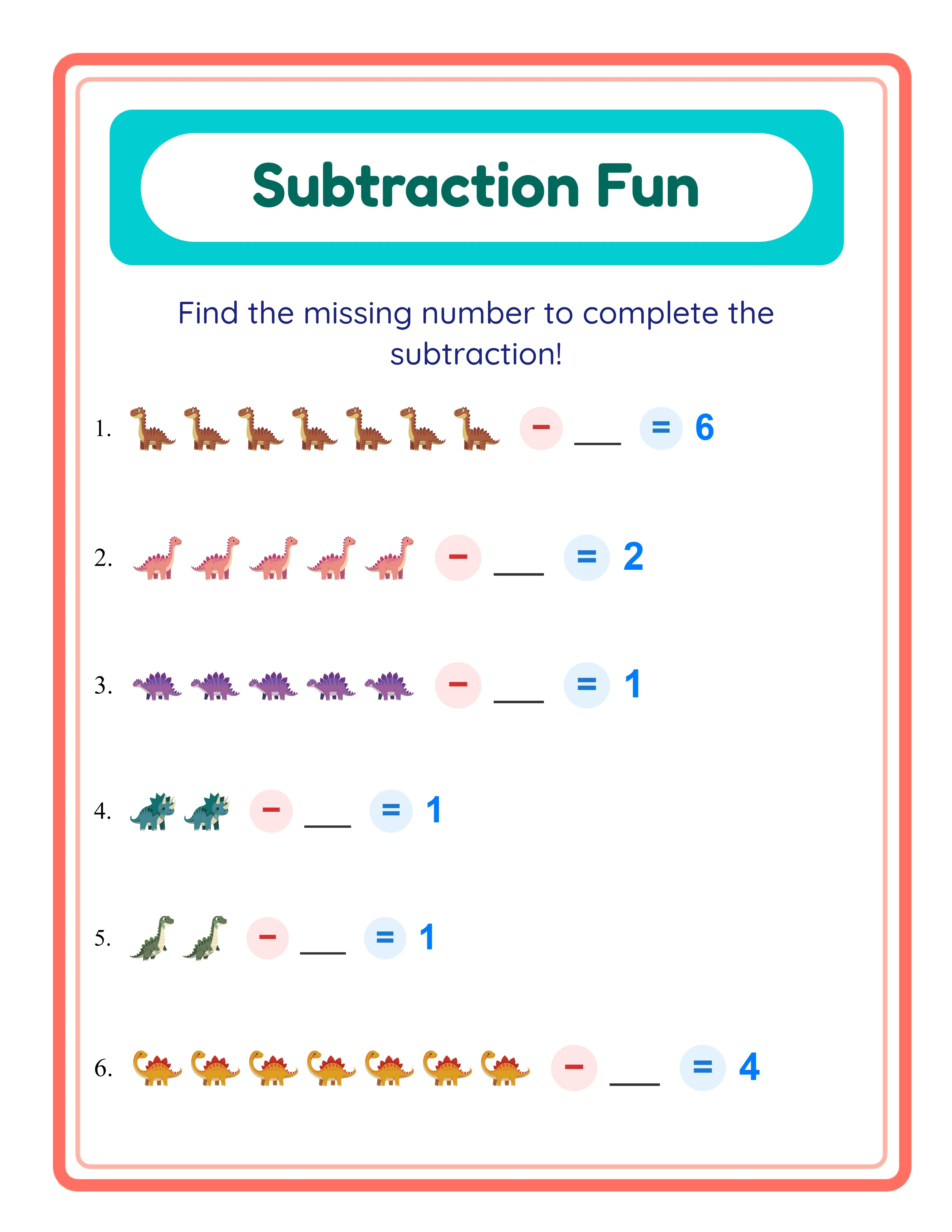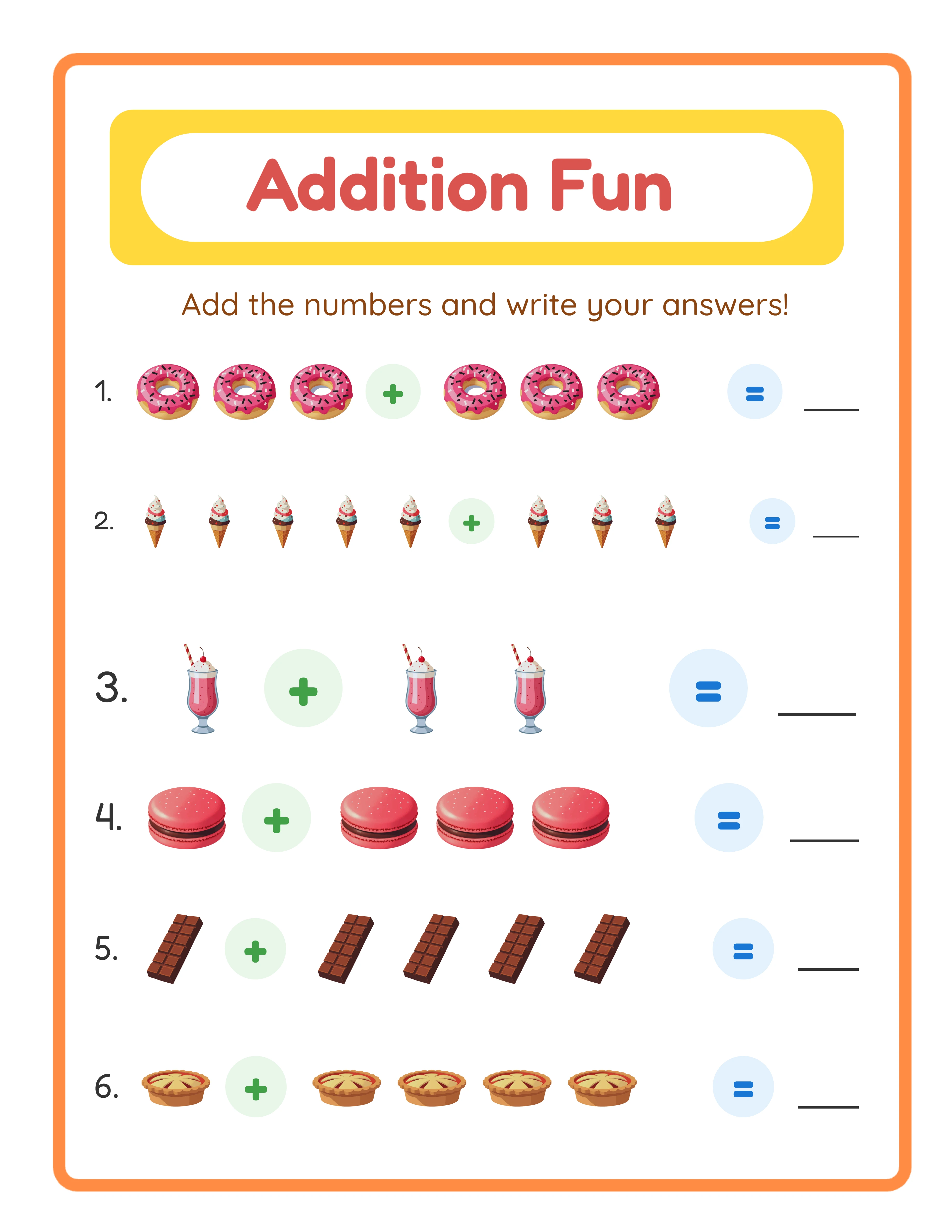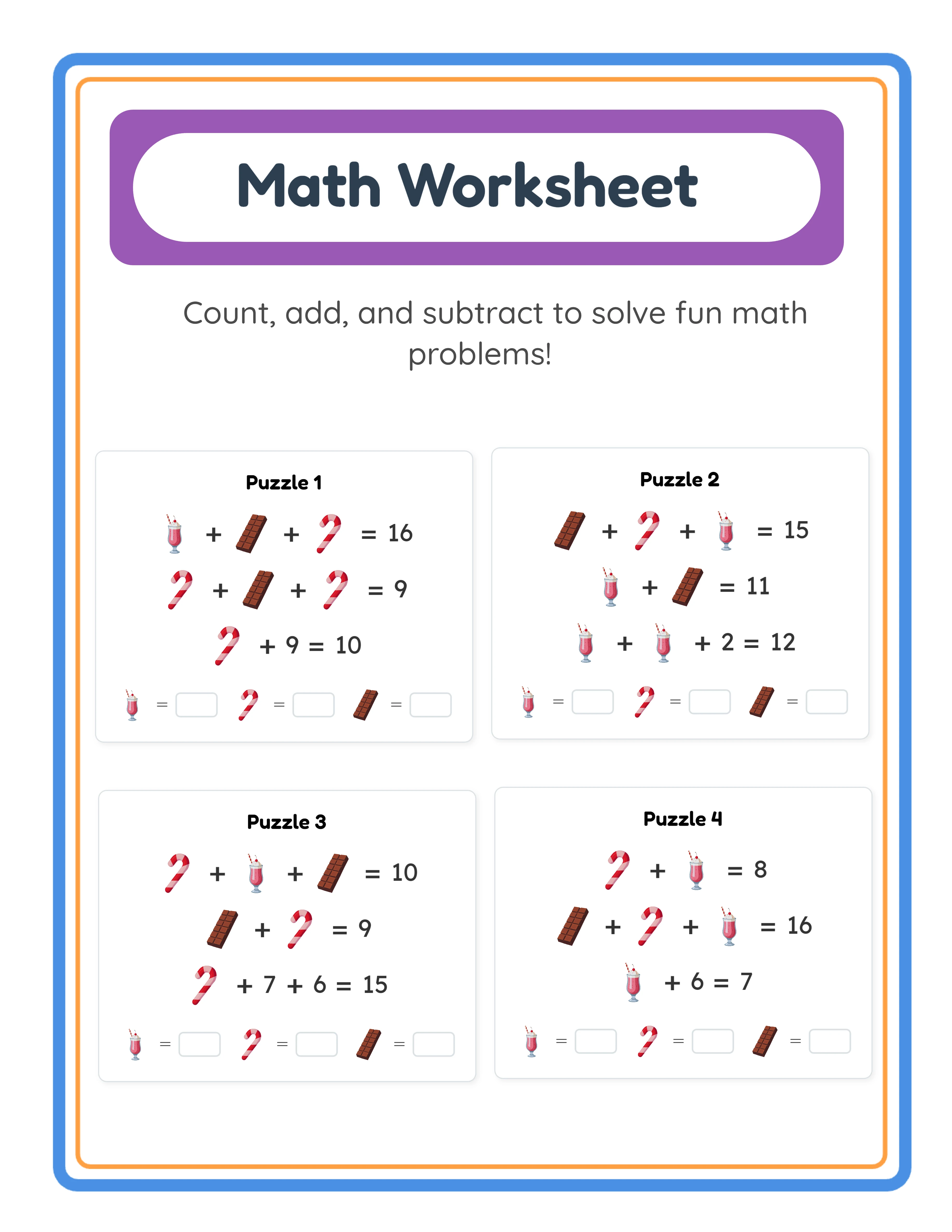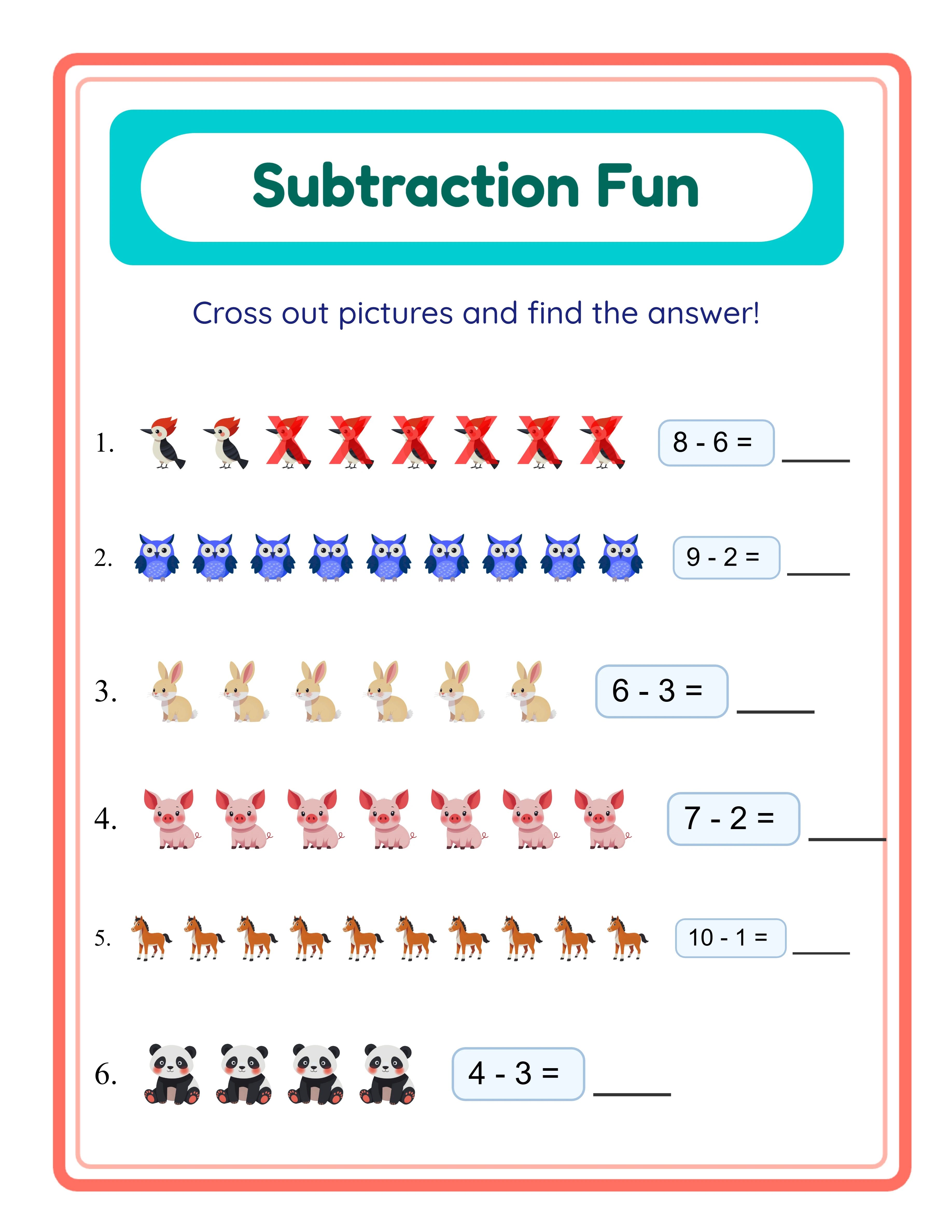
Tutorial
1
Choose Your Target Age Group and Difficulty Level
The first decision determines everything else: who is this worksheet for? Different age groups need fundamentally different addition worksheets, and mixing difficulty levels within a single product confuses buyers and earners negative reviews.
Here is how difficulty maps to age groups for addition worksheets:
Preschool (ages 3–5): Sums up to 5, using 1–3 items per group. Worksheets should be heavily visual with large images. The Image + Image exercise mode works best here because children count pictures rather than reading numbers.
Kindergarten (ages 5–6): Sums up to 10, using 1–5 items per group. A mix of Image + Image and Image + Number modes helps children transition from purely visual counting to connecting images with numerals.
First grade (ages 6–7): Sums up to 20, using 1–10 items per group. The Find Addend mode becomes useful at this level, where children see "3 + ? = 7" and must determine the missing number.
Second grade (ages 7–8): Larger number ranges with sums up to 20 or beyond. Mixed Mode combines all exercise types on a single worksheet for comprehensive practice.
In the generator, you set this using the Min Items Per Group and Max Items Per Group controls. For a preschool worksheet, set min to 1 and max to 3. For first grade, set min to 1 and max to 10. These controls ensure every generated problem falls within the appropriate difficulty range for your target audience.
2
Select a Visual Theme for Your Worksheets
Themed addition worksheets consistently outsell plain number-only worksheets on every marketplace. Parents and buyers actively search for terms like "dinosaur addition worksheets" or "ocean animal math practice" because themed visuals make worksheets more engaging for children.
The Addition Worksheet Generator includes a theme selector with image sets organized by category. With a commercial license, you get access to 10 themed image sets. The Full Access license unlocks over 100 themed image sets covering animals, food, vehicles, nature, holidays, occupations, and dozens more categories.
To select a theme, use the Select Theme dropdown in the Exercise Configuration section. Once selected, the generator uses images from that theme for all addition problems on the worksheet. A "farm animals" theme shows cows, pigs, chickens, and horses in the addition equations. A "vehicles" theme shows cars, trucks, buses, and planes.
Theme selection is a strategic product decision, not just a visual one. Each theme creates a distinct product you can list separately on marketplaces. A single difficulty level with 10 different themes gives you 10 unique products from the same generator session. Seasonal themes (holiday, back-to-school, summer) let you create products that spike in demand at predictable times throughout the year.
You can also set background and border themes independently from the exercise theme. The Page Setup section includes Background Theme and Border Theme selectors with opacity controls, letting you add subtle decorative elements that make your worksheets look professionally designed.
3
Choose Your Exercise Mode
The Addition Worksheet Generator offers four distinct exercise modes, each serving a different learning objective. Understanding these modes helps you create targeted products for specific buyer needs.
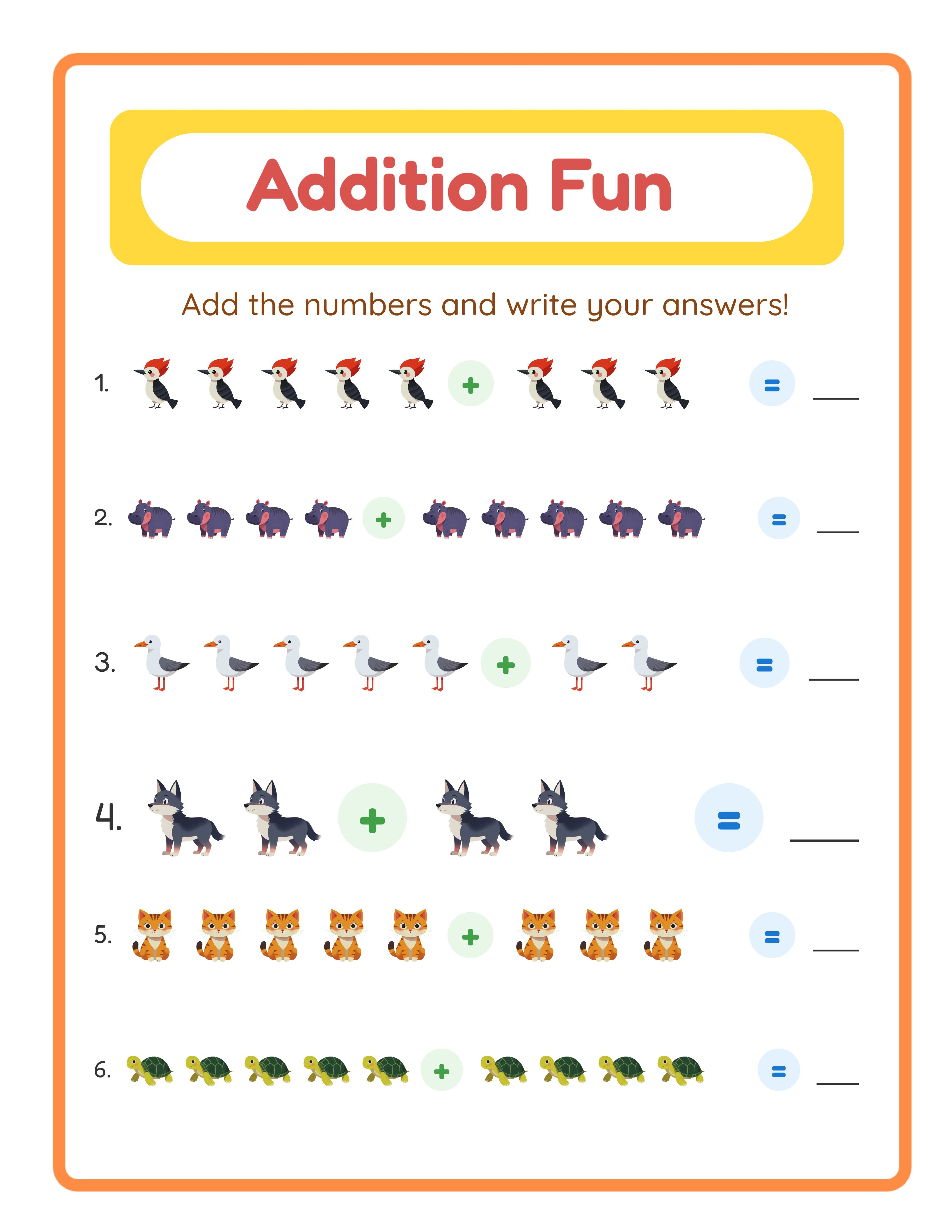
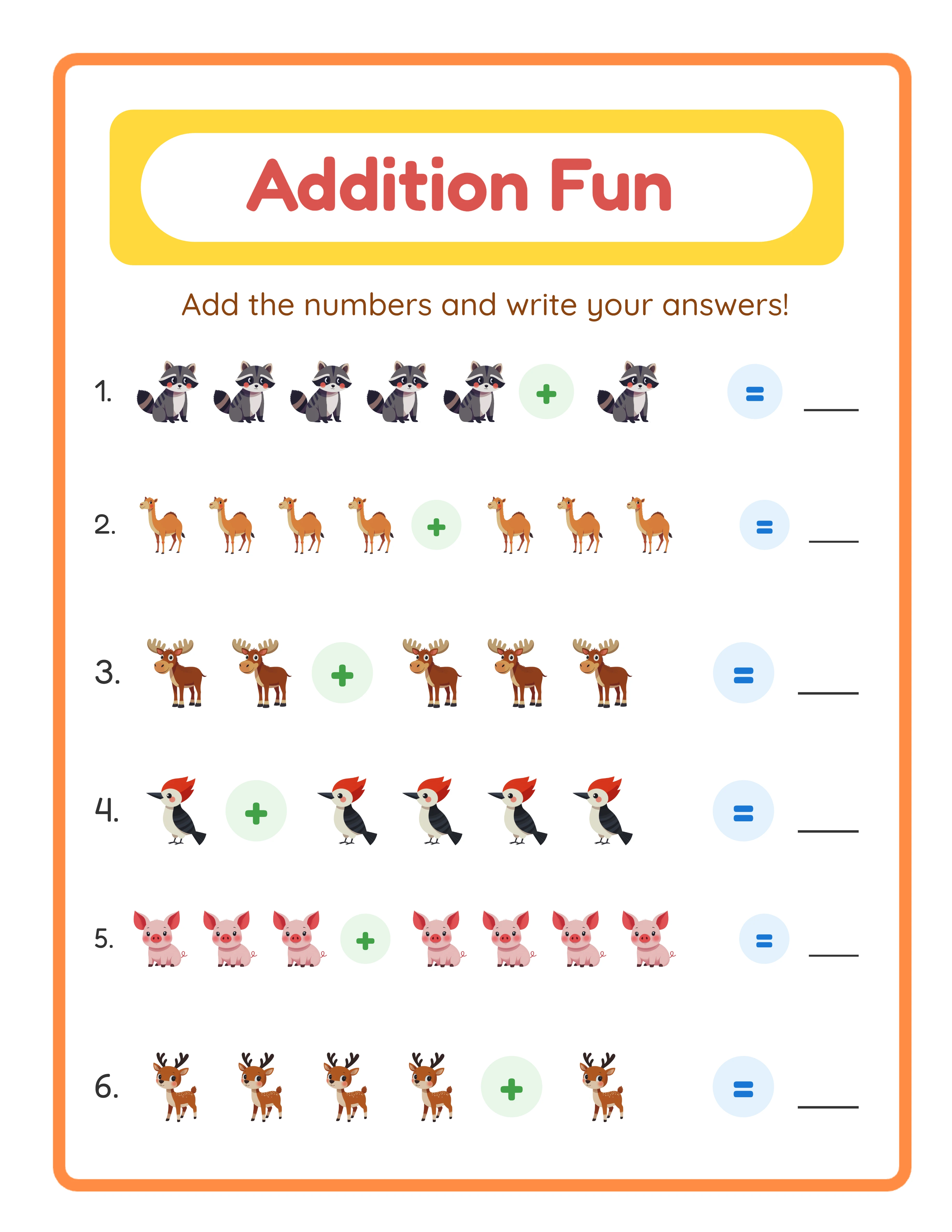
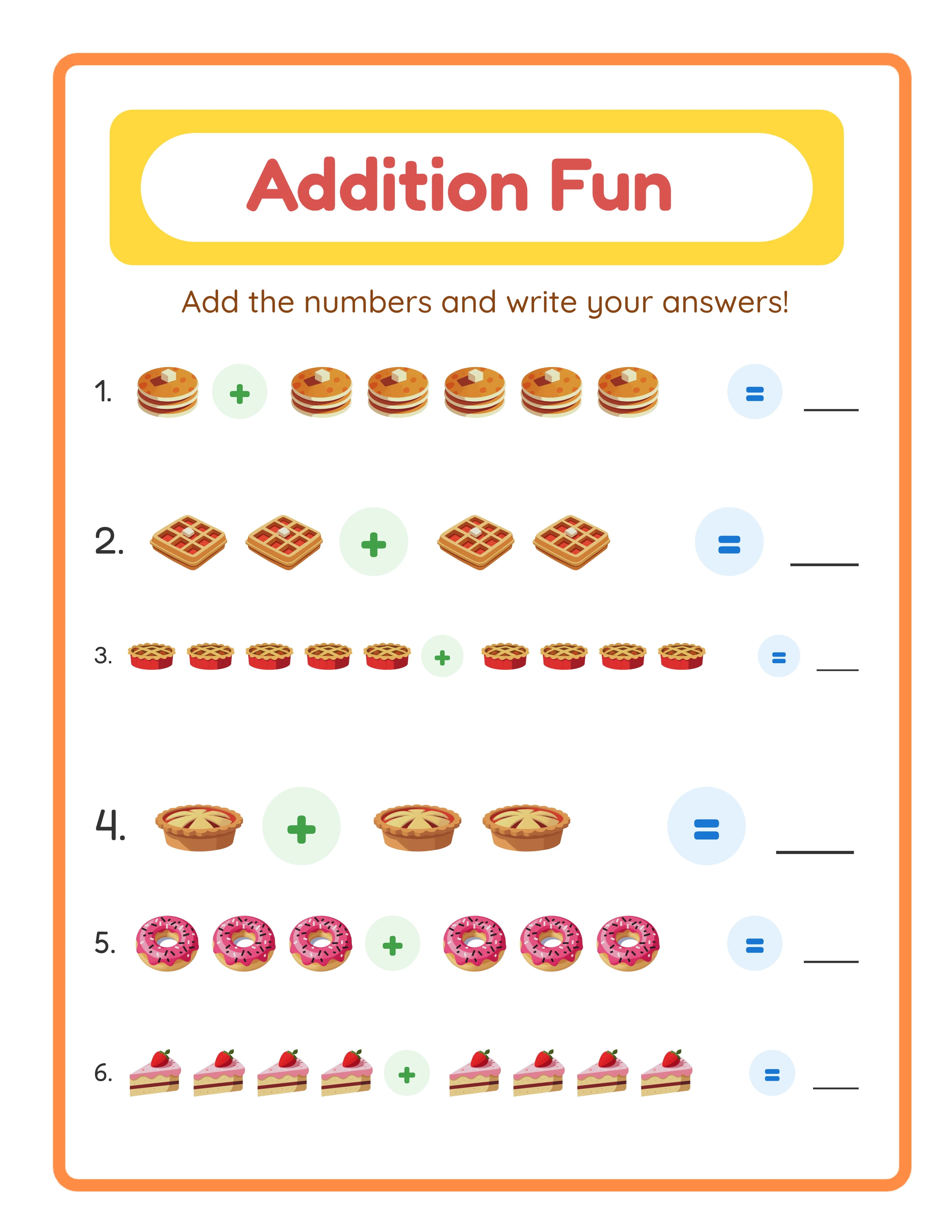
Image + Image mode presents two groups of themed images separated by a plus sign. Children count the images in each group and write the total. This is the most visual mode and works best for preschool and early kindergarten. Example: three cats plus two cats equals how many cats?
Image + Number mode shows one group of images and one numeral. This helps children bridge the gap between visual counting and abstract number recognition. It works well for kindergarten and early first grade. Example: four dogs plus the numeral 3 equals how many?
Find Addend mode presents a complete equation with one missing number. Children must figure out what number to add. This develops algebraic thinking and works for first and second grade. Example: 3 + ? = 7.
Mixed Mode combines all three exercise types on a single worksheet. This is ideal for assessment worksheets, review sheets, and products targeting children who are ready for varied challenge levels.
Select your exercise mode from the Exercise Mode dropdown in the Exercise Configuration section. For product creation, consider making separate products for each mode at each difficulty level — this multiplies your catalog without additional creative work.
4
Configure the Worksheet Layout
Layout configuration determines how many problems appear on each page and how the worksheet is formatted for printing.
Number of Exercises controls how many addition problems appear on the worksheet, from 1 to 10. For preschool worksheets with large images, 4–6 problems per page works well. For older children with smaller image sets, 8–10 problems per page is standard.
Page Size options include US Letter Portrait, US Letter Landscape, A4 Portrait, A4 Landscape, Square (for social media or digital use), and Custom dimensions. US Letter is standard for North American buyers. A4 is standard for European and international markets. Creating both versions doubles your product appeal with minimal additional effort.
Additional layout options include:
Name and Date Fields: A checkbox that adds name and date lines at the top of the worksheet. Buyers strongly prefer worksheets with these fields — always include them for products targeting structured use.
Exercise Numbers: Numbers each problem (1, 2, 3...) for easy reference. Keep this enabled for most products.
Show Plus Sign: Displays a "+" symbol between image groups. Useful for younger children who are learning the addition symbol.
Clear Answer Box: Uses a rounded, visually distinct box for writing answers. This makes worksheets look more engaging and helps young children identify where to write.
Page Color lets you set the background color. White is standard for printed worksheets, but a light pastel can add visual warmth to digital-use products.
5
Generate and Preview Your Worksheet
With your settings configured, click the Generate button to create your worksheet. The generator places themed images according to your exercise mode, number range, and layout preferences onto the canvas.
The preview appears on the main canvas area. Examine it carefully before exporting:
Check image placement: Are images clearly separated into groups? Is the plus sign visible between groups? Is the answer area clearly marked?
Check readability: Are exercise numbers legible? Is the name/date field properly positioned? Do images overlap or crowd the edges?
Check difficulty accuracy: Count the items in several problems to verify they fall within your configured min and max range. A preschool worksheet should not accidentally include a problem with 8 items per group.
If anything looks off, adjust your settings and regenerate. The canvas updates instantly, so you can iterate quickly. Try different numbers of exercises per page to find the layout density that looks best for your target age group.
The generator also supports text tools for adding custom titles, instructions, or branding. Use the Text Tools section to add a title like "Addition Practice — Sums to 10" or custom instructions like "Count the pictures and write the answer." Select from multiple font families, adjust size and color, and position text anywhere on the canvas.
6
Review the Automatic Answer Key
Every addition worksheet generated includes an automatic answer key. Click the Answer Key tab next to the Worksheet tab to view it.
The answer key mirrors the worksheet layout but shows the correct answers filled in. This is essential for two buyer segments:
Buyers use answer keys for quick grading. A worksheet without an answer key is significantly less attractive to repeat buyers who grade dozens of papers daily.
Parents use answer keys to verify their child's work. Homeschool parents particularly value answer keys because they may be helping children with multiple subjects simultaneously.
The answer key is generated automatically based on the mathematical operations in the worksheet. You do not need to calculate or verify the answers manually — the generator handles this with complete accuracy.
When creating product bundles, always include answer keys. On Etsy and other marketplaces, "with answer key" is a commonly searched qualifier. Including it in your product title and description improves search visibility. Your listing can say "Includes answer key for every worksheet" as a selling point.
7
Export as Print-Ready PDF and JPEG
The export section provides multiple download options for both the worksheet and the answer key.
Worksheet JPEG: A high-resolution image file suitable for previewing, using as listing thumbnails, or including in digital downloads. JPEG files are universally compatible and easy for buyers to print.
Worksheet PDF: The professional standard for printable products. PDF files maintain exact formatting across all devices and printers. This is the format most marketplace buyers expect for downloadable worksheets.
Answer Key JPEG and Answer Key PDF: Separate files for the answer key in both formats.
For marketplace listings, export both the PDF (as your deliverable product) and a JPEG (for your listing preview images). Buyers want to see exactly what they are purchasing before they buy.
Important: the free trial with watermark produces fully functional exports with a visible watermark overlay. This lets you evaluate print quality, verify formatting, and create test prints before purchasing a commercial license. The commercial license removes the watermark from all exports, producing clean files ready for sale.
8
Create Variations for a Complete Product Line
A single worksheet is a product. A collection of variations is a business. The most successful printable sellers do not create one addition worksheet and stop — they use systematic variation to build a catalog that covers every buyer need.
Here is how to create a complete addition worksheet product line from a single generator session:
Difficulty variations: Create the same themed worksheet at three difficulty levels (easy, medium, hard). A "Farm Animals Addition" set with easy (sums to 5), medium (sums to 10), and hard (sums to 20) gives you three products or one tiered bundle.
Theme variations: Keep the same difficulty level but switch themes. Ten animal themes at kindergarten difficulty gives you ten unique products that each target different search terms.
Exercise mode variations: Create one worksheet in Image + Image mode and another in Find Addend mode for the same theme and difficulty. Different exercise modes serve different learning objectives, so both have distinct buyer appeal.
Page size variations: Create US Letter and A4 versions of every worksheet. This doubles your international market reach. List them as separate products or bundle both sizes together.
Bundle strategy: Combine 10–20 individual worksheets into themed bundles. A "Complete Kindergarten Addition Bundle — 100 Worksheets with Answer Keys" at $9.99–$14.99 is a high-value product that requires no additional creative work beyond what you have already generated.
Seasonal collections: Create holiday-themed addition worksheets (Halloween, Christmas, Valentine's Day, Easter) and schedule listings to go live 4–6 weeks before each holiday. These products have predictable annual demand spikes.