Search & Find

Hidden Object Worksheet Generator for I Spy and Odd One Out Activities

Two activity modes in one generator — I Spy hidden object scenes with zero-overlap placement and Odd One Out paired-image rows — with auto-generated answer keys, adaptive image sizing, name and date fields, and a legend showing objects to find.

Build professional hidden object worksheets where solvers search a free-form image scene to find and circle specific objects. Choose between two activity modes: I Spy mode uses a zero-overlap placement algorithm to scatter 1–5 hidden objects among 8–12 distractors across the page — no grid, no rows and columns, just a cohesive visual scene generated by the findBestPosition() algorithm that tries 50 random positions per image and adaptively reduces size when space is tight. A legend at the bottom of the worksheet shows exactly which objects to find. Odd One Out mode arranges 8–12 paired images in rows with 1–5 unpaired items mixed in — solvers identify the images that don't have a matching partner. The dual-canvas system generates both a worksheet tab and an answer key tab — the answer key draws red circles around hidden objects (I Spy) or unpaired items (Odd One Out) so you never have to mark them manually. The Find Objects Generator is visual-only: language affects UI labels but NOT worksheet content, so every worksheet works in any language without localized image names. Full Access unlocks all 104 themes with 3,100+ illustrations and all 11 UI languages. Add background themes and border themes with independent opacity controls, toggle name and date fields, customize the auto-sizing header with 6 font choices, and export print-ready PDFs and JPEGs at 300 DPI in Letter, A4, or custom sizes. Whether you sell hidden object activity bundles on Etsy, compile I Spy workbooks for Amazon KDP, or list visual discrimination activities on Gumroad, this generator delivers production-ready worksheets in minutes — free to try with all features — no signup, no credit card. Downloads include a watermark; purchase a license to remove it.

No signup required. Create worksheets instantly.

No signup required11 languages supportedInstant PDF export
All Ages

Eagle Eyes — Spot the Objects!

Test your super vision with challenging spot-the-difference activities
Find objects worksheet — eagle eye challenge
Find objects — themed visual search
Find objects — advanced spot challenge
Visual SkillsAnswer KeysPrint-ReadyFree Trial with Watermark

How to Create Hidden Object Worksheets in 5 Steps

1

Set Your Page Layout

Open the Page & Scene panel and choose a page size: Letter Portrait, Letter Landscape, A4 Portrait, A4 Landscape, or any custom dimension. Pick a background color using the color picker, select a background theme and adjust its opacity, then choose a border theme with its own independent opacity control. These layout choices frame your hidden object worksheet before you configure any content.
2

Choose Your Activity Mode

Select between two modes in the Object Selection panel. I Spy mode (default) creates free-form hidden object scenes where objects are scattered across the page using a zero-overlap placement algorithm — no grid, just a natural-looking visual scene. Odd One Out mode arranges paired images in rows with unpaired items mixed in for visual discrimination activities. Each mode produces a different type of search-and-find worksheet from the same image library.
3

Select Images and Configure Object Counts

Browse 104 themed image collections with 3,100+ colorful illustrations in the Image Library panel. Filter by theme or search by keyword. In I Spy mode, configure 1–5 hidden objects to find and 8–12 distractor objects that fill the scene. In Odd One Out mode, set 8–12 paired images and 1–5 unpaired (odd) items. You can also upload custom PNG, JPG, or GIF images to use alongside library content.
4

Generate the Hidden Object Scene

Click Generate to create the worksheet. In I Spy mode, the zero-overlap algorithm places each image by trying 50 random positions and selecting the one with least overlap, adaptively reducing image size when space gets tight. A legend appears at the bottom showing which objects to find. In Odd One Out mode, images are arranged in rows with paired and unpaired items. The auto-sizing header renders your title in Fredoka font with decorative pill containers — font size adjusts automatically based on text length.
5

Generate the Answer Key and Download

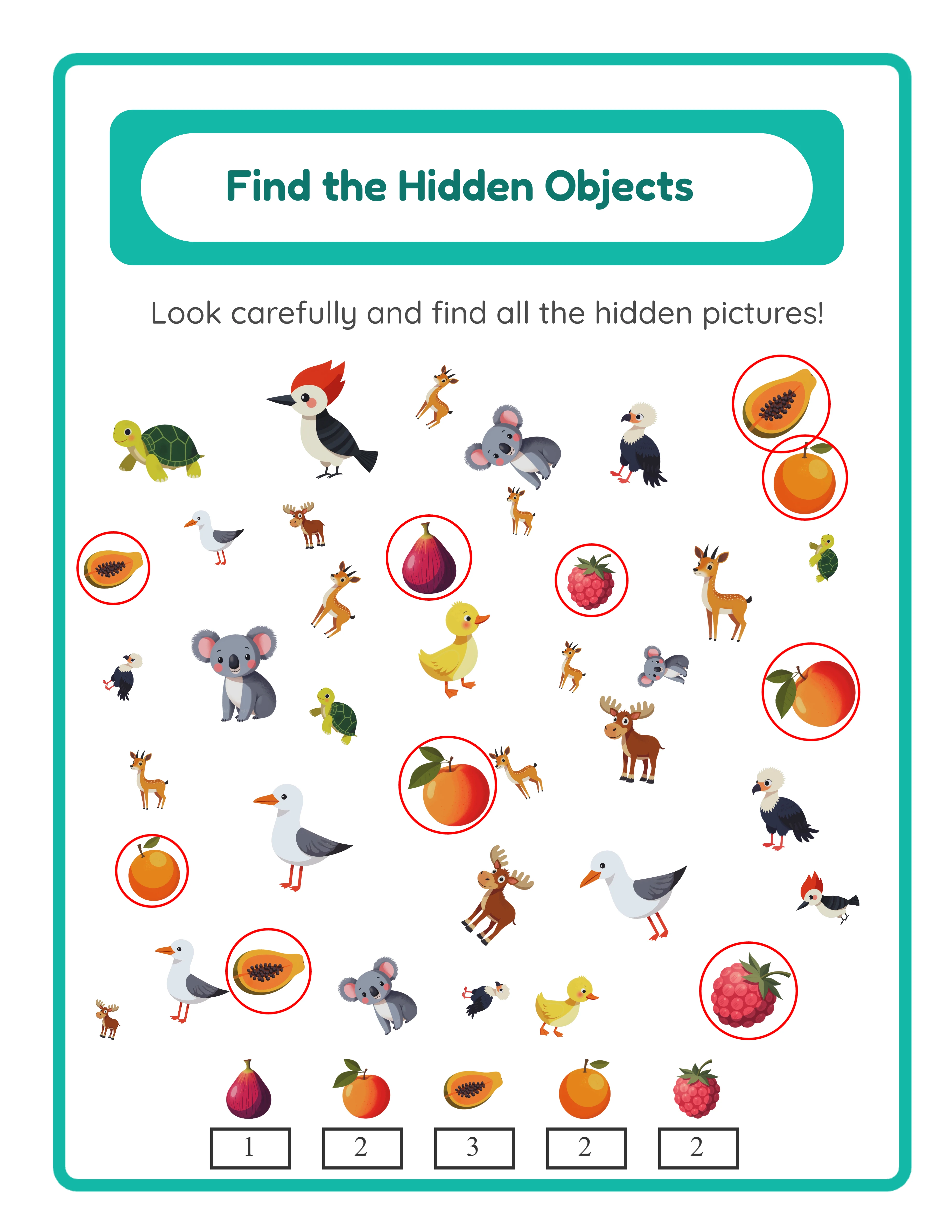
Switch to the Answer Key tab to see auto-generated annotations: red circles drawn around hidden objects (I Spy mode) or unpaired items (Odd One Out mode), sized 3–5px larger than the object for clear visibility. Download both versions using four dedicated buttons in the dropdown: Worksheet JPEG, Answer Key JPEG, Worksheet PDF, and Answer Key PDF at 300 DPI. Toggle grayscale for ink-friendly versions. Every export is production-ready for Etsy listings, Amazon KDP interiors, and Gumroad product files.
Vision Levels

Spotting Challenges for Every Age

From clear objects to hidden details

Rookie
Easy find objects — clear items

Clear objects easy to spot

Sharp Eye
Medium find objects — themed search

Themed scenes with camouflaged items

Eagle Eye
Hard find objects — hidden items

Tiny hidden details for sharp observers

Spotting objects trains your brain

Key Features of the Find Objects Worksheet Generator

Two Activity Modes: I Spy Hidden Objects and Odd One Out

One generator covers two distinct activity formats. I Spy mode creates free-form hidden object scenes where 1–5 target objects hide among 8–12 distractors in a scattered visual scene — solvers search the page and circle what they find. Odd One Out mode arranges 8–12 paired images in rows with 1–5 unpaired items mixed in — solvers identify the images without a matching partner. Images in Odd One Out mode render 50% larger than I Spy mode for clear visual comparison. Each mode produces a different cognitive challenge from the same image library.

Zero-Overlap Scene Generation with Adaptive Image Sizing

I Spy mode uses a sophisticated placement algorithm instead of a fixed grid. The findBestPosition() function tries 50 random positions per image and selects the placement with the least overlap. When space gets tight, the algorithm adaptively reduces image size to fit more objects without cluttering the scene. This creates natural-looking hidden object scenes where images are scattered organically across the page — far more engaging than grid-based alternatives where objects sit in predictable rows and columns.

Auto-Generated Answer Key with Circle Annotations

Every hidden object worksheet automatically generates a companion answer key on a separate canvas tab. The answer key reproduces the exact worksheet layout and draws red circles around the correct objects — hidden targets in I Spy mode and unpaired items in Odd One Out mode. Circles are sized 3–5px larger than the object for clear visibility. No manual marking, no separate file creation — the answer key is always in sync with the worksheet. This dual-canvas approach saves significant production time for sellers creating hidden object bundles.

Legend Display Showing Objects to Find in I Spy Mode

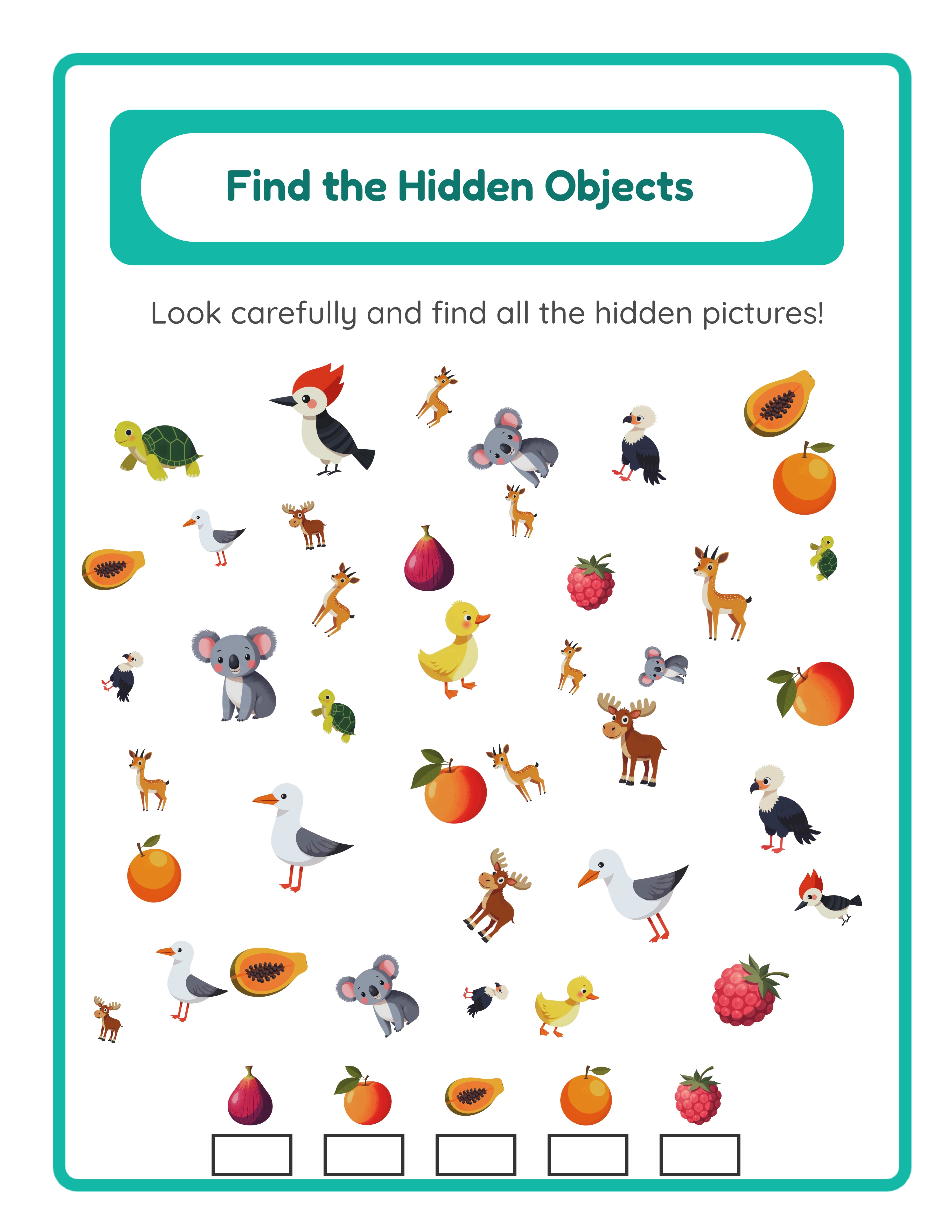
In I Spy mode, a legend at the bottom of the worksheet (120px bottom margin) displays the target objects to find. This visual reference shows exactly what to look for without written instructions — making worksheets accessible to pre-readers and multilingual audiences. The legend is automatically generated based on your selected hidden objects. Odd One Out mode uses a compact 50px bottom margin since solvers discover the unpaired items through visual comparison rather than a reference list.

Name and Date Fields with Toggle Control

A checkbox toggle in the Text & Content panel adds "Name:" and "Date:" fields to the worksheet. These identification lines make worksheets look professionally formatted for marketplace listings and add perceived value. Toggle them on for print-ready products or off for activity book pages where the name appears on the cover. The fields render cleanly alongside the auto-generated header and legend.

Image Library with 104 Themed Collections and 3,100+ Illustrations

Browse 104 themed image collections covering animals, food, vehicles, nature, professions, holidays, sports, seasons, and dozens more. Each theme provides a coordinated set of colorful illustrations that work as both hidden objects and distractors in I Spy scenes, or as paired and unpaired items in Odd One Out worksheets. Filter by theme using the dropdown or search for specific images by keyword. The Commercial tier includes 10 colorful themes (~300 images); Full Access unlocks all 104 themes with 3,100+ illustrations.

Print-Ready PDF and JPEG Export at 300 DPI with Grayscale Toggle

Download hidden object worksheets and answer keys as high-resolution JPEG images or print-ready PDF documents rendered at 300 DPI (6× multiplier). Four download buttons in the dropdown menu export Worksheet JPEG, Answer Key JPEG, Worksheet PDF, and Answer Key PDF separately. Page sizes include Letter Portrait, Letter Landscape, A4 Portrait, A4 Landscape, and fully custom dimensions. Toggle grayscale for ink-friendly versions that save toner. Every export is production-ready for digital downloads, printed workbooks, and bulk printing.

Full Canvas Editing with Text Tools, Background Themes, and Border Themes

The Fabric.js canvas provides complete control over every element on your hidden object worksheet. Drag, resize, rotate, and reposition images, text, and generated content freely. Layer controls manage stacking order. Add custom text with six font options (Fredoka, Lexend Deca, Baloo 2, Nunito, Quicksand, Arial), adjustable size and color, and text outline width from 0 to 10 with 0.5-step granularity. Background themes and border themes each have independent opacity controls. Zoom from 25% to 300% using button controls (In +25%, Out -25%, Reset 100%). Undo and redo up to 20 history states with Ctrl+Z and Ctrl+Y.

Eagle Vision!

Test Your Super Sight!
Featured find objects — exciting visual challenge
Print Instantly!Multiple ThemesWith Answer Keys

How to Sell Hidden Object Worksheets Online

Themed Hidden Object Activity Bundles on Etsy

Etsy (etsy.com)
Create themed I Spy worksheet packs using the 104 image collections — animal hidden objects, holiday I Spy, ocean creature search, dinosaur find-it, and dozens more. Each theme provides enough illustrations for multiple unique hidden object scenes with varying difficulty. Package 10–20 hidden object worksheets per theme with answer keys included, and sell at $3–$7 per bundle. Increase difficulty across the bundle by adding more hidden objects (1 → 5) and more distractors (8 → 12) as pages progress.

Hidden Object Activity Workbooks on Amazon KDP

Amazon KDP (kdp.amazon.com)
Compile 40–80 hidden object worksheets into a printed workbook formatted for Amazon KDP. Structure your book by progressive difficulty: early chapters hide 1–2 objects among 8 distractors for beginners, middle chapters increase to 3–4 hidden objects with 10 distractors, and advanced chapters use 5 hidden objects among 12 distractors. Include answer keys at the back of the book. The grayscale toggle produces ink-friendly pages ready for black-and-white book interiors. The visual-only design means one workbook works for any language market.

Odd One Out Visual Discrimination Worksheets on Gumroad

Gumroad (gumroad.com)
Build ready-to-use Odd One Out worksheets where solvers identify unpaired images among paired sets. Buyers searching for visual discrimination activities value worksheets that develop observation skills and logical reasoning. Create niche-specific sets: farm animal odd one out, shape recognition, seasonal sorting, and habitat classification. Include name and date fields for a professional look, and provide answer keys showing which items were unpaired. Each set exports in both PDF and JPEG formats.

Seasonal Hidden Object Activity Collections

Etsy / Amazon KDP / Gumroad (seasonal)
The 104 themed image collections cover every seasonal and holiday occasion — Christmas, Halloween, Easter, Valentine's Day, back-to-school, summer vacation, and more. Create time-limited hidden object worksheet collections that align with peak shopping periods. Release Halloween I Spy bundles in September, Christmas hidden object collections in October, and Valentine's Day search-and-find packs in January. Include both I Spy and Odd One Out worksheets in each seasonal set for maximum value.

Mixed-Mode I Spy and Odd One Out Bundles

Etsy / Gumroad (variety packs)
Combine both activity modes into premium variety packs. Each bundle includes I Spy hidden object scenes where solvers find specific objects in a scattered scene, plus Odd One Out worksheets where solvers identify unpaired items among matched sets. This combination targets two different cognitive skills — visual search and visual discrimination — in a single product. Mixed-mode bundles command higher prices because they deliver more activity variety and cover more learning objectives than single-mode products.

Professional Spotting Activities

Challenging visual perception worksheets

Professional find objects worksheet
Challenge
Find objects — themed variation
Challenge
Find objects answer key
Answer Key
Print-ReadyNo Prep RequiredAnswers IncludedMultiple Themes

Who Is This For?

Etsy Sellers

Search-and-find worksheets are perennial best-sellers, especially hidden object pages and themed scavenger hunts. These printables generate strong reviews because children genuinely enjoy completing them.

Amazon KDP Publishers

Hidden object and search activity books have dedicated fan bases on Amazon. Themed search books for specific interests create targeted products that rank well in niche education subcategories.

Teachers Pay Teachers Sellers

Search activities work as vocabulary reinforcement, observation skill builders, and quiet independent work. Teachers value find-and-count and hidden object worksheets tied to seasonal and thematic units.

Homeschool Educators & Parents

Search-and-find activities sharpen observation skills, build vocabulary, and provide screen-free entertainment. Themed treasure hunts and hidden object worksheets turn learning into an exciting game for children.

Sample Worksheets

I Spy hidden object scene with scattered images and legend showing target objects at the bottom
I Spy mode — free-form hidden object scene with legend display
Odd One Out worksheet with paired images in rows and unpaired items to identify
Odd One Out mode — paired images with unpaired items for visual discrimination
Hidden object worksheet answer key with red circles drawn around target objects
Auto-generated answer key — red circles mark hidden and unpaired objects

Free version includes a small watermark. Purchase to remove.

Frequently Asked Questions

What are the two activity modes and how do they differ?
The generator offers two distinct modes. I Spy mode (default) creates free-form hidden object scenes where 1–5 target objects are scattered among 8–12 distractors using a zero-overlap placement algorithm — solvers search the page and circle what they find, guided by a legend at the bottom showing the objects to locate. Odd One Out mode arranges 8–12 paired images in rows with 1–5 unpaired items mixed in — solvers identify the images that don't have a matching partner. Images in Odd One Out mode are 50% larger than I Spy mode for clearer visual comparison.
How does the zero-overlap placement algorithm work in I Spy mode?
Instead of placing images on a fixed grid, I Spy mode uses a findBestPosition() algorithm that tries 50 random positions for each image and selects the placement with the least overlap. When space gets tight, the algorithm adaptively reduces image size to fit more objects without cluttering the scene. This creates natural-looking hidden object scenes where images are scattered organically across the page, making the search experience more engaging than predictable grid-based layouts.
How many hidden objects and distractors can I use in I Spy mode?
In I Spy mode, you can configure 1–5 hidden objects (the targets solvers need to find) and 8–12 distractor objects (the surrounding images that fill the scene). Start with 1–2 hidden objects and 8 distractors for easier worksheets, and increase to 5 hidden objects among 12 distractors for challenging scenes. The legend at the bottom of the worksheet shows which objects to find.
How does the Odd One Out mode work?
Odd One Out mode arranges images in rows with paired and unpaired items. Configure 8–12 paired images (each appears twice in the layout) and 1–5 unpaired (odd) items that appear only once. Solvers examine each row and identify the image that doesn't have a matching partner. Images render 50% larger than I Spy mode for clearer visual comparison. There is no legend at the bottom since solvers discover the unpaired items through visual analysis rather than a reference list.
What does the legend at the bottom of the worksheet show?
In I Spy mode, a legend in the 120px bottom margin displays the target objects to find. This visual reference shows each hidden object so solvers know exactly what to look for — making worksheets accessible to pre-readers and multilingual audiences without requiring written instructions. Odd One Out mode does not include a legend since the activity is self-explanatory: find the image without a matching partner.
How does the auto-generated answer key work?
The generator uses a dual-canvas system with a Worksheet tab and an Answer Key tab. The worksheet shows the hidden object scene without markings — solvers search and circle objects themselves. The answer key reproduces the identical layout and draws red circles around the correct objects: hidden targets in I Spy mode and unpaired items in Odd One Out mode. Circles are sized 3–5px larger than the object for clear visibility. Both versions export separately using four download buttons: Worksheet JPEG, Answer Key JPEG, Worksheet PDF, and Answer Key PDF.
Can I add name and date fields to the worksheet?
Yes. A checkbox toggle in the Text & Content panel adds "Name:" and "Date:" fields to the worksheet. These identification lines make your worksheets look professionally formatted for marketplace listings and add perceived value. Toggle them on for print-ready products or off for activity book pages.
How does the auto-generated header work?
Every worksheet includes an auto-sizing title rendered in Fredoka font (#4A4A4A dark gray) with animated decorative white pill containers and shadows. The title font size adjusts automatically based on text length: 32px for short titles (under 12 characters), scaling down to 18px for longer titles (over 22 characters). You can also add a description field below the title. The header system ensures professional-looking worksheets regardless of title length.
Is there a free trial?
Yes. You can access every feature — both activity modes, configurable hidden object and distractor counts, the zero-overlap placement algorithm, the auto-generated answer key, the full image library, background and border themes, name and date fields, and all download formats — without creating an account, entering a credit card, or installing any software. Free trial downloads include a small watermark. A commercial license removes the watermark and grants full selling rights.
Is the Find Objects Generator language-sensitive?
No. The Find Objects Generator is visual-only — it does not load localized image names or use the Image Vocabulary system. Language settings affect only the UI labels (buttons, panel titles, tooltips), NOT the content of the worksheets themselves. This means every generated worksheet works universally across all languages without any localized text on the page, making your products sellable in any market without modifications.
Can I sell hidden object worksheets made with this tool on Etsy and Amazon KDP?
Yes. With a commercial license, you have full rights to sell your hidden object worksheets as digital downloads on Etsy, as printed workbooks on Amazon KDP, as digital products on Gumroad, or through any other sales channel. The two activity modes, zero-overlap scene generation, and 104 themed image collections give you the creative tools to produce original, sellable hidden object products.
What is the refund policy?
Because the free trial gives you access to every feature, we do not offer refunds on commercial license purchases. You can test both activity modes, the zero-overlap placement algorithm, configurable object counts, the auto-generated answer key, the full image library, background and border themes, name and date fields, and all download formats before buying. The free trial is the refund policy — make sure the tool fits your needs before purchasing a license.

Hidden Object Worksheet Generator for I Spy and Odd One Out Activities

Two activity modes in one generator — I Spy hidden object scenes with zero-overlap placement and Odd One Out paired-image rows — with auto-generated answer keys, adaptive image sizing, name and date fields, and a legend showing objects to find.