How to Create Hidden Object Scene Worksheets

Hidden object worksheets are among the most engaging printable products you can create. Children love the challenge of searching a scene for specific items, and parents and buyers love the focused attention these activities demand. This guide walks you through creating professional hidden object scene worksheets using the Find Objects generator — from choosing between I Spy and Odd One Out game modes to building custom scenes with layered images, generating automatic answer keys, and exporting print-ready files. Whether you are launching your first printable product or adding a new category to an existing shop, you will have finished worksheets ready to list by the end of this tutorial.
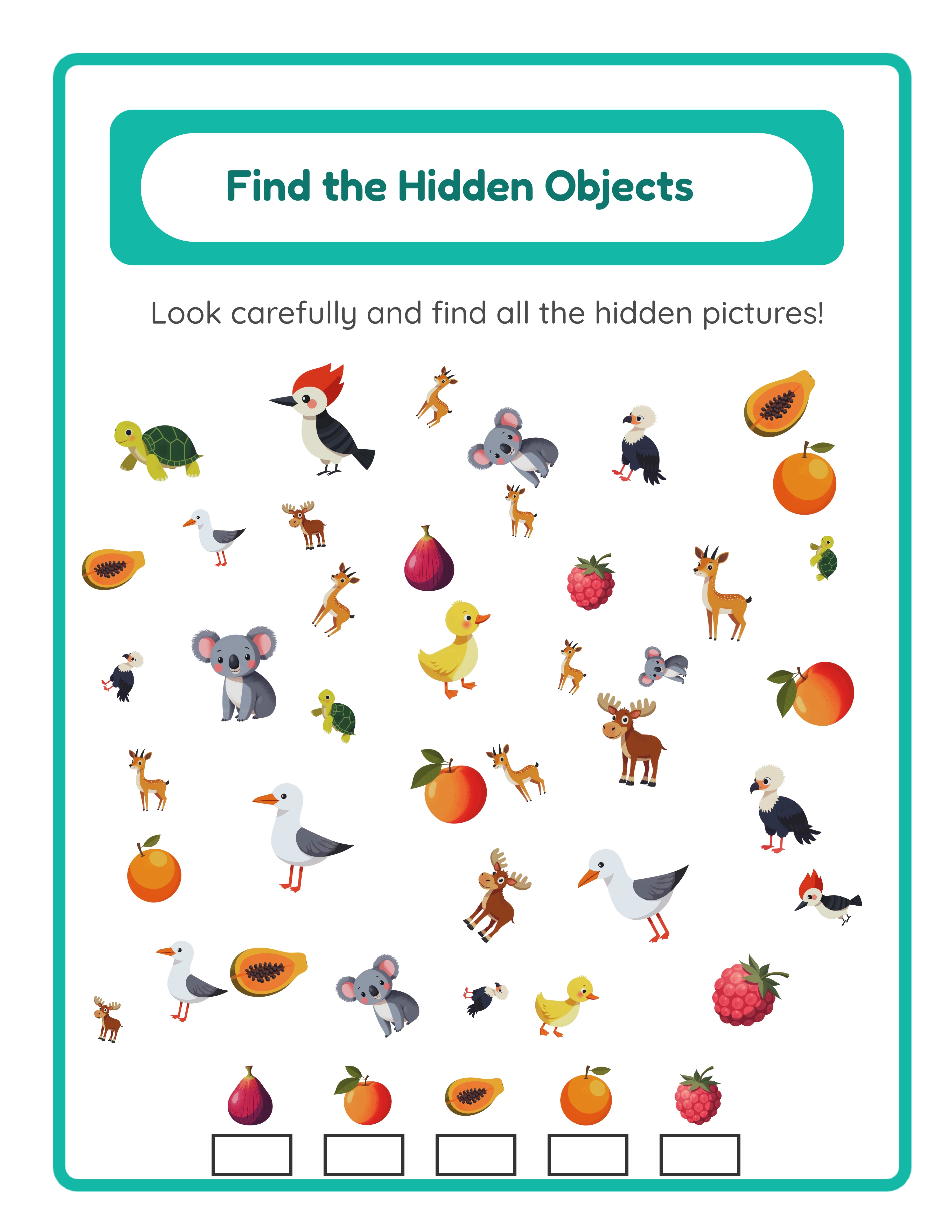
Hidden object scene worksheet showing themed images arranged for children to find specific objects
Professional Printables

How to Create Hidden Object Scene Worksheets

Create stunning find objects worksheets your customers will love

Find Objects worksheet sample 1
Find Objects worksheet sample 2
Find Objects worksheet sample 3
Hidden ObjectsAnswer KeysPrint-ReadyFree Trial with Watermark

Introduction

Hidden object activities tap into a fundamental human instinct: the drive to search and find. Children as young as three engage naturally with seek-and-find tasks, making hidden object worksheets one of the broadest-appeal printable products you can create. The audience spans preschool through elementary school, crosses every curriculum, and works equally well at home and in the group. What sets hidden object worksheets apart from other printable products is their visual-first nature. These worksheets contain no text that needs translation, no math problems tied to a specific curriculum, and no language-dependent instructions. A hidden object scene worksheet created with English UI labels works identically for a buyer in Germany, Brazil, or Japan. This makes your products universally sellable across international marketplaces without any modification. The Find Objects generator gives you two distinct game modes that create fundamentally different products. I Spy mode challenges children to find specific hidden objects within a busy scene of distractor images. Odd One Out mode asks children to identify the image that does not have a matching pair. Each mode serves different developmental skills — visual discrimination, attention to detail, pattern recognition — and each creates a separate product line for your catalog. Unlike grid-based worksheet generators, the Find Objects tool uses a freeform canvas where you position images individually. You control layering, alignment, and placement to create scenes with genuine visual complexity. Combined with custom image uploads, background themes, and border decorations, this gives you complete creative control over every scene you build. Every feature mentioned in this guide is available in the free trial with watermark. You can build complete scenes, test both game modes, and evaluate export quality before purchasing a commercial license.
Try It Free with Watermark

Try any generator free with watermark. No signup required.

Tutorial

1

Choose Your Activity Mode

The Find Objects generator offers two game modes that create fundamentally different worksheet products. Your first decision is which mode to use for the current project. I Spy mode is the classic hidden object format. You select 8–12 distractor images that form the background scene, then choose 1–5 hidden objects that children must find within that scene. The distractor images create visual noise, and the hidden objects are placed among them at various sizes and positions. Children examine the scene, locate each hidden object, and mark or circle it. This mode develops visual scanning, sustained attention, and figure-ground discrimination. Odd One Out mode takes a different approach. You configure 8–12 pairs of matching images (creating 16–24 total items on the page) and then add 1–3 unpaired images — the odd ones out. Children scan the scene to find which images do not have a matching partner. This mode develops pattern recognition, visual comparison, and logical deduction. Both modes produce answer keys automatically, and both export in the same formats. The difference is the cognitive skill they target and the product category they fit into on marketplaces. I Spy worksheets compete in the "hidden object" and "seek and find" search categories. Odd One Out worksheets compete in the "odd one out" and "spot the difference" categories. Creating products in both modes doubles your marketplace coverage from the same tool.
2

Select a Theme and Build Your Scene

With your game mode selected, the next step is choosing the images that will populate your scene. The Find Objects generator provides access to a themed image library with over 100 categories covering animals, food, vehicles, nature, holidays, sports, occupations, and more. Use the theme dropdown to filter the image library by category. Once you select a theme, the available images appear in the selection panel. For I Spy mode, you pick two groups of images: distractor images (8–12) that form the busy background scene, and hidden objects (1–5) that children must find. For Odd One Out mode, you select the paired images (8–12 pairs) and the unpaired odd items (1–3). You can also use the keyword search to find specific images across all themes. This is useful when you want to mix images from different categories to create more interesting scenes — for example, combining animals and food items in a single farm scene. Theme selection is a strategic product decision. Each theme creates a unique product you can list separately on marketplaces. A "Zoo Animals I Spy" worksheet and an "Ocean Creatures I Spy" worksheet target completely different search terms despite using the same generator. With 100+ themes available, you can build an extensive catalog without repeating yourself. The language selector in the image library controls the display labels for images in the UI, but since hidden object worksheets are visual-only products, the selected language does not affect the final worksheet output. Your finished scenes work for any audience regardless of language.
3

Upload Custom Images (Optional)

The Find Objects generator supports custom image uploads, letting you create unique branded scenes that no other seller can replicate. This is a significant competitive advantage on crowded marketplaces where differentiation drives sales. Click the upload area to select multiple image files from your computer. Uploaded images are stored in your browser session and appear alongside the library images in the selection panel. You can mix custom uploads with library images freely — use your own illustrations for the main objects and library images for background fillers, or vice versa. Custom uploads are particularly valuable for three scenarios: Branded product lines: If you create your own illustrations or clip art, upload them to build scenes with a consistent visual style that becomes your brand signature across all your listings. Client work: If you create custom worksheets for schools or tutoring centers, upload their specific images (mascots, logos, curriculum-specific visuals) to create personalized products. Niche themes: If the image library does not cover a specific niche you want to target (local landmarks, specialized occupations, cultural celebrations), upload your own images to fill that gap. Uploaded images are session-based, meaning they persist while your browser tab is open but are not stored permanently on the server. Save your custom images locally so you can re-upload them for future sessions.
4

Configure Page Size and Background

Page configuration determines the physical dimensions and visual styling of your worksheet. Page size options include US Letter Portrait, US Letter Landscape, A4 Portrait, A4 Landscape, and Custom dimensions. US Letter is standard for North American buyers. A4 is standard for European and international markets. Creating both versions doubles your international reach with minimal effort. Landscape orientation works well for scenes with wide panoramic compositions, while portrait orientation suits vertically layered scenes. The background section provides several controls for visual polish: clear decorations: This checkbox (enabled by default) adds subtle decorative elements around the border area of your worksheet. These decorations give the page a playful, professional look that appeals to parents and buyers browsing marketplace listings. Background theme: Select a themed background pattern from the library. This fills the page behind your scene objects, adding visual texture and context to the scene. Background opacity: Control how prominently the background pattern appears. Lower opacity (0.1–0.3) creates a subtle watermark effect. Higher opacity (0.5–0.8) makes the background a prominent part of the scene. For hidden object worksheets, moderate opacity often works best — visible enough to add atmosphere but not so strong that it makes objects harder to find. Fallback color: A solid color that appears where no background theme is applied. White is the default and works well for most printed worksheets. Light pastels can add warmth to digital-use products. Border theme and opacity: Select decorative borders that frame the entire page. These add a polished, finished look that distinguishes your products from plain worksheets.
5

Add Text and Instructions

Text tools let you add titles, instructions, and custom labels to your worksheet. Well-crafted text transforms a simple image scene into a structured educational activity. The text input field accepts any custom text. Common examples for I Spy mode: "Find the hidden objects!" or "Can you spot all 5 animals?" For Odd One Out mode: "Which one doesn't belong?" or "Find the odd one out!" For branded products, add your business name or a fun worksheet title like "Safari Search Challenge." Font selection offers seven families: Lexend Deca, Baloo 2, Nunito, Quicksand, Fredoka, Arial, and Verdana. Fredoka and Baloo 2 are playful and clear, ideal for preschool and kindergarten products. Lexend Deca and Nunito are clean and modern, suitable for products targeting older children or structured use. Arial and Verdana are universal fallbacks. Font size starts at a minimum of 8 pixels and scales up for titles and headers. For worksheet titles, 24–36 pixels works well. For instructions, 14–18 pixels is readable without dominating the page. Text outline adds a colored border around each letter, dramatically improving readability when text overlaps busy scene areas. Set an outline color that contrasts with both the text color and the background. Outline width ranges from 0 to 10, with 2–4 being the most practical range for most designs. Text color uses a color picker for precise matching to your scene palette. White text with a dark outline, or dark text with a light outline, provides the strongest readability across varied backgrounds.
6

Generate and Arrange the Scene

With your images selected and page configured, click Create New Worksheet to generate the scene. The generator places your selected images onto the canvas according to your game mode settings. This is where the Find Objects generator differs most from other worksheet tools. Instead of a fixed grid layout, you get a freeform canvas with professional editing tools for positioning every element: Layers: Each image sits on its own layer. Use Bring to Front, Bring Forward, Send Backward, and Send to Back to control which images overlap and which appear on top. Strategic layering creates visual depth and makes scenes more challenging and visually interesting. Alignment: Align selected objects to the left, center horizontally, right, top, center vertically, or bottom. Align to Page centers an object on the entire canvas. These tools ensure precise, professional placement that would take significant effort in general-purpose design software. Lock and Unlock: Lock individual objects in place once you are satisfied with their position. This prevents accidental moves while you continue arranging other elements. Unlock All releases everything for repositioning. For I Spy mode, arrange distractor images to create a dense, busy scene, then place hidden objects partially behind or between distractors. The goal is to make hidden objects findable but not immediately obvious. For Odd One Out mode, distribute all images evenly across the canvas so children can scan and compare pairs visually. Use the zoom controls (zoom in, zoom out, percentage display, reset) to inspect details at close range and verify that objects are positioned correctly.
7

Review and Adjust Difficulty

Difficulty calibration is critical for hidden object worksheets. Too easy and children finish in seconds with no engagement. Too hard and they give up in frustration. The right difficulty depends on your target age group. For preschool (ages 3–5): Use fewer distractor images (8–10), larger hidden objects, and minimal overlap. Hidden objects should be clearly visible with some searching but not instantly obvious. Use high-contrast themes where hidden objects stand out from distractors in color or shape. For kindergarten (ages 5–6): Increase distractors to 10–12 and use moderate overlap. Hidden objects can be partially obscured by other images. Introduce some visual similarity between hidden objects and distractors to require closer inspection. For early elementary (ages 6–8): Use the full range of 12 distractors with significant overlap and layering. Hidden objects can be smaller relative to distractors. Use themes where images share similar colors and shapes to increase the visual challenge. Zoom in to inspect each hidden object's visibility. Can you find it within a few seconds of focused looking? If it takes you more than 10 seconds, it may be too difficult for younger children. If you spot it instantly without searching, it may be too easy. Iterate by repositioning objects, adjusting sizes, and modifying layering until the difficulty feels right. The canvas tools make this process quick — unlock an object, drag it to a new position, lock it again, and reassess. For Odd One Out mode, verify that paired images are clearly identifiable as matches and that odd items are genuinely unpaired. Check that image pairs are not placed directly next to each other, which would make the activity too easy.
8

Generate Answer Key and Export

Every worksheet created with the Find Objects generator includes an automatic answer key. Click the Answer Key tab to view it. In I Spy mode, the answer key highlights the locations of hidden objects within the scene. In Odd One Out mode, it marks the unpaired images. This saves you from manually creating answer overlays — the generator handles it automatically. Before exporting, check the grayscale toggle. This checkbox converts your entire worksheet to grayscale for ink-saving printing. Grayscale worksheets are popular with schools and parents who print frequently and want to reduce ink costs. Consider creating both color and grayscale versions of each product — they appeal to different buyer segments and can be listed as separate products or bundled together. The Name and Date fields checkbox adds name and date lines to the worksheet. Enable this for products targeting structured use. Four export buttons are available: Worksheet JPEG: High-resolution image file at 300 DPI print quality. Use for listing preview images, social media marketing, and digital download products. Worksheet PDF: Professional print-ready format. This is the standard deliverable for printable product sales on all marketplaces. Answer Key JPEG and Answer Key PDF: Separate exports for the answer key in both formats. The free trial with watermark produces fully functional exports with a watermark overlay. This lets you evaluate print quality, test formatting, and create sample prints before purchasing a commercial license. The commercial license removes the watermark from all exports.
Skill Levels

Worksheets for Every Level

Three difficulty tiers for differentiated content

Beginner
Find & Count beginner worksheet

Find 3-5 objects

Explorer
Picture Path intermediate worksheet

Branching pathways

Expert
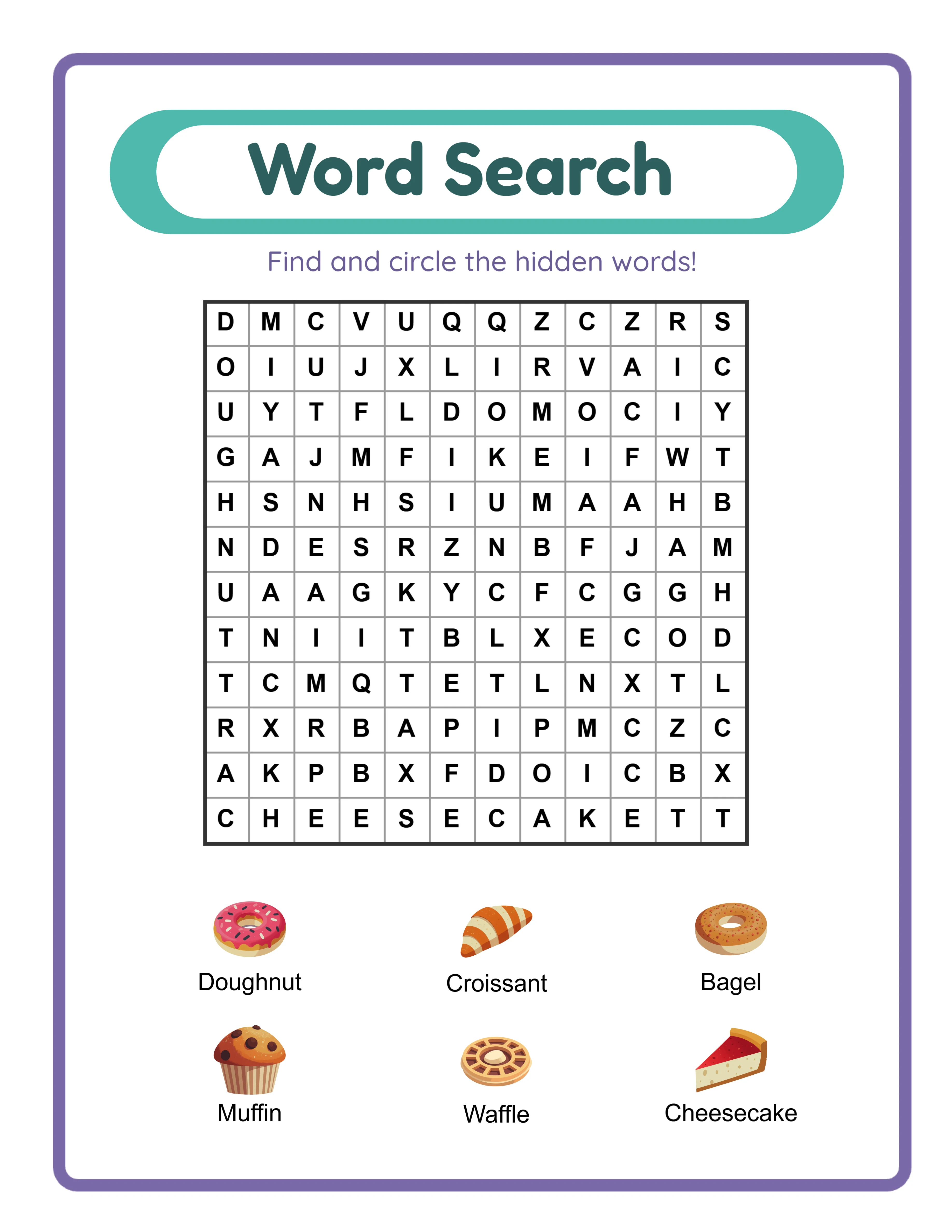
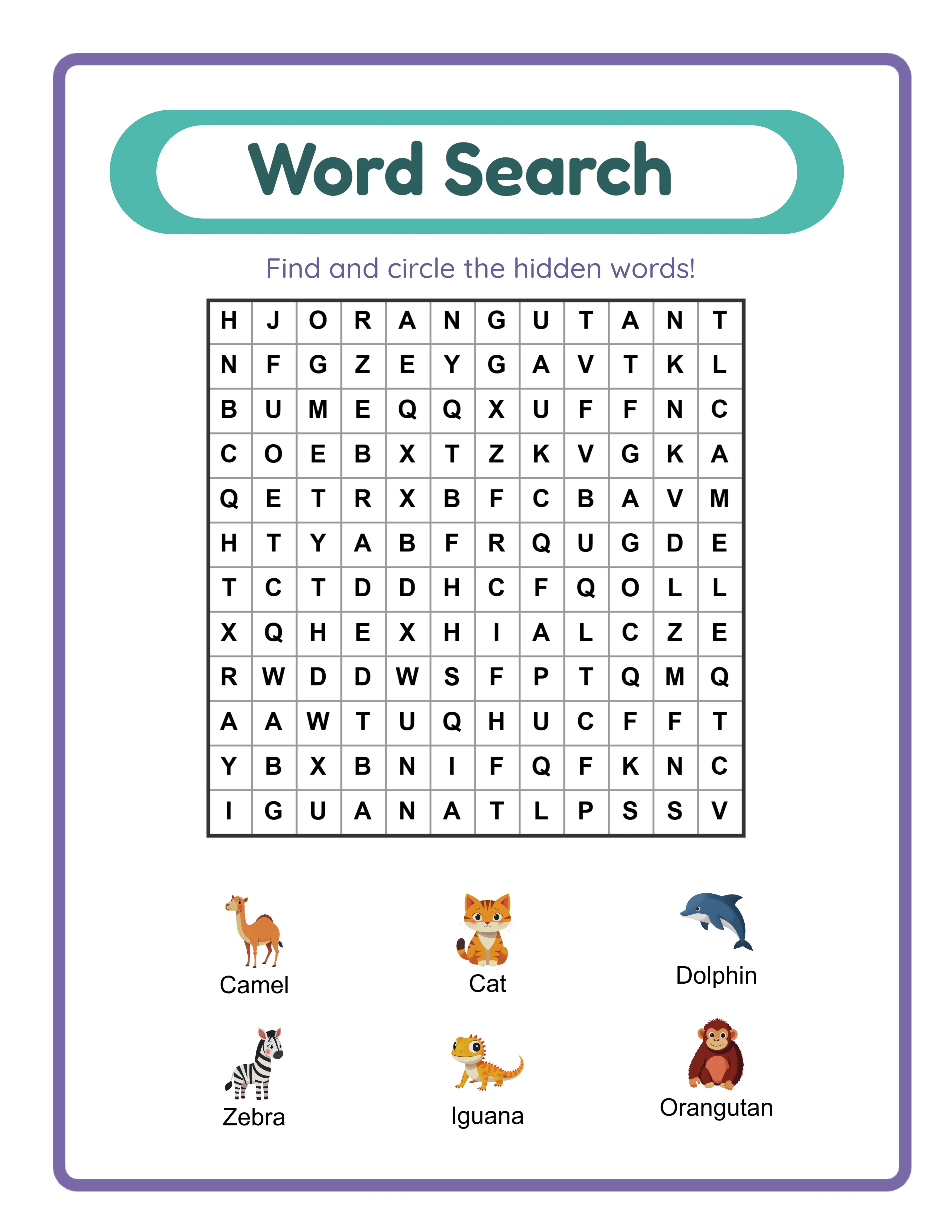
Word Search advanced worksheet

Challenging 15×15 grids

Professional quality at every difficulty level

Platform Tips

Selling Hidden Object Worksheets on Etsy

Etsy is the strongest marketplace for hidden object printable worksheets. The "I Spy" and "hidden object" search categories have dedicated buyer audiences of parents, buyers, and homeschoolers. Title optimization: Front-load your primary keyword. Strong examples: "I Spy Printable Worksheets — Zoo Animals Theme — Hidden Object Search — With Answer Key" or "Odd One Out Worksheet Bundle — Ocean Animals — Visual Discrimination Activity — Printable PDF." Use all 140 characters Etsy allows. Tags: Use all 13 tags. Mix broad and specific: "I Spy worksheets," "hidden object printable," "seek and find activity," "odd one out worksheet," "visual discrimination," "preschool printable," "kindergarten activity," "search and find," "printable puzzle for kids," "group activity," "homeschool worksheet," "toddler activity," "spot the difference." Listing images: Upload 5–10 images. Include the full worksheet page, a close-up showing the scene detail, the answer key with hidden objects highlighted, and if possible a mockup showing a child working on the printed worksheet. The first image is your thumbnail — make the scene colorful and visually dense to catch attention in search results. Pricing: Individual I Spy worksheets sell at $1.49–$2.99. Themed bundles of 8–12 scenes sell at $4.99–$8.99. Mega bundles combining both game modes across multiple themes sell at $12.99–$19.99.

Selling Hidden Object Activity Books on Amazon KDP

Amazon KDP is ideal for hidden object content because the format naturally fills activity book pages. Buyers on Amazon actively search for "I Spy books for kids" and "search and find activity books." Product format: Compile 30–60 hidden object scenes into a bound activity book. Include answer keys at the back. Organize scenes by difficulty — start simple and increase complexity through the book. KDP requires specific trim sizes; 8.5x11 inches works well for detailed scenes. Title and subtitle: Example title: "I Spy Activity Book for Kids Ages 3–6." Example subtitle: "50 Fun Hidden Object Scenes with Zoo Animals, Ocean Creatures, and Farm Friends — Includes Answer Keys." Keywords: KDP provides 7 keyword slots. Use specific phrases: "I Spy book for toddlers," "hidden object activity book kids," "seek and find book preschool," "visual search puzzle book," "spot the object activity pages," "search and find book kindergarten," "I Spy animals book." Cover design: Show a sample scene on the cover with a few hidden objects circled or highlighted. This immediately communicates the book's concept. Use bright, colorful imagery that stands out in Amazon search results at thumbnail size. Pricing: KDP activity books with 30–60 pages sell at $5.99–$8.99. Books with 80–100 pages command $8.99–$12.99. Amazon takes a significant royalty cut, so price to maintain at least $2–$3 profit per sale.

Selling Hidden Object Worksheets on Gumroad

Gumroad (Gumroad) buyers search for hidden object worksheets as visual discrimination activities, attention-building exercises, and reward activities for finished-early solvers. Product descriptions on Gumroad should include: the specific game mode (I Spy or Odd One Out), age range and grade level, number of scenes included, whether answer keys are included, and the developmental skills practiced (visual discrimination, attention to detail, figure-ground perception, pattern recognition). Preview files: Gumroad allows a preview file. Include 2–3 sample scenes — one showing the full worksheet and one showing the answer key. Previews dramatically increase conversion rates because buyers can assess quality before purchasing. Gumroad-specific positioning: Frame your products using educational vocabulary. Hidden object worksheets develop "visual discrimination" and "figure-ground perception." Odd One Out worksheets build "classification skills" and "logical reasoning." These terms match how buyers search for and justify group resource purchases. Bundling for Gumroad: Buyers purchase in bulk for the school year. A "Full Year Visual Search Activity Bundle" with 40–60 scenes organized by theme and difficulty is a strong Gumroad product. Include a table of contents and skills-addressed overview to help buyers plan usage. Occupational therapy crossover: Hidden object worksheets are used by occupational therapists working on visual perceptual skills. Mentioning "OT-friendly" or "visual perceptual activity" in your description and tags opens an additional buyer segment.

Find Objects Showcase

See What You Can Create!
Featured find objects worksheet
Find Them All!Sharp EyesWith Answer Keys

Monetization Strategies

Pricing Hidden Object Worksheet Products

Hidden object worksheets command slightly higher prices than standard worksheets because each scene requires intentional design and arrangement. Buyers perceive the creative effort involved in building a visually complex scene. Single scene worksheets with answer key: $1.99–$2.99. These work as introductory products that showcase your scene-building quality. Themed mini-bundles (5–8 scenes): $3.99–$6.99. Each scene in the bundle uses the same theme but with different image arrangements, creating variety within a cohesive product. Dual-mode bundles (I Spy + Odd One Out, same theme): $5.99–$9.99. Offering both game modes on the same theme provides exceptional value and targets two search categories simultaneously. Complete collections (20–40 scenes across multiple themes): $12.99–$24.99. Position these as group activity packs or full-year supplements. Include a mix of difficulty levels and both game modes. Color + grayscale bundles: Offer the same scenes in both color and grayscale at a slight premium over single-format pricing. Schools with limited ink budgets appreciate the grayscale option, while parents printing at home often prefer color.

Bundling Strategies for Hidden Object Products

The two game modes in the Find Objects generator create natural bundling opportunities that other worksheet types cannot match. Single-theme, dual-mode bundles: Create 5 I Spy scenes and 5 Odd One Out scenes using the same animal or food theme. Bundle them together as a "Complete Zoo Animals Search Activity Pack." This format appeals to buyers who want variety within a single theme. Difficulty-graded bundles: Create easy, medium, and hard versions of the same scene type. Easy scenes have fewer distractors and larger hidden objects. Hard scenes have maximum distractors with significant overlap. Sell these as "Progressive Difficulty" or "Skills Builder" packs. Seasonal bundles: Create hidden object scenes using seasonal themes (Halloween, Christmas, Easter, Summer). List these 4–6 weeks before each holiday. Seasonal products have reliable annual demand spikes. Group activity packs: Bundle 20–30 scenes with a difficulty progression and answer keys formatted for easy grading. Include a contents page listing each scene and its difficulty level. This format sells well on Gumroad. Cross-product bundles: Pair hidden object worksheets with other search-and-find products from your catalog. A "Visual Search Activity Mega Bundle" combining I Spy scenes, Odd One Out worksheets, and word search puzzles creates a high-value product that targets multiple search categories.

Creating Product Variations from a Single Scene

Each scene you build in the Find Objects generator can produce multiple distinct products with minimal additional effort. Color vs. grayscale: Export every scene in both color and grayscale. These serve different buyer needs and can be sold separately or bundled together. A single scene becomes two products. Difficulty variations: Take the same set of theme images and create three scenes with different difficulty levels. An easy scene uses 8 distractors and 2 large hidden objects. A medium scene uses 10 distractors and 3 hidden objects. A hard scene uses 12 distractors and 5 partially obscured hidden objects. One image selection becomes three products. Game mode variations: Use the same theme images in both I Spy and Odd One Out modes. Each mode creates a different activity type from the same visual assets. Page size variations: Export as US Letter and A4. List them as separate products for North American and international buyers, or bundle both sizes together as a universal-format product. With answer key vs. activity-only: Some buyers want standalone activity pages without answer keys (for use as coloring or open-play activities). Others specifically need answer keys for structured use. Consider offering both configurations. This systematic approach means a single themed image selection can generate 6–12 distinct product variations. Applied across 10 themes, you have 60–120 unique listings from a manageable amount of creative work.

Examples

I Spy Product Variations by Theme and Age Group

Here are concrete I Spy product examples you can create with the Find Objects generator. Preschool I Spy (ages 3–5): Use 8 large, colorful distractor images with high contrast between objects. Place 2 hidden objects prominently — partially overlapping one or two distractors but still clearly visible with focused looking. Use themes with instantly recognizable images: farm animals, fruits, vehicles. Title example: "I Spy Farm Animals — Easy Visual Search for Preschool — Printable Activity with Answer Key." Kindergarten I Spy (ages 5–6): Use 10 distractors with moderate size variation and 3 hidden objects. Allow some visual similarity between hidden objects and distractors (a hidden red apple among red strawberries). Themes like ocean animals, dinosaurs, and food work well. Title example: "Ocean Animals I Spy Worksheets — Seek and Find Printable for Kids Ages 5–6." Early elementary I Spy (ages 6–8): Use 12 distractors with significant layering and overlap. Place 4–5 hidden objects at various sizes, some partially obscured. Use visually complex themes where images share similar colors. Title example: "Jungle I Spy Challenge — Hidden Object Worksheets for Kids Ages 6–8 — 12 Scenes with Answer Keys." Seasonal I Spy: Create holiday-themed scenes using pumpkins for Halloween, ornaments for Christmas, hearts for Valentine's Day, and eggs for Easter. Seasonal products have predictable demand windows. List them 4–6 weeks before each holiday for maximum visibility.

Odd One Out Product Variations

Odd One Out worksheets target a different search category and buyer need than I Spy. Here are specific product examples. Basic Odd One Out (ages 3–5): Use 8 pairs of matching images (16 total) with 1 clearly different odd item. Choose themes where images have distinct shapes and colors so pairs are easy to identify. Farm animals work well: two cows, two pigs, two chickens, two horses — and one standalone tractor. Title example: "Odd One Out Activity — Farm Animals — Printable Visual Discrimination Worksheet." Intermediate Odd One Out (ages 5–7): Use 10 pairs with 2 odd items. Introduce some visual similarity between different image types (a dog among cats, a carrot among fruits). The added complexity requires more careful scanning. Title example: "Find the Odd One Out — 10 Animal Scenes — Visual Thinking Worksheets for Kindergarten." Advanced Odd One Out (ages 7–9): Use 12 pairs with 3 odd items. Use themes where images share similar colors or shapes to increase difficulty. Children must compare carefully to distinguish paired from unpaired items. Title example: "Challenging Odd One Out Puzzles — Advanced Visual Discrimination for Ages 7–9." Mixed bundles: Combine I Spy and Odd One Out worksheets in a single themed bundle. This doubles the activity variety and lets you target both "hidden object" and "odd one out" search terms with one listing. These mixed bundles command premium pricing because they offer two distinct activity types.

Sample Worksheets

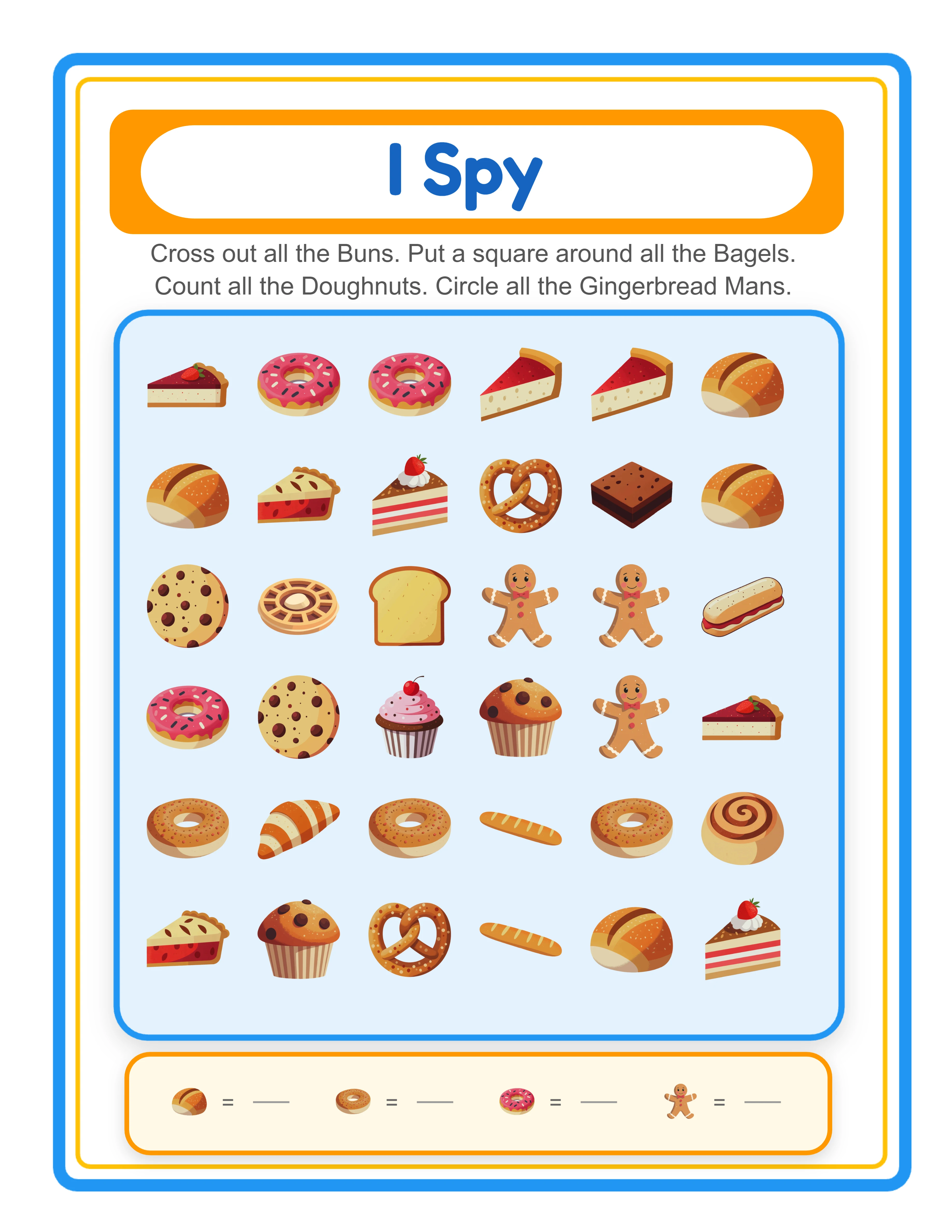
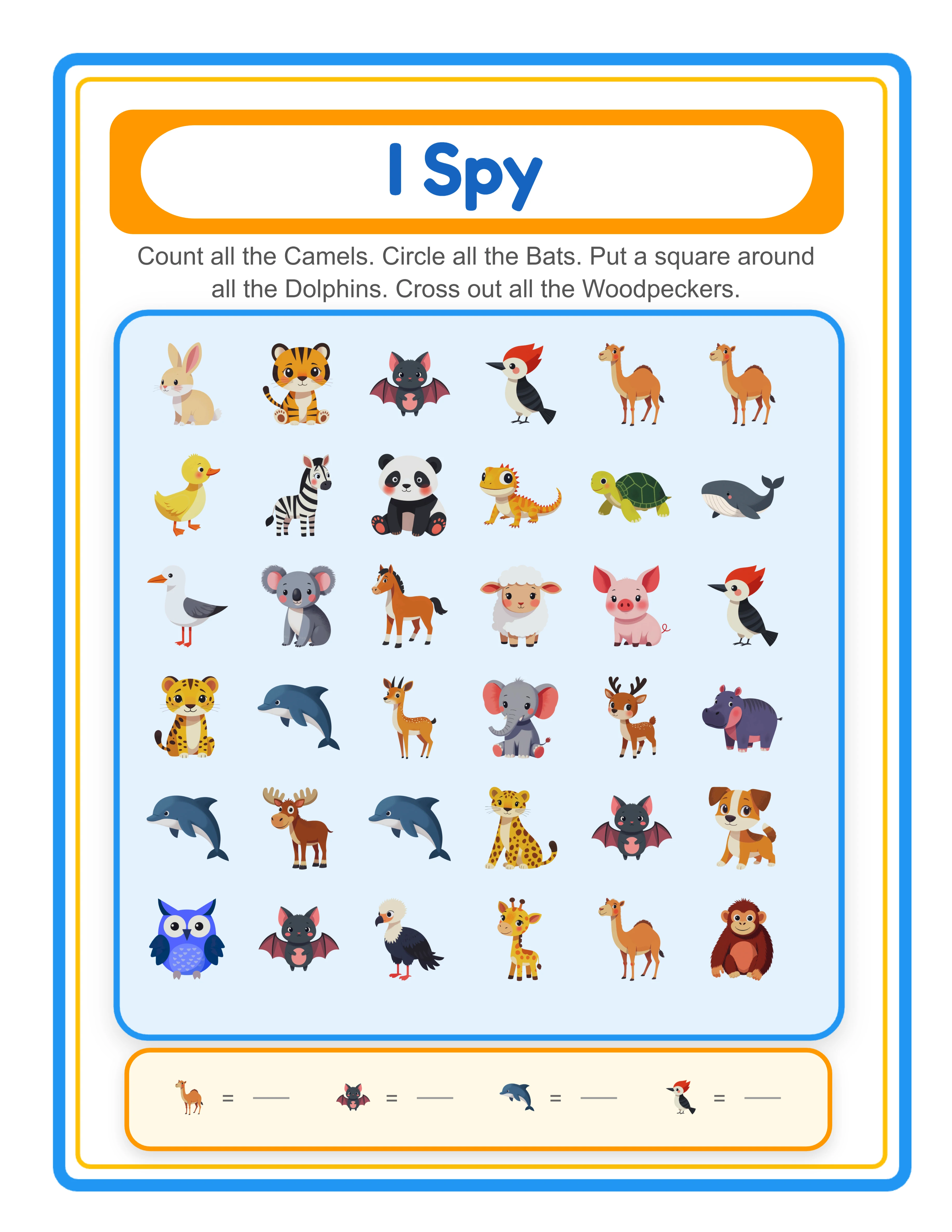
I Spy hidden object worksheet with themed scene for visual search activity
I Spy hidden object scene with themed images and distractor objects for visual search practice
Hidden object worksheet answer key highlighting locations of hidden items
Automatic answer key generated for every hidden object scene worksheet

Theme Images

Backpack — themed educational image
Backpack
Bear — themed educational image
Bear
Binoculars — themed educational image
Binoculars
Boots — themed educational image
Boots
Cabin — themed educational image
Cabin

Professional Worksheet Gallery

Clean, polished layouts ready for your business

Find & Count professional worksheet
Find & Count
Picture Path professional worksheet
Picture Path
Word Search professional worksheet
Word Search
Print-ReadyProfessional QualityMultiple FormatsAnswer Keys

Frequently Asked Questions

What game modes does the Find Objects generator support?
The generator supports two game modes. I Spy mode lets you create classic hidden object scenes where children search for specific objects hidden among distractor images. Odd One Out mode creates matching-pair scenes where children identify images that do not have a partner. Each mode generates different worksheet types and targets different marketplace search categories.
Can I upload my own images to create custom scenes?
Yes. The generator supports multiple file uploads for custom images. Your uploaded images appear alongside the theme library images and can be mixed freely. Custom uploads are session-based and persist while your browser tab is open. This lets you create unique branded scenes that differentiate your products from other sellers.
Does the generator create answer keys automatically?
Yes. Every worksheet includes an automatic answer key. In I Spy mode, the answer key highlights hidden object locations within the scene. In Odd One Out mode, it marks the unpaired images. Answer keys export as separate PDF and JPEG files. Including answer keys is essential for group products and a common search qualifier on marketplaces.
How do the canvas editing tools work?
The generator provides layer controls (bring to front, send to back), alignment tools (left, center, right, top, bottom, align to page), and lock/unlock for individual objects. These let you precisely position every image in your scene. You also get undo/redo (Ctrl+Z/Ctrl+Y) and zoom controls for detailed inspection. These tools give you professional layout control without needing external design software.
What is the grayscale toggle for?
The grayscale checkbox converts your entire worksheet to black and white for export. This creates ink-saving versions that schools and parents with limited printing budgets prefer. Many sellers offer both color and grayscale versions of the same scenes as separate products or as a bundle, effectively doubling their product catalog from the same creative work.
Do I need to speak multiple languages to sell these worksheets internationally?
No. Hidden object worksheets are visual-only products. The scene images, hidden objects, and answer keys contain no language-dependent content. A worksheet created with the English UI works identically for buyers in any country. This makes hidden object products one of the most universally sellable printable formats across international Etsy and Amazon marketplaces.
What is the refund policy for commercial licenses?
Every generator offers a free trial with watermark so you can test all features, build complete scenes, and evaluate export quality before purchasing. Because you can fully evaluate the product before buying, all commercial license sales are final. This is standard practice for digital product tools where the full product can be previewed before purchase.

Ready to Start Creating?

Try any generator free with watermark. No signup required.

Browse All Generators