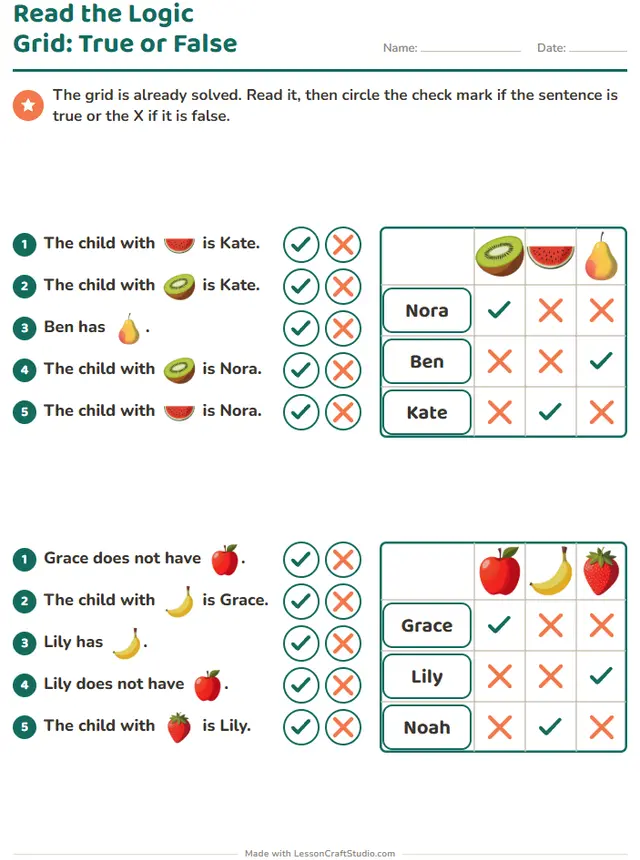
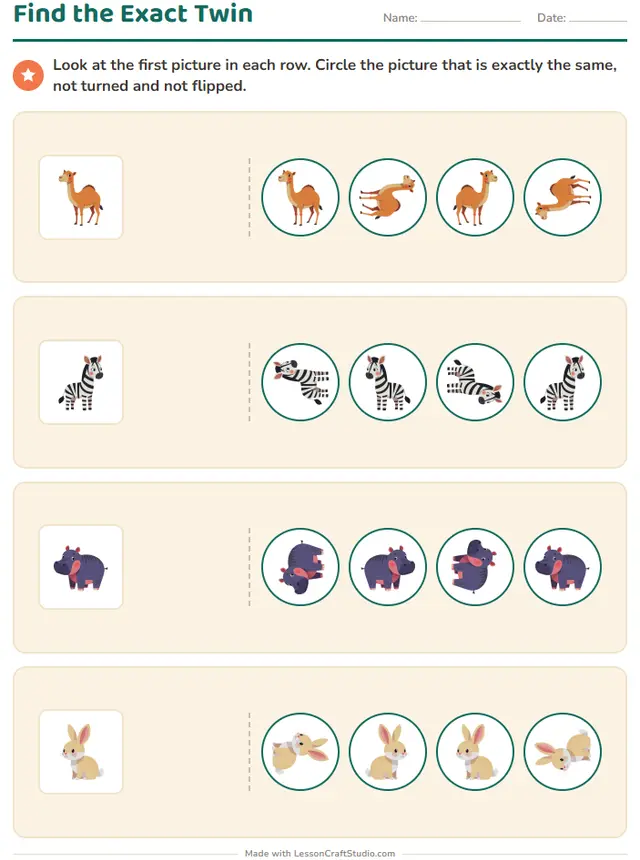
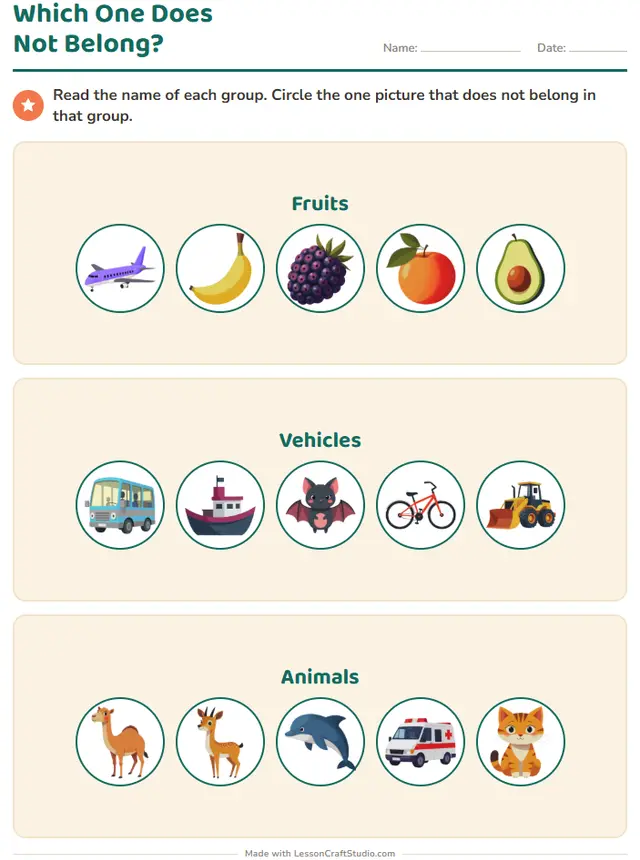
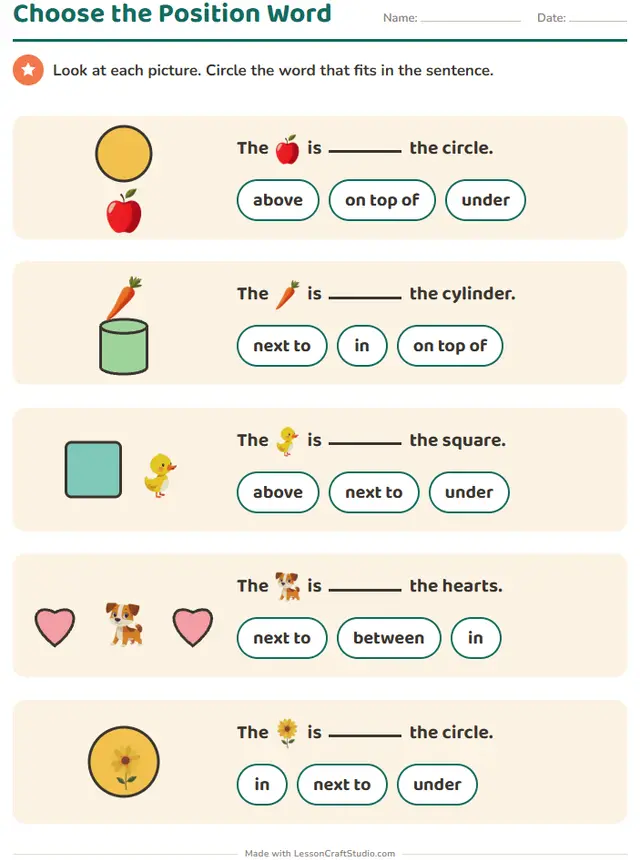
Dot to Dot Worksheet Maker
Create dot-to-dot worksheets where children count to 20, count back, skip count, follow the alphabet or solve math facts. The hidden picture keeps children going to the last dot.
Look around without an account. With a free account, you can make 3 worksheets a month.
- Thousands of picturesChange the theme and every picture on the page changes.
- 11 languagesWritten for each language, not translated by a machine.
- Paper or screenPrint a PDF, or let children do it on a screen.
- Easy to save and shareKeep what you make and send it by link or QR code.
All 15 worksheets you can make here
Choose one to open it in the maker. Each comes in three levels where the skill allows, with new versions as often as you need.
Kindergarten
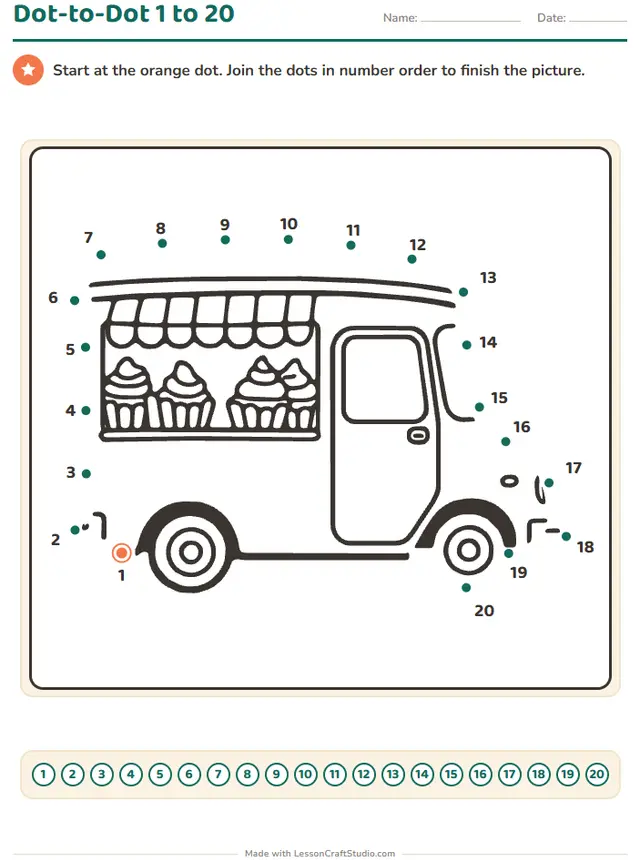
- Dot-to-Dot 1 to 20Start at the orange dot. Join the dots in number order to finish the picture.
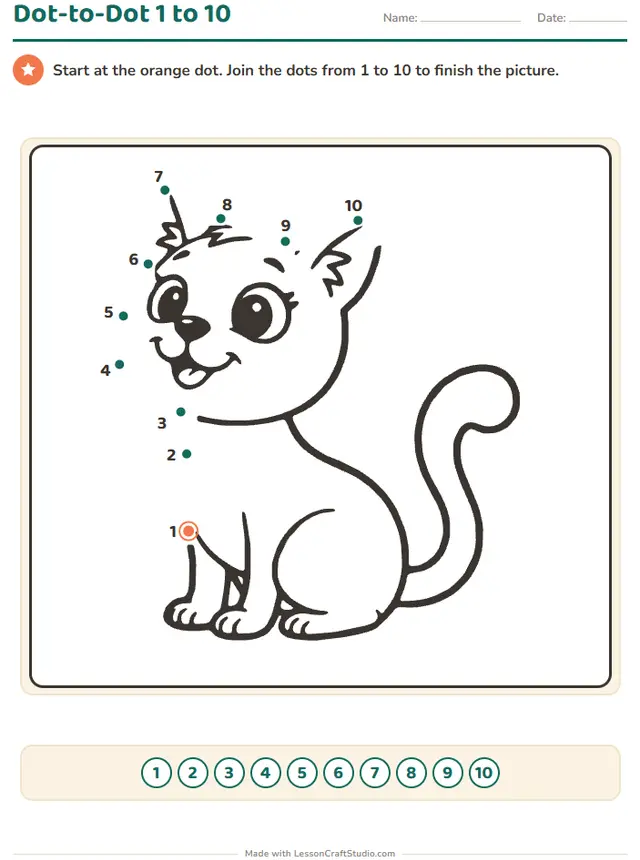 Dot-to-Dot 1 to 10Start at the orange dot. Join the dots from 1 to 10 to finish the picture.
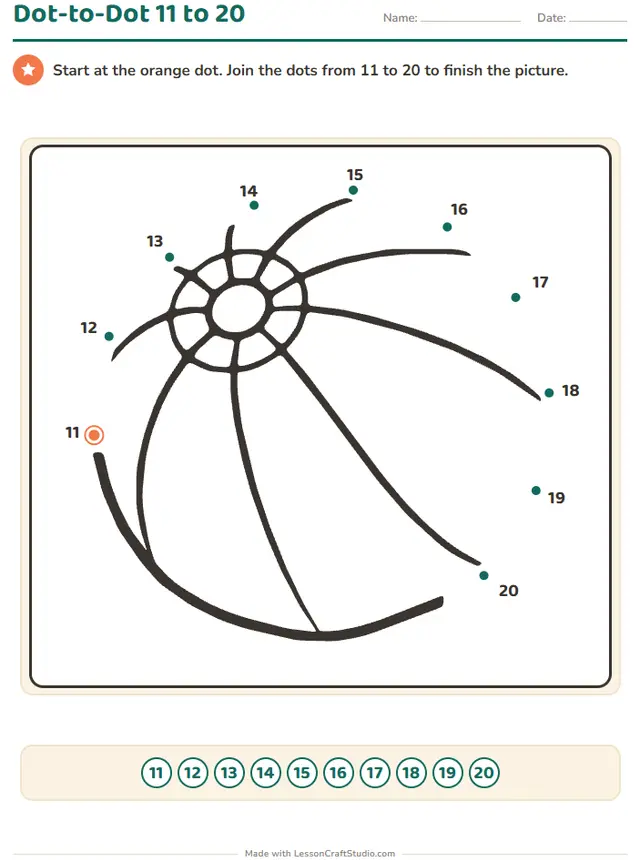 Dot-to-Dot 11 to 20Start at the orange dot. Join the dots from 11 to 20 to finish the picture.
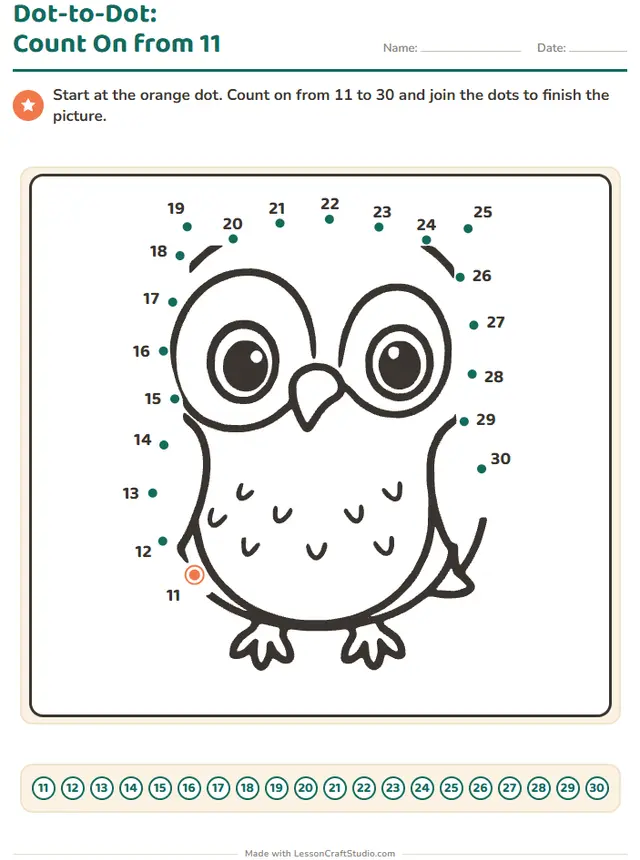
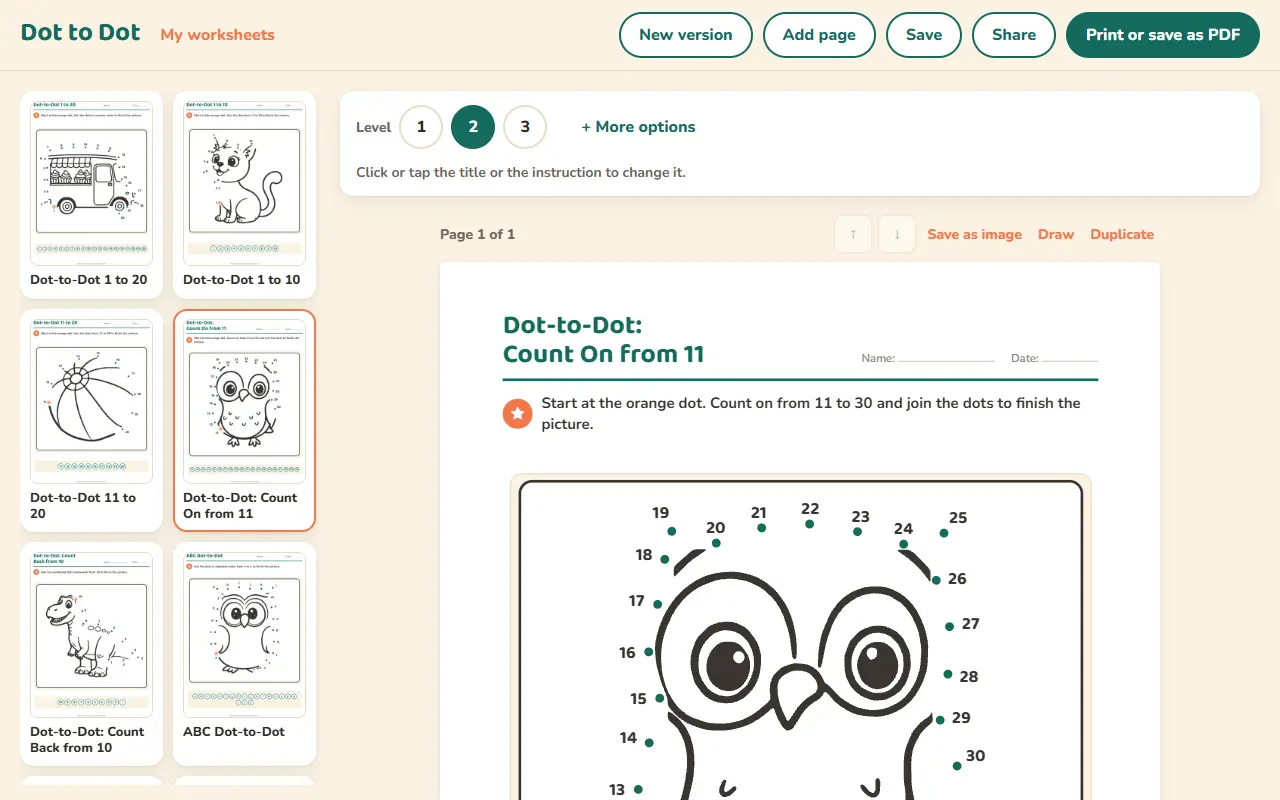
- Dot-to-Dot: Count On from 11Start at the orange dot. Count on from 11 to 30 and join the dots to finish the picture.
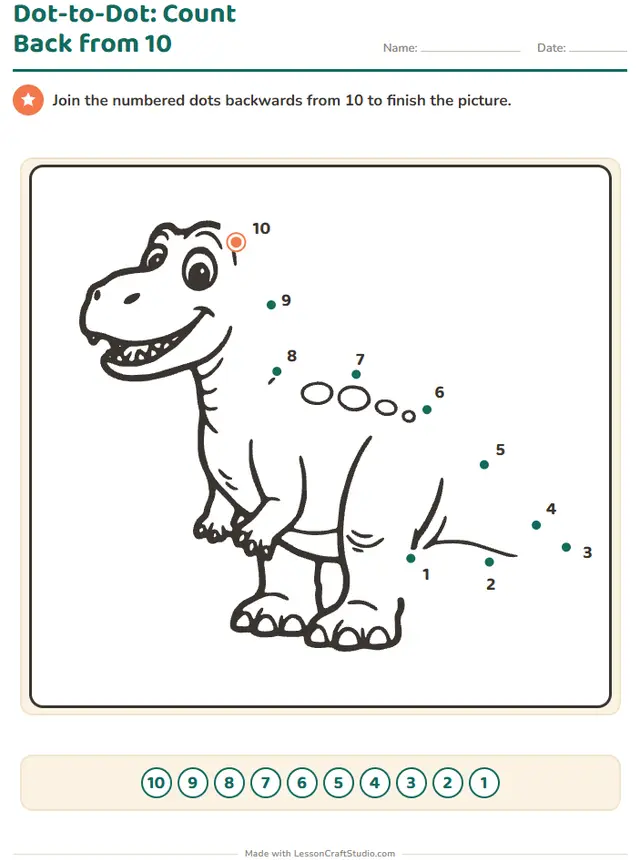 Dot-to-Dot: Count Back from 10Join the numbered dots backwards from 10 to finish the picture.
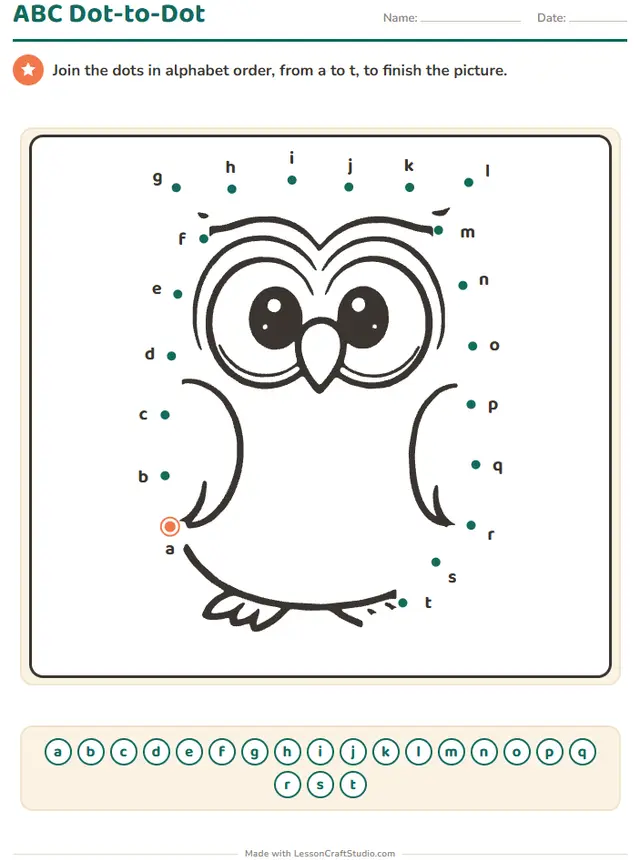 ABC Dot-to-DotJoin the dots in alphabet order, from a to t, to finish the picture.
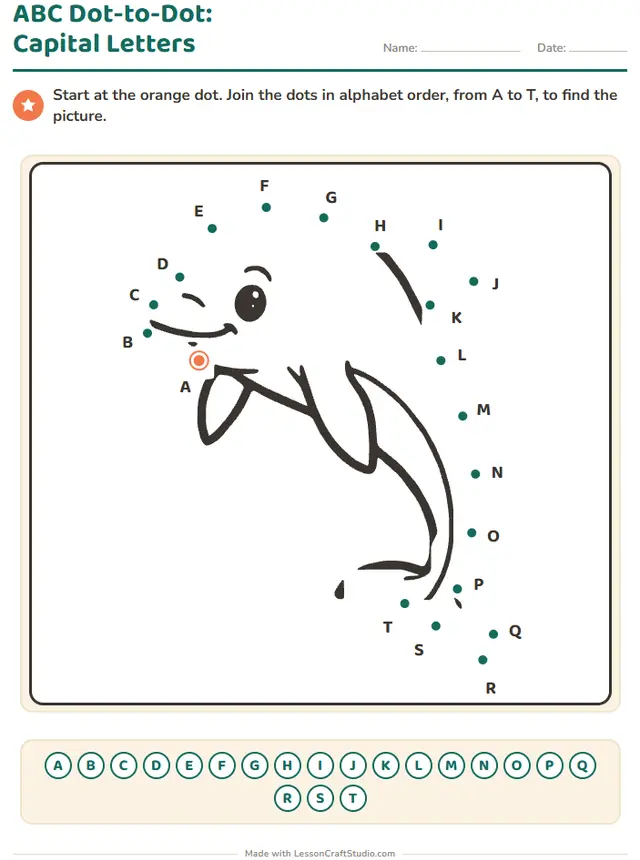 ABC Dot-to-Dot: Capital LettersStart at the orange dot. Join the dots in alphabet order, from A to J, to find the picture.
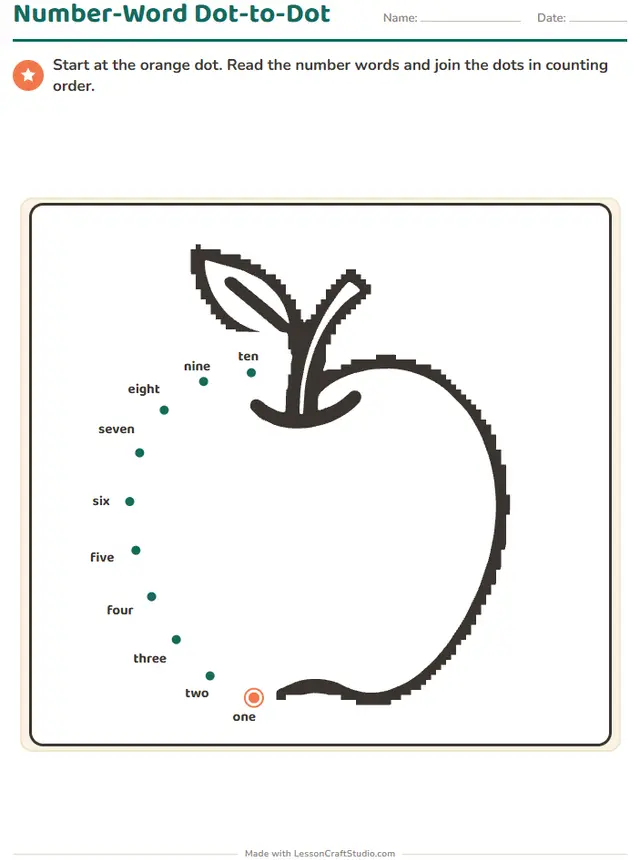 Number-Word Dot-to-DotStart at the orange dot. Read the number words and join the dots in counting order.
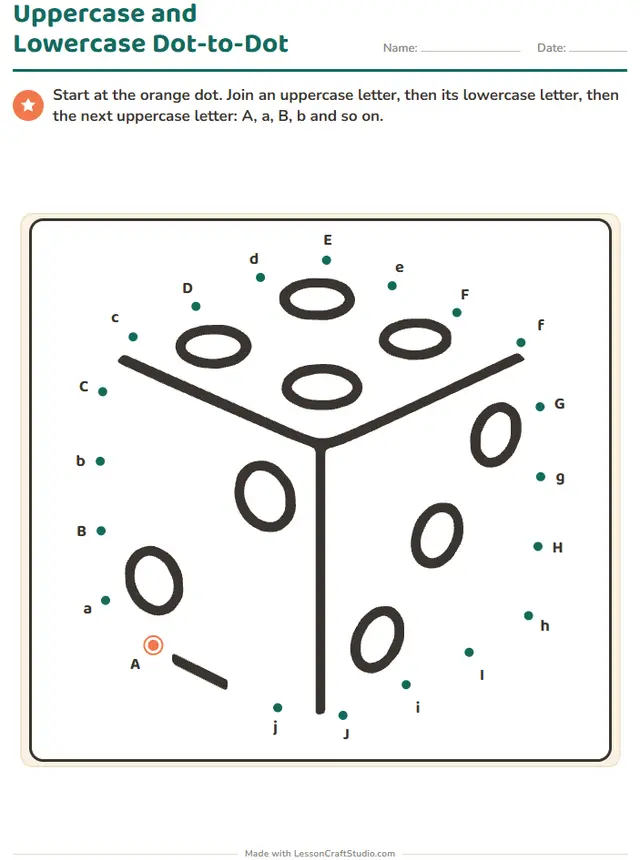 Uppercase and Lowercase Dot-to-DotStart at the orange dot. Join an uppercase letter, then its lowercase letter, then the next uppercase letter: A, a, B, b and so on.
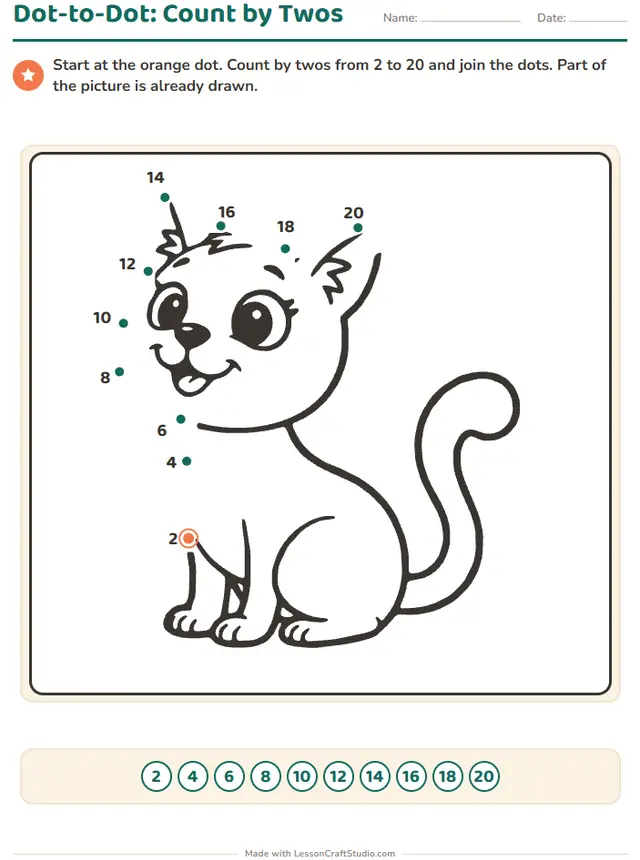 Dot-to-Dot: Count by TwosStart at the orange dot. Count by twos from 2 to 20 and join the dots. Part of the picture is already drawn.
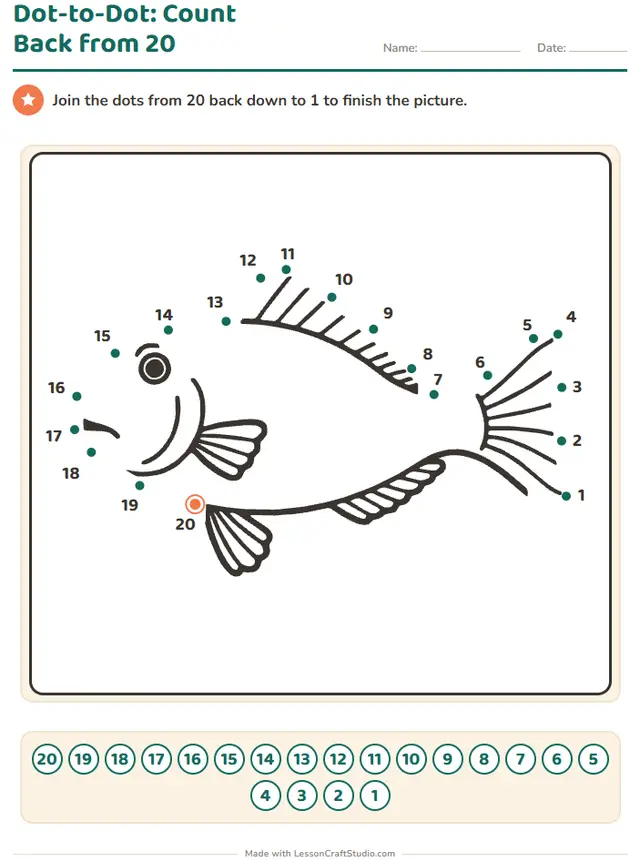 Dot-to-Dot: Count Back from 20Join the dots from 20 back down to 1 to finish the picture.
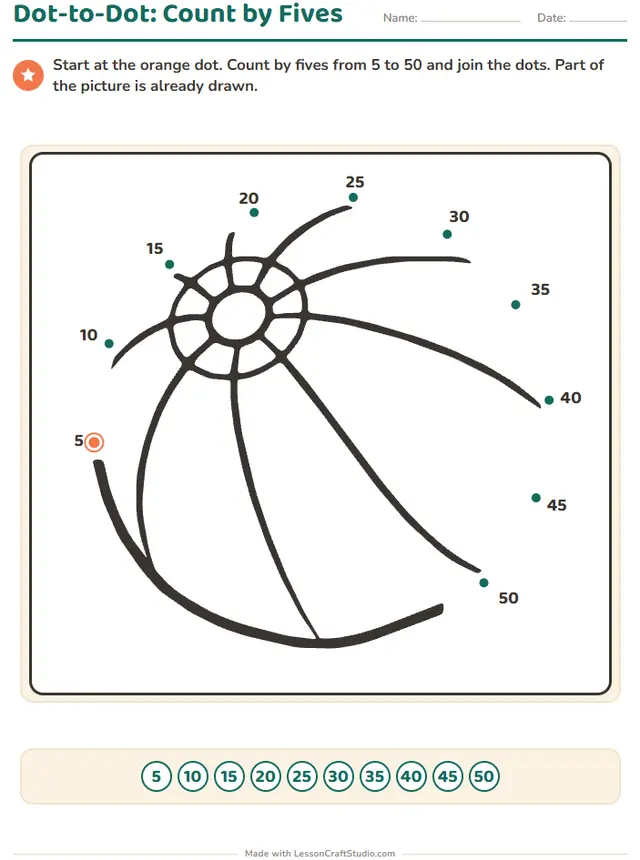 Dot-to-Dot: Count by FivesStart at the orange dot. Count by fives from 5 to 50 and join the dots. Part of the picture is already drawn.
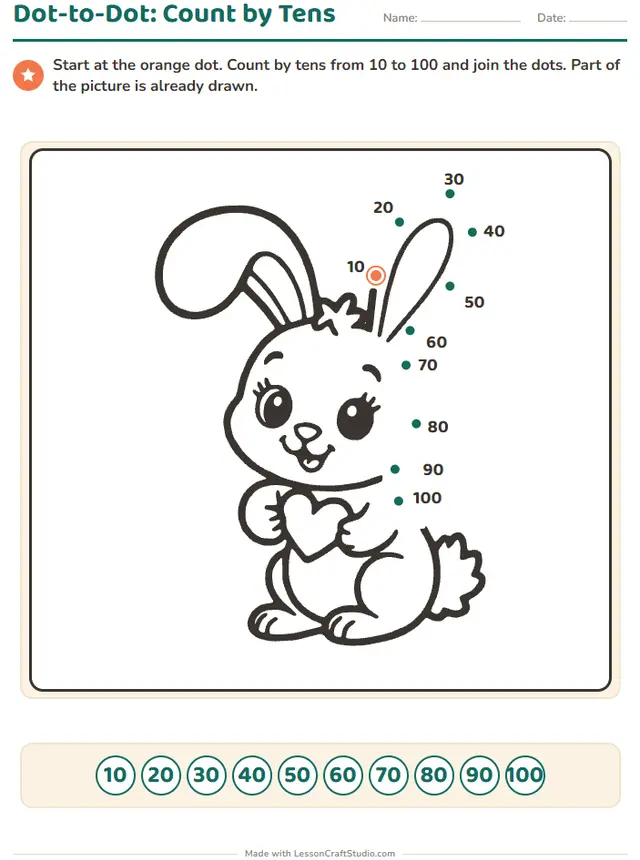
- Dot-to-Dot: Count by TensStart at the orange dot. Count by tens from 10 to 100 and join the dots. Part of the picture is already drawn.
Grade 1
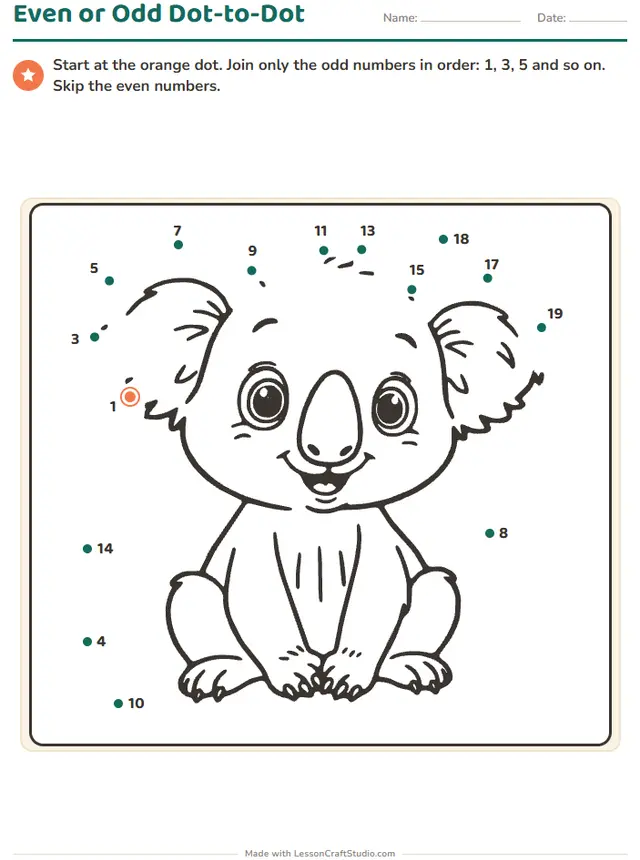 Even or Odd Dot-to-DotStart at the orange dot. Join only the even numbers in order: 2, 4, 6 and so on. Skip the odd numbers.
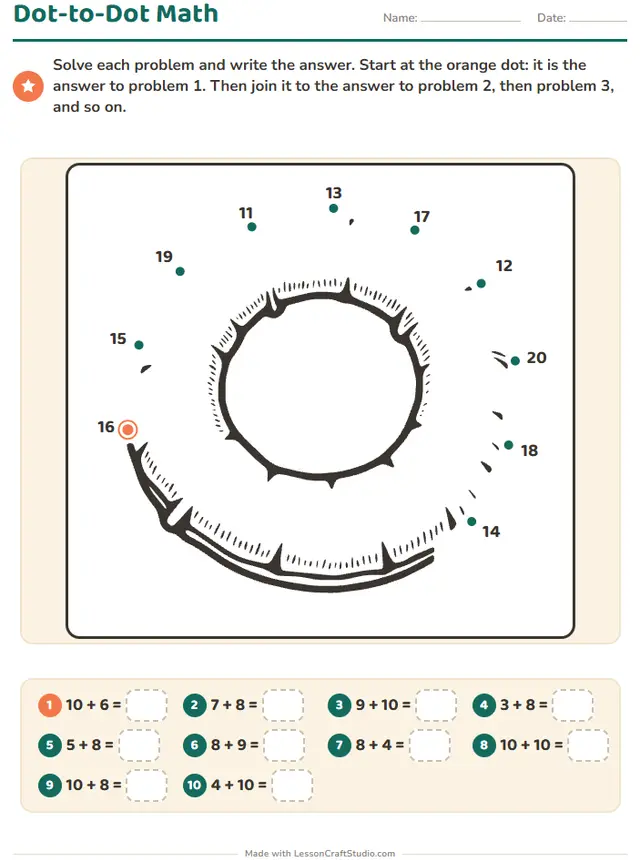 Also on screenDot-to-Dot MathSolve each problem and write the answer. Start at the orange dot: it is the answer to problem 1. Then join it to the answer to problem 2, then problem 3, and so on.
Ready to print in about a minute
- Pick a worksheetEvery worksheet in this maker is a click away, with a real sample of each.
- Make it yoursSet the level and click any word or title on the page to change it.
- Print it or share itDownload the PDF with its answer key, or send children the screen version by link.
What children practice
- Saying the number sequence in order
- Counting back and skip counting
- Following the alphabet in capital and small letters













Start with a free account
When you want to make more, one plan opens every maker and everything else on the site.
Free account
No card needed
- Make 3 new worksheets a month
- Download 3 PDFs a month
- Look at every template in every maker
Teacher plan
$69 a year, or $8.99 a month
- Make as many worksheets as you like
- Print and download without limits
- Save your worksheets and come back to them
- Share with your class by link or QR code
Questions teachers ask
Can I use this worksheet maker for free?
Yes. You can look at all 15 worksheets without an account. A free account lets you make 3 new worksheets and download 3 PDFs a month. The Teacher plan removes those limits.
Which grades is it for?
The worksheets here are made for: Kindergarten, Grade 1. Where a worksheet has levels, you can move it up or down to fit each child.
Does it make answer keys?
Yes. Every worksheet in this maker comes with an answer key.
Can children do these worksheets on a screen?
Yes. 1 of the 15 worksheets also work on screen, where children tap, drag or type and see if they are right. They carry the mark “Also on screen” above.
Which languages can I use?
This maker works in English, Deutsch, Español, Nederlands, Italiano, Français, Português, Svenska, Dansk, Norsk, Suomi. Each language has its own words and school conventions.
Can I save my worksheets and share them?
Yes, with the Teacher plan. You keep your worksheets in your account, come back to change them, and share them with your class by link or QR code. Children need no account.