Tutorial
1
Open the Alphabet Train Maker
Navigate to the Alphabet Train Maker page and click the launch button to open the generator in your browser. The tool loads instantly with a settings sidebar on the left and a live preview canvas on the right. No account creation, no software download, no installation required.
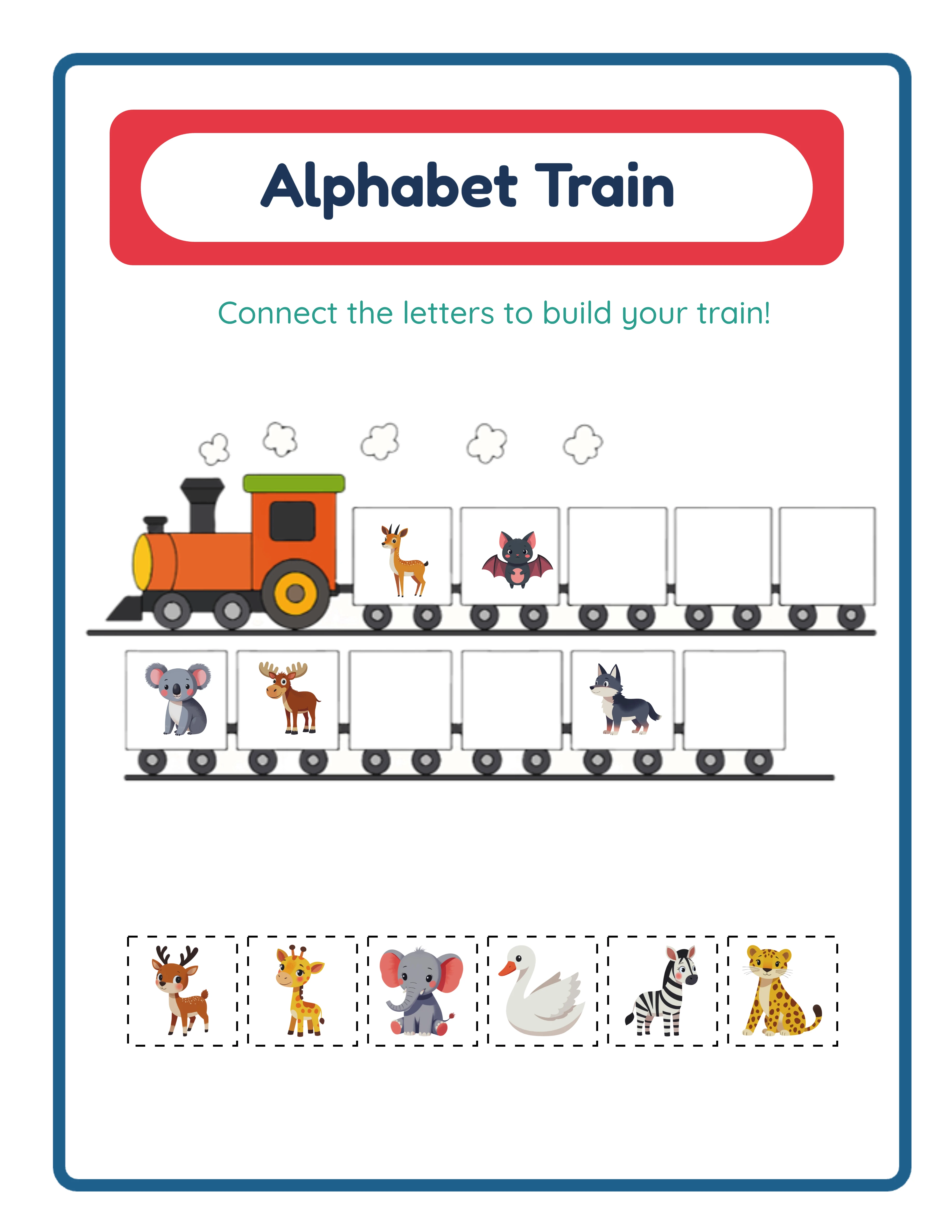
The canvas shows the alphabet train worksheet preview that updates as you change settings. The settings sidebar contains all the controls you need: creation mode selection, letter and image configuration, clue count slider, page layout options, font and text settings, and export controls. Take a moment to explore the sidebar panels to familiarize yourself with the available options before starting your first worksheet.
The Alphabet Train Maker uses a Fabric.js canvas that provides professional layout tools including 6 alignment options plus center-on-page, layers with lock and unlock for individual elements, zoom from 25 to 300 percent, and undo/redo with 50 states. These tools give you precise control over the final worksheet layout without needing external design software.
2
Set the Page Layout
In the Page Setup section, select your page size. Options include Letter Portrait, Letter Landscape, A4 Portrait, A4 Landscape, Square (1200 by 1200 pixels), and custom dimensions. Letter is standard for North American buyers on Etsy and Gumroad. A4 is standard for European and international markets. Creating both versions doubles your addressable market with minimal additional effort.
Set your page background color for the base canvas. Then add a themed background pattern from the background library with an adjustable opacity slider ranging from 0 to 1 in increments of 0.05. A subtle background at 15 to 25 percent opacity adds visual warmth without competing with the colorful train wagons. Layer a decorative border from the border library at 80 to 100 percent opacity for a polished frame that makes your worksheet look professionally designed.
Background and border themes work independently, so you can mix and match combinations freely. Consistent background and border pairings across a product bundle create a cohesive look that buyers associate with quality. The train-wagon format already creates a visually distinctive worksheet, so subtle backgrounds and clean borders complement rather than overwhelm the design.
3
Choose Your Creation Mode
The Alphabet Train Maker offers two creation modes, and selecting the right one determines your production workflow and the type of product you create.
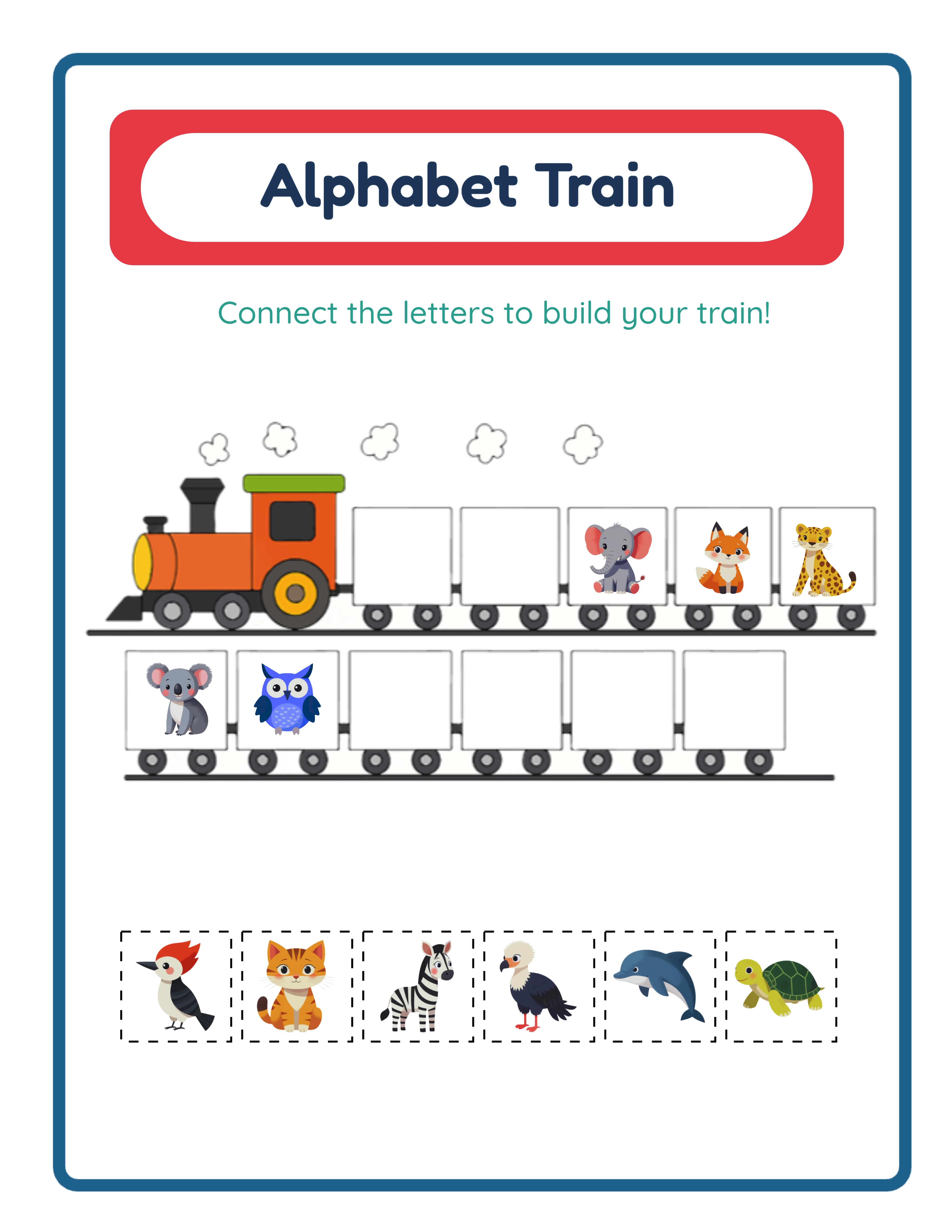
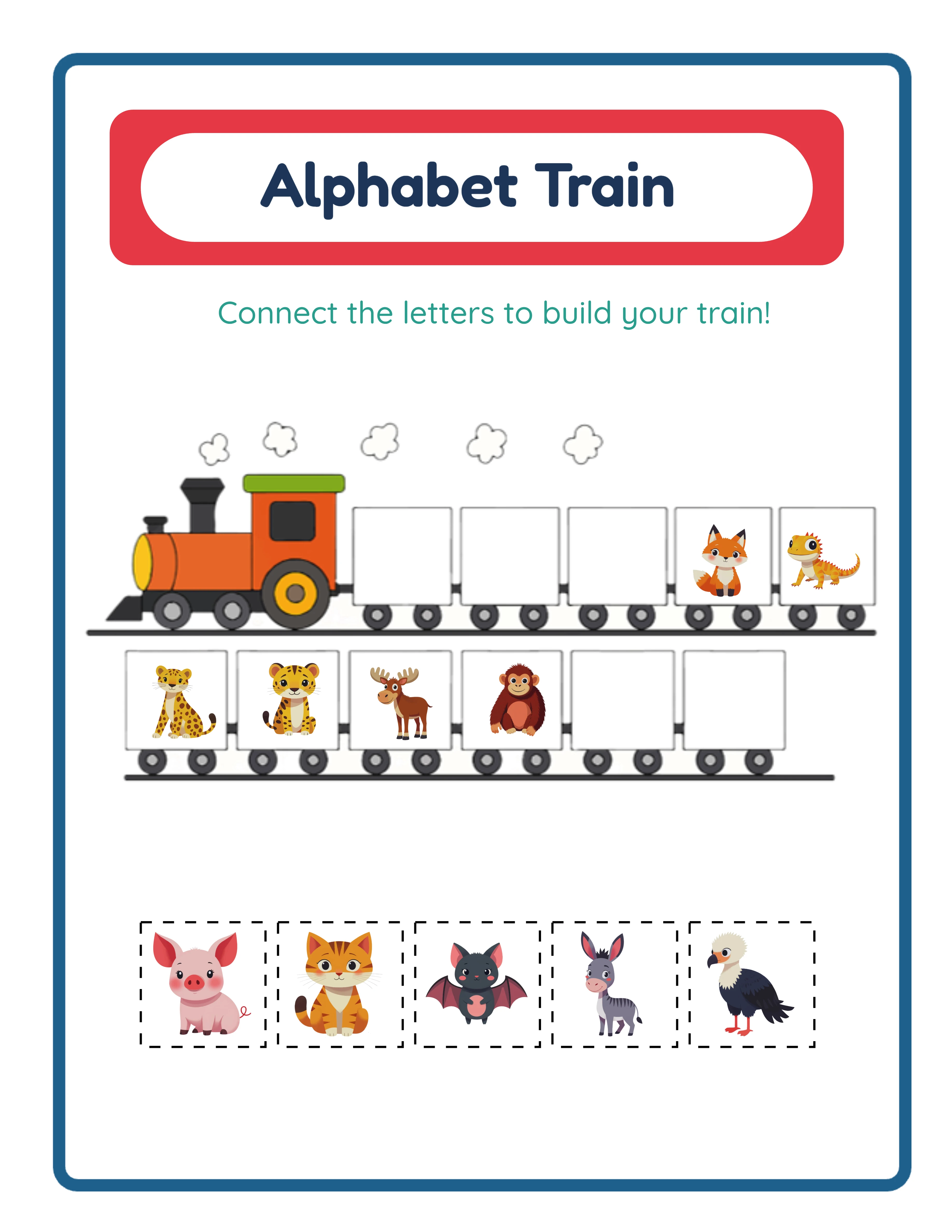
Auto Create mode randomly picks 11 letters from the selected language's alphabet and automatically assigns matching images from the chosen theme. Every click of Generate produces a completely different letter set with different image assignments. This mode is ideal for rapid batch production: generate 10, 15, or 20 unique worksheets in minutes, each with a different combination of letters and images. Auto Create is your go-to mode for building variety packs, themed bundles, and high-volume KDP workbooks where you need many unique pages quickly.
Manual Selection mode displays the full alphabet grid for the selected language and lets you hand-pick exactly 11 letters. The grid adapts to each language — German shows 30 letters including Ä, Ö, Ü, and ß; Swedish shows 29 letters including Å, Ä, and Ö; Spanish includes Ñ. Click exactly 11 letters to fill the train wagons, then assign images individually for precise control. This mode is essential for curriculum-aligned products: create worksheets targeting only vowels, only consonants, specific letter groups from a phonics program, or letters learners commonly confuse such as b and d or p and q.
Both modes produce the same colorful 11-wagon train format with the same professional output quality. The difference is speed versus precision. Use Auto Create when quantity and variety matter most, and Manual Selection when specific letter content matters most. Many successful sellers use both: Auto Create for their bulk variety packs and Manual Selection for their premium curriculum-aligned sets.
4
Select Letters for the Train
In Manual Selection mode, the full alphabet grid for your selected language appears in the sidebar. Each letter displays as a clickable tile. Click exactly 11 letters to fill the train wagons — the tool tracks your selection count and confirms when all 11 slots are filled.
The alphabet grid automatically adapts to the selected language with the correct native character set and ordering. English displays 26 letters (A through Z). German displays 30 letters including the umlauted vowels Ä, Ö, Ü and the eszett ß in their proper positions. Swedish displays 29 letters with Å, Ä, and Ö at the end of the alphabet as Swedish convention requires. Spanish includes Ñ between N and O. Every supported language uses its correct native ordering, so worksheets are linguistically authentic, not English alphabets with extra characters appended.
Strategic letter selection creates premium products. Select only vowels (A, E, I, O, U) plus 6 consonants for a vowel-focused worksheet. Select commonly confused letter pairs (b/d, p/q, m/n) for a remediation worksheet. Select the letters covered in weeks 1 through 3 of a phonics curriculum for a scope-and-sequence aligned product. These precision-targeted worksheets serve specific instructional needs that generic random-letter worksheets cannot, and buyers willingly pay more for materials that align with their teaching sequence.
In Auto Create mode, letter selection is automatic. The tool randomly picks 11 letters from the full alphabet each time you generate. Skip this step entirely when using Auto Create — the tool handles everything.
5
Select Images and Theme
Open the Image Library panel and browse 104 themed collections with over 3,100 colorful illustrations. Categories span animals, food, vehicles, nature, holidays, professions, sports, seasons, and dozens more. Use the search bar to find specific themes quickly.
Each image automatically pairs with the correct letter based on the selected language. This is the language-sensitive matching system that makes alphabet train worksheets genuinely different across languages. A dog image pairs with D in English because "dog" starts with D. Switch to German, and the same dog image pairs with H because "Hund" starts with H. Switch to French, and it pairs with C for "Chien." Switch to Spanish, and it pairs with P for "Perro." The same image set produces authentically different worksheets in every language because the letter-image pairings change based on each language's vocabulary. This is not just translated labels — the puzzle content itself changes.
Upload your own PNG or JPEG images alongside library content for branded designs. Custom uploads create unique products that no competitor can replicate: branded mascot alphabet trains, branded homeschool materials, and personalized family activity sheets become exclusive products impossible to find elsewhere.
Images with colorful, distinct illustrations work best for alphabet train worksheets because each image must be immediately recognizable so solvers can identify the starting letter. The 104 themed collections are curated for clarity and visual appeal at worksheet print sizes.
6
Configure Clue Count and Name/Date Fields
The clue count slider is the built-in difficulty system that creates natural product tiers from a single worksheet design. Adjust the slider between 3 and 11 to control how many matching clue images appear alongside the train.
At 3 clues, only 3 of the 11 wagons have a matching image task. The remaining 8 wagons display letters and illustrations without requiring a match. This is the easiest level, ideal for the preschool-age market who are just beginning to associate letters with sounds. The reduced cognitive load lets the younger audience focus on a small number of matches without feeling overwhelmed.
At 5 to 7 clues, roughly half the wagons have matching tasks. This intermediate range suits kindergarten through 1st grade levels who have some letter familiarity and can handle a moderate matching challenge. Most general-purpose alphabet products target this range for the broadest buyer appeal.
At 9 to 11 clues, nearly every wagon requires a match. This is the hardest level, suited for advanced kindergartners and 1st graders who need comprehensive letter-recognition practice. Worksheets at this level function as assessments where solvers demonstrate knowledge of most letters in the set.
This three-tier difficulty system translates directly into product design. Create the same themed worksheet at 3, 7, and 11 clues to produce an easy, medium, and hard version in seconds. Package all three as a differentiated set that buyers can assign based on target ability. Differentiated products command premium pricing on Gumroad and Etsy because they save buyers the work of creating leveled materials themselves.
Toggle name and date fields on or off depending on your target market. Structured worksheets benefit from name/date fields for accountability and grading. Digital download products sold to parents often look cleaner without them.
7
Customize Text and Fonts
Choose from 7 font families to match your product's visual style and target age group. Lexend Deca offers clean, modern readability optimized for emerging readers. Baloo 2 provides a rounded, friendly appearance popular with early childhood materials. Nunito is a balanced sans-serif that works across age groups. Quicksand adds a geometric, modern feel. Fredoka delivers a playful, rounded look ideal for preschool products. Arial and Verdana provide classic, widely-recognized clarity.
Adjust text color to coordinate with your chosen background and border theme. Add a text outline from 0 to 10 for additional styling or improved readability against patterned backgrounds. Consistent font and color choices across a product bundle create a professional, branded appearance.
Use the Fabric.js canvas tools to fine-tune element placement. Six alignment options plus center-on-page let you position text and elements precisely. Lock individual elements to prevent accidental movement while adjusting others. The layer system lets you control which elements appear in front of or behind others. Zoom in to 300 percent for pixel-level precision, then zoom out to review the full worksheet. Undo and redo with 50 states lets you experiment freely without risk.
8
Generate and Download
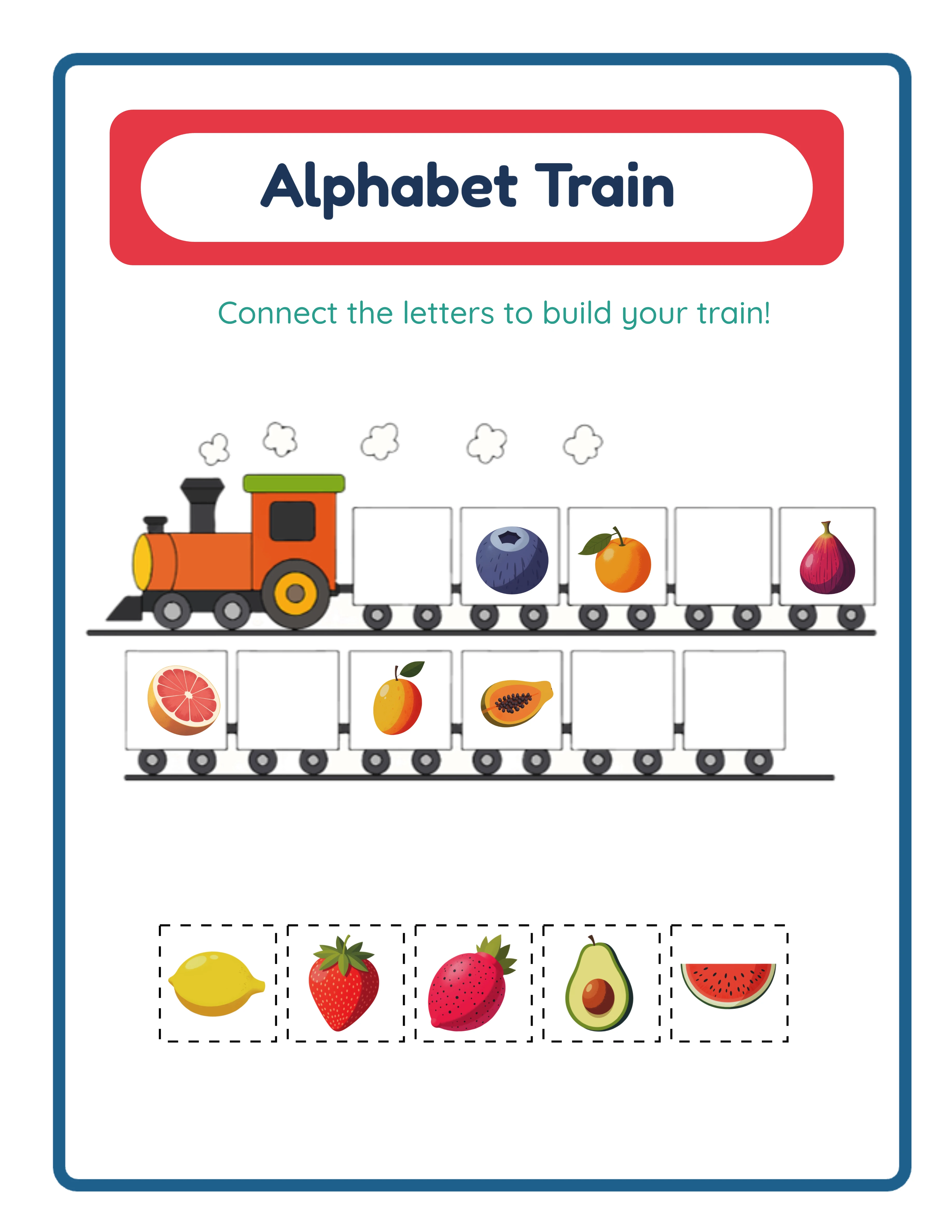
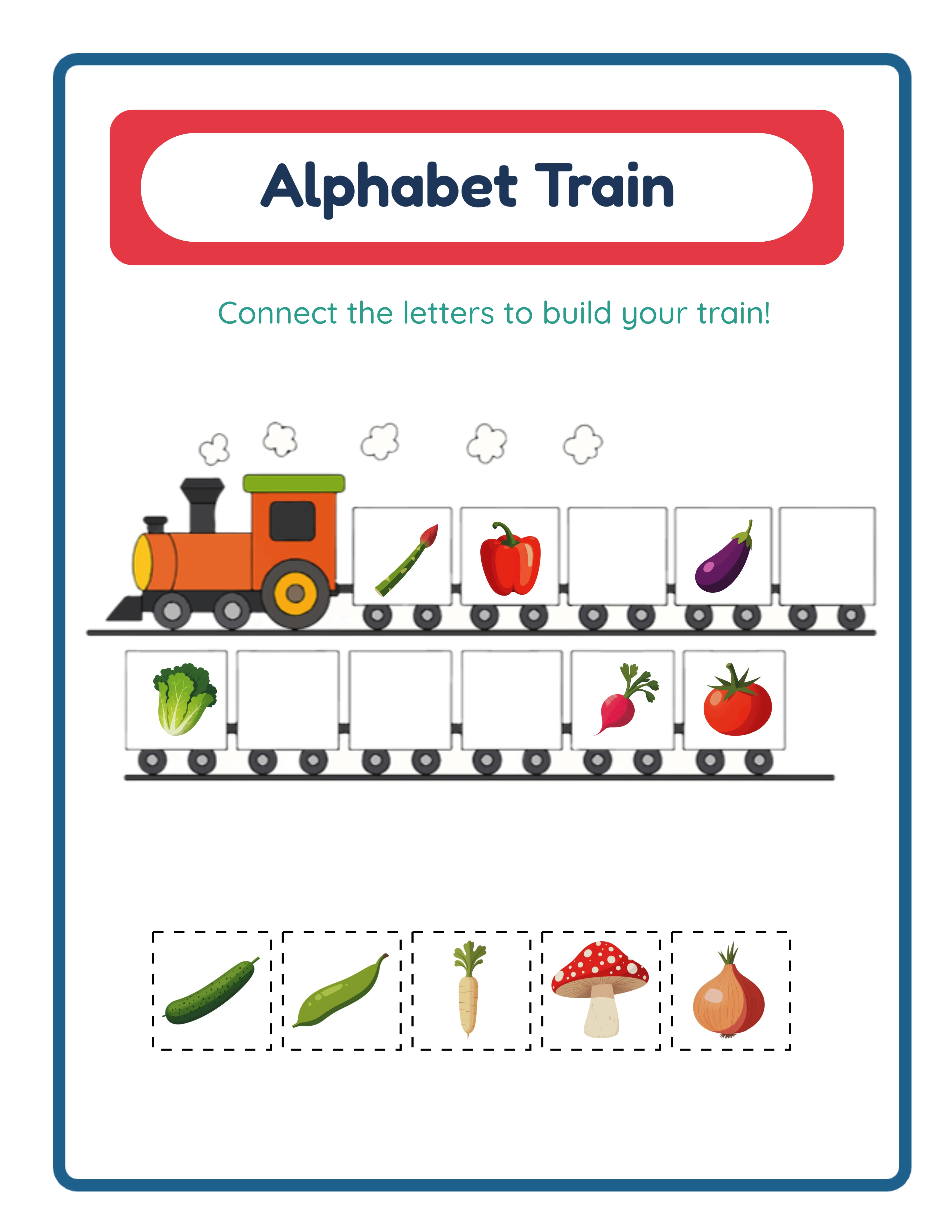
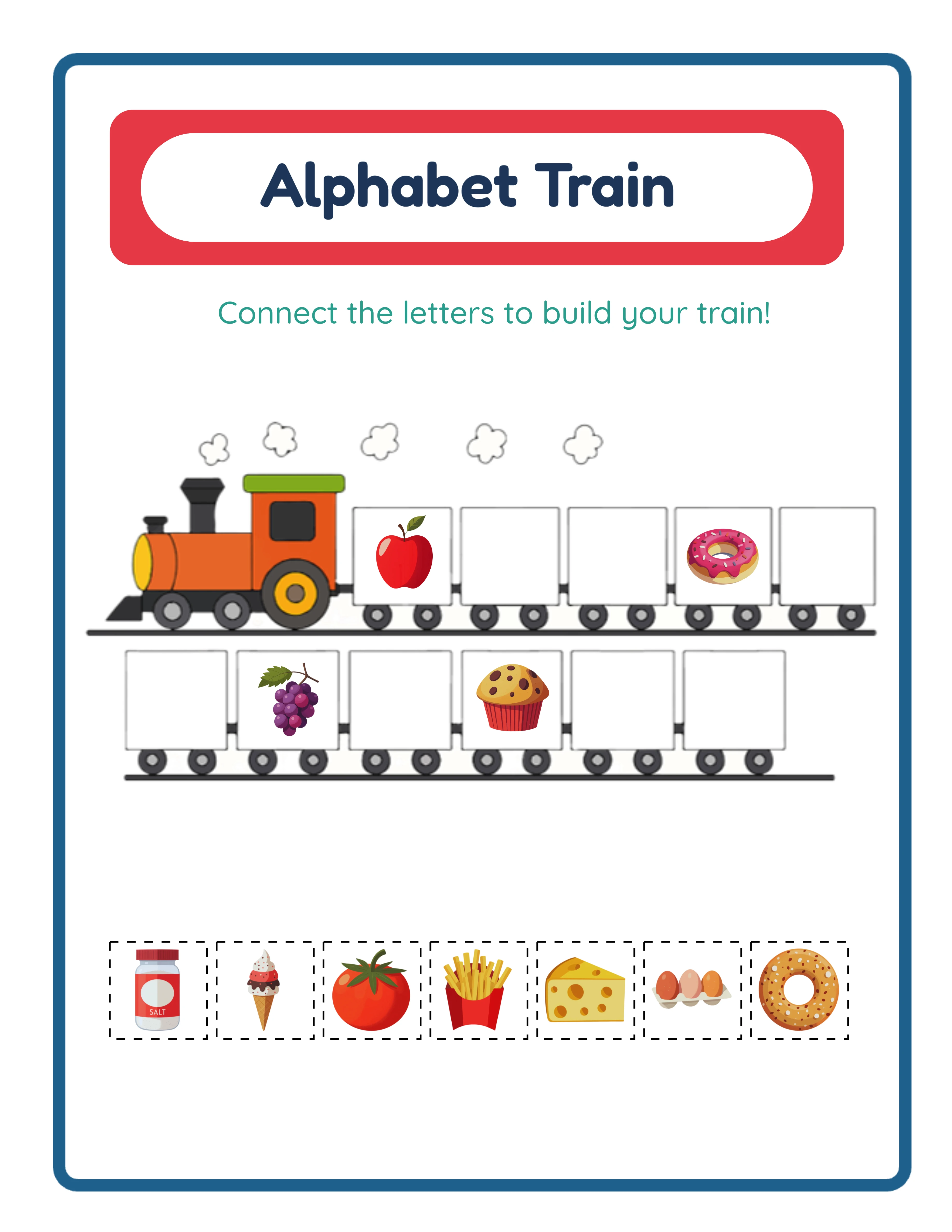
Click Generate to build the alphabet train worksheet. The canvas updates with 11 colorful train wagons, each carrying a letter and matching illustration, plus your configured number of scattered clue images. Review the preview: check that letters are correct, images are clear, clue count matches your intended difficulty, and the overall layout looks professional.
Click Generate again to produce a completely different worksheet. In Auto Create mode, each generation picks a new random set of 11 letters with new image assignments. In Manual Selection mode, each generation produces new image assignments for your selected letters. This instant regeneration enables rapid batch production — generate, review, download, repeat.
The auto-generated answer key shows each clue image connected to its correct wagon, providing a clear solution reference. Both worksheet and answer key are available as separate downloads, giving you 4 files per session: worksheet JPEG, worksheet PDF, answer key JPEG, and answer key PDF. All files render at 300 DPI for print-ready output.
Toggle grayscale before downloading for ink-friendly black-and-white versions ideal for bulk printing and Amazon KDP interiors. Grayscale alphabet train worksheets maintain full functionality because the matching task relies on image recognition and letter identification, not color.
For marketplace listings, export both PDF (as your deliverable product) and JPEG (for listing preview images and social media promotion). Show the colorful train wagon layout in your listing thumbnail — the distinctive visual format stands out against flat letter-tracing worksheet listings.
Important: the free trial with watermark produces fully functional exports with a visible watermark overlay. This lets you evaluate print quality, verify formatting, and create test prints before purchasing a commercial license. The commercial license removes the watermark from all exports, producing clean files ready for sale.
.webp)