Tutorial
1
Choose Your Difficulty Level
Difficulty in picture sudoku is determined by how many cells are left blank in the 4x4 grid. The grid always contains 16 cells total, and difficulty simply controls how many the child must fill in.
The Picture Sudoku Maker offers three difficulty levels:
Easy (4 blank cells): Twelve of the sixteen cells are pre-filled with images. The child only needs to figure out four missing pictures. With most of the grid already complete, each blank cell can typically be solved by looking at a single row or column. This level is ideal for ages 3–4 and for children encountering sudoku for the first time.
Medium (6 blank cells): Ten cells are pre-filled, leaving six blanks. Children need to use both row and column logic to determine some answers, as individual rows or columns may have two missing images. This level suits ages 4–5 and children who have mastered easy puzzles.
Hard (8 blank cells): Only eight cells are pre-filled — exactly half the grid is blank. This requires genuine deductive reasoning, where solving one cell reveals information needed for another. This level works for ages 5–7 and provides a real challenge even for children comfortable with simpler puzzles.
Difficulty level is your primary product differentiator. A single theme at three difficulty levels gives you three distinct products or one tiered bundle. Buyers specifically search for difficulty-graded materials because children progress through levels at different speeds.
2
Select a Theme from the Image Library
The theme determines which four images appear in your sudoku grid. Since a 4x4 sudoku uses exactly four unique symbols, the generator selects four images from your chosen theme to fill the grid.
The Picture Sudoku Maker includes a searchable image library with over 100 themes organized by category — animals, food, vehicles, nature, holidays, occupations, and more. Use the search field to filter themes by keyword or browse by category.
Theme selection is both a creative and a strategic decision. Each theme creates a distinct product with its own search keywords on marketplaces. "Farm animal sudoku for kids" and "dinosaur sudoku puzzles preschool" target completely different search queries, meaning each themed product reaches a different audience.
When choosing themes, consider image clarity at the grid cell size. The four images need to be easily distinguishable from each other when printed at roughly one inch square. Themes with visually distinct items — like farm animals (cow, pig, chicken, horse) or fruits (apple, banana, orange, grapes) — work better than themes where items look similar at small sizes.
The commercial license includes 10 themed image sets. The Full Access license unlocks over 100 themes. Each theme is a potential product line — one theme at three difficulty levels with both letter and A4 sizes gives you six unique products from a single theme selection.
3
Choose Images for Your Puzzle
After selecting a theme, you need exactly four unique images for the sudoku grid. The generator provides three ways to source these images:
Theme library: Select a theme and the generator automatically provides four images from that set. This is the fastest workflow for batch production.
Individual image selection: Browse the full image library with filtering and search to hand-pick four specific images from any theme or combination of themes. This gives you creative control over exactly which images appear in the grid.
Custom upload: Upload your own images to use in the puzzle. This is valuable for creating branded products or using images that match a specific buyer niche not covered by the built-in library.
The four images you select become the "vocabulary" of the puzzle — they replace the numbers 1 through 4 in traditional sudoku. Each image appears exactly four times in a completed grid (once in every row and once in every column). Children learn to recognize that every row and column must contain all four images, which is the core logic skill picture sudoku teaches.
For marketplace products, choose images that are instantly recognizable and visually appealing to children. Bold, colorful images with clear outlines perform best. Avoid images that are too detailed or too similar to each other, as children need to distinguish them quickly while solving the puzzle.
4
Set Page Size and Orientation
Page size and orientation affect both the puzzle layout and your target market.
The Picture Sudoku Maker supports four page size options: US Letter Portrait, US Letter Landscape, A4 Portrait, and A4 Landscape. You can also set custom dimensions for specialized formats.
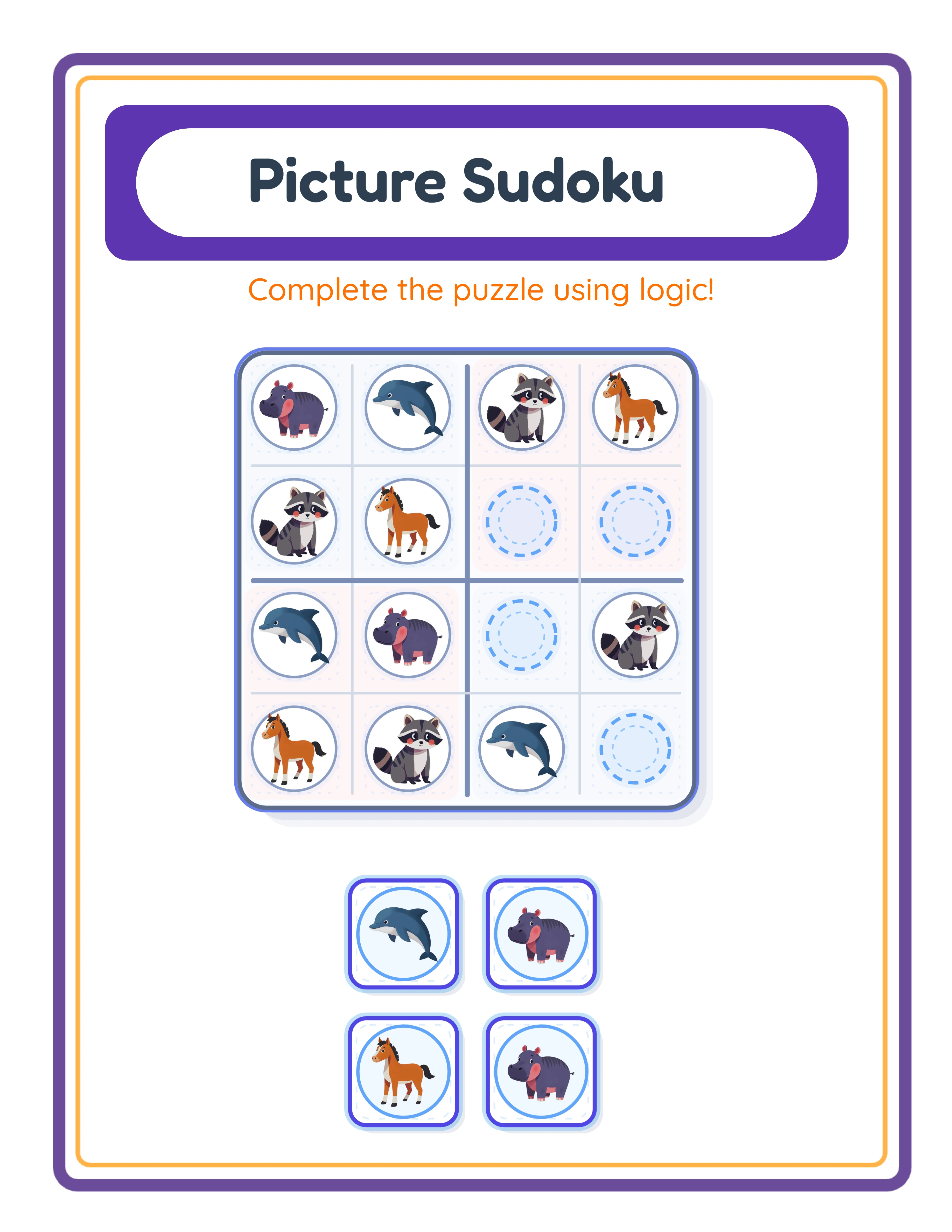
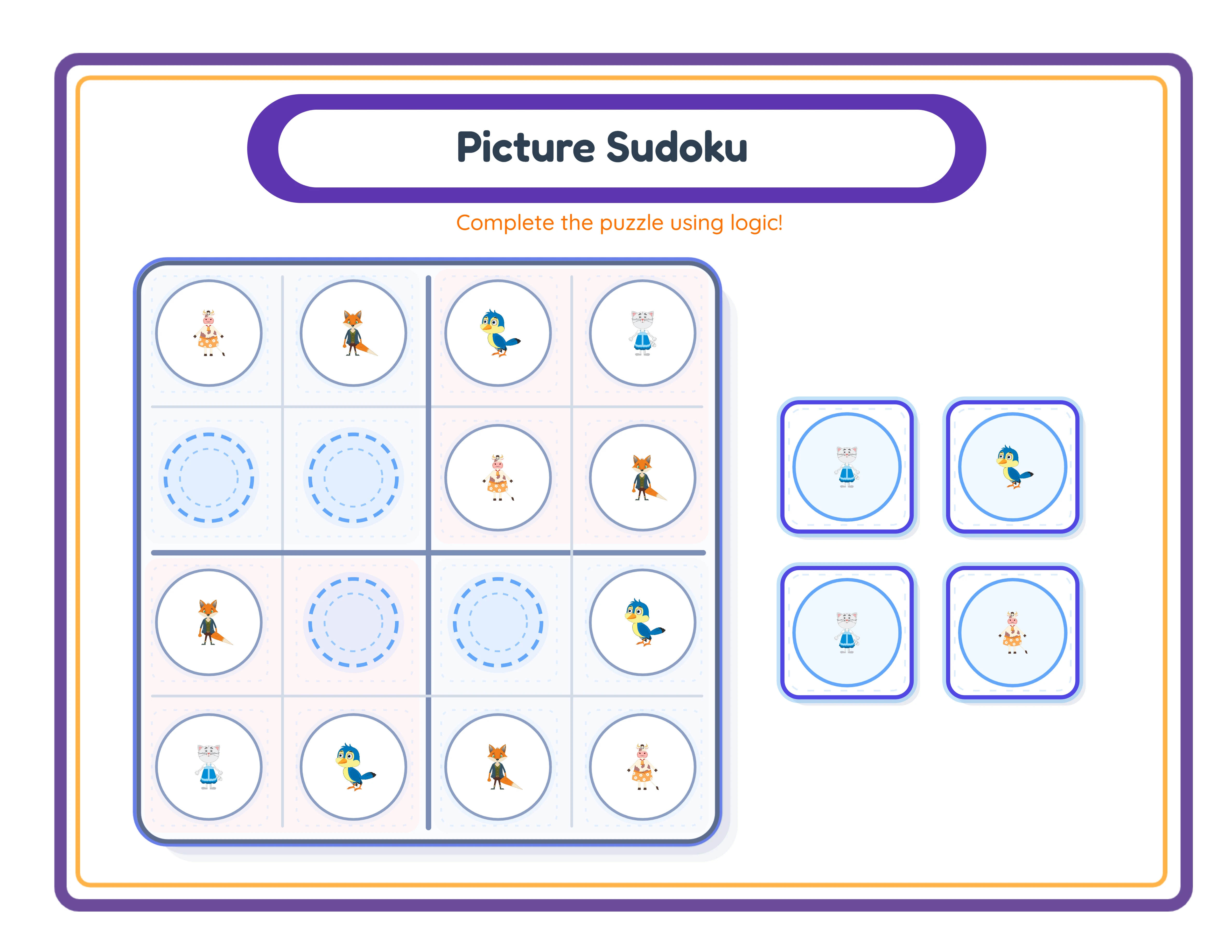
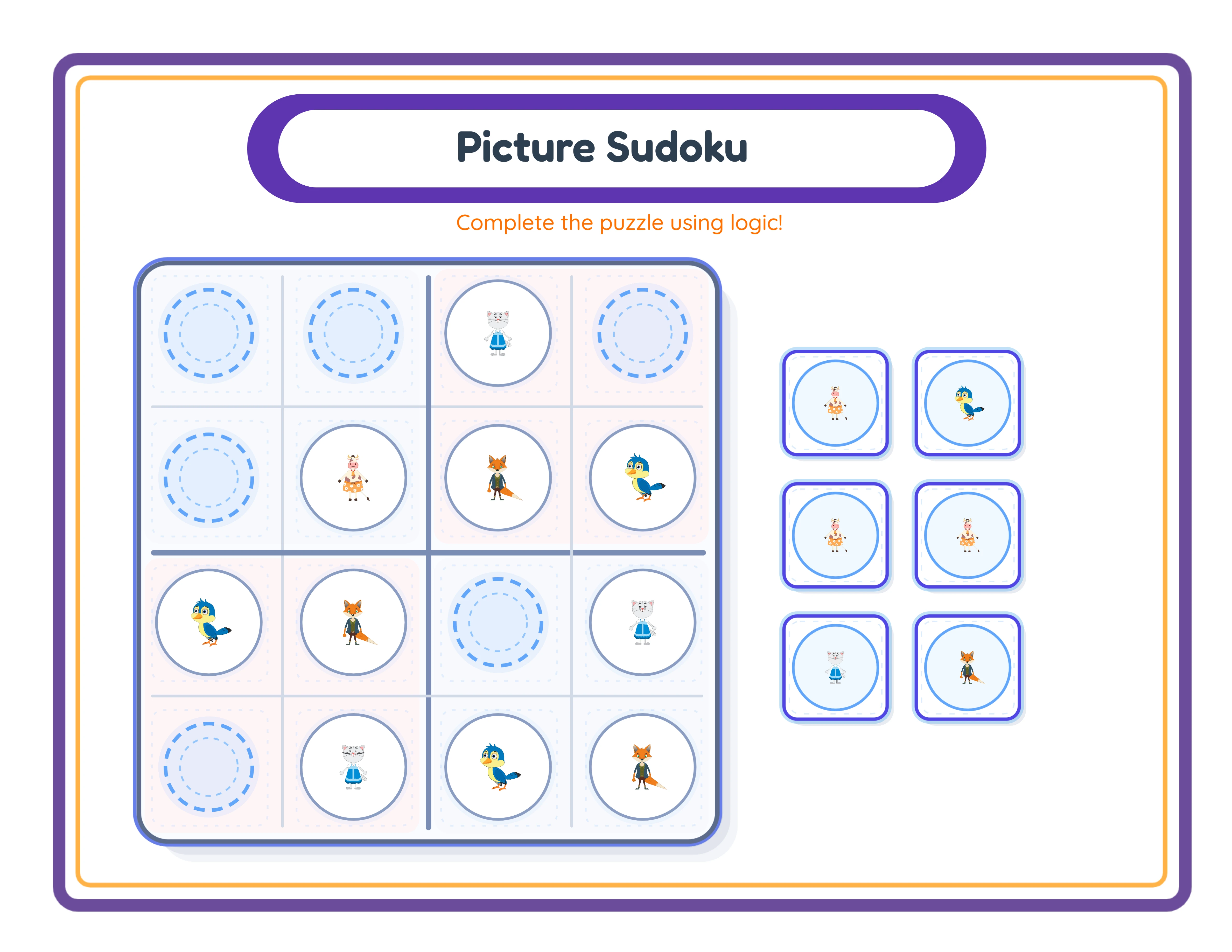
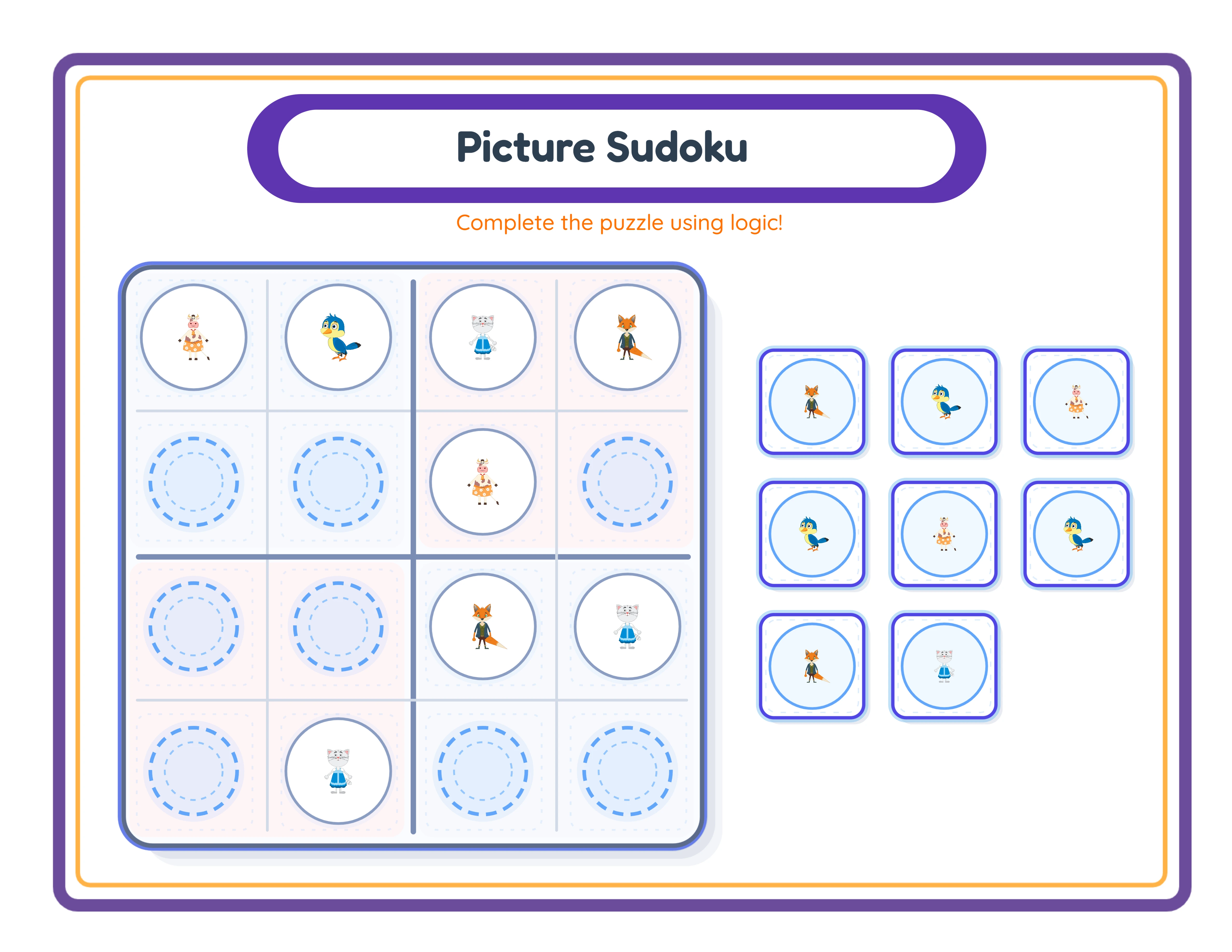
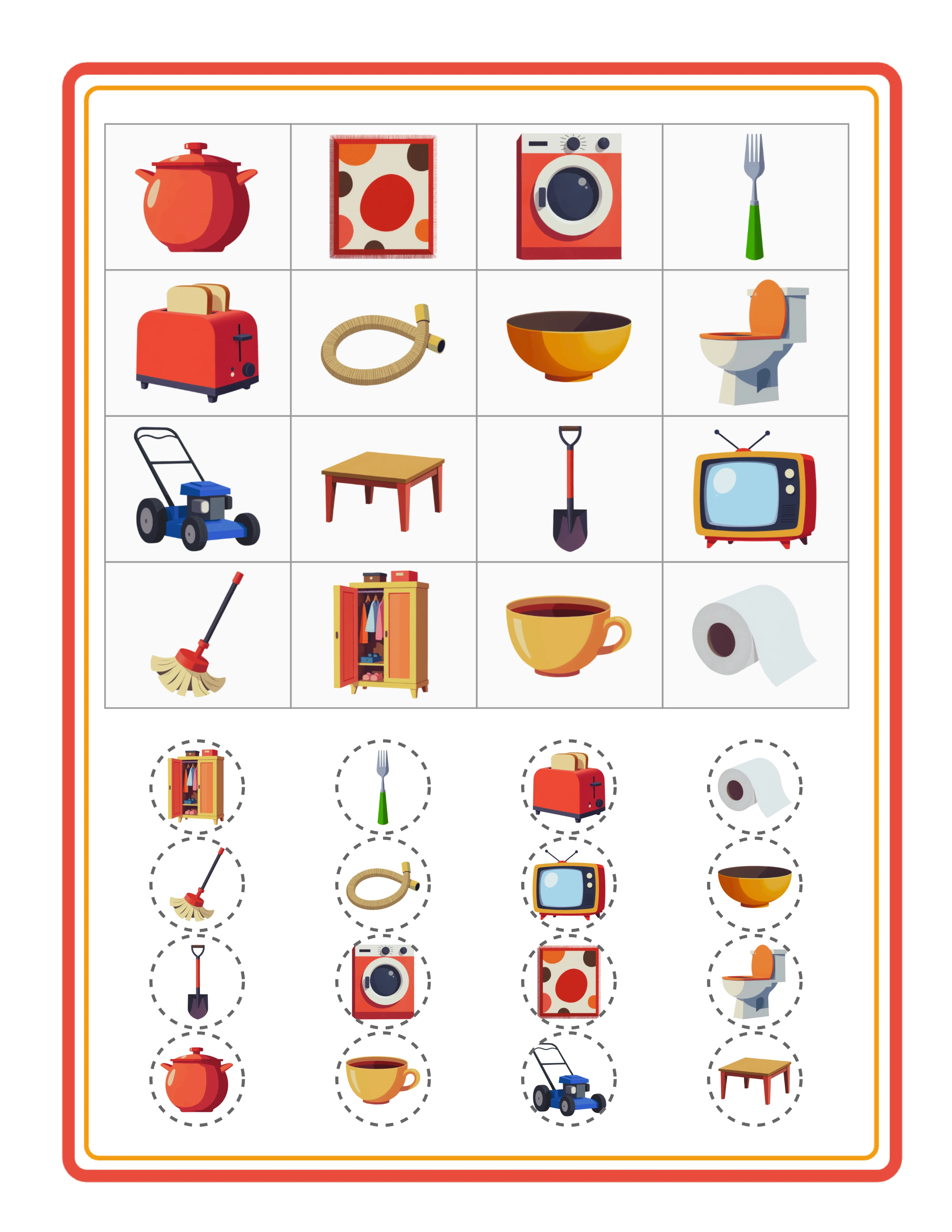
Orientation has a significant impact on puzzle layout. In landscape mode, the generator places the 4x4 grid on the left side of the page and the cutout area on the right. The cutout area contains the images children need to cut out or reference when solving the puzzle. In portrait mode, the grid sits at the top of the page with the cutout area below.
Landscape orientation generally works better for picture sudoku because the grid and cutout area sit side by side, making it easier for young children to reference both while solving. Portrait orientation works well when the puzzle will be included in a bound workbook or when page orientation needs to match other materials in a bundle.
For maximum market reach, create both US Letter and A4 versions of every puzzle. US Letter (8.5 x 11 inches) is standard in North America. A4 (210 x 297 mm) is standard everywhere else. List them as separate products or bundle both sizes together. This doubles your international appeal with minimal additional effort, since the generator handles all layout adjustments automatically.
5
Generate the Worksheet
With your difficulty, theme, images, and page size configured, click Create Worksheet to generate the puzzle.
The generator builds a valid 4x4 sudoku solution — a grid where each row and column contains all four images exactly once. It then removes cells according to your difficulty setting (4, 6, or 8 blanks) while ensuring the puzzle has a unique solution. The blank cells appear empty in the grid, and the cutout area shows the images children use to fill in the missing spaces.
Examine the generated puzzle on the canvas:
Check the grid: Are all pre-filled images clearly visible? Are blank cells obviously empty? Is the grid large enough for young children to work with?
Check the cutout area: Does it show the correct number of images matching the blank cells? Are the cutout images the same size as the grid images so children can match them easily?
Check the overall layout: Is there enough white space around the grid? Does the puzzle look clean and uncluttered? Young children need generous spacing to focus on the logic without visual distraction.
If anything needs adjustment, modify your settings and regenerate. The canvas updates instantly, so you can iterate quickly. Each regeneration creates a new valid puzzle with different image placements, giving you unlimited unique puzzles from the same configuration.
6
Customize with Text, Background, and Border Themes
The generator automatically adds a locale-aware header with a title and description above the puzzle. This header translates automatically into 11 languages based on the locale setting — English, German, French, Spanish, Portuguese, Italian, Dutch, Swedish, Danish, Norwegian, and Finnish.
You can edit both the title and description text directly on the canvas. Replace the default text with something specific to your product: "Animal Sudoku — Easy Level" or add instructions like "Place one of each animal in every row and column."
The Text Tool provides additional customization. Seven font families are available: Lexend Deca, Baloo 2, Nunito, Quicksand, Fredoka, Arial, and Verdana. Adjust font size, color, and outline settings to match your brand or product style. Use Fredoka or Baloo 2 for a playful, engaging look. Use Lexend Deca or Quicksand for a clean, modern feel.
Background and border themes add visual polish without cluttering the puzzle itself. Select from available themes and adjust opacity to keep decorative elements subtle. A light background pattern with a colorful border frame transforms a plain worksheet into a professional-looking product that stands out in marketplace listings.
The canvas also includes layer management, alignment tools, lock/unlock for elements, and undo/redo — giving you full control over the final layout. Position text elements precisely, layer decorative elements behind the puzzle grid, and lock finished elements to prevent accidental changes while you continue editing.
7
Generate the Answer Key
Click Create Answer Key to generate the solution for your puzzle. The answer key shows the complete 4x4 grid with all images filled in, including the cells that were blank on the worksheet.
The answer key is essential for marketplace products. Two buyer segments rely on it:
Buyers use answer keys for quick verification when checking completed puzzles. A puzzle product without an answer key is noticeably less appealing to purchasers.
Parents use answer keys to help their children when they get stuck. Rather than solving the puzzle themselves, parents can glance at the answer key and offer hints.
The answer key mirrors the worksheet layout — same page size, same grid position, same styling. The only difference is that all cells are filled. This makes it easy to compare the child's work against the solution by placing the pages side by side.
For product listings, always mention that answer keys are included. "With answer key" is a frequently searched qualifier on Etsy and other marketplaces. Including it in your product title and description improves search visibility and buyer confidence.
8
Export as Print-Ready PDF and JPEG
The export section provides four download buttons:
Worksheet JPEG: A high-resolution image of the puzzle. Use this for marketplace listing previews, social media posts, and digital product thumbnails.
Worksheet PDF: The professional print-ready format. PDF maintains exact formatting across all devices and printers. This is the standard format marketplace buyers expect for downloadable printable products.
Answer Key JPEG: The solution as an image file, useful for preview images and digital bundles.
Answer Key PDF: The solution in print-ready format, included alongside the worksheet PDF in your product download.
A grayscale toggle is available for ink-saving versions. Grayscale puzzles are popular with buyers who print in bulk on black-and-white printers. Consider offering both color and grayscale versions as a product bundle or listing the grayscale version as a separate product targeting bulk printing.
For marketplace listings, export both formats. The PDF is your deliverable product that buyers download and print. The JPEG serves as your listing preview image so buyers see exactly what they are purchasing.
Important: the free trial with watermark produces fully functional exports with a visible watermark overlay. This lets you evaluate print quality, verify puzzle formatting, and create test prints before purchasing a commercial license. The commercial license removes the watermark from all exports, producing clean files ready for sale.

.webp)